You Might Also Like
Learn Coding Visually
Learn to code with interactive, live-preview playgrounds — HTML, CSS, JavaScript, React & more.
 HTML Playground42 lessons · Click-based · Live preview
 CSS PlaygroundLearn CSS with a live editor
 JavaScript Playground60 lessons · DOM · Async · Canvas
 React PlaygroundLearn React with a live code editor
 GSAP PlaygroundLearn GSAP animation interactively
 SVG Playground44 lessons · shapes · paths · animation
 SCSS Playground45 lessons · Sass modules · tokens
 Tailwind PlaygroundLearn Tailwind CSS with a live editor
 Bootstrap 5 Playground50 lessons · live preview
Pull Quote — Free HTML CSS JS Blockquote Snippet
Pull Quote · Layouts · Plain HTML, CSS & JS · Live preview
What's included
Features
About this UI Snippet
Pull Quote — Editorial Blockquote with Author Byline and Copy-to-Clipboard
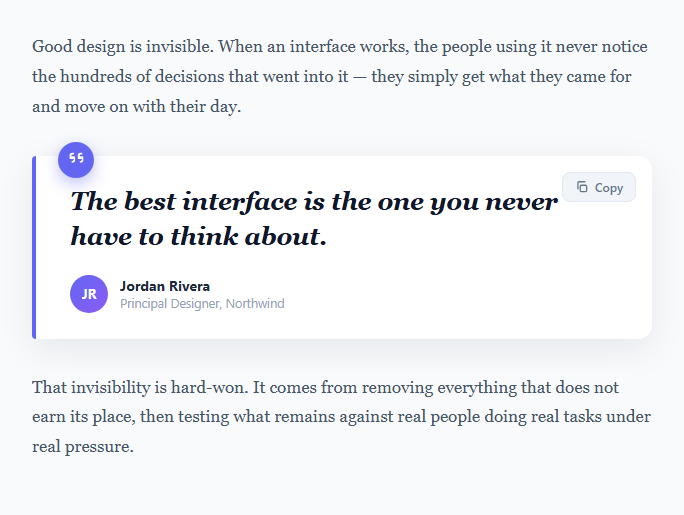
The pull quote is a publishing staple: a sentence lifted out of the body copy, enlarged and set apart so a skimming reader catches the single idea that matters most. Newspapers, long-form articles, case studies, and marketing pages all use it to break up dense text and give the eye a place to rest. This component implements the pattern the way modern editorial sites do — a card with a coloured accent rule, a floating quotation-mark badge, the quote in a large italic serif, an author byline with an avatar, and a copy-to-clipboard button so readers can share the line in one click. It is built entirely in semantic HTML, CSS, and a few lines of vanilla JavaScript with no dependencies.
Semantic HTML structure
The markup uses the correct elements for the job, which matters for both accessibility and SEO. The quote lives inside a <figure> element, the quote text itself is a <blockquote>, and the attribution sits in a <figcaption> — the same structure the HTML spec recommends for quotations with a visible source. Screen readers announce the figure as a self-contained unit, and search engines can associate the citation with the quoted text. The surrounding body paragraphs use plain <p> tags so the pull quote reads as a genuine interruption of the article flow rather than a detached widget.
The floating quotation-mark badge
The decorative quote mark is an inline <svg> positioned with position: absolute and pulled up out of the card with a negative top: -14px. It sits inside a circular indigo badge with a soft drop shadow, half-overlapping the top edge of the card. This overlap trick — an element straddling a container border — is a common editorial flourish that adds depth without an image. Because the mark is SVG, it stays razor-sharp at any zoom level and inherits the accent colour, so re-theming the component is a one-line change.
Typography and the accent rule
The quote text uses a large italic serif at 25px with tightened letter-spacing and a line-height of 1.42 — values chosen so two or three lines of text feel like a deliberate, composed statement rather than running prose. A 4px indigo border-left runs down the card with an asymmetric border-radius (square on the accent side, rounded on the other) so the rule reads as a margin marker, the way a highlighter or editor's pen would mark an important passage. The body paragraphs deliberately use a muted slate colour while the quote is near-black, creating the contrast that makes the eye jump to the quote first.
Copy-to-clipboard with a robust fallback
Clicking the Copy button writes the quote plus its attribution to the clipboard using the asynchronous navigator.clipboard.writeText() API. Because that API only works in secure contexts (HTTPS or localhost), the handler wraps it in a try/catch and falls back to the legacy approach: it creates a hidden <textarea>, selects its contents, and calls document.execCommand('copy') before removing the element. This two-tier strategy means the button works in modern browsers, older browsers, and insecure preview iframes alike.
Confirmation feedback and state reset
On a successful copy the button gains a .copied class that swaps the clipboard icon for a green checkmark and changes the label to "Copied" — using a pure-CSS icon swap (display: none toggled by the class) rather than rebuilding DOM. A setTimeout reverts the button to its idle state after 1.8 seconds, and the timer is cleared on every click with clearTimeout so rapid repeated clicks never leave the button stuck in a half-reset state. To customise the component, edit the quote text, the byline name and role, the avatar initials, and swap the #6366f1 accent for your brand colour — the badge, rule, and avatar gradient all reference it.
Build with AI
Build, Understand, Optimize, and Extend It With AI
You don't have to work out the clipboard fallback chain by hand. Paste this snippet's HTML, CSS, and JS into an AI coding assistant like Claude and ask it to explain exactly why the copy handler wraps navigator.clipboard.writeText in a try/catch and falls back to a hidden textarea with document.execCommand('copy'), or how the floating quotation-mark badge achieves its half-overlapping position using a negative top offset against the card's border. The same assistant can help optimize it, for example checking whether the resetTimer's clearTimeout call fully guards against rapid repeated clicks leaving the button in an inconsistent state, or whether the SVG icon swap could be simplified. It's just as useful for extending the component: ask it to add a "copy as markdown" or "copy as tweet" mode, wire the byline avatar to a real photo with a graceful fallback, or animate the accent border when the quote scrolls into view. Treat the code less like a finished artifact and more like a starting point for a conversation.
Prompt to recreate it
Copy this into your AI assistant of choice to build the effect from scratch, or as a jumping-off point for your own variant:
Build an editorial "pull quote" component in plain HTML, CSS, and JavaScript with no framework and no libraries.

Requirements:
- Use the semantically correct elements: a figure element wrapping the whole quote block, a blockquote element for the quoted text itself, and a figcaption for the author attribution — not generic divs.
- A decorative quotation-mark icon (inline SVG) positioned absolutely inside a circular badge that visually straddles the top edge of the quote card, achieved with a negative top offset so it overlaps the card border rather than sitting fully inside or outside it.
- An accent border-left on the card with an asymmetric border-radius (square corners on the accent side, rounded on the opposite side) so it reads as a margin marker rather than a plain box.
- An author byline showing an initials avatar (a gradient-background circle with two-letter initials, not an image) alongside the author's name and role.
- A copy-to-clipboard button that copies the quote text plus its attribution as one formatted string, using the asynchronous navigator.clipboard.writeText API as the primary path, wrapped in a try/catch that falls back to creating a hidden, off-screen textarea element, selecting its content, and calling the legacy document.execCommand('copy') when the async API is unavailable or blocked.
- On successful copy, the button must swap its icon (via a CSS class toggle switching which of two sibling SVGs is displayed, not by replacing DOM nodes) and its label text to a confirmation state, then automatically revert to the idle state after roughly 1.8 seconds using a timer that is cleared and restarted on every click so rapid repeated clicks never leave the button stuck.
Want to tighten it up first? Run this prompt through the AI Prompt Studio to score it across 8 quality dimensions, catch anti-patterns, and tune the wording for Claude, ChatGPT, or Gemini before you paste it in.
Step by step
How to Use
- 1Paste the HTML, CSS, and JSAn article with two body paragraphs and a highlighted pull quote between them renders immediately — quotation-mark badge, italic quote, author byline, and a Copy button.
- 2Replace the quote and attributionEdit the text inside the <blockquote>, then update the byline name, role, and the two-letter avatar initials in the <figcaption>.
- 3Click Copy to test the clipboardThe button copies the quote plus author to the clipboard, turns green, shows a checkmark, and reads "Copied" for 1.8 seconds before resetting.
- 4Recolour to your brandSwap the #6366f1 accent used by the border rule, badge, and avatar gradient for your own colour to match your design system.
- 5Use a real photoReplace the initials .pq-avatar span with an <img> set to object-fit: cover for a real author headshot.
- 6Drop it into article markupPlace the <figure> anywhere inside flowing body copy; it is self-contained and inherits the page width up to its 620px max.
Real-world uses
Common Use Cases
Got questions?
Frequently Asked Questions
Edit the writeText() argument in the JS. It currently copies '"<quote>" — Jordan Rivera'. You can append your article URL, a hashtag, or a "via @handle" so the pasted text is ready to share. To build a Twitter/X intent link instead, set the button to window.open('https://twitter.com/intent/tweet?text=' + encodeURIComponent(quote.textContent)) rather than copying.
Semantic elements give the quote meaning, not just appearance. <blockquote> tells assistive technology and search engines that the text is a quotation, and <figcaption> associates the author with it. This improves accessibility (screen readers announce it as a quote) and can help search engines display the attribution correctly. A styled div looks the same but carries none of that meaning.
navigator.clipboard.writeText() only works in a secure context (HTTPS or localhost) and in sandboxed iframes it can be blocked. That is why the handler includes a fallback that creates a hidden textarea and calls document.execCommand('copy'). If both fail in a restricted sandbox, the visual "Copied" feedback still fires; copying will work normally once the page is served over HTTPS.
Replace the <span class="pq-avatar">JR</span> with <img class="pq-avatar" src="author.jpg" alt="Jordan Rivera"> and add object-fit: cover to the .pq-avatar rule so the photo fills the circle without distortion. Keep the gradient background as a fallback shown behind transparent or slow-loading images.
The markup and CSS port unchanged — only the copy handler moves into the framework. In React, store a "copied" boolean in useState and call navigator.clipboard.writeText in the onClick, toggling the class; in Vue, use a ref and @click; in Angular, a component property and (click). Use a ref/template ref to read the blockquote text rather than document.getElementById, and clear the reset timeout in a cleanup (useEffect return / onUnmounted / ngOnDestroy).