You Might Also Like
Learn Coding Visually
Learn to code with interactive, live-preview playgrounds — HTML, CSS, JavaScript, React & more.
 HTML Playground42 lessons · Click-based · Live preview
 CSS PlaygroundLearn CSS with a live editor
 JavaScript Playground60 lessons · DOM · Async · Canvas
 React PlaygroundLearn React with a live code editor
 GSAP PlaygroundLearn GSAP animation interactively
 SVG Playground44 lessons · shapes · paths · animation
 SCSS Playground45 lessons · Sass modules · tokens
 Tailwind PlaygroundLearn Tailwind CSS with a live editor
 Bootstrap 5 Playground50 lessons · live preview
Tip Calculator — Free HTML CSS JS Snippet
Tip Calculator · Forms · Plain HTML, CSS & JS · Live preview
What's included
Features
About this UI Snippet
Tip Calculator — Preset Tips, Custom %, Bill Split, and Live Per-Person Totals
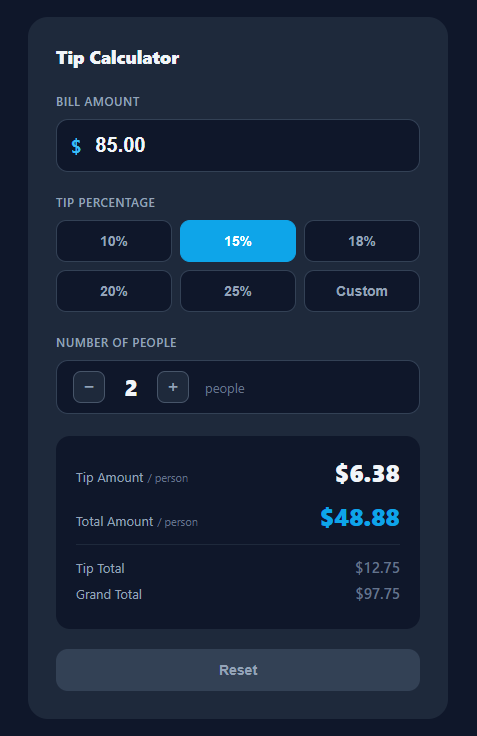
A tip calculator is a simple but highly-used utility component for restaurant billing, group dining (split the total with the split payment calculator), and service tip scenarios. This snippet provides a complete dark-themed tip calculator with a bill amount input, six tip preset buttons (10%, 15%, 18%, 20%, 25%, Custom), a people counter with a +/− stepper, and a results panel showing tip per person, total per person, tip total, and grand total — all updating live on every input change.
The tip percentage toggle system
The six tip buttons use a shared .active class to highlight the selected preset. setTip(btn, pct) removes .active from all buttons and adds it to the clicked one, then stores the selected percentage in the tipPct variable and calls calc(). The Custom button shows a hidden input field and sets up an inline oninput handler that reads the custom percentage and calls calc().
The bill split calculation
calc() reads the bill amount, multiplies by tipPct/100 to get the tip, adds to get the total, then divides both by the people count. All four output fields (tip/person, total/person, tip-total, grand-total) are updated in a single pass. toFixed(2) ensures two decimal places consistently.
The people counter
changePeople(delta) increments or decrements the people count, enforcing Math.max(1) so it cannot go below 1. The counter display and all result calculations update immediately.
The reset function
reset() clears the bill input, restores tipPct to 15, people to 2, re-applies the 15% active class, hides the custom input, and zeroes out all result displays. This pattern — resetting to known defaults rather than re-rendering — avoids a full component re-render in vanilla JS.
Input validation and edge cases
The bill input uses type="number" with min="0" and step="0.01" to prevent negative values and accept decimal inputs at the browser level. calc() applies parseFloat(value) || 0 as a safe fallback so that a blank or invalid input produces 0 rather than NaN. Division by the people count is always safe because changePeople() enforces a minimum of 1 via Math.max(1, people + delta). These three guards — || 0, min="0", and Math.max(1) — prevent all common calculation edge cases without a separate validation library.
Rounding and floating-point precision
toFixed(2) converts the calculated float to a two-decimal-place string, which is correct for currency display. However, floating-point arithmetic can produce values like 106.99999999 rather than 107.00. For financial calculations where exact rounding matters, multiply all values by 100 to work in integer cents, perform integer arithmetic, then divide by 100 at display time. For a tip calculator the visual difference is imperceptible, but in invoice or payment processing contexts always use integer cent arithmetic or a library like Decimal.js.
Build with AI
Build, Understand, Optimize, and Extend It With AI
Ask an AI coding assistant like Claude to walk through why calc() reads every input fresh and rewrites all four result fields in one pass rather than tracking dependent values incrementally — that stateless recompute-everything pattern is the whole reason this small script never gets out of sync. It's worth asking about the floating-point angle too: toFixed(2) looks fine for a $85 bill, but ask specifically when integer-cent arithmetic would actually matter and where the rounding could go wrong in a real payments context. For extending it, ask for currency selection with Intl.NumberFormat, a "round up per person" toggle that redistributes the rounding difference correctly across people, or a shareable summary that generates a per-person payment link. Treat the code less like a finished artifact and more like a starting point for a conversation.
Prompt to recreate it
Copy this into your AI assistant of choice to build the effect from scratch, or as a jumping-off point for your own variant:
Build a tip calculator in plain HTML, CSS, and JavaScript with bill input, preset and custom tip percentages, a people splitter, and live per-person totals — no framework.

Requirements:
- A bill amount input (type number, min 0, step 0.01) that recalculates every result on every input event.
- A row of preset tip percentage buttons plus a "Custom" option; clicking a preset immediately sets the active tip percentage and moves a visual active state to that button, while clicking Custom reveals a separate percentage input that becomes the live source of the tip percentage as the user types in it.
- A people counter with increment and decrement buttons that clamps at a minimum of 1 person (never allowing zero or negative), immediately recalculating all totals when it changes.
- A single calculation function that, on every relevant change, reads the current bill, tip percentage, and people count fresh from their sources, computes the tip amount and grand total from scratch, and writes all four results — tip per person, total per person, tip total, and grand total — in one pass, each formatted to exactly two decimal places.
- Guard every numeric read with a safe fallback to zero (so an empty or invalid bill input never produces NaN anywhere in the results) and confirm the people-count guard prevents any possible division by zero.
- A reset button that restores the bill field to empty, the tip percentage to its original default, the people count to its original default, hides the custom input, and zeroes every displayed result — without reloading the page.
Want to tighten it up first? Run this prompt through the AI Prompt Studio to score it across 8 quality dimensions, catch anti-patterns, and tune the wording for Claude, ChatGPT, or Gemini before you paste it in.
Step by step
How to Use
- 1Enter the bill amountType the bill total in the $ input field. All results update immediately as you type.
- 2Choose a tip percentageClick one of the six preset tip buttons (10%, 15%, 18%, 20%, 25%) or click Custom to enter your own percentage in the input that appears.
- 3Set the number of peopleUse the + and − buttons to set how many people are splitting the bill. The per-person totals update automatically.
- 4Read the resultsThe results panel shows tip per person and total per person (large), plus tip total and grand total (smaller). All four update live.
- 5Reset for a new calculationClick the Reset button to clear the bill, restore defaults (15% tip, 2 people), and zero the results.
- 6Export for your frameworkClick "JSX" for a React component using useState for bill, tipPct, and people. Click "Vue" for a Vue 3 SFC with reactive refs.
Real-world uses
Common Use Cases
Got questions?
Frequently Asked Questions
When Custom is clicked, setCustom() adds .active to that button and sets the hidden #customTip input to display: block. It then attaches an inline oninput handler that reads the entered percentage, stores it in tipPct, and calls calc(). The input disappears when a preset button is clicked via setTip(). To improve UX, call ci.focus() immediately after showing the input so the cursor lands in the field without an extra click. Add a min="0" max="100" constraint on the input element so browsers enforce the range at the HTML level. In the oninput handler, further clamp with Math.min(100, Math.max(0, parseFloat(ci.value) || 0)) to handle cases where the user pastes a value outside the valid range, preventing negative tip percentages or values above 100% from producing unexpected results.
Use Intl.NumberFormat: const fmt = new Intl.NumberFormat("en-US", { style: "currency", currency: "USD" }); Then replace all "$" + value.toFixed(2) calls with fmt.format(value). For other currencies, pass currency: "EUR" etc.
Use const [bill, setBill] = useState(85); const [tipPct, setTipPct] = useState(15); const [people, setPeople] = useState(2). Compute derived values: const tip = bill * tipPct / 100; const total = bill + tip; const tipPP = tip / people; const totalPP = total / people. Render all four directly in JSX — no separate calc() call needed. Use useMemo to memoize the computed values if the component has many siblings re-rendering: const results = useMemo(() => ({ tip, total, tipPP, totalPP }), [bill, tipPct, people]). For the custom tip input, manage a separate const [customMode, setCustomMode] = useState(false) flag that shows or hides the custom input field and switches the tipPct to the custom value.
A people variable holds the split count and calc() divides both the tip and the total by it: tip / people goes to #tipPerPerson and (bill + tip) / people goes to #totalPerPerson, each formatted with toFixed(2). The full-table figures are written alongside to #tipTotal and #grandTotal, so the card always shows per-person and whole-bill numbers at once. The plus/minus stepper just increments or decrements people (clamped to a minimum of 1) and calls calc() again.
The presets are plain buttons that call setTip(this, pct) with the percentage inline — <button class="tip-btn" onclick="setTip(this,18)">18%</button> — so editing the numbers in the markup is the whole job. setTip() stores the value in tipPct, moves the .active class to the clicked button, hides the custom input, and re-runs calc(). Keep the button label and the argument in sync, and keep the Custom option last so users can still enter any value your presets don't cover.