You Might Also Like
Learn Coding Visually
Learn to code with interactive, live-preview playgrounds — HTML, CSS, JavaScript, React & more.
 HTML Playground42 lessons · Click-based · Live preview
 CSS PlaygroundLearn CSS with a live editor
 JavaScript Playground60 lessons · DOM · Async · Canvas
 React PlaygroundLearn React with a live code editor
 GSAP PlaygroundLearn GSAP animation interactively
 SVG Playground44 lessons · shapes · paths · animation
 SCSS Playground45 lessons · Sass modules · tokens
 Tailwind PlaygroundLearn Tailwind CSS with a live editor
 Bootstrap 5 Playground50 lessons · live preview
Restaurant Table Reservation Form — Free Booking Form Snippet
Restaurant Table Reservation Form · Forms · Plain HTML, CSS & JS · Live preview
What's included
Features
About this UI Snippet
Restaurant Table Reservation Form — Party Size, Date, Slots, Confirmation
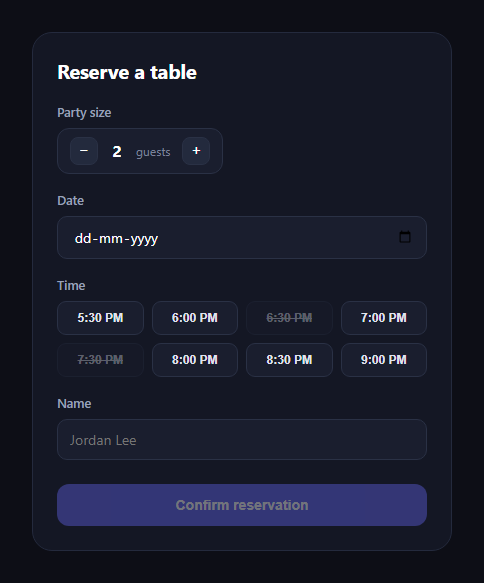
The table reservation form is the booking widget restaurant sites use to take a reservation in one screen — how many guests, which date, which time slot, and a name — before flipping to a confirmation summary. This snippet builds the whole flow in plain HTML, CSS, and JavaScript, no dependencies.
A stepper instead of a number input
Party size uses two buttons around a live count rather than a native <input type="number">, which is easier to tap on mobile and lets you clamp the range (1 to 12 here) with disabled states at each bound rather than relying on min/max validation messages that vary across browsers.
Time slots as a button grid, some disabled
Times render as a grid of toggle buttons rather than a <select>, so the full state is visible at a glance — full slots carry disabled plus data-full="true" and get a struck-through, dimmed style, while open slots toggle an aria-pressed state on click. Only one slot can be selected at a time; clicking a new one clears the previous aria-pressed flag first.
Validation gates the submit button
The confirm button starts disabled and validate() re-checks after every relevant change — date filled, a time slot chosen, a name typed — enabling the button only once all three are satisfied. This gives instant feedback without a separate error-message pass, appropriate for a short form like this one.
A real confirmation state, not just a toast
Submitting swaps the form out (hidden) for a confirmation card summarizing name, party size, formatted date, and time — mirroring what a real booking flow does before emailing a receipt. A "Book another table" button resets every piece of state (stepper, slots, form fields, disabled submit) and swaps back to the form.
Accessible by default
The time slot grid uses role="radiogroup" semantics via aria-pressed toggle buttons, guest stepper buttons carry aria-labels, and the date field is a native <input type="date"> so it gets the browser's own accessible date picker rather than a custom-built one.
Customizing it
Wire the slots to a real availability API, add a party-size cap per time slot, or add a special-requests textarea. Pair it with a time slot picker, availability scheduler, or date picker for related booking patterns.
Build with AI
Build, Understand, Optimize, and Extend It With AI
Rather than piecing together the validation and confirmation logic yourself, paste this snippet's HTML, CSS, and JS into an AI coding assistant like Claude and ask it to walk through how validate() re-checks the party size, date, and selected time slot after every relevant change to decide when the submit button should enable, and why the time slots use toggle buttons with aria-pressed rather than radio inputs or a select element. It's also a good assistant for extending the form — ask it to wire the slot grid to a real availability API so full slots are computed rather than hardcoded, add a special-requests textarea, or add email/SMS confirmation copy to the confirmation card. Use it to adapt the booking logic to your backend rather than shipping the static demo data.
Prompt to recreate it
Copy this into your AI assistant of choice to build the effect from scratch, or as a jumping-off point for your own variant:
Build a "restaurant table reservation form" in plain HTML, CSS, and JavaScript with no external dependencies.

Requirements:
- A party-size control using increment/decrement buttons around a live guest count (not a native number input), clamped between 1 and 12, disabling each button at its respective bound.
- A native <input type="date"> for the reservation date.
- A grid of time-slot toggle buttons (e.g. 5:30 PM through 9:00 PM in 30-minute increments). Mark two or three of them as unavailable using the disabled attribute plus a data-full flag, styled with reduced opacity and a struck-through label. The remaining slots should behave as single-select toggle buttons using aria-pressed, where clicking a new slot clears the previously selected one.
- A name text input.
- A submit button that starts disabled and only becomes enabled once a time slot is selected, a date is chosen, and the name field has a non-empty trimmed value — re-validate after every relevant change.
- On submit, prevent the default page reload, hide the form, and show a confirmation card summarizing the guest's name, formatted party size, a human-readable formatted date (e.g. via toLocaleDateString with weekday/month/day), and the selected time.
- A "Book another table" button on the confirmation card that resets all component state (stepper back to 2, cleared time selection, disabled submit button, cleared inputs) and shows the form again.
Want to tighten it up first? Run this prompt through the AI Prompt Studio to score it across 8 quality dimensions, catch anti-patterns, and tune the wording for Claude, ChatGPT, or Gemini before you paste it in.
Step by step
How to Use
- 1Paste HTML, CSS, and JSA reservation form with stepper, date, and slots renders.
- 2Adjust party size+/- buttons clamp between 1 and 12 guests.
- 3Pick a date and timeFull slots are disabled and struck through.
- 4Type a nameThe submit button enables once all fields are valid.
- 5Submit the formA confirmation card summarizes the booking.
- 6Book againThe reset button restores the form to its initial state.
Real-world uses
Common Use Cases
Got questions?
Frequently Asked Questions
Full slot buttons carry both the disabled attribute and a data-full="true" flag, and CSS applies reduced opacity plus a struck-through text style when disabled. Because they're genuinely disabled buttons, they can't receive focus or clicks, so users can't accidentally select an unavailable time.
Each slot click handler first clears aria-pressed="false" on every slot, then sets aria-pressed="true" on the clicked one and records its time in a selectedTime variable — giving single-select toggle-button behavior without native radio inputs.
A validate() function runs after every relevant input (date change, slot click, name typed) and checks that selectedTime, the date value, and a non-empty trimmed name are all present, only then removing the disabled attribute from the submit button.
The form's submit handler prevents the default page reload, populates the confirmation card's summary fields (name, formatted party size, a human-readable date via toLocaleDateString, and the selected time), then hides the form and shows the confirmation view.
Render the slot buttons from your availability API response, marking any slot the API reports as full with the disabled attribute and data-full="true" instead of hardcoding it, and keep the same click handler logic for selection.