More Forms Snippets
Front-End Coding Playgrounds
Learn to code with interactive, live-preview playgrounds — HTML, CSS, JavaScript, React & more.
 HTML Playground42 lessons · Click-based · Live preview
 CSS PlaygroundLearn CSS with a live editor
 JavaScript Playground60 lessons · DOM · Async · Canvas
 React PlaygroundLearn React with a live code editor
 GSAP PlaygroundLearn GSAP animation interactively
 SVG Playground44 lessons · shapes · paths · animation
 SCSS Playground45 lessons · Sass modules · tokens
 Tailwind PlaygroundLearn Tailwind CSS with a live editor
 Bootstrap 5 Playground50 lessons · live preview
Availability Scheduler — Weekly Time Grid HTML CSS
Availability Scheduler · Forms · Plain HTML, CSS & JS · Live preview
What's included
Features
About this UI Snippet
Availability Scheduler — Drag-to-Paint Weekly Time-Slot Grid
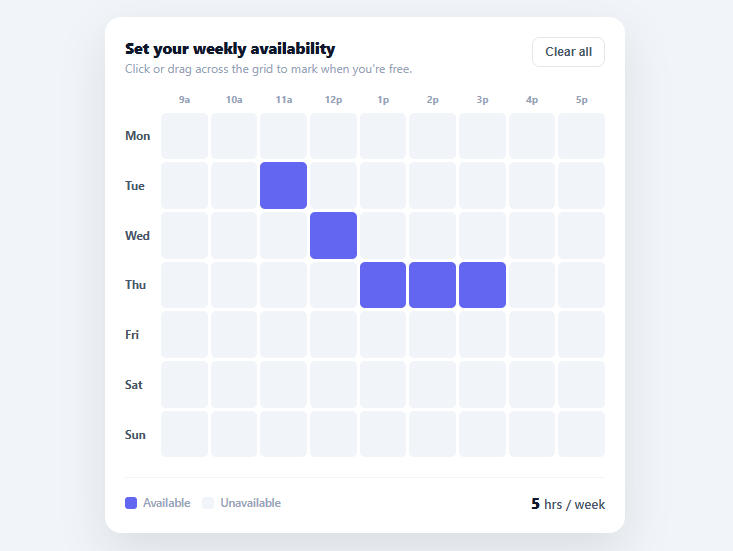
Asking someone "when are you free?" with a text box gets you vague, error-prone answers. A visual availability grid — days across one axis, hours across the other, paint the cells you're free — gets you precise, structured data in seconds. This snippet builds that weekly scheduler in plain HTML, CSS, and vanilla JavaScript, with the click-and-drag painting interaction that makes selecting a whole block of time effortless instead of a dozen individual clicks.
Drag-to-paint, the interaction that makes it fast
The core of a good availability picker is being able to drag across a range of cells rather than click each one. On mousedown, the grid records whether you're painting cells *on* or *off* based on the first cell you touch (paintValue = !selected[key]), so dragging from an empty cell fills, and dragging from a filled cell clears. As the cursor moves over more cells (mouseover while painting is true), each one gets set to that same value — so a single drag from Monday-9am to Monday-5pm marks the whole workday available in one gesture. A document-level mouseup ends the paint, so releasing anywhere stops it cleanly.
A grid built from data
The whole grid is generated from three values: a DAYS array, a START_HOUR, and a SLOTS count (9am–6pm, one cell per hour by default). build() lays it out as a CSS grid with a day-label column plus one hour-header row, and each cell carries a data-key of "day-slot". Change the days, the start hour, or the number of slots and the entire grid — labels included — regenerates. Want 30-minute granularity? Double SLOTS and adjust the label function.
Selection stored as a simple set
Selected cells live in a plain selected object keyed by "day-slot", which doubles as the data you'd submit: its keys *are* the chosen slots, and Object.keys(selected).length is the live hours total shown in the footer. There's no parallel array to keep in sync with the DOM — setCell() updates both the data and the cell's class together, so the count and the visuals never drift. Serializing this for a backend is trivial (covered in the FAQs).
Honest, scannable feedback
A legend explains the two states, and the running "hrs / week" total updates on every change so the user always knows how much availability they've committed to. The clear-all button resets both the data and the grid in one pass. Hover scales each cell slightly so the paint target is obvious, and selected cells use a solid indigo that reads clearly against the empty light-gray slots.
Touch and accessibility notes
The drag interaction is pointer-based, so it's most natural on desktop; on touch, tapping individual cells still works, and the FAQs cover adding full touch-drag with touchmove and elementFromPoint. For keyboard and screen-reader support you'd make each cell a real toggle button with aria-pressed — the data model doesn't change, only the input layer. The grid scrolls horizontally inside its wrapper so it stays usable on narrow screens without breaking the layout.
Build with AI
Build, Understand, Optimize, and Extend It With AI
Instead of tracing the mousedown/mouseover/mouseup chain by eye, paste this snippet's HTML, CSS, and JS into an AI coding assistant like Claude and ask it to explain exactly why paintValue is captured once on mousedown from the first cell touched rather than recomputed on every cell during the drag, or why the mouseup listener is bound to document instead of the grid element itself. The same assistant can help optimize it — ask whether querying grid.querySelector on every single setCell call is wasteful compared to caching cell references in an array once at build time, especially for a much larger grid. It's also a good extension partner: ask it to add real touch-drag support using touchmove and elementFromPoint, make each cell a proper button with aria-pressed for keyboard accessibility, or add a "copy Monday's pattern to every weekday" shortcut. Treat the code less like a finished artifact and more like a starting point for a conversation.
Prompt to recreate it
Copy this into your AI assistant of choice to build the effect from scratch, or as a jumping-off point for your own variant:
Build a "click-and-drag weekly availability grid" in plain HTML, CSS, and JavaScript — no libraries.

Requirements:
- Generate the entire grid from three data values: an array of day names, a starting hour, and a number of hourly slots — both the CSS grid cells and their hour/day labels must regenerate correctly if those values change, with no hardcoded HTML for individual cells.
- Each cell must carry a data attribute encoding its day and slot index, and store selection state in a single plain JavaScript object keyed by that same "day-slot" string, not in a separate array that has to be kept in sync with the DOM.
- Implement drag-to-paint: on mousedown over a cell, determine whether this drag will be turning cells on or off based on whether that first cell was already selected, then apply that same on/off value to every subsequent cell the mouse passes over (via a mouseover listener) while the mouse button is held down.
- The "mouse button released" listener must be attached to the document, not the grid, so releasing the mouse anywhere on the page (even outside the grid) correctly ends the drag.
- A live counter derived directly from the size of the selection object (not a separately maintained counter variable) must update after every cell change to show total selected hours.
- A "clear all" button must reset both the selection data and every cell's visual state in one action, and the grid must scroll horizontally inside a wrapper on narrow viewports rather than squeezing cells unreadably small.
Step by step
How to Use
- 1Paste HTML, CSS, and JSA weekly grid renders with days as rows and hours (9a–6p) as columns, all cells empty.
- 2Click a cellClick any cell to mark that day-and-hour available — it fills indigo and the weekly hours total updates.
- 3Drag to paint a blockPress and drag across cells to mark a whole range at once — dragging from an empty cell fills, from a filled cell clears.
- 4Watch the totalThe "hrs / week" counter in the footer reflects exactly how many slots are selected at all times.
- 5Clear and restartClick "Clear all" to reset the entire grid and the total in one action.
- 6Customize the gridEdit DAYS, START_HOUR, and SLOTS to change the days, time range, or granularity — the grid and labels regenerate.
Real-world uses
Common Use Cases
Got questions?
Frequently Asked Questions
The selected object's keys are already your data — each "day-slot" key (e.g. "0-3" = Monday, 4th slot) represents one available block. Serialize Object.keys(selected) directly, or map them to start/end times using START_HOUR and the slot index, and POST that array. On load, populate selected from saved data and call setCell() for each to restore the grid.
Increase SLOTS (double it for 30-minute granularity, quadruple for 15) and update the hourLabel function to compute the time from the slot index accordingly. The grid, painting, and total all derive from SLOTS, so no other code changes — just the label math and the column count.
The mouse-based paint works for taps but not touch-drag. Add touchstart/touchmove listeners that read e.touches[0].clientX/Y, call document.elementFromPoint() to find the cell under the finger, and apply setCell() with the paint value — mirroring the mouseover logic. Add touch-action: none to the grid so the page doesn't scroll mid-paint.
Render each cell as a <button> with aria-pressed reflecting its on/off state and a descriptive aria-label ("Monday 9am"), so it's focusable and toggleable with Enter/Space and announced correctly. The selected data model stays identical; only the cell element and its event wiring change.
In React, hold the selected set in useState (a Set or object) and toggle on cell events, deriving the total from its size; in Vue, use reactive() with a computed total; in Angular, use a component Set field with a getter. The paint-on-drag logic uses a "painting" flag and a captured paintValue that port directly to each framework's pointer events.