Source Code
<div class="fc-wrap">
<div class="fc-head">
<h3>Purchase Order #4471</h3>
<button type="button" id="fcAddRow">+ Add line item</button>
</div>
<div class="fc-scroll">
<table class="fc-table" id="fcTable">
<thead>
<tr>
<th>Item</th>
<th>Qty</th>
<th>Unit Price</th>
<th class="fc-formula-col">Total <span class="fc-fx" title="Computed: Qty × Unit Price">ƒx</span></th>
<th></th>
</tr>
</thead>
<tbody id="fcBody">
<tr>
<td><input type="text" value="Wireless Keyboard" data-field="item"></td>
<td><input type="number" value="4" min="0" step="1" data-field="qty"></td>
<td><div class="fc-prefix">$<input type="number" value="42.50" min="0" step="0.01" data-field="price"></div></td>
<td class="fc-total" data-field="total">$170.00</td>
<td><button type="button" class="fc-del" title="Remove row">×</button></td>
</tr>
<tr>
<td><input type="text" value="27" Monitor" data-field="item"></td>
<td><input type="number" value="2" min="0" step="1" data-field="qty"></td>
<td><div class="fc-prefix">$<input type="number" value="189.00" min="0" step="0.01" data-field="price"></div></td>
<td class="fc-total" data-field="total">$378.00</td>
<td><button type="button" class="fc-del" title="Remove row">×</button></td>
</tr>
<tr>
<td><input type="text" value="USB-C Dock" data-field="item"></td>
<td><input type="number" value="6" min="0" step="1" data-field="qty"></td>
<td><div class="fc-prefix">$<input type="number" value="59.99" min="0" step="0.01" data-field="price"></div></td>
<td class="fc-total" data-field="total">$359.94</td>
<td><button type="button" class="fc-del" title="Remove row">×</button></td>
</tr>
</tbody>
<tfoot>
<tr>
<td colspan="3">Grand Total <span class="fc-fx" title="Computed: sum of every row's Total">ƒx</span></td>
<td class="fc-grand" id="fcGrand">$907.94</td>
<td></td>
</tr>
</tfoot>
</table>
</div>
<p class="fc-note">Total and Grand Total are locked formula cells — they recalculate automatically whenever Qty or Unit Price changes.</p>
</div>* { box-sizing: border-box; margin: 0; padding: 0; }
body { font-family: system-ui, sans-serif; background: #f8fafc; padding: 26px 16px; }
.fc-wrap { max-width: 720px; margin: 0 auto; background: #fff; border: 1px solid #e2e8f0; border-radius: 14px; padding: 18px 20px; }
.fc-head { display: flex; align-items: center; justify-content: space-between; margin-bottom: 14px; }
.fc-head h3 { font-size: 15px; font-weight: 800; color: #1e293b; }
.fc-head button { border: 1px dashed #a5b4fc; background: #eef2ff; color: #4338ca; font-size: 12.5px; font-weight: 700; padding: 7px 12px; border-radius: 8px; cursor: pointer; font-family: inherit; }
.fc-head button:hover { background: #e0e7ff; }
.fc-scroll { overflow-x: auto; }
.fc-table { border-collapse: collapse; width: 100%; min-width: 520px; }
.fc-table th { text-align: left; padding: 9px 12px; font-size: 11px; font-weight: 800; text-transform: uppercase; letter-spacing: .05em; color: #64748b; border-bottom: 2px solid #e2e8f0; }
.fc-table td { padding: 6px 8px; border-bottom: 1px solid #f1f5f9; }
.fc-table input[type="text"], .fc-table input[type="number"] {
width: 100%; border: 1px solid transparent; background: transparent; padding: 7px 8px; border-radius: 7px;
font-size: 13px; color: #334155; font-family: inherit;
}
.fc-table input[type="number"] { text-align: right; }
.fc-table input:hover { background: #f8fafc; }
.fc-table input:focus { outline: none; background: #fff; border-color: #a5b4fc; box-shadow: 0 0 0 3px rgba(99,102,241,.12); }
.fc-prefix { display: flex; align-items: center; gap: 3px; color: #94a3b8; font-size: 13px; padding-left: 8px; }
.fc-prefix input { padding-left: 0 !important; }
.fc-formula-col { display: flex; align-items: center; gap: 5px; }
.fc-fx { display: inline-flex; align-items: center; justify-content: center; width: 18px; height: 18px; border-radius: 5px; background: #ede9fe; color: #7c3aed; font-size: 9.5px; font-weight: 800; font-style: italic; }
.fc-total { text-align: right; font-weight: 700; color: #1e293b; background: #faf9ff; font-variant-numeric: tabular-nums; position: relative; }
.fc-total::before { content: '🔒'; font-size: 8px; margin-right: 6px; opacity: .5; }
.fc-total.pulse { animation: fcPulse .5s ease; }
@keyframes fcPulse { 0% { background: #ede9fe; } 100% { background: #faf9ff; } }
tfoot td { padding: 12px 8px; font-size: 13px; font-weight: 700; color: #1e293b; border-top: 2px solid #e2e8f0; border-bottom: none; }
.fc-grand { text-align: right; font-size: 15px; color: #4f46e5; background: #eef2ff !important; border-radius: 8px; }
.fc-del { width: 24px; height: 24px; border: none; background: none; color: #cbd5e1; font-size: 16px; cursor: pointer; border-radius: 6px; }
.fc-del:hover { background: #fee2e2; color: #dc2626; }
.fc-note { font-size: 11.5px; color: #94a3b8; margin-top: 12px; }var body = document.getElementById('fcBody');
var grandCell = document.getElementById('fcGrand');
var addRowBtn = document.getElementById('fcAddRow');
function money(n) {
return '$' + n.toFixed(2);
}
function recalcRow(tr) {
var qtyInput = tr.querySelector('[data-field="qty"]');
var priceInput = tr.querySelector('[data-field="price"]');
var totalCell = tr.querySelector('[data-field="total"]');
var qty = parseFloat(qtyInput.value) || 0;
var price = parseFloat(priceInput.value) || 0;
var total = qty * price;
totalCell.textContent = money(total);
totalCell.dataset.value = total;
totalCell.classList.add('pulse');
setTimeout(function () { totalCell.classList.remove('pulse'); }, 500);
return total;
}
function recalcGrand() {
var rows = Array.prototype.slice.call(body.querySelectorAll('tr'));
var sum = rows.reduce(function (acc, tr) {
return acc + (parseFloat(tr.querySelector('[data-field="total"]').dataset.value) || 0);
}, 0);
grandCell.textContent = money(sum);
}
function recalcAll() {
Array.prototype.slice.call(body.querySelectorAll('tr')).forEach(recalcRow);
recalcGrand();
}
function wireRow(tr) {
tr.querySelectorAll('[data-field="qty"], [data-field="price"]').forEach(function (input) {
input.addEventListener('input', function () {
recalcRow(tr);
recalcGrand();
});
});
var delBtn = tr.querySelector('.fc-del');
delBtn.addEventListener('click', function () {
tr.remove();
recalcGrand();
});
}
Array.prototype.slice.call(body.querySelectorAll('tr')).forEach(wireRow);
recalcAll();
var rowCount = body.querySelectorAll('tr').length;
addRowBtn.addEventListener('click', function () {
rowCount++;
var tr = document.createElement('tr');
tr.innerHTML =
'<td><input type="text" value="New item ' + rowCount + '" data-field="item"></td>' +
'<td><input type="number" value="1" min="0" step="1" data-field="qty"></td>' +
'<td><div class="fc-prefix">$<input type="number" value="0.00" min="0" step="0.01" data-field="price"></div></td>' +
'<td class="fc-total" data-field="total">$0.00</td>' +
'<td><button type="button" class="fc-del" title="Remove row">\u00d7</button></td>';
body.appendChild(tr);
wireRow(tr);
recalcRow(tr);
recalcGrand();
tr.querySelector('[data-field="item"]').focus();
});Learn Coding Visually
Learn to code with interactive, live-preview playgrounds — HTML, CSS, JavaScript, React & more.
 HTML Playground42 lessons · Click-based · Live preview
 CSS PlaygroundLearn CSS with a live editor
 JavaScript Playground60 lessons · DOM · Async · Canvas
 React PlaygroundLearn React with a live code editor
 GSAP PlaygroundLearn GSAP animation interactively
 SVG Playground44 lessons · shapes · paths · animation
 SCSS Playground45 lessons · Sass modules · tokens
 Tailwind PlaygroundLearn Tailwind CSS with a live editor
 Bootstrap 5 Playground50 lessons · live preview
Formula-Calculated Columns Table — Live Spreadsheet Math JS
Formula-Calculated Columns Table · Tables · Plain HTML, CSS & JS · Live preview
What's included
Features
About this UI Snippet
Formula-Calculated Columns Table — Locked Total Cells That Recalculate Live from Input Fields
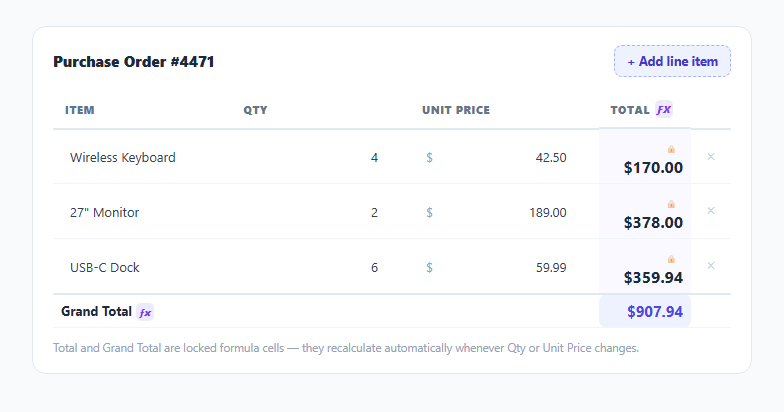
Most editable tables treat every cell as equally writable, which is wrong the moment one column is actually *derived* from others — a line-item total should never be typed in directly, only ever computed from quantity and price. This snippet builds that distinction explicitly: Qty and Unit Price are real <input> fields a user edits, Total is a locked, read-only cell that recalculates itself, and a Grand Total footer row sums every row's Total — the same locked-formula-cell mental model as a spreadsheet, without a formula parser or expression language.
A formula is just a function tied to an input event
There is no formula string like =B2*C2 anywhere in this snippet — the "formula" is simply recalcRow(tr), a function that reads a row's qty and price inputs, multiplies them, and writes the result into that row's .fc-total cell. It runs on the input event of either the quantity or price field, so the total updates on every keystroke rather than waiting for a blur or a separate "recalculate" action — the same immediacy a real spreadsheet formula has.
Why the total lives in textContent and a data attribute, both
The .fc-total cell's visible text is the formatted, currency-prefixed string ($170.00) a human reads, but that string is useless for further arithmetic — parsing dollar signs and commas back out is exactly the kind of fragile round-trip this snippet avoids entirely. Instead, recalcRow() also writes the raw numeric result to totalCell.dataset.value, so recalcGrand() can sum every row's total by reading a clean number, never by re-parsing formatted display text.
Locking a cell without disabling it
The Total and Grand Total cells are plain <td> elements with no <input> inside them at all — there is nothing to click into, so "locked" is enforced structurally rather than through a disabled or readonly attribute that a user could still technically focus. A small 🔒 marker and an ƒx badge on the column header communicate *why* the cell cannot be typed into, borrowing the same visual language spreadsheet software uses for a computed or protected cell.
Recalculating the whole table, not just one row
Adding or removing a line item changes how many rows exist, which means the Grand Total needs to be recomputed from scratch rather than incrementally adjusted — recalcGrand() always re-sums every row currently in the table body from its dataset.value, which is both simpler and less error-prone than trying to track a running total across arbitrary add/remove operations. recalcAll() (used once, on initial load) simply calls recalcRow on every existing row before calling recalcGrand, guaranteeing the totals shown on first render match what a user would get by editing every field from scratch.
A brief pulse as feedback that "something computed"
Every time a total cell recalculates, it briefly gets a .pulse class producing a quick color flash via a CSS animation — small, but it is the difference between a total that silently changes (easy to miss if you are not looking directly at that cell) and one that visibly announces "this number just moved," which matters most exactly when several fields are being edited in quick succession.
Build with AI
Build, Understand, Optimize, and Extend It With AI
Paste this snippet's HTML, CSS, and JS into an AI coding assistant like Claude and ask it to explain exactly why the computed Total cell stores a raw numeric value in a data attribute separately from its formatted display text, and why that avoids the common bug of re-parsing a currency-formatted string for further arithmetic. It is also a good candidate for extension — ask it to add a second computed column (like a per-row discount or tax amount) that itself feeds into the Total formula, add input validation that visually flags a negative quantity or price before it reaches the calculation, or persist the whole line-item table to localStorage so a half-filled order survives a page refresh.
Prompt to recreate it
Copy this into your AI assistant of choice to build the effect from scratch, or as a jumping-off point for your own variant:
Build an editable order-line-items table with a locked, auto-recalculating Total column and Grand Total footer row in plain HTML, CSS, and JavaScript — no libraries.

Requirements:
- Each row has editable number inputs for Quantity and Unit Price, and a Total cell that is a plain, non-input table cell (not a disabled input) so it is structurally impossible to type into directly.
- The Total cell must recalculate automatically as Quantity × Unit Price on every input event of either the Quantity or Unit Price field for that row — no separate save or recalculate button.
- The Total cell must display a formatted currency string (e.g. "$170.00") but also retain the raw numeric result in a data attribute, so other calculations never have to re-parse the formatted display text.
- A footer row must show a Grand Total that always equals the sum of every visible row's Total, recalculated from scratch whenever any row's Quantity or Unit Price changes, and also when a row is added or removed.
- Include an "Add line item" button that appends a new row with the same editable inputs, wired into the identical live-recalculation behavior as the pre-existing rows, and a delete button on each row that removes it and immediately updates the Grand Total.
- Give brief visual feedback (such as a short color pulse animation) on a Total cell each time it recalculates, and mark the Total and Grand Total cells visually (e.g. an icon or badge) as computed/locked rather than directly editable.
Want to tighten it up first? Run this prompt through the AI Prompt Studio to score it across 8 quality dimensions, catch anti-patterns, and tune the wording for Claude, ChatGPT, or Gemini before you paste it in.
Step by step
How to Use
- 1Edit Qty or Unit PriceType into either input on any row — the Total cell for that row recalculates instantly on every keystroke.
- 2Watch the Grand Total updateThe footer row sums every visible row's Total automatically whenever any row changes.
- 3Add a line itemClick "+ Add line item" to append a new editable row, pre-wired with the same live recalculation as the existing rows.
- 4Remove a line itemClick the × button on any row to delete it — the Grand Total re-sums immediately to exclude the removed row.
- 5Change the formulaEdit the multiplication inside recalcRow() in the JS panel to compute Total differently (e.g. apply a discount or tax rate).
- 6Add another computed columnFollow the same pattern — a locked <td>, a recalc function reading source inputs, wired to their input events — to add a second derived column.
Real-world uses
Common Use Cases
Got questions?
Frequently Asked Questions
No — there is no formula string or expression parser anywhere in this snippet. The "formula" is a plain JavaScript function, recalcRow(), that reads two input values and multiplies them, run whenever either input fires its input event. This keeps the logic transparent and easy to modify without needing a spreadsheet formula language.
The visible text is a formatted, currency-prefixed string like "$170.00", which is awkward and fragile to parse back into a number for further math. Storing the raw numeric result separately in dataset.value means the Grand Total calculation always sums a clean number, never re-parsing a formatted string.
A disabled or readonly input can still visually resemble an editable field and can sometimes still receive focus depending on the browser and assistive technology. Using a plain <td> with no input inside it at all makes "this cell cannot be typed into" a structural fact rather than an attribute a user might not notice.
recalcGrand() always re-sums every row currently present in the table body from scratch, reading each row's stored numeric total. This means adding or removing rows is always correctly reflected, since there is no running total being incrementally adjusted that could drift out of sync.
Edit the calculation inside recalcRow() — for example, multiply by a discount factor, add a flat shipping fee, or apply a tax rate — and the same input-event wiring, locked-cell rendering, and Grand Total summation continue working unchanged, since they operate on whatever number recalcRow() produces.
Yes. Keep qty and price as controlled input state per row, derive total with a plain multiplication in your render function or a computed/memoized value, and derive the grand total by summing those computed totals — the derived-value pattern is identical, only the state management syntax changes.