You Might Also Like
Learn Coding Visually
Learn to code with interactive, live-preview playgrounds — HTML, CSS, JavaScript, React & more.
 HTML Playground42 lessons · Click-based · Live preview
 CSS PlaygroundLearn CSS with a live editor
 JavaScript Playground60 lessons · DOM · Async · Canvas
 React PlaygroundLearn React with a live code editor
 GSAP PlaygroundLearn GSAP animation interactively
 SVG Playground44 lessons · shapes · paths · animation
 SCSS Playground45 lessons · Sass modules · tokens
 Tailwind PlaygroundLearn Tailwind CSS with a live editor
 Bootstrap 5 Playground50 lessons · live preview
Consent Audit Log — Free Compliance Table with Filters
Consent Audit Log · Tables · Plain HTML, CSS & JS · Live preview
What's included
Features
About this UI Snippet
Consent Audit Log — A Filterable Table of Consent Events
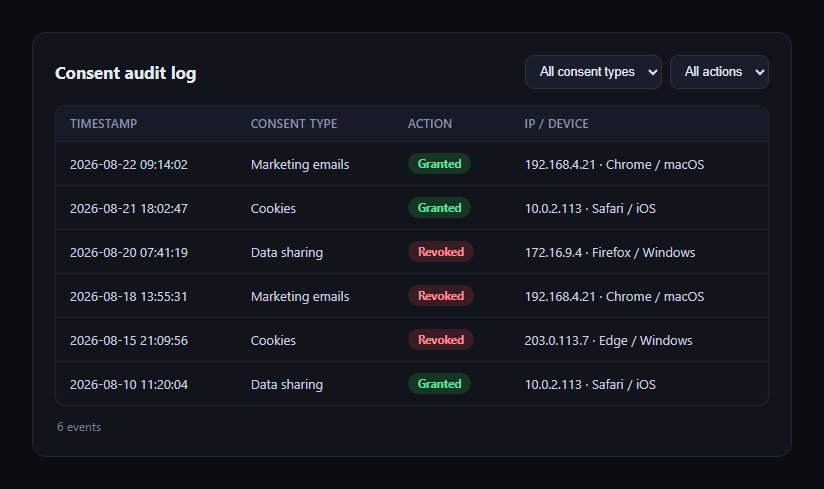
The consent audit log is the compliance table privacy dashboards and admin panels use to prove, row by row, when a user granted or revoked consent for something — marketing emails, cookies, data sharing — and from where. This snippet builds a filterable version in plain HTML, CSS, and JavaScript.
Data attributes as the filter index
Each <tr> carries data-type and data-action attributes matching its visible cells. The filter logic reads these directly instead of re-parsing cell text, which keeps filtering fast and keeps the source of truth attached to the row itself.
Two independent filters, combined
A consent-type <select> and an action <select> (Granted/Revoked) each default to "All," and applyFilters() shows a row only when it satisfies both — an AND, not an OR — which is how compliance reviewers actually narrow down "show me all revoked cookie consents."
A real empty state
When a filter combination matches zero rows, the table itself is hidden and a "No matching consent events" message takes its place, rather than leaving a confusing table with just a header and no rows.
Status as a colored pill, text unambiguous
Granted and revoked actions render as small colored pills (green/red) but the word itself is always present in the pill text — so the status is legible even without relying on color alone, which matters doubly in a compliance context.
Live result count
A count line below the table ("4 events") updates on every filter change, giving an immediate sense of scale — useful when a compliance reviewer needs to eyeball whether a filter narrowed things down as expected.
Horizontal scroll on narrow viewports
The table wrapper uses overflow-x: auto with a min-width on the table itself, so the IP/device column doesn't get crushed on mobile — it scrolls instead of wrapping awkwardly.
Customizing it
Wire the rows to a real audit-log API, add a date-range filter or CSV export, or add a search box that filters by IP. Pair it with gdpr-consent-manager or cookie preferences as the settings screen this log is auditing.
Build with AI
Build, Understand, Optimize, and Extend It With AI
Paste this snippet's HTML, CSS, and JS into an AI coding assistant like Claude and ask it to explain how the two independent select filters combine with an AND condition using each row's data attributes, and why the empty state hides the table entirely rather than just leaving an empty tbody. It can help you add a date-range filter, a search box that matches against the IP/device column, sortable column headers, or a CSV/JSON export of the currently filtered rows — and help you wire the static rows to a real consent-event API while keeping the same filtering logic working against dynamically rendered rows.
Prompt to recreate it
Copy this into your AI assistant of choice to build the effect from scratch, or as a jumping-off point for your own variant:
Build a "consent audit log" compliance table in plain HTML, CSS, and JavaScript (no dependencies).

Requirements:
- A table with columns for timestamp, consent type (e.g. marketing emails, cookies, data sharing), an action (granted/revoked) rendered as a colored pill that ALSO always includes the word "Granted" or "Revoked" as visible text (not color alone), and an IP/device column.
- Two independent filter <select> elements above the table — one for consent type, one for action — each defaulting to an "All" option. A row must satisfy BOTH active filters simultaneously to remain visible (i.e., combine filters with AND, not OR).
- Store each row's filterable values as data attributes on the <tr> (e.g. data-type, data-action) and have the filtering logic read from those attributes rather than parsing visible cell text, toggling each row's hidden attribute based on whether it currently matches.
- A distinct empty state: when the active filter combination matches zero rows, hide the table and show a separate "no matching events" message instead of leaving a header with no rows.
- A live count of currently visible rows/events that updates every time a filter changes, with correct singular/plural wording (e.g. "1 event" vs. "4 events").
- Wrap the table in a horizontally scrollable container with a sensible min-width on the table so the IP/device column stays readable on narrow/mobile viewports instead of being crushed.
Want to tighten it up first? Run this prompt through the AI Prompt Studio to score it across 8 quality dimensions, catch anti-patterns, and tune the wording for Claude, ChatGPT, or Gemini before you paste it in.
Step by step
How to Use
- 1Paste HTML, CSS, and JSA sample audit log with six events renders.
- 2Filter by consent typeChoose marketing, cookies, or data sharing.
- 3Filter by actionNarrow to granted or revoked only.
- 4Combine both filtersRows must match every active filter.
- 5Clear filtersSelect "All" to see every event again.
- 6Connect real dataReplace the static rows with server-rendered ones.
Real-world uses
Common Use Cases
Got questions?
Frequently Asked Questions
Every row has data-type and data-action attributes. applyFilters() reads the two select values and, for every row, checks whether it matches both (or is exempted by an "All" selection), toggling the row's hidden attribute — all in the browser with no round trip.
The table is hidden and a dedicated empty-state paragraph ("No matching consent events") is shown instead, so reviewers see a clear message rather than a table with just a header row and no data.
Yes — each pill always includes the word "Granted" or "Revoked" as text, not just a color. The color is a secondary visual cue layered on top of a text label that's always present.
Fetch your audit records, then render one <tr> per event with the same data-type and data-action attributes and matching cell content (timestamp, type, a pill for the action, and IP/device text) — the existing filter logic works unchanged against dynamically inserted rows as long as it re-queries rows or you re-run applyFilters() after inserting them.
Yes — add a date input pair, include a date comparison alongside the existing type/action checks in applyFilters(), and for export, map the currently visible (non-hidden) rows into CSV rows using their cell text or data attributes.