You Might Also Like
Learn Coding Visually
Learn to code with interactive, live-preview playgrounds — HTML, CSS, JavaScript, React & more.
 HTML Playground42 lessons · Click-based · Live preview
 CSS PlaygroundLearn CSS with a live editor
 JavaScript Playground60 lessons · DOM · Async · Canvas
 React PlaygroundLearn React with a live code editor
 GSAP PlaygroundLearn GSAP animation interactively
 SVG Playground44 lessons · shapes · paths · animation
 SCSS Playground45 lessons · Sass modules · tokens
 Tailwind PlaygroundLearn Tailwind CSS with a live editor
 Bootstrap 5 Playground50 lessons · live preview
Certificate of Completion Preview — Free LMS Card Snippet
Certificate of Completion Preview · Cards · Plain HTML, CSS & JS · Live preview
What's included
Features
About this UI Snippet
Certificate of Completion Preview — Decorative Border, Seal & Share Actions
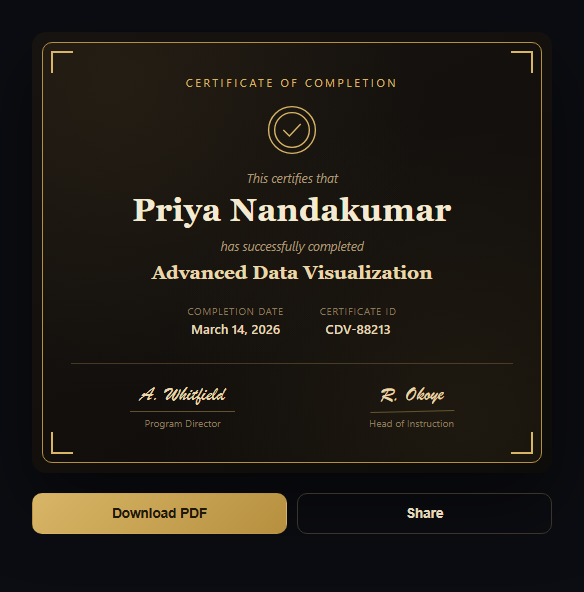
The certificate preview card is the shareable artifact an LMS or course platform generates the moment a learner finishes — a formal-looking document rendered inline rather than a plain "you're done" banner. This snippet builds one with a gold decorative border, corner brackets, a checkmark seal, a serif recipient name, two signature lines, and a working Download/Share button pair.
Decorative framing without images
The ornate look comes entirely from CSS: a double-layer border (an outer card background plus an inset bordered panel), four absolutely-positioned corner brackets built from partial borders, and two soft radial gradients placed at opposite corners to fake a subtle vignette. None of it is a background image, so the certificate stays crisp at any size and themeable by changing a handful of color variables.
The seal as inline SVG
The checkmark seal is a small inline <svg> — two concentric circles plus a checkmark path — rather than an icon font or image, so its stroke color matches the gold palette exactly and scales without blurring. Because it's real markup, it's trivial to swap for a different mark (a ribbon, a star, an organization logo) without touching layout.
Signatures as styled text, not images
Both signature lines use a cursive font stack ('Brush Script MT', cursive) with a fallback to the serif stack, sitting on a thin bottom border to read as a signature line. One signature is given a slight rotate to avoid the two looking mechanically identical — a small detail that keeps the certificate from feeling templated.
Working download and share actions
The Download button simulates the PDF-generation delay a real export would have — swapping its label to "Preparing PDF…", then to a confirmed "Downloaded ✓" state — so it's a realistic stand-in for wiring up an actual html2canvas/PDF export later. The Share button calls the native navigator.share API where available and falls back to copying share text to the clipboard, updating an aria-live status region either way so screen reader users hear the result.
Customizing it
Swap the palette for a brand color, change the serif stack, or replace the checkmark seal with an uploaded badge image. Pair it with a course progress tracker that links to this card on 100% completion, or a quiz result breakdown that gates certificate issuance on a passing score.
Build with AI
Build, Understand, Optimize, and Extend It With AI
You don't have to hand-tune the certificate's ornamental CSS or the share fallback logic yourself. Paste this snippet's HTML, CSS, and JS into an AI coding assistant like Claude and ask it to explain exactly how the four corner brackets are built from partial-border absolutely-positioned elements, or why the Share button checks for navigator.share before falling back to a clipboard copy rather than assuming one behavior everywhere. The same assistant can help optimize it — ask whether the two radial-gradient vignettes should be combined into one background-image value, or whether the simulated download delay should be replaced with a real html2canvas-plus-jsPDF export. It's also useful for extending the card: ask it to add a QR code linking to a verification URL, generate a unique certificate ID from a hash of the recipient and course, or add a subtle particle-confetti burst the first time the card renders. Treat the code less like a finished artifact and more like a starting point for a conversation.
Prompt to recreate it
Copy this into your AI assistant of choice to build the effect from scratch, or as a jumping-off point for your own variant:
Build a "certificate of completion preview" card in plain HTML, CSS, and JavaScript — no framework, no library, no external images.

Requirements:
- A decorative certificate panel with a gold-toned border, four corner bracket accents built from CSS borders (not images), and a subtle background vignette using CSS radial gradients — all achieved with plain CSS, no background-image files.
- An inline SVG checkmark "seal" (two concentric circles plus a checkmark path) rendered above the recipient name, using currentColor or a CSS variable so its stroke color matches the gold palette and can be recolored globally.
- A recipient name in a serif display font, a course title, and a metadata row showing a completion date and a certificate ID as labeled key/value pairs.
- Two styled "signature" lines using a cursive font stack with a bottom border rule beneath each, positioned side by side, with a small rotation on one signature so the two don't look identical.
- A Download button that, on click, disables itself, changes its label to a "Preparing…" state, waits roughly a second, then shows a confirmed "Downloaded" state with a checkmark before resetting — simulating a real PDF export's timing without an actual PDF library.
- A Share button that calls the native navigator.share API when available with a title and text about the completed course, and falls back to copying a share-text string to the clipboard via the Clipboard API when navigator.share is unavailable or the user cancels — confirming either outcome in an aria-live status region so the result is announced to screen readers.
Want to tighten it up first? Run this prompt through the AI Prompt Studio to score it across 8 quality dimensions, catch anti-patterns, and tune the wording for Claude, ChatGPT, or Gemini before you paste it in.
Step by step
How to Use
- 1Paste the HTML, CSS, and JSA gold-bordered certificate renders with sample recipient data.
- 2Click "Download PDF"The button shows a preparing state, then a confirmed downloaded state.
- 3Click "Share"Uses navigator.share if available, otherwise copies share text.
- 4Edit the recipient detailsChange #certName, #certCourse, #certDate, and #certId in the HTML.
- 5Swap the seal markReplace the inline SVG checkmark path with a badge or logo.
- 6Recolor the paletteChange the gold hex values in the CSS to match your brand.
Real-world uses
Common Use Cases
Got questions?
Frequently Asked Questions
No. The gold border, four corner brackets, and soft vignette are built entirely with CSS — a bordered inset panel, absolutely-positioned partial-border corner elements, and two radial gradients. That keeps the certificate crisp at any zoom level and easy to recolor by changing a few hex values.
It simulates the sequence a real export would show: the label changes to "Preparing PDF…" for about a second, then to "Downloaded ✓" with a status message, then resets. In production you'd trigger an actual export — for example html2canvas plus jsPDF, or a server-rendered PDF — inside that same click handler, in place of the setTimeout calls.
It first tries the native navigator.share API, which on supporting browsers (mostly mobile) opens the OS share sheet with the certificate's course name. If navigator.share isn't available or the user cancels, it falls back to copying a share-text string to the clipboard via navigator.clipboard.writeText and confirms with a status message.
Capture the .cert element with html2canvas to get a canvas, then either convert that canvas to a PNG via toDataURL for an image download, or feed it into jsPDF's addImage to produce an actual PDF file. Replace the simulated setTimeout logic in the download handler with that capture-and-export call.
Pass recipient name, course title, date, and certificate ID as props or a data object and interpolate them into the template — the CSS and SVG seal port over unchanged. Keep the download/share handlers as component methods that call your real export library instead of the simulated timeouts.