Learn Coding Visually
Learn to code with interactive, live-preview playgrounds — HTML, CSS, JavaScript, React & more.
 HTML Playground42 lessons · Click-based · Live preview
 CSS PlaygroundLearn CSS with a live editor
 JavaScript Playground60 lessons · DOM · Async · Canvas
 React PlaygroundLearn React with a live code editor
 GSAP PlaygroundLearn GSAP animation interactively
 SVG Playground44 lessons · shapes · paths · animation
 SCSS Playground45 lessons · Sass modules · tokens
 Tailwind PlaygroundLearn Tailwind CSS with a live editor
 Bootstrap 5 Playground50 lessons · live preview
BMI Calculator — Free HTML CSS JS Snippet
BMI Calculator · Forms · Plain HTML, CSS & JS · Live preview
What's included
Features
About this UI Snippet
BMI Calculator — Metric/Imperial Toggle, Category Gauge & Health Advice
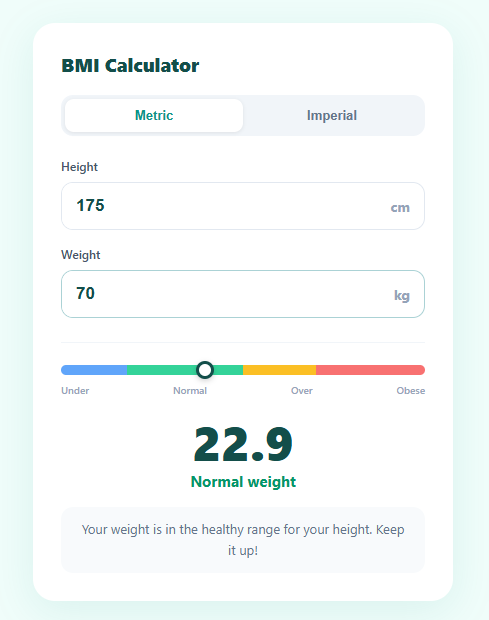
A BMI (body mass index) calculator is a staple health and fitness widget with consistently high search demand — built like the finance-focused mortgage and tip calculators. This snippet provides a polished BMI calculator with a metric/imperial unit toggle, height and weight inputs that adapt to the selected unit system, a colour-coded category gauge with an animated marker, a large BMI score, the WHO weight category, and a tailored advice message.
The BMI formula and unit conversion
BMI is weight in kilograms divided by height in metres squared: BMI = kg / m². The calculator always computes in metric internally. When imperial mode is active, it converts feet and inches to metres (total inches × 0.0254) and pounds to kilograms (lb × 0.453592) before applying the formula. This single-internal-unit approach avoids maintaining two separate formulas and keeps the category thresholds identical across unit systems.
The unit toggle and value conversion
setUnit() switches between metric and imperial — a two-option segmented control — by toggling which height input group is visible (a single cm field versus separate ft and in fields) and updating the weight suffix label. Critically, it also converts the existing weight value so the number stays physically equivalent when switching — 70 kg becomes roughly 154 lb rather than being read as 70 lb. This preserves the user's entry instead of silently changing their data.
The category gauge
The gauge track is a single CSS linear-gradient with hard colour stops at the WHO BMI boundaries: blue for underweight (under 18.5), green for normal (18.5–25), amber for overweight (25–30), and red for obese (30+). The marker's horizontal position is calculated within each category band so it lands proportionally — a BMI of 21.75 sits halfway through the green zone. The marker animates with a spring-like cubic-bezier easing for a satisfying settle.
Category logic and advice
The four WHO categories drive both the colour class on the score label and a context-appropriate advice message. The advice is intentionally non-alarming and points users toward healthcare providers for the underweight and obese ranges rather than making specific medical claims — an important consideration for any health-related tool that must avoid giving prescriptive medical advice.
Accessibility and edge cases
The calc() function guards against zero or negative height and weight to prevent NaN or Infinity in the display. The marker position is clamped between 2% and 98% so it never overflows the gauge track at extreme values. BMI displays to one decimal place via toFixed(1), the standard precision for the metric.
Build with AI
Build, Understand, Optimize, and Extend It With AI
You don't have to re-derive the piecewise marker math yourself to understand it fully. Paste this snippet's HTML, CSS, and JS into an AI coding assistant like Claude and ask it to walk through exactly how the pos variable is computed differently in each of the four bmi branches so the marker lands proportionally within its color band on the gauge, and why weight and height are always converted to metric internally before the formula runs. The same assistant can help optimize it — asking whether calc() should be debounced on rapid typing, or whether the four separate gauge color stops in the linear-gradient could be generated from a shared threshold array instead of being hardcoded twice. It's also a good way to extend the tool: ask it to add an ideal weight range display, a BMI history chart across multiple entries, or age and sex inputs to compute BMR alongside it. Treat the code less like a finished artifact and more like a starting point for a conversation.
Prompt to recreate it
Copy this into your AI assistant of choice to build the effect from scratch, or as a jumping-off point for your own variant:
Build a "BMI calculator" in plain HTML, CSS, and JavaScript with a metric/imperial unit toggle and an animated category gauge — no libraries, no build step.

Requirements:
- A unit toggle between Metric (single height field in cm) and Imperial (separate feet and inches fields), where switching units also converts the existing weight value in place (kg to lb or lb to kg) so the number stays physically equivalent instead of just relabeling it.
- All BMI math must happen in one internal metric representation: convert feet/inches to meters and pounds to kilograms before applying the formula weight over height squared, so the category thresholds never need to be duplicated per unit system.
- Four WHO weight categories with fixed thresholds (under 18.5, 18.5 to 25, 25 to 30, 30 and above), each producing a distinct label, a distinct CSS class controlling the score color, and a distinct short advice sentence.
- A horizontal gauge track built from a single CSS linear-gradient with hard color stops marking the four category boundaries, and a circular marker whose horizontal position is computed as a percentage that places it proportionally within its own category's band (not just proportionally across the whole 0-40 BMI range), animated into position with a springy overshoot cubic-bezier transition.
- Guard the calculation against zero, negative, or empty height and weight inputs so it never displays NaN or Infinity, and clamp the marker's position between 2% and 98% so it can never visually overflow the track at extreme BMI values.
- Recalculate on every input event so the result updates live as the user types, with the BMI value always displayed rounded to one decimal place.
Want to tighten it up first? Run this prompt through the AI Prompt Studio to score it across 8 quality dimensions, catch anti-patterns, and tune the wording for Claude, ChatGPT, or Gemini before you paste it in.
Step by step
How to Use
- 1Choose your unit systemToggle between Metric (cm, kg) and Imperial (ft/in, lb). Your existing weight value converts automatically so you do not have to re-enter it.
- 2Enter your heightIn metric, type your height in centimetres. In imperial, enter feet and inches in the two separate fields.
- 3Enter your weightType your weight in the unit shown (kg or lb). The BMI recalculates instantly as you type.
- 4Read your BMI and categoryThe large number is your BMI. The coloured label shows your WHO weight category, and the gauge marker animates to your position on the scale.
- 5Review the adviceA short, non-prescriptive message gives general guidance based on your category. For any health decisions, consult a healthcare provider.
- 6Export for your frameworkClick "JSX" for a React component using useState for unit, height, and weight. Click "Vue" for a Vue 3 SFC with a computed BMI property.
Real-world uses
Common Use Cases
Got questions?
Frequently Asked Questions
BMI is body weight in kilograms divided by height in metres squared (kg/m²). The World Health Organisation categories are: underweight below 18.5, normal weight 18.5 to 24.9, overweight 25 to 29.9, and obese 30 and above. The snippet computes everything in metric internally and converts imperial inputs before applying the formula, so the thresholds are identical regardless of which unit system you use.
It is converting your entry to keep it physically equivalent. When you switch from metric to imperial, 70 kg becomes about 154 lb — the same actual weight expressed in a different unit. Without this conversion, the field would read 70 lb, which is a completely different (and physically implausible) weight, and your BMI would jump incorrectly. The conversion preserves your real measurement across the toggle.
BMI is a useful population-level screening tool but has known limitations for individuals. It does not distinguish muscle from fat, so very muscular athletes can register as overweight despite low body fat, and it does not account for fat distribution, age, sex, bone density, or ethnicity. Treat it as one data point rather than a diagnosis. For a fuller picture, combine it with body fat percentage, waist-to-height ratio, waist circumference, and a healthcare provider's assessment. Many clinicians now pair BMI with waist measurement specifically because abdominal fat carries more health risk than the same weight distributed elsewhere on the body.
The healthy BMI range is 18.5 to 24.9, so the ideal weight range for any height is simply those bounds multiplied by height squared in metres: lowerKg = 18.5 * heightM² and upperKg = 24.9 * heightM². For a 1.75m person that gives roughly 57 to 76 kg. Convert back to pounds (÷ 0.453592) for imperial display. Showing this range alongside the BMI gives users a concrete, actionable target rather than just an abstract index number.
Store unit, height fields, and weight in useState. Compute BMI in a useMemo: convert imperial to metric inside the memo, apply weight / (heightM ** 2), and derive the category and advice from the result. For the gauge marker, map the BMI to a percentage within its category band and set the marker style with a left percentage. Render the score with bmi.toFixed(1).