Source Code
<div class="wrap">
  <div class="card">
    <div class="section">
      <p class="label">Project name</p>
      <div class="field" id="f1">
        <span class="view" onclick="startEdit('f1')">
          <span class="text" id="f1-text">Q4 Marketing Campaign</span>
          <span class="edit-icon" title="Edit">✎</span>
        </span>
        <div class="edit" style="display:none">
          <input class="input" id="f1-input" value="Q4 Marketing Campaign">
          <div class="actions">
            <button class="save" onclick="save('f1')">Save</button>
            <button class="cancel" onclick="cancel('f1')">Cancel</button>
          </div>
        </div>
      </div>
    </div>
    <div class="section">
      <p class="label">Description</p>
      <div class="field" id="f2">
        <span class="view" onclick="startEdit('f2')">
          <span class="text" id="f2-text">Drive Q4 leads through email, social, and paid channels targeting SMBs in North America.</span>
          <span class="edit-icon" title="Edit">✎</span>
        </span>
        <div class="edit" style="display:none">
          <textarea class="input textarea" id="f2-input" rows="3">Drive Q4 leads through email, social, and paid channels targeting SMBs in North America.</textarea>
          <div class="actions">
            <button class="save" onclick="save('f2')">Save</button>
            <button class="cancel" onclick="cancel('f2')">Cancel</button>
          </div>
        </div>
      </div>
    </div>
    <div class="section">
      <p class="label">Due date</p>
      <div class="field" id="f3">
        <span class="view" onclick="startEdit('f3')">
          <span class="text" id="f3-text">December 31, 2025</span>
          <span class="edit-icon" title="Edit">✎</span>
        </span>
        <div class="edit" style="display:none">
          <input class="input" type="date" id="f3-input" value="2025-12-31">
          <div class="actions">
            <button class="save" onclick="save('f3')">Save</button>
            <button class="cancel" onclick="cancel('f3')">Cancel</button>
          </div>
        </div>
      </div>
    </div>
    <div class="saved-toast" id="toast">Saved</div>
  </div>
</div>
* { box-sizing: border-box; margin: 0; padding: 0; }
body { font-family: system-ui, sans-serif; background: #f1f5f9; min-height: 100vh; display: flex; align-items: center; justify-content: center; padding: 24px; }
.wrap { width: 100%; max-width: 520px; }
.card { background: #fff; border-radius: 20px; padding: 28px; box-shadow: 0 8px 32px rgba(0,0,0,0.07); }
.section { padding: 16px 0; border-bottom: 1px solid #f1f5f9; position: relative; }
.section:last-of-type { border-bottom: none; }
.label { font-size: 11px; font-weight: 700; color: #94a3b8; text-transform: uppercase; letter-spacing: 0.6px; margin-bottom: 6px; }
.view { display: flex; align-items: flex-start; gap: 8px; cursor: pointer; border-radius: 8px; padding: 6px 8px; margin: -6px -8px; transition: background 0.12s; }
.view:hover { background: #f8fafc; }
.text { font-size: 15px; color: #1e293b; line-height: 1.5; flex: 1; }
.edit-icon { font-size: 14px; color: #cbd5e1; flex-shrink: 0; margin-top: 2px; transition: color 0.12s; font-style: normal; }
.view:hover .edit-icon { color: #6366f1; }
.edit { display: flex; flex-direction: column; gap: 10px; }
.input { width: 100%; border: 2px solid #6366f1; border-radius: 10px; padding: 9px 12px; font-size: 15px; color: #1e293b; outline: none; font-family: inherit; background: #fafafe; }
.textarea { resize: vertical; min-height: 72px; line-height: 1.5; }
.actions { display: flex; gap: 8px; }
.save { background: #6366f1; color: #fff; border: none; padding: 8px 18px; border-radius: 8px; font-size: 13px; font-weight: 700; cursor: pointer; transition: background 0.12s; }
.save:hover { background: #4f46e5; }
.cancel { background: #f1f5f9; color: #64748b; border: none; padding: 8px 16px; border-radius: 8px; font-size: 13px; font-weight: 700; cursor: pointer; transition: background 0.12s; }
.cancel:hover { background: #e2e8f0; }
.saved-toast { position: fixed; bottom: 24px; right: 24px; background: #0f172a; color: #fff; font-size: 13px; font-weight: 700; padding: 10px 20px; border-radius: 10px; opacity: 0; pointer-events: none; transform: translateY(8px); transition: all 0.2s; }
.saved-toast.show { opacity: 1; transform: translateY(0); }var originals = {};
var formatters = {
f3: function(v) {
if (!v) return '';
var d = new Date(v + 'T00:00:00');
return d.toLocaleDateString('en-US', { month: 'long', day: 'numeric', year: 'numeric' });
}
};
function startEdit(id) {
var field = document.getElementById(id);
var input = document.getElementById(id + '-input');
originals[id] = input.value;
field.querySelector('.view').style.display = 'none';
field.querySelector('.edit').style.display = 'flex';
input.focus();
if (input.tagName === 'INPUT' && input.type === 'text') {
input.select();
}
}
function save(id) {
var field = document.getElementById(id);
var input = document.getElementById(id + '-input');
var textEl = document.getElementById(id + '-text');
var val = input.value.trim();
if (!val) { input.focus(); return; }
textEl.textContent = formatters[id] ? formatters[id](val) : val;
field.querySelector('.view').style.display = 'flex';
field.querySelector('.edit').style.display = 'none';
showToast();
}
function cancel(id) {
var field = document.getElementById(id);
var input = document.getElementById(id + '-input');
input.value = originals[id] || input.value;
field.querySelector('.view').style.display = 'flex';
field.querySelector('.edit').style.display = 'none';
}
function showToast() {
var t = document.getElementById('toast');
t.classList.add('show');
setTimeout(function() { t.classList.remove('show'); }, 2000);
}
document.addEventListener('keydown', function(e) {
if (e.key === 'Escape') {
document.querySelectorAll('.field').forEach(function(f) {
if (f.querySelector('.edit').style.display !== 'none') {
cancel(f.id);
}
});
}
});Learn Coding Visually
Learn to code with interactive, live-preview playgrounds — HTML, CSS, JavaScript, React & more.
 HTML Playground42 lessons · Click-based · Live preview
 CSS PlaygroundLearn CSS with a live editor
 JavaScript Playground60 lessons · DOM · Async · Canvas
 React PlaygroundLearn React with a live code editor
 GSAP PlaygroundLearn GSAP animation interactively
 SVG Playground44 lessons · shapes · paths · animation
 SCSS Playground45 lessons · Sass modules · tokens
 Tailwind PlaygroundLearn Tailwind CSS with a live editor
 Bootstrap 5 Playground50 lessons · live preview
Inline Edit Field — Click-to-Edit UI Snippet
Inline Edit Field · Forms · Plain HTML, CSS & JS · Live preview
What's included
Features
About this UI Snippet
Inline Edit Field — Click-to-Edit Text, Textarea & Date with Save/Cancel
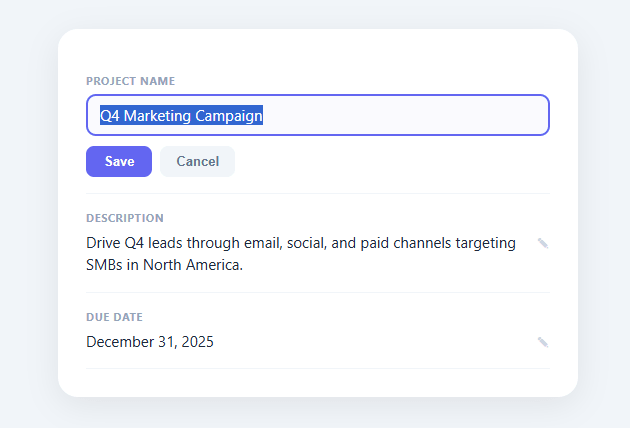
An inline edit field (also called click-to-edit or in-place editing) is one of the most-searched SaaS UI patterns because it lets users edit a value without navigating away to a separate form page — the text itself becomes the field when clicked. The editable table applies the same pattern to every cell. This snippet provides a complete, production-quality implementation with three field types (plain text, textarea, and date), save and cancel actions, Escape-key cancellation, a "Saved" toast notification, and original-value restoration on cancel.
The view/edit toggle model
Each field has two states rendered in the same container: a "view" span (the read-only text with a pencil icon) and an "edit" section (the input with action buttons). startEdit() hides the view and shows the edit, moving focus into the input and selecting text for a text field. save() and cancel() both restore the view, with save() writing the new value and cancel() restoring the original from the originals cache.
Saving the original for cancel
Before switching to edit mode, startEdit() caches the input's current value in an originals map keyed by field id. cancel() reads this cache to restore the exact pre-edit value, so users can explore or partially edit a field and get back exactly what was there before, even across multiple fields open and cancelled in sequence.
Display formatters
The date field stores an ISO date (YYYY-MM-DD) in the input because that is what a date input requires, but the view should show a human-readable string ("December 31, 2025"). A formatters map holds per-field display functions: save() runs the formatter (if any) on the input value before writing it to the view text. This pattern cleanly separates stored/input format from display format for any field type.
Global Escape handler
A document-level keydown listener cancels any open edit when Escape is pressed, walking all fields and calling cancel() on whichever is in edit mode. This is an expected browser convention for dismissing an in-progress edit and is easy to miss in custom implementations.
Saved toast
A fixed-position toast slides up and fades in on every successful save, then auto-dismisses after two seconds. It uses CSS transition on opacity and translateY for the animation, driven purely by adding and removing a class — no animation library needed.
Accessibility and validation
Empty values are rejected in save() — the input is focused back and the save is aborted. The pencil icon and hover-highlight communicate editability. In a production system you would also add aria-label attributes and manage focus return to the view element after saving.
Build with AI
Build, Understand, Optimize, and Extend It With AI
You do not need to work out the original-value snapshot logic entirely on your own. Paste this snippet's HTML, CSS, and JS into an AI coding assistant like Claude and ask it to explain exactly how the originals cache in startEdit lets cancel restore the exact pre-edit value even across repeated edit-and-cancel cycles, or why the formatters map is checked only inside save rather than also being applied when the field first renders. The same assistant can help you optimize it — ask whether the document-level Escape listener that walks every .field on every keypress could instead track just the currently open field to avoid unnecessary DOM queries. It is just as useful for extending the pattern: ask it to add a select-type field for choosing from a fixed list, inline validation that blocks save on an empty or malformed value before the toast fires, or optimistic UI that rolls a field back automatically if a real API call fails after save. Treat the code less like a finished artifact and more like a starting point for a conversation.
Prompt to recreate it
Copy this into your AI assistant of choice to build the effect from scratch, or as a jumping-off point for your own variant:
Build a click-to-edit inline field group in plain HTML, CSS, and JavaScript with no framework and no libraries.

Requirements:
- Each field renders two states inside the same container: a view state (the current text plus a pencil icon, clickable) and an edit state (an input or textarea plus Save and Cancel buttons), with only one visible at a time via inline display toggling.
- Support at least three field types sharing the same toggle logic: a plain text input, a multi-line textarea, and a native date input.
- Before switching a field into edit mode, cache the input's current value in a lookup object keyed by the field's id, so Cancel can restore that exact snapshot regardless of how many times the field has previously been edited and saved.
- Support a per-field formatter function (keyed the same way as the value cache) that transforms the raw input value into a human-readable display string only at save time — for example converting an ISO date like 2025-12-31 into "December 31, 2025" for the view text, while the underlying input keeps the ISO value.
- Reject saving an empty or whitespace-only value: refocus the input and do not switch back to the view state.
- Add a single global keydown listener on the document that, when Escape is pressed, finds whichever field currently has its edit state visible and cancels it, restoring the original value.
- On every successful save, show a small fixed-position toast that reads "Saved", sliding up and fading in via a CSS transition driven by adding and removing one class, then auto-dismissing after about two seconds.
Want to tighten it up first? Run this prompt through the AI Prompt Studio to score it across 8 quality dimensions, catch anti-patterns, and tune the wording for Claude, ChatGPT, or Gemini before you paste it in.
Step by step
How to Use
- 1Click any field to edit itClick the text or the pencil icon to switch to edit mode. The field highlights on hover to communicate that it is editable.
- 2Edit and saveType in the input or textarea, then click Save. The view updates with the new value and a "Saved" toast confirms the action.
- 3Cancel or press EscapeClick Cancel or press Escape to discard changes. The field restores its exact original value.
- 4Add your own fieldDuplicate a .section block. Add a formatter function to the formatters map if the stored value needs a different display format (like the ISO date).
- 5Wire to an APIIn save(), after updating the view, call your API with the new value. On error, call cancel() to roll back and show an error message.
- 6Export for your frameworkClick "React" for a component using useState for each field's edit mode and value. Click "Vue" for a Vue 3 SFC with reactive state.
Real-world uses
Common Use Cases
Got questions?
Frequently Asked Questions
Before switching to edit mode, startEdit() stores the input's current value in an originals object keyed by field id. cancel() reads originals[id] and writes it back to the input, then re-renders the view text. This snapshot is taken at the moment editing begins, so it captures the last saved value regardless of how many times the user has previously edited and saved the field.
A native date input stores and emits values in ISO 8601 format (YYYY-MM-DD) because that is what the HTML spec requires. But the view should show "December 31, 2025" rather than "2025-12-31". The formatters map lets each field define a display function that transforms the raw input value for the view. save() checks for a formatter and applies it before writing to the view text element.
Add a check in startEdit() that calls cancel() on any currently open field before opening the new one. Walk the fields, find one whose edit section is visible, and cancel it first. This ensures only one field is editable at a time, which is the expected SaaS convention and avoids users accidentally abandoning edits.
For each field, keep editMode (boolean) and draftValue (string) in useState. On click, set editMode to true and draftValue to the current value. The component renders either the view span or the input based on editMode. save() validates, calls your API with draftValue, updates the persisted value in state, and sets editMode to false. cancel() just sets editMode to false — the draftValue is discarded and the persisted value is displayed again. For the Tailwind version, click "Tailwind" to get the same markup with utility classes instead of a scoped stylesheet.