You Might Also Like
Learn Coding Visually
Learn to code with interactive, live-preview playgrounds — HTML, CSS, JavaScript, React & more.
 HTML Playground42 lessons · Click-based · Live preview
 CSS PlaygroundLearn CSS with a live editor
 JavaScript Playground60 lessons · DOM · Async · Canvas
 React PlaygroundLearn React with a live code editor
 GSAP PlaygroundLearn GSAP animation interactively
 SVG Playground44 lessons · shapes · paths · animation
 SCSS Playground45 lessons · Sass modules · tokens
 Tailwind PlaygroundLearn Tailwind CSS with a live editor
 Bootstrap 5 Playground50 lessons · live preview
WebAuthn Security Key Prompt — Free navigator.credentials.get() Demo
WebAuthn Security Key Prompt · Buttons · Plain HTML, CSS & JS · Live preview
What's included
Features
About this UI Snippet
WebAuthn Security Key Prompt — A Real Call, Honestly Explained When It Fails
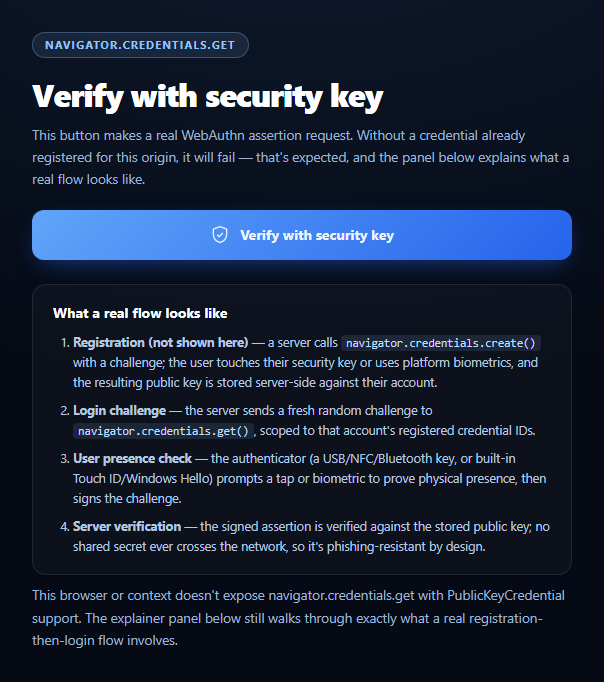
This snippet doesn't fake a security-key check. It calls the genuine navigator.credentials.get() WebAuthn API with a real random challenge, and treats the near-certain rejection — since no credential was ever registered for this origin — as the expected, informative outcome rather than an error to hide.
Why this will (almost) always fail, on purpose
WebAuthn is a two-phase protocol: navigator.credentials.create() registers a public key against a specific origin during signup, then navigator.credentials.get() requests an assertion signed by that same key during login. This demo only implements the second phase, because the first requires a real server to issue a registration challenge and persist the resulting public key. Calling get() with nothing registered is genuinely, correctly rejected by the browser — almost always with NotAllowedError — and the snippet treats that rejection as the expected teaching moment, with named-error copy rather than a generic failure state.
A real random challenge, not a placeholder
The request still generates a cryptographically random 32-byte challenge via crypto.getRandomValues(), exactly as a real relying-party server would (falling back to Math.random() only if crypto is somehow unavailable). Nothing about the request itself is fake — only the surrounding server infrastructure that would normally issue and verify it is absent.
The explainer carries the weight the button can't
Since the button's own success path is unreachable in practice, the snippet pairs it with a static four-step explainer covering registration, the login challenge, the user-presence/biometric check, and server-side verification — so a visitor still learns the complete real-world flow even though only the "get" half of it can execute here.
Distinct, named rejection reasons
The catch block branches on err.name: NotAllowedError (no matching credential, timeout, or user cancellation — the overwhelmingly likely case here), SecurityError (wrong origin context, common in a sandboxed preview iframe), and AbortError (timeout with no authenticator response), each with copy naming exactly why — rather than a single "something went wrong."
Pair this with passkey login for the registration-adjacent flow, or OTP verification as a comparison against a non-hardware second factor.
Build with AI
Build, Understand, Optimize, and Extend It With AI
Paste this snippet's HTML, CSS, and JS into an AI coding assistant like Claude and ask it to explain why navigator.credentials.get() is expected to reject in a demo with no prior registration, and how the two-phase WebAuthn lifecycle (create for registration, get for login) would need a real server to complete successfully. It's also useful for reasoning about the specific DOMException names WebAuthn throws — ask it to walk through when NotAllowedError, SecurityError, and AbortError each occur and why they warrant different user-facing copy rather than one generic failure message. For extensions, ask it to sketch the matching navigator.credentials.create() registration call and the minimal server endpoints (challenge issuance and assertion verification) a real flow would need, or to add a conditional UI (autofill) variant using the mediation: 'conditional' option. Treat the code less like a finished artifact and more like a starting point for a conversation.
Prompt to recreate it
Copy this into your AI assistant of choice to build the effect from scratch, or as a jumping-off point for your own variant:
Build a "WebAuthn security key prompt" in plain HTML, CSS, and JavaScript using the real navigator.credentials.get() API — no libraries, no server.

Requirements:
- A "Verify with security key" button that, on click, calls navigator.credentials.get({ publicKey: { challenge, timeout, userVerification: 'preferred' } }) where challenge is a real cryptographically random Uint8Array generated via crypto.getRandomValues() (with a Math.random() fallback only if crypto is unavailable) — do not fake or skip this call.
- Feature-detect support first with a check like navigator.credentials && typeof navigator.credentials.get === 'function' && window.PublicKeyCredential, and show a clear "not supported here" message with the explainer (see below) if it's missing, rather than attempting the call.
- CRITICAL: since this demo has no backend and therefore no credential was ever registered via navigator.credentials.create() for this origin, the get() call is expected to reject nearly every time it actually runs — wrap it thoroughly in try/catch and branch on err.name to give distinct, informative copy for at least NotAllowedError (no matching credential / timeout / declined — the overwhelmingly common case here), SecurityError (ineligible origin/context, e.g. inside a sandboxed iframe), and AbortError (timeout with no authenticator response). Present each as an expected, well-explained outcome — not an apologetic error banner — since a real user of this snippet needs to understand WHY it failed, not just that it did.
- Also handle the (unlikely but possible) success path: if a credential is actually returned, display its id in the result area and note that a real flow would now send the signed assertion to a server for verification.
- A static "what a real flow looks like" explainer section (ordered list is fine) covering: server-issued registration challenge and navigator.credentials.create() during signup, the login-time challenge sent to navigator.credentials.get(), the authenticator's user-presence/biometric check, and server-side verification of the signed assertion against the stored public key — so the page teaches the full real-world flow even though only the "get" half can actually execute without a backend.
- Make the visual design polished and confident (a well-designed security-feature UI), not styled like an error state or apology, since a correctly-failing WebAuthn call is the expected and honest behavior for this demo.
Want to tighten it up first? Run this prompt through the AI Prompt Studio to score it across 8 quality dimensions, catch anti-patterns, and tune the wording for Claude, ChatGPT, or Gemini before you paste it in.
Step by step
How to Use
- 1Paste HTML, CSS, and JSA "Verify with security key" button and explainer render.
- 2Click the buttonA genuine navigator.credentials.get() call fires with a real random challenge.
- 3Expect a rejectionNotAllowedError is normal — no credential was ever registered here.
- 4Read the named errorThe result panel explains exactly which WebAuthn error occurred and why.
- 5Read the explainerFour steps cover the full real registration-to-verification flow.
- 6Wire up a real backendPair with create() and a server to make the success path reachable.
Real-world uses
Common Use Cases
Got questions?
Frequently Asked Questions
Because WebAuthn requires a credential to be registered first via navigator.credentials.create(), which needs a real server to issue a registration challenge and store the resulting public key against an account. This demo has no server, so navigator.credentials.get() correctly and honestly rejects — almost always with NotAllowedError — since the browser finds no matching credential for this origin. That's the expected, correct behavior, not a bug in the snippet.
Yes. It calls the genuine navigator.credentials.get() browser API with a cryptographically random challenge generated via crypto.getRandomValues(), exactly as a production relying-party server would construct one. The only thing missing is the server-side infrastructure to register a credential ahead of time and verify the resulting assertion — the client-side request itself is fully real.
It's WebAuthn's catch-all rejection for "no usable credential and/or no user action completed" — covering no matching registered credential for this origin (the near-certain cause in this demo), the request timing out, or the user/environment declining the native security-key or biometric prompt. It's distinct from SecurityError (wrong origin/context) and AbortError (timeout with no authenticator response), which this snippet also names separately.
A server that generates a registration challenge, calls navigator.credentials.create() to have the browser create and register a credential (prompting a security key tap or platform biometric), stores the resulting public key against the user's account, then on login generates a fresh challenge for navigator.credentials.get() and verifies the signed assertion server-side against that stored key. The explainer panel in this snippet walks through all four steps.
Wrap the async navigator.credentials.get() call in a handler, keep the try/catch and named-error branching exactly as is, and replace the inline result HTML with component state driving your own result UI. For a real implementation, the challenge and (once registered) the allowCredentials list must come from your backend per request — never hardcode them client-side.