Source Code
<div class="wrap">
<div class="table-head">
<h2 class="table-title">Expense Line Items</h2>
<span class="hint">Double-click a Qty or Unit cost cell to edit</span>
</div>
<div class="table-scroll">
<table class="tbl">
<thead>
<tr>
<th>Item</th>
<th>Category</th>
<th class="num">Qty</th>
<th class="num">Unit cost</th>
<th class="num">Line total</th>
</tr>
</thead>
<tbody id="tbody"></tbody>
<tfoot>
<tr>
<td colspan="2">Totals</td>
<td class="num" id="totalQty">0</td>
<td class="num">—</td>
<td class="num" id="totalCost">$0.00</td>
</tr>
</tfoot>
</table>
</div>
</div>* { box-sizing: border-box; margin: 0; padding: 0; }
body { font-family: system-ui, sans-serif; background: #f8fafc; min-height: 100vh; padding: 32px 20px; }
.wrap { max-width: 620px; margin: 0 auto; }
.table-head { display: flex; align-items: baseline; justify-content: space-between; gap: 12px; margin-bottom: 12px; flex-wrap: wrap; }
.table-title { font-size: 17px; font-weight: 800; color: #0f172a; }
.hint { font-size: 11px; color: #94a3b8; font-weight: 600; }
.table-scroll { max-height: 280px; overflow-y: auto; border-radius: 12px; box-shadow: 0 1px 6px rgba(0,0,0,0.06); background: #fff; }
.tbl { width: 100%; border-collapse: collapse; }
.tbl thead { position: sticky; top: 0; z-index: 2; }
.tbl thead tr { background: #f8fafc; }
.tbl th { padding: 11px 14px; text-align: left; font-size: 11px; font-weight: 700; text-transform: uppercase; letter-spacing: 0.4px; color: #64748b; border-bottom: 1px solid #e2e8f0; }
.tbl th.num, .tbl td.num { text-align: right; }
.tbl td { padding: 10px 14px; border-bottom: 1px solid #f1f5f9; font-size: 13px; color: #334155; font-variant-numeric: tabular-nums; }
.tbl tbody tr:last-child td { border-bottom: none; }
.tbl tbody tr:hover td { background: #fafafa; }
.editable { cursor: pointer; border-radius: 6px; padding: 2px 6px; margin: -2px -6px; }
.editable:hover { background: #eef2ff; }
.editable input { width: 64px; text-align: right; border: 1px solid #6366f1; border-radius: 6px; padding: 3px 6px; font: inherit; font-variant-numeric: tabular-nums; }
.tbl tfoot { position: sticky; bottom: 0; z-index: 2; }
.tbl tfoot tr { background: #0f172a; }
.tbl tfoot td { padding: 12px 14px; font-size: 13px; font-weight: 800; color: #fff; border: none; transition: background 0.3s; }
.tbl tfoot tr.flash td { background: #1e293b; }const ITEMS = [
{ name: 'Design software license', category: 'Software', qty: 3, unitCost: 49.0 },
{ name: 'Client dinner', category: 'Meals', qty: 1, unitCost: 186.5 },
{ name: 'Conference tickets', category: 'Travel', qty: 2, unitCost: 420.0 },
{ name: 'Hotel (3 nights)', category: 'Travel', qty: 3, unitCost: 189.0 },
{ name: 'Rideshare to venue', category: 'Travel', qty: 4, unitCost: 22.75 },
{ name: 'Team lunch', category: 'Meals', qty: 1, unitCost: 94.2 },
];
const fmt = (n) => '$' + n.toLocaleString(undefined, { minimumFractionDigits: 2, maximumFractionDigits: 2 });
function render() {
document.getElementById('tbody').innerHTML = ITEMS.map((item, i) => {
const lineTotal = item.qty * item.unitCost;
return '<tr>' +
'<td>' + item.name + '</td>' +
'<td>' + item.category + '</td>' +
'<td class="num"><span class="editable" data-i="' + i + '" data-field="qty">' + item.qty + '</span></td>' +
'<td class="num"><span class="editable" data-i="' + i + '" data-field="unitCost">' + fmt(item.unitCost) + '</span></td>' +
'<td class="num">' + fmt(lineTotal) + '</td>' +
'</tr>';
}).join('');
updateTotals();
}
function updateTotals() {
const totalQty = ITEMS.reduce((sum, item) => sum + item.qty, 0);
const totalCost = ITEMS.reduce((sum, item) => sum + item.qty * item.unitCost, 0);
document.getElementById('totalQty').textContent = totalQty;
document.getElementById('totalCost').textContent = fmt(totalCost);
const footRow = document.querySelector('.tbl tfoot tr');
footRow.classList.add('flash');
setTimeout(() => footRow.classList.remove('flash'), 300);
}
document.getElementById('tbody').addEventListener('dblclick', (e) => {
const span = e.target.closest('.editable');
if (!span || span.querySelector('input')) return;
const i = parseInt(span.dataset.i, 10);
const field = span.dataset.field;
const currentVal = ITEMS[i][field];
span.innerHTML = '<input type="text" inputmode="decimal" value="' + currentVal + '" />';
const input = span.querySelector('input');
input.focus();
input.select();
function commit() {
const parsed = parseFloat(input.value);
if (!isNaN(parsed) && parsed >= 0) ITEMS[i][field] = parsed;
render();
}
input.addEventListener('keydown', (e2) => {
if (e2.key === 'Enter') { e2.preventDefault(); commit(); }
else if (e2.key === 'Escape') { e2.preventDefault(); render(); }
});
input.addEventListener('blur', commit);
});
render();Learn Coding Visually
Learn to code with interactive, live-preview playgrounds — HTML, CSS, JavaScript, React & more.
 HTML Playground42 lessons · Click-based · Live preview
 CSS PlaygroundLearn CSS with a live editor
 JavaScript Playground60 lessons · DOM · Async · Canvas
 React PlaygroundLearn React with a live code editor
 GSAP PlaygroundLearn GSAP animation interactively
 SVG Playground44 lessons · shapes · paths · animation
 SCSS Playground45 lessons · Sass modules · tokens
 Tailwind PlaygroundLearn Tailwind CSS with a live editor
 Bootstrap 5 Playground50 lessons · live preview
Table with Sticky Footer Totals Row — Free HTML CSS JS Snippet
Table with Sticky Footer Totals Row · Tables · Plain HTML, CSS & JS · Live preview
What's included
Features
About this UI Snippet
Table with Sticky Footer Totals Row — Sticky Header/Footer & Live Recomputed Totals
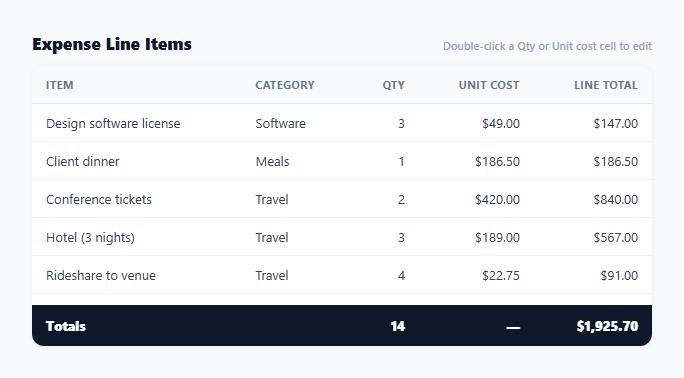
A long expense or line-item table loses its most useful number the moment the totals row scrolls out of view — a reader has to scroll all the way down just to see what everything adds up to, then scroll back up to keep reviewing individual rows. This snippet keeps both ends pinned: a sticky header stays visible while scrolling down through rows, and a sticky footer totals row stays visible at the bottom of the scroll container the entire time, recomputing live whenever an underlying value is edited.
Two independent sticky elements inside one scroll container
Both .tbl thead and .tbl tfoot use position: sticky — the header with top: 0 pinning it to the top of .table-scroll's scrollable area, and the footer with bottom: 0 pinning it to the bottom. Because the sticky positioning is scoped to .table-scroll (which has overflow-y: auto and a fixed max-height) rather than the page itself, both bars stay fixed relative to the table's own scrolling region without needing any JavaScript scroll listeners or manual repositioning — pure CSS handles both independently.
Totals recomputed from source data, never accumulated incrementally
updateTotals() always recalculates totalQty and totalCost fresh with .reduce() over the full ITEMS array rather than tracking a running total that gets incremented or decremented as individual line items change. This avoids an entire class of bugs where an incremental total silently drifts from the true sum after several edits — recomputing from source on every render guarantees the footer is always exactly correct, at the cost of a full array pass each time, which is negligible for any table size a human would actually scroll through.
A brief flash confirms the totals actually changed
Every call to updateTotals() adds a .flash class to the footer row (darkening its background briefly) and removes it 300ms later. Because the footer is the one row that's always visible regardless of scroll position, it's also the row most likely to change without the user's eyes already being on it — someone editing a quantity cell near the top of a long table is looking at that cell, not the footer 20 rows below. The flash draws their attention to the fact that the total, which they may not even be looking at, just updated in response to their edit.
Editing is double-click, not single-click, to avoid accidental edits
Only qty and unitCost cells carry the .editable class, and entering edit mode requires a dblclick rather than a single click — a deliberate choice for a table where most interaction is scrolling and reading, not editing, so a single stray click while scanning the table doesn't accidentally pop open an edit field. The line-total column is never editable directly since it's always derived as qty * unitCost.
Commit-on-blur mirrors the same safety net used in the keyboard-navigable table
Like other editable-cell patterns in this library, the temporary input commits its value on Enter, discards on Escape (by simply re-rendering from unmodified ITEMS), and also commits on blur — so clicking elsewhere on the page while mid-edit still saves rather than silently losing the typed value.
Build with AI
Build, Understand, Optimize, and Extend It With AI
Paste this snippet's HTML, CSS, and JS into an AI coding assistant like Claude and ask it to explain exactly why the sticky header and sticky footer both work independently with pure CSS and no scroll event listeners, and what CSS property on the wrapping container makes that possible. The same assistant can help optimize it — for instance asking whether recomputing totals with a full array reduce on every edit would still be performant for a table with several thousand rows, or whether a running-total approach would become worth the added complexity at that scale. It's also useful for extending the table: ask it to add a per-category subtotal row, support multi-currency line items, or add a CSV export button that includes the footer totals row. Treat the code less like a finished artifact and more like a starting point for a conversation.
Prompt to recreate it
Copy this into your AI assistant of choice to build the effect from scratch, or as a jumping-off point for your own variant:
Build a scrollable data table with a sticky header and a sticky footer totals row in plain HTML, CSS, and JavaScript — no framework, no library.

Requirements:
- Render a table of line items (name, category, quantity, unit cost, and a computed line total equal to quantity times unit cost) inside a container with a fixed maximum height and vertical scrolling.
- The table header row must remain pinned to the top of the scrollable area while the body scrolls beneath it, and a separate footer row showing column totals must remain independently pinned to the bottom of the same scrollable area — both using pure CSS sticky positioning, with no JavaScript scroll listeners or manual repositioning.
- The footer's total quantity and total cost must always be recalculated by summing the full underlying dataset from scratch every time it updates, not maintained as an incrementally adjusted running total.
- Make the quantity and unit cost cells editable via double-click (not single click), replacing the cell's content with a text input pre-filled with the current value; pressing Enter or clicking away from the input must save the new value and immediately recompute that row's line total and the footer's totals, while pressing Escape must discard the edit and restore the original value.
- Whenever the footer totals recompute, the footer row must briefly flash a different background color and then fade back to its normal appearance, to draw attention to a total that changed off-screen from wherever the user was actually editing.
Want to tighten it up first? Run this prompt through the AI Prompt Studio to score it across 8 quality dimensions, catch anti-patterns, and tune the wording for Claude, ChatGPT, or Gemini before you paste it in.
Step by step
How to Use
- 1Scroll the tableThe header row stays pinned to the top and the totals row stays pinned to the bottom of the scroll area the entire time.
- 2Double-click a Qty or Unit cost cellOpens an inline input pre-filled with the current value, selected for immediate typing.
- 3Press Enter or click away to saveThe line total and the sticky footer totals recompute immediately, and the footer briefly flashes to confirm the change.
- 4Press Escape to cancel an editReverts to the unmodified value without saving.
- 5Replace ITEMS with real dataUpdate the array with your own line items — totals and line-item math recompute automatically from qty and unitCost.
- 6Export in your formatClick "HTML" for a standalone file, "JSX" for a React component, or "Tailwind" for a Tailwind CSS version.
Real-world uses
Common Use Cases
Got questions?
Frequently Asked Questions
Both thead and tfoot use CSS position: sticky — the header with top: 0 and the footer with bottom: 0 — scoped inside .table-scroll, which has overflow-y: auto and a fixed max-height. Because sticky positioning is relative to the nearest scrolling ancestor, both bars pin to their respective edges of that specific scroll container with no JavaScript needed.
updateTotals() runs a fresh .reduce() over the entire ITEMS array every time it is called, rather than adding or subtracting a delta from a previously stored total. This guarantees the footer is always exactly correct even after many edits, avoiding the class of bugs where an incrementally maintained running total slowly drifts from the true sum due to a missed update somewhere.
The footer stays visible regardless of scroll position, but a user editing a cell higher up in a long table is not necessarily looking at the footer when it changes. The brief .flash class (a temporary background darken-and-revert) draws their attention to the fact that the total just updated in response to their edit, even though their eyes were elsewhere.
Most interaction with this kind of table is scrolling and reading rather than editing, so requiring a deliberate double-click to enter edit mode avoids accidentally opening an edit field from an ordinary single click while scanning down the rows.
No — line totals are always computed as qty times unitCost inside render() and are never given the .editable class. Editing either the quantity or unit cost automatically recalculates the correct line total and the footer totals on the next render, avoiding a state where a manually edited line total could disagree with its own quantity and unit cost.
The keydown handler calls render() directly without applying the typed value, which redraws the cell from the unmodified ITEMS array — effectively discarding whatever was typed and restoring the original value with no separate "revert" logic needed.