You Might Also Like
Learn Coding Visually
Learn to code with interactive, live-preview playgrounds — HTML, CSS, JavaScript, React & more.
 HTML Playground42 lessons · Click-based · Live preview
 CSS PlaygroundLearn CSS with a live editor
 JavaScript Playground60 lessons · DOM · Async · Canvas
 React PlaygroundLearn React with a live code editor
 GSAP PlaygroundLearn GSAP animation interactively
 SVG Playground44 lessons · shapes · paths · animation
 SCSS Playground45 lessons · Sass modules · tokens
 Tailwind PlaygroundLearn Tailwind CSS with a live editor
 Bootstrap 5 Playground50 lessons · live preview
Resizable Table Columns — Free HTML CSS JS Snippet
Resizable Table Columns · Tables · Plain HTML, CSS & JS · Live preview
What's included
Features
About this UI Snippet
Resizable Table Columns — colgroup Sizing, Pointer Capture Dragging & Double-Click Auto-Fit
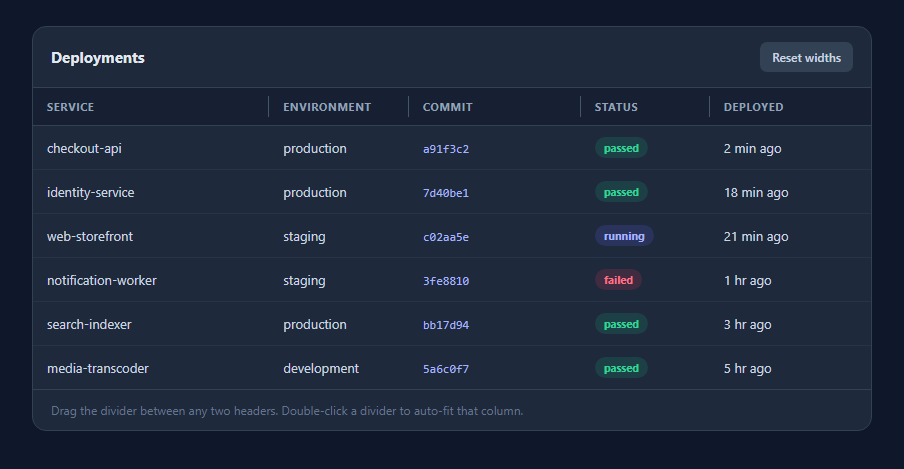
Column resizing is the feature that makes people reach for a data-grid library, and it is roughly sixty lines of vanilla JavaScript once you know which element to actually resize. This snippet implements the full interaction — drag handles between headers, a minimum width floor, live feedback during the drag, double-click auto-fit, and a reset — with no dependencies and no re-render of the table body.
Resizing the colgroup, not the cells
The naive approach sets a width on the <th> and hopes the body cells follow. They often do not, because without a fixed layout algorithm the browser is free to redistribute space based on content. This snippet uses table-layout: fixed together with a <colgroup> of <col> elements, and resizing writes to col.style.width. That single write re-lays the entire column — header and every body cell — in one operation, because <col> exists precisely to carry column-level presentation. It is also the cheapest possible update: one style change rather than one per row.
Pointer events and setPointerCapture
The drag uses pointer events rather than mouse events, so one code path serves a mouse, a finger and a stylus. setPointerCapture() on the grip is what makes the drag survive leaving the element — without it, moving the cursor faster than the browser repaints drops the pointer outside the 11px handle and the resize stops mid-gesture. Capture redirects every subsequent move to the original element until release, which is the correct primitive for any drag and a far better fit than attaching temporary listeners to document.
A hit area wider than the line it draws
The visible divider is a 1px line, and a 1px drag target would be unusable. The .rc-grip element is 11 pixels wide and positioned to straddle the column boundary, with the thin line drawn by a pseudo-element inside it. The handle grows and turns indigo on hover so the affordance is obvious before the user commits. touch-action: none on the grip stops the browser interpreting the drag as a scroll gesture on touch devices, which is the single most common reason a drag interaction "works on desktop but not on mobile".
Auto-fit measured properly
Double-clicking a divider fits the column to its widest cell. Doing this by reading scrollWidth fails once text-overflow: ellipsis has clipped the content, because the clipped element reports the clipped size. Instead the snippet creates one hidden probe span, copies each cell's computed font onto it, writes the cell text, and reads offsetWidth — an accurate measurement of the untruncated string. The probe is created once per auto-fit and removed immediately, so no layout thrash is left behind.
Feedback and escape hatches
The note line under the table reports the live pixel width during a drag and the result after an auto-fit, so the interaction is legible rather than guessy. A minimum width constant prevents a column being dragged to nothing and becoming unrecoverable, and the Reset button restores the original widths captured on load, which is the safety net that makes users willing to experiment with the feature at all.
Build with AI
Build, Understand, Optimize, and Extend It With AI
Paste this snippet into an AI assistant like Claude and ask it to add width persistence to localStorage plus a keyboard-accessible resize mode, where a focused header responds to Arrow Left/Right with a 16px step and Shift+Arrow with a 1px step — that closes the accessibility gap a pointer-only resizer leaves. Other natural extensions: constrain the total table width so widening one column narrows its neighbour rather than growing the table; add column reordering by dragging the header itself while the grip keeps handling resize; store widths as flexible fractions rather than pixels so the layout survives a viewport change; or add a "fit all columns" button that runs the auto-fit measurement across every column in one pass.
Prompt to recreate it
Copy this into your AI assistant of choice to build the effect from scratch, or as a jumping-off point for your own variant:
Build a data table with drag-to-resize columns in plain HTML, CSS, and JavaScript — no frameworks or libraries.

Requirements:
- Use table-layout: fixed with a <colgroup> of <col> elements, and perform all resizing by writing to col.style.width so the header and every body cell re-lay in a single operation.
- Put a resize grip in each header except the last: an absolutely positioned element roughly 11px wide straddling the column boundary, with a thin 1px divider drawn by a pseudo-element inside it. The grip must show a col-resize cursor and a clear hover state.
- Implement the drag with pointer events (pointerdown/pointermove/pointerup) and call setPointerCapture() on the grip so the drag continues correctly when the pointer leaves the handle or the window. Set touch-action: none on the grip so touch drags are not consumed as page scrolls.
- Enforce a minimum column width so a column can never be collapsed to an unrecoverable size.
- On double-click of a grip, auto-fit that column to its widest cell. Measure with a hidden probe span that copies each cell's computed font and text content and reads offsetWidth — do not use scrollWidth, since cells use text-overflow: ellipsis and would report clipped widths.
- Show live feedback: a status line reporting the column's pixel width while dragging and the result after an auto-fit.
- Capture the initial widths on load and provide a Reset button that restores them.
- Style it as a dark admin table with uppercase header labels, hover row highlighting, and status pills, and keep the table horizontally scrollable in a wrapper so widened columns do not break the page layout.
Want to tighten it up first? Run this prompt through the AI Prompt Studio to score it across 8 quality dimensions, catch anti-patterns, and tune the wording for Claude, ChatGPT, or Gemini before you paste it in.
Step by step
How to Use
- 1Hover between two column headersAn 11-pixel-wide invisible grip straddles each column boundary. On hover the thin divider thickens and turns indigo, and the cursor changes to col-resize so the affordance is clear before you press.
- 2Drag left or right to resizePress and drag to set the column width live. The note under the table shows the current pixel width as you move, and a minimum of 70px stops the column collapsing to nothing.
- 3Release anywhere on the pageBecause the grip captures the pointer, the drag keeps tracking even if your cursor leaves the table or the window entirely — releasing anywhere ends the gesture cleanly.
- 4Double-click a divider to auto-fitThe column resizes to fit its widest cell, measured with a hidden probe element that reports the true untruncated text width rather than the clipped one.
- 5Use it with touch or a stylusPointer events plus touch-action: none mean the same drag works with a finger on a phone without the browser hijacking the gesture as a page scroll.
- 6Reset when you have made a messThe Reset widths button restores the original column widths captured from the colgroup on load, so experimenting with the layout is always reversible.
Real-world uses
Common Use Cases
Got questions?
Frequently Asked Questions
A <col> element carries column-level presentation, so writing one width there re-lays the header and every body cell in a single operation. Setting widths on a th relies on the browser propagating that down, which is unreliable unless table-layout: fixed is set — and once it is set, the colgroup is both the clearer and the cheaper place to write.
The grip calls setPointerCapture() on pointerdown, which redirects all subsequent pointer events to that element until release. Without it, a fast drag outruns the 11px handle, the pointer lands on a different element, and the resize stops mid-gesture — the most common bug in hand-rolled resizers.
Yes. Pointer events cover mouse, touch and stylus with one code path, and the grip sets touch-action: none so the browser does not claim the gesture as a page scroll before your handler ever sees it. On touch, the wider hit area also matters much more than it does with a mouse.
Because these cells use text-overflow: ellipsis, a clipped cell reports its clipped width rather than the width its full text would need. The snippet instead measures with a hidden probe span that copies the cell font and text, giving the true untruncated width, then adds padding and a little slack.
Read the colgroup after a drag ends — Array.from(cols).map(c => c.style.width) — and store that array in localStorage or on the user record. On load, apply it back before the first paint. The DEFAULTS array in the snippet already models capturing widths once, so persistence is the same idea with a different storage target.
Yes. Keep a ref to the table, render the colgroup from an array of widths held in state, and have the pointer handlers write to the col elements directly during the drag — committing to state only on pointerup. Writing state on every pointermove would re-render the whole table sixty times a second to change one number the DOM is already showing.