Source Code
<div class="page">
<nav class="no-print topbar">
<span class="brand">Invoice #A-2045</span>
<button class="print-btn" onclick="window.print()">
<svg viewBox="0 0 24 24" width="16" height="16" fill="none" stroke="currentColor" stroke-width="2" stroke-linecap="round" stroke-linejoin="round"><polyline points="6 9 6 2 18 2 18 9"/><path d="M6 18H4a2 2 0 0 1-2-2v-5a2 2 0 0 1 2-2h16a2 2 0 0 1 2 2v5a2 2 0 0 1-2 2h-2"/><rect x="6" y="14" width="12" height="8"/></svg>
Print this page
</button>
</nav>
<main class="document">
<header class="doc-header">
<h1>Invoice</h1>
<p>Invoice #A-2045 · Issued Aug 25, 2026</p>
</header>
<table class="doc-table">
<thead>
<tr><th>Item</th><th>Qty</th><th>Price</th><th>Total</th></tr>
</thead>
<tbody>
<tr><td>UI Snippets Pro plan</td><td>1</td><td>$29.00</td><td>$29.00</td></tr>
<tr><td>Extra seats</td><td>3</td><td>$9.00</td><td>$27.00</td></tr>
</tbody>
<tfoot>
<tr><td colspan="3">Total due</td><td>$56.00</td></tr>
</tfoot>
</table>
<p class="doc-footer">Thank you for your business. Questions? Contact billing@example.com.</p>
</main>
</div>* { box-sizing: border-box; }
body { font-family: system-ui, sans-serif; background: #f1f5f9; margin: 0; padding: 32px; display: flex; align-items: center; flex-direction: column; gap: 20px; }
.page { width: 100%; max-width: 640px; margin: 0 auto; }
.topbar {
display: flex;
align-items: center;
justify-content: space-between;
margin-bottom: 20px;
}
.brand { font-size: 14px; font-weight: 600; color: #64748b; }
.print-btn {
display: inline-flex;
align-items: center;
gap: 8px;
background: #1e293b;
color: #fff;
border: none;
border-radius: 8px;
padding: 10px 16px;
font-size: 13px;
font-weight: 600;
cursor: pointer;
transition: background 0.15s, transform 0.1s;
}
.print-btn:hover { background: #334155; }
.print-btn:active { transform: scale(0.97); }
.print-btn:focus-visible { outline: 2px solid #6366f1; outline-offset: 2px; }
.document {
background: #fff;
border-radius: 12px;
padding: 36px;
box-shadow: 0 4px 16px rgba(0,0,0,0.05);
}
.doc-header h1 { font-size: 24px; color: #1e293b; margin: 0 0 4px; }
.doc-header p { font-size: 13px; color: #94a3b8; margin: 0 0 24px; }
.doc-table { width: 100%; border-collapse: collapse; font-size: 14px; }
.doc-table th, .doc-table td { text-align: left; padding: 10px 8px; border-bottom: 1px solid #e2e8f0; }
.doc-table th { color: #64748b; font-weight: 600; font-size: 12px; text-transform: uppercase; letter-spacing: 0.03em; }
.doc-table td { color: #1e293b; }
.doc-table tfoot td { font-weight: 700; border-bottom: none; padding-top: 14px; }
.doc-footer { font-size: 12px; color: #94a3b8; margin-top: 24px; }
/*
Print-only stylesheet. Anything with the .no-print class (the topbar and
its button) is removed entirely from the printed output, the page
background and card chrome are stripped so it prints like a plain
document, and the document container's shadow/border are cleared.
*/
@media print {
.no-print { display: none !important; }
body { background: #fff; padding: 0; }
.document { box-shadow: none; border-radius: 0; padding: 0; }
.page { max-width: none; }
}// window.print() opens the browser's native print dialog. No custom
// print rendering is needed — the @media print stylesheet in the CSS
// panel handles what disappears and what stays.
document.addEventListener('keydown', (e) => {
// Optional: let Ctrl/Cmd+P still work normally instead of overriding it.
// This listener is here only to show the button isn't the only trigger.
});Learn Coding Visually
Learn to code with interactive, live-preview playgrounds — HTML, CSS, JavaScript, React & more.
 HTML Playground42 lessons · Click-based · Live preview
 CSS PlaygroundLearn CSS with a live editor
 JavaScript Playground60 lessons · DOM · Async · Canvas
 React PlaygroundLearn React with a live code editor
 GSAP PlaygroundLearn GSAP animation interactively
 SVG Playground44 lessons · shapes · paths · animation
 SCSS Playground45 lessons · Sass modules · tokens
 Tailwind PlaygroundLearn Tailwind CSS with a live editor
 Bootstrap 5 Playground50 lessons · live preview
Print This Page Button — Free HTML CSS JS window.print() Snippet
Print This Page Button · Buttons · Plain HTML, CSS & JS · Live preview
What's included
Features
About this UI Snippet
Print Button — HTML, CSS & JavaScript window.print() Snippet
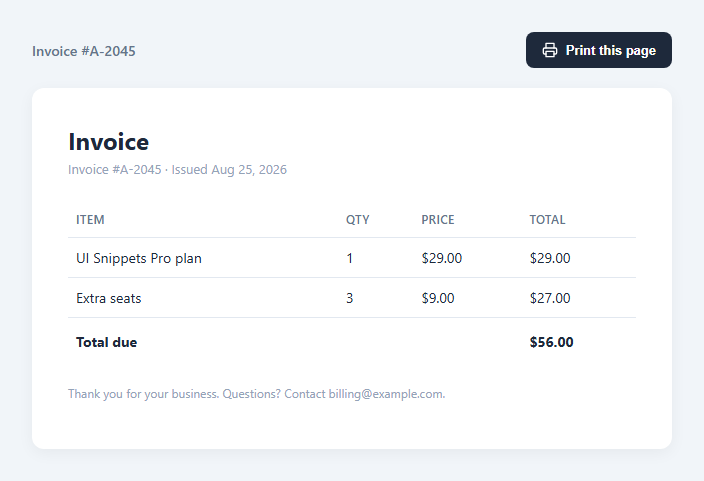
Invoices, receipts, tickets, and reports often need a simple "Print this page" affordance. The browser already has everything required — a native print dialog triggered by window.print() — but a good print button also needs a companion @media print stylesheet so navigation, buttons, and other on-screen-only chrome don't end up on the printed page.
This snippet shows both halves of that pattern in plain HTML, CSS, and vanilla JavaScript.
The button itself
The button's onclick is literally window.print() — a single native browser API call that opens the OS-level print dialog (or a save-as-PDF flow on many systems). There's no custom print-preview rendering to build; the browser and the @media print stylesheet do all the work between them.
How the @media print stylesheet works
Everything meant to disappear when printed carries a .no-print class — here, that's the topbar containing the page title and the print button itself (there's no reason to print a button that triggers printing). Inside @media print, the rule .no-print { display: none !important; } removes those elements only from the print rendering; on screen, they render completely normally. The !important guards against any more specific on-screen rule accidentally leaking into print.
The rest of the print block strips visual chrome that only makes sense on a lit screen: the page's colored background reverts to white, the document card's shadow and padding are removed so it fills the printed page edge-to-edge, and the container's max-width constraint is lifted since printed paper has its own margins.
Why use a class instead of inline styles
Using a single reusable .no-print class means any future element — a "share" button, a cookie banner, a chat widget — can be excluded from print output just by adding that one class, without writing new @media print rules each time.
Testing the print output
Most browsers' print preview (Ctrl/Cmd+P) renders the @media print styles exactly as they'll appear on paper or in a saved PDF, so you can iterate on the stylesheet without wasting paper.
Build with AI
Build, Understand, Optimize, and Extend It With AI
Give this snippet's HTML and CSS to an AI coding assistant like Claude and ask it to explain how the @media print query and the .no-print class work together to produce a different rendering of the exact same DOM for screen versus paper, without any JavaScript branching or duplicate markup. It's also useful to ask the assistant to extend the print stylesheet further — for example adding page-break-inside: avoid on the invoice table so rows never split awkwardly across a page boundary, adding a print-only footer with a page number using CSS counters, or building a version that prints multiple documents (like a batch of invoices) each starting on a fresh page.
Prompt to recreate it
Copy this into your AI assistant of choice to build the effect from scratch, or as a jumping-off point for your own variant:
Build a "Print this page" button and matching print stylesheet in plain HTML, CSS, and JavaScript — no PDF generation library.

Requirements:
- A button whose only behavior is calling the native window.print() API — do not build a custom print-preview modal or canvas-based rendering.
- A realistic document (such as an invoice with a header, itemized table, and total) that the print button is meant to print.
- A reusable .no-print class applied to anything that should never appear on paper — specifically the button itself and any navigation/toolbar around the document — and an @media print rule that hides everything carrying that class with display: none !important.
- Inside the same @media print block, strip on-screen-only visual chrome from the document container for a clean printed page: remove background color, box-shadow, and rounded corners, and remove any max-width constraint so the content uses the printed page's own margins.
- Do not use JavaScript to detect print state or manipulate the DOM before printing — all print-specific behavior must come from the @media print CSS query alone, so the exact same markup renders differently for screen versus paper.
Want to tighten it up first? Run this prompt through the AI Prompt Studio to score it across 8 quality dimensions, catch anti-patterns, and tune the wording for Claude, ChatGPT, or Gemini before you paste it in.
Step by step
How to Use
- 1Load the snippetClick "Print This Page Button" in the sidebar Library tab to see a mock invoice document with a print button in its top bar.
- 2Click the print buttonClick "Print this page" to open your browser's native print dialog. Use its preview pane to see the print-only styling applied.
- 3Notice what disappearsIn the print preview, confirm the top bar and button are gone — only the invoice document itself is shown, matching the .no-print rule.
- 4Mark more elements as no-printIn the HTML panel, add class="no-print" to any other element (a sidebar, a chat widget) you want excluded from the printed output.
- 5Adjust the print-only stylesIn the CSS panel, edit the @media print block to add page-break rules, adjust margins, or set specific font sizes for print.
- 6Export in your formatClick "HTML" for a standalone file, "JSX" for React, or "Tailwind" for React + Tailwind CSS — the print behavior carries over unchanged.
Real-world uses
Common Use Cases
Got questions?
Frequently Asked Questions
Not directly — it opens the browser's native print dialog via window.print(). Most modern browsers let the user choose "Save as PDF" as a destination inside that same dialog, which produces a PDF without any extra library.
Add class="no-print" to that element. The @media print stylesheet in the CSS panel applies display: none !important to any element with that class, but only when the page is being printed — it renders normally on screen.
It ensures the print-hiding rule wins even if a more specific on-screen CSS rule targets the same element with its own display value, guaranteeing the element is reliably excluded from every print job.
Yes. Add page-break-before: always or page-break-after: always (or the modern break-before/break-after equivalents) to specific elements inside the @media print block to force a new printed page at that point.
No, by design — the @media print block resets the background to white and removes box-shadow and border-radius from the document container so it looks like a clean printed document rather than a screenshot of a web card.
Yes. Because this uses the browser's real print functionality rather than a custom modal, the standard Ctrl/Cmd+P keyboard shortcut continues to trigger the exact same print dialog and the same @media print styling.
Open your browser's print dialog (Ctrl/Cmd+P) and use its built-in preview pane — it renders the @media print CSS exactly as it will appear on paper or in a saved PDF, so you can iterate on the stylesheet safely.
Yes. Add an element with display: none by default, then inside @media print override it to display: block (or flex) — this is the inverse of the .no-print pattern and works for anything you want to appear only in the printed output.