You Might Also Like
Learn Coding Visually
Learn to code with interactive, live-preview playgrounds — HTML, CSS, JavaScript, React & more.
 HTML Playground42 lessons · Click-based · Live preview
 CSS PlaygroundLearn CSS with a live editor
 JavaScript Playground60 lessons · DOM · Async · Canvas
 React PlaygroundLearn React with a live code editor
 GSAP PlaygroundLearn GSAP animation interactively
 SVG Playground44 lessons · shapes · paths · animation
 SCSS Playground45 lessons · Sass modules · tokens
 Tailwind PlaygroundLearn Tailwind CSS with a live editor
 Bootstrap 5 Playground50 lessons · live preview
Live Edit Presence — Free HTML CSS JS Card Snippet
Live Edit Presence · Cards · Plain HTML, CSS & JS · Live preview
What's included
Features
About this UI Snippet
Live Edit Presence — Notion & Figma-Style Collaborator Highlight Card in Vanilla JS
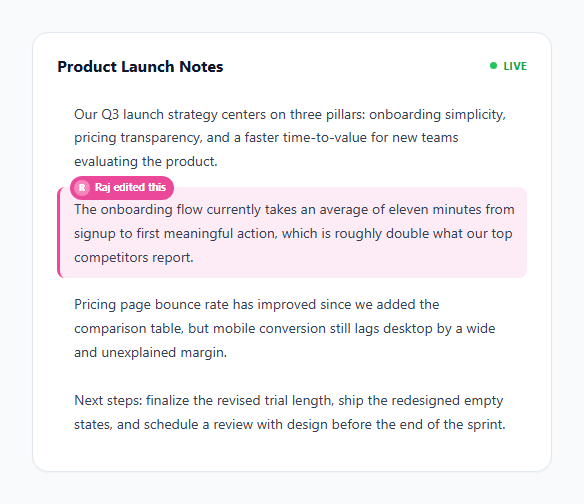
Tools like Notion, Google Docs, and Figma all share a small but instantly recognizable UI moment: a block of content briefly flashes a colored highlight the instant a collaborator edits it, with a small name label appearing to identify who did it, before both fade away and leave the content looking normal again. That moment does real communicative work — without it, simultaneous editing feels invisible and confusing; with it, every teammate's presence becomes legible at a glance. This snippet recreates that exact interaction on a static card using nothing but setTimeout scheduling, CSS custom properties, and two independently-timed fade transitions, standing in for what a real product would drive from WebSocket or CRDT change events.
Per-collaborator color assignment: a small fixed palette keyed by user id
The COLLABORATORS array is the entire identity system: four objects, each with an id, display name, avatar initial, and a matching pair of colors — a soft background tint (bg) and a saturated border/badge color (border). Critically, these colors are assigned once, per person, not generated randomly per edit. This mirrors how real collaboration tools work: your cursor and highlights are always the same shade of blue (or pink, or green) no matter which document you are in or which block you touch, because the color is a stable property of your user id, not a property of the current action. Here that stability comes from simply reading a fixed array entry; in a production app the same idea scales to hashing a user id into an index in a fixed palette array, guaranteeing the same person always maps to the same color even across sessions without needing to persist a color choice anywhere.
Applying color per-block with CSS custom properties
Rather than generating a new CSS class for every possible collaborator/block combination, each block element receives two inline custom properties at edit time — element.style.setProperty('--hl-bg', collaborator.bg) and --hl-border — which the stylesheet's .block.highlight rule simply references via var(--hl-bg) and var(--hl-border). This means the CSS only has to define the highlight and border-left treatment once, and any of the four (or four hundred) possible collaborator colors can be applied to any block just by setting two custom properties before toggling the .highlight class, keeping styling and identity cleanly separated.
The two-stage fade: why the label disappears before the highlight does
This is the detail that makes the effect read as polished rather than jarring. Two separate setTimeout calls are scheduled from the same triggerEdit() call: one at AVATAR_VISIBLE_MS (1800ms) removes the .show class from the presence tag, fading out just the little name badge, while a second, longer timeout at HIGHLIGHT_VISIBLE_MS (2600ms) removes the .highlight class from the block itself, fading the background tint back to transparent. If both faded on the same timer, the highlight would vanish at the exact moment attention was still on the name label, making the "who did this" information feel like it was snatched away. Staggering them lets the reader register who made the edit first, then gives the background tint extra time to visually fade on its own, mimicking the way Notion's own highlight lingers slightly after the little avatar toast disappears.
Staggered scheduling instead of a fixed interval
Rather than a single setInterval firing edits at a constant, predictable cadence, scheduleNextEdit() recursively calls itself with a new random delay between 1800ms and 4400ms each time, chosen fresh on every call via 1800 + Math.random() * 2600. This recursive-setTimeout pattern (sometimes called a "self-adjusting timer") produces a much more organic, bursty rhythm that reads as several independent people typing at their own pace, rather than the mechanically even cadence a fixed setInterval would produce — and because each call schedules only the next single edit, it is trivial to change the delay range or pause scheduling entirely without clearing and resetting a recurring interval.
Build with AI
Build, Understand, Optimize, and Extend It With AI
Hand this snippet to an AI assistant like Claude and ask it to explain why the two fade timers use different durations rather than a single shared one — it's a small design decision with real UX reasoning behind it that's worth being able to articulate yourself. Then try asking for a version that shows a persistent small avatar cluster of "currently online" collaborators, a cursor-position indicator instead of (or alongside) the block highlight, or a queue so overlapping edits on the very same block visually stack instead of one flash replacing another mid-fade.
Prompt to recreate it
Copy this into your AI assistant of choice to build the effect from scratch, or as a jumping-off point for your own variant:
Build a live-collaboration content card in plain HTML, CSS, and JavaScript that simulates multiple remote collaborators editing different paragraphs over time — no backend, no frameworks.

Requirements:
- A card containing 4-5 paragraphs of realistic body text, each individually addressable (e.g. via a data attribute).
- A small fixed array of collaborator objects, each with a name, initial, and a matching pair of colors (a light background tint and a saturated border/badge color) — the SAME collaborator must always produce the SAME colors, never randomized per edit.
- A function that, given a block index, picks a random collaborator, applies that collaborator's colors to the block using CSS custom properties (not per-collaborator CSS classes), shows a small avatar+name label positioned above the block, and adds a highlighted background/border-left treatment to the block.
- Two independently-timed fade-outs from that same trigger: the avatar/name label must fade out and disappear noticeably BEFORE the background highlight fades, not at the same time.
- A self-rescheduling timer (not a fixed setInterval) that repeatedly triggers edits on random blocks at randomized intervals, so the rhythm feels organic rather than mechanically even.
- A small pulsing "Live" status indicator in the card header using a CSS box-shadow ripple animation.
Want to tighten it up first? Run this prompt through the AI Prompt Studio to score it across 8 quality dimensions, catch anti-patterns, and tune the wording for Claude, ChatGPT, or Gemini before you paste it in.
Step by step
How to Use
- 1Watch the card on loadOne paragraph immediately flashes a colored highlight with a small avatar badge showing which teammate "just edited" it, simulating a document you have just opened mid-collaboration.
- 2Keep watching as more edits arriveEvery couple of seconds, a different random paragraph lights up in a different collaborator's color — never the same predictable rhythm twice, since each edit schedules its own random delay before the next one.
- 3Notice the name badge fading firstThe small pill showing the collaborator's avatar and name fades out after about 1.8 seconds, while the colored background tint on the paragraph itself lingers a little longer before fading.
- 4Compare colors across multiple edits to the same personWatch for repeated edits from the same collaborator (Ana, Raj, Mei, or Theo) — notice their highlight color is always identical, because color is tied to the person, not the individual edit.
- 5See two edits land on different blocks close togetherBecause scheduling is independent per edit, occasionally two different blocks will show active highlights at nearly the same time, which is intentional — real collaborative documents often have several people editing different sections at once.
Real-world uses
Common Use Cases
Got questions?
Frequently Asked Questions
Call triggerEdit(blockIndex) directly with the zero-based index of the block you want to highlight — it internally picks a random collaborator from the COLLABORATORS array. To force a specific collaborator instead of a random one, temporarily edit pickRandom to return a chosen entry, or refactor triggerEdit to accept an optional collaborator argument and fall back to pickRandom(COLLABORATORS) only when none is passed.
Replace the scheduleNextEdit() recursive timer with your WebSocket, Server-Sent Events, or CRDT change-event listener, and call triggerEdit(blockIndex) whenever a real remote edit event arrives for that block, using the real collaborator's id to look up their color in COLLABORATORS instead of picking randomly. Everything downstream — the CSS custom property assignment, the two-stage fade timers — works identically whether the trigger is random or real.
They are driven by two separate setTimeout calls with different durations (AVATAR_VISIBLE_MS at 1800ms, HIGHLIGHT_VISIBLE_MS at 2600ms) started from the same triggerEdit() call. Fading the small name badge out first keeps the "who did this" information from lingering awkwardly after it has served its purpose, while letting the subtler background tint fade more slowly afterward, mimicking how Notion and Figma let a highlight tint linger a beat past the identity toast.
Yes. Model each block's highlight state (active collaborator id, whether the tag is showing, whether the highlight is showing) as component state rather than toggling classes on DOM nodes directly, and keep the color-to-user mapping as a plain constant object or array exactly as here. Start the recursive scheduling timer inside useEffect (React), onMounted (Vue), or ngAfterViewInit (Angular), and make sure to track the latest setTimeout id so it can be cleared in the effect cleanup, onUnmounted, or ngOnDestroy — otherwise the recursive scheduler keeps firing state updates after the component has unmounted.
Add a new object to the COLLABORATORS array with a unique id, name, initial, and a bg/border color pair that reads clearly against the card's light background — keep the bg value as a low-opacity rgba() tint (around 8-12% alpha) so highlighted text stays fully readable, and pick a border color saturated enough to stand out as a small badge.