You Might Also Like
Learn Coding Visually
Learn to code with interactive, live-preview playgrounds — HTML, CSS, JavaScript, React & more.
 HTML Playground42 lessons · Click-based · Live preview
 CSS PlaygroundLearn CSS with a live editor
 JavaScript Playground60 lessons · DOM · Async · Canvas
 React PlaygroundLearn React with a live code editor
 GSAP PlaygroundLearn GSAP animation interactively
 SVG Playground44 lessons · shapes · paths · animation
 SCSS Playground45 lessons · Sass modules · tokens
 Tailwind PlaygroundLearn Tailwind CSS with a live editor
 Bootstrap 5 Playground50 lessons · live preview
Keyboard Keys (kbd) — Shortcut Key UI HTML CSS JS
Keyboard Keys · Navigation · Plain HTML, CSS & JS · Live preview
What's included
Features
About this UI Snippet
Keyboard Keys — 3D Keycaps That Press Down on the Matching Shortcut
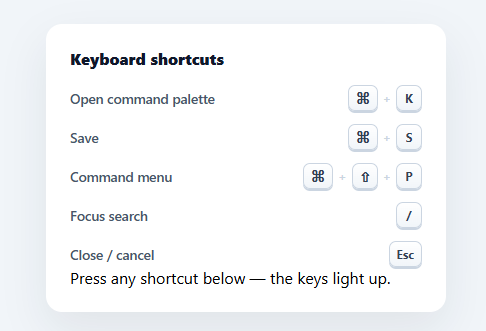
Styled keyboard keys (the <kbd> element) communicate shortcuts far better than plain text like "Cmd+K" — they look like real keycaps. This snippet builds a polished keyboard-key UI in plain HTML, CSS, and vanilla JavaScript: 3D keycaps with the right depth and shadows, laid out as a shortcut list, that actually *press down* when you hit the matching keys — no library or images.
Keycaps with real depth
Each key uses the semantic <kbd> element styled to look pressable: a subtle top-to-bottom gradient (lighter on top), a 1px border, and — the key detail — a box-shadow offset *downward* plus an inset highlight, which gives the cap a 3D lip as if it sits above the surface. This bottom-shadow-as-depth technique is what makes a keycap read as physical rather than a flat badge, the same trick behind every realistic key UI.
They press when you press
The standout feature: when you actually hit a shortcut, its on-screen keys depress. A document keydown listener checks each shortcut's modifier and key requirements against the event, and on a match adds a "down" class that translates the cap down by 2px and removes its drop shadow — so it looks pushed into the surface — then keyup releases it. Wiring the visual to real key events turns a static legend into a live demonstration, which is both delightful and genuinely instructive for teaching shortcuts.
Correct modifier matching
Each shortcut declares the keys to *display* (⌘, ⇧, K) separately from the keys to *match* (meta, shift, k), so the pretty symbols and the event logic stay decoupled. The matcher treats meta as either ⌘ or Ctrl (so it works on macOS and Windows), checks shiftKey, and compares the main key case-insensitively — the standard, cross-platform way to detect a shortcut. It also avoids hijacking keys while the user is typing in a field.
A clean shortcut list
The keys are laid out as a list pairing each shortcut with its description, with subtle + separators between caps in a combo. This description-plus-combo row is the conventional "keyboard shortcuts" layout you see in command palettes and help dialogs, and it's generated from a SHORTCUTS data array so it's easy to extend.
Drop-in and adaptable
Use the <kbd> styling alone anywhere you mention a shortcut in text, or use the whole list as a shortcuts help panel. Edit the SHORTCUTS array to your app's bindings. It's a clear, dependency-free reference for realistic keycap styling and live, cross-platform shortcut detection. If you wire these shortcuts to real actions rather than just a demo, remember the typing guard exists for a reason — a global / for search or a bare letter shortcut will otherwise fire while a user is mid-sentence in a text field, which is the most common way custom keyboard shortcuts break a normal typing experience.
Build with AI
Build, Understand, Optimize, and Extend It With AI
You do not have to work out the matcher logic by testing every OS yourself. Paste this snippet's HTML, CSS, and JS into an AI coding assistant like Claude and ask it to explain exactly why each SHORTCUTS entry keeps separate keys and match arrays instead of one, or why treating meta as e.metaKey or e.ctrlKey is what makes a single shortcut definition work on both macOS and Windows. The same assistant can help optimize it, for instance checking whether the setDown loop that walks every shortcut on every keydown scales fine once the list grows to dozens of entries, or whether a lookup map keyed by the pressed key would be cheaper. It is just as useful for extending the component, such as wiring the matched shortcuts to real navigation or command actions instead of just a visual press, adding chorded multi-key sequences like a Vim-style leader key, or building a settings screen where users remap the match arrays themselves. Treat the code less like a finished artifact and more like a starting point for a conversation.
Prompt to recreate it
Copy this into your AI assistant of choice to build the effect from scratch, or as a jumping-off point for your own variant:
Build a "keyboard keys" (kbd) shortcut list in plain HTML, CSS, and JavaScript that visually presses down its on-screen keys when the matching real shortcut is pressed — no library.

Requirements:
- A data array of shortcut objects, each with a keys array (the symbols to display, like a modifier glyph and a letter), a match array (the lowercase values to compare against real KeyboardEvent properties, like "meta" and a letter), and a description string.
- Render the list by generating one row per shortcut showing its description alongside its key combo, with a visible plus separator between multiple keys in the same combo, using the real semantic kbd element for each key.
- Style each kbd element to look like a physical keycap: a vertical gradient background, a border, and a box-shadow offset downward plus an inset highlight, so it reads as sitting above the surface with a lip.
- Add a document-level keydown listener that, for each shortcut, checks whether every entry in its match array is satisfied by the current event — treating the literal string "meta" as true if either the event's metaKey or ctrlKey property is set (so the same definition works as Cmd on macOS and Ctrl on Windows), treating "shift" as the event's shiftKey property, and comparing any other value case-insensitively against the event's key property.
- When a shortcut's full match array is satisfied, add a class to that shortcut's kbd elements that translates them down a couple pixels and removes their drop shadow, visually depressing them, and remove that class on keyup.
- Guard against hijacking single-character shortcuts (like "/") while the user is focused in an input, textarea, or select element, and call preventDefault only when it is safe to do so.
Want to tighten it up first? Run this prompt through the AI Prompt Studio to score it across 8 quality dimensions, catch anti-patterns, and tune the wording for Claude, ChatGPT, or Gemini before you paste it in.
Step by step
How to Use
- 1Paste HTML, CSS, and JSA shortcuts panel renders with realistic 3D keycaps next to each description.
- 2Press a shortcutHit any listed combo (e.g. ⌘K) and its on-screen keys depress, then release on keyup.
- 3Use the kbd style anywhereApply the kbd styling to inline <kbd> elements wherever you mention a shortcut in text.
- 4Edit the shortcutsChange the SHORTCUTS array — keys to display, keys to match, and the description.
- 5Match your platformmeta matches ⌘ or Ctrl automatically; adjust the display symbols per OS if needed.
- 6Wire real actionsTrigger your actual handlers in the keydown match alongside the press animation.
Real-world uses
Common Use Cases
Got questions?
Frequently Asked Questions
Each <kbd> has a subtle vertical gradient (lighter top, darker bottom), a 1px border, and a box-shadow offset downward plus an inset top highlight. The downward shadow makes the cap appear to sit above the surface with a lip, and the inset highlight mimics the light edge of a real keycap. Removing that downward shadow and translating the cap down a couple pixels makes it look pressed.
A document keydown listener checks each shortcut's requirements against the event — modifiers and the main key. On a match, it adds a "down" class to that shortcut's <kbd> elements, which translates them down and flattens the shadow so they look depressed; keyup removes the class to release them. This ties the visual to actual key events, turning the legend into a live demo.
Each shortcut separates display keys (⌘, ⇧) from match keys (meta, shift, the letter). The matcher treats meta as true for either e.metaKey (⌘) or e.ctrlKey (Ctrl), so ⌘K on Mac and Ctrl+K on Windows both match, and it compares the main key case-insensitively. You can swap the displayed symbols per platform (⌘ vs Ctrl) while keeping the same match logic.
<kbd> is the semantic HTML element for keyboard input, so screen readers and assistive tech understand it represents keys the user presses, and it conveys meaning beyond styling. Styling the real element (rather than a generic span) keeps the markup meaningful and accessible while still letting you make it look like a keycap.
Render the shortcut list from an array and apply the kbd CSS. Attach the keydown/keyup listeners in a useEffect (React), onMounted/onUnmounted (Vue), or HostListener (Angular), tracking which shortcut is pressed in state to toggle the down class. The keycap styling and matcher logic are framework-agnostic — only the listeners and pressed state move into the framework.