You Might Also Like
Learn Coding Visually
Learn to code with interactive, live-preview playgrounds — HTML, CSS, JavaScript, React & more.
 HTML Playground42 lessons · Click-based · Live preview
 CSS PlaygroundLearn CSS with a live editor
 JavaScript Playground60 lessons · DOM · Async · Canvas
 React PlaygroundLearn React with a live code editor
 GSAP PlaygroundLearn GSAP animation interactively
 SVG Playground44 lessons · shapes · paths · animation
 SCSS Playground45 lessons · Sass modules · tokens
 Tailwind PlaygroundLearn Tailwind CSS with a live editor
 Bootstrap 5 Playground50 lessons · live preview
GLB AR-Style Pedestal Viewer — Free Three.js glTF "Placed Object" Snippet
GLB AR-Style Pedestal Viewer · Cards · Plain HTML, CSS & JS · Live preview
What's included
Features
About this UI Snippet
GLB AR-Style Pedestal Viewer — A "Placed Object" Presentation, Without WebXR
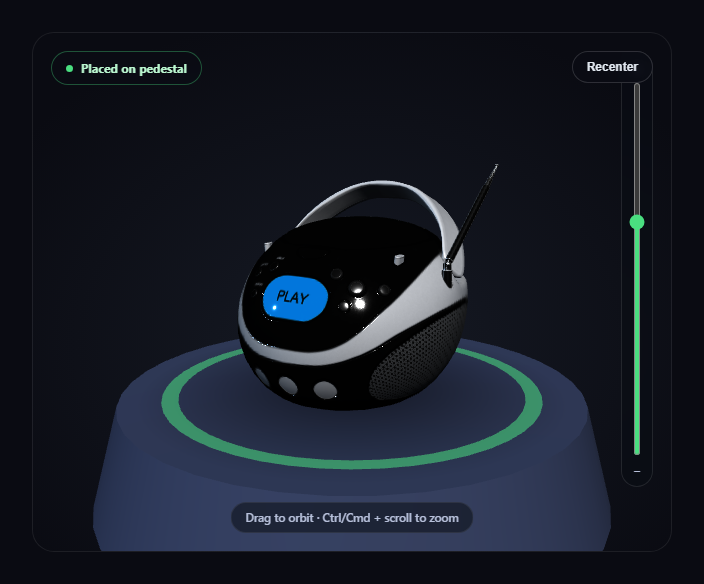
Real mobile AR product viewers use a specific visual vocabulary to say "this object is anchored in your space": a soft contact shadow, a subtle ring or reticle under the object, and a small status indicator confirming placement. This snippet borrows that exact language for a plain desktop/web 3D viewer — no camera permission, no WebXR session, no device motion required — by presenting a real loaded .glb model resting on a pedestal with all three of those cues built from ordinary Three.js primitives.
A canvas-drawn radial gradient instead of a real shadow map
Real-time shadow mapping is overkill for a simple "this sits here" cue. Instead, a small offscreen <canvas> is drawn once with a radial gradient — dark near the center, fully transparent at the edge — turned into a THREE.CanvasTexture, and mapped onto a flat circle positioned just above the pedestal's top surface. It reads immediately as a soft contact shadow without a single shadow-casting light or render pass.
A placement ring borrowed directly from real AR UI
A thin RingGeometry sits beneath the model, given a slow, continuous rotation inside the render loop (ring.rotation.z = t * 0.00025) — the same subtle "anchored and alive" animation real AR product placement UIs use to confirm an object is actively tracked, adapted here to a pedestal instead of a real-world floor plane.
A capped polar angle keeps the camera above the pedestal
controls.maxPolarAngle is set just under Math.PI / 2, which prevents OrbitControls from ever dragging the camera down below the pedestal's top surface — a small constraint that keeps every possible camera angle looking like a believable "product on a stand" shot instead of an underside view that breaks the illusion.
Auto-fit onto the pedestal's own top surface
Rather than a hardcoded scale and height, the model is measured with THREE.Box3 after loading, scaled to a fixed target size, then shifted vertically so its lowest point sits exactly at PEDESTAL_TOP — the same known Y coordinate the contact shadow and ring are both already positioned at, so the three pieces always line up regardless of the loaded model's native proportions.
A one-click recenter, not a stuck camera
A "Recenter" button resets the camera back to HOME_POSITION and the orbit target back to the pedestal, so a visitor who's dragged the view somewhere disorienting always has an obvious way back — a small but real usability detail real AR viewers also include.
A named, honest fallback if the model fails
If the .glb can't load, the real error is logged and a simple icosahedron takes the model's exact placed position on the pedestal, so the "placed object" illusion holds even without the real asset.
Customizing it
Swap MODEL_URL for any other product-scaled .glb, adjust PEDESTAL_RADIUS to match a differently-proportioned object, or pair this with GLB product color configurator for a "place, then customize" flow.
Build with AI
Build, Understand, Optimize, and Extend It With AI
Paste this snippet's HTML, CSS, and JS into an AI coding assistant like Claude and ask it to explain exactly how the canvas-drawn radial gradient produces a convincing contact shadow without any real shadow mapping, and why capping OrbitControls' maxPolarAngle is what keeps the "object resting on a pedestal" illusion intact at every camera angle. It's also useful for extending the demo — ask it to add a real WebXR "View in your space" button as a genuine progressive enhancement on supporting devices, animate the model gently settling onto the pedestal with a small bounce on load, or add a second pedestal and a slide-to-compare interaction between two placed products. Use the conversation to build real intuition for faking convincing spatial-presence cues with plain WebGL before building a genuine WebXR experience.
Prompt to recreate it
Copy this into your AI assistant of choice to build the effect from scratch, or as a jumping-off point for your own variant:
Build an "AR-style pedestal product viewer" in plain HTML, CSS, and JavaScript using Three.js (core, GLTFLoader, and OrbitControls, all loaded from a CDN with no bundler) — without using WebXR or requesting any device permissions.

Requirements:
- A full-size Three.js scene with OrbitControls (damping enabled, a bounded min/max zoom distance, and a maxPolarAngle capped just under 90 degrees so the camera can never dip below the pedestal) so a visitor can drag to orbit a "placed" 3D product at any time.
- Build a simple pedestal from a cylinder geometry, and above it, a soft contact shadow made by drawing a radial gradient onto an offscreen HTML canvas, converting it into a texture, and mapping that texture onto a flat transparent circle positioned just above the pedestal's top surface — do not use real-time shadow mapping.
- Add a thin, slowly and continuously rotating ring mesh beneath the model, styled as a translucent "placement" indicator in the same visual language real AR product-placement UIs use to signal an object is anchored.
- Load a real .glb model using THREE.GLTFLoader pointed at a genuine, freely-licensed, CDN-hosted glTF binary URL (e.g. one of Khronos' official glTF-Sample-Assets models) — do not substitute a primitive geometry.
- After the model loads, measure its bounding box, scale it to a fixed target size rather than a hardcoded scale number, and position it so its lowest point sits exactly on the pedestal's known top Y coordinate, lining it up correctly with the contact shadow and ring regardless of the source file's native scale.
- Add a small status badge UI element (e.g. a pulsing dot plus a "Placed" label) purely as a visual cue, and a "Recenter" button that resets the camera back to its original starting position and orbit target in one click.
- Turn off OrbitControls' own wheel-zoom and instead implement zoom as an explicit opt-in gesture: a vertical range-input slider next to the canvas, plus Ctrl/Cmd + scroll wheel — a plain scroll must do nothing and pass through to the page normally.
- Handle the GLTFLoader's error callback by logging the real error and substituting a simple placeholder mesh positioned at the exact same "placed" spot on the pedestal, so the scene is never blank if the model fails to load.
Want to tighten it up first? Run this prompt through the AI Prompt Studio to score it across 8 quality dimensions, catch anti-patterns, and tune the wording for Claude, ChatGPT, or Gemini before you paste it in.
Step by step
How to Use
- 1Add all three CDN scriptsthree.min.js, GLTFLoader.js, and OrbitControls.js.
- 2Paste HTML, CSS, and JSThe BoomBox loads resting on the pedestal with a soft contact shadow.
- 3Drag on the canvasOrbit around the placed object; the camera never dips below the pedestal top.
- 4Use the slider or Ctrl/Cmd + scroll to zoomPlain scroll always scrolls the page; zoom is a separate, opt-in gesture.
- 5Click "Recenter"Instantly returns the camera to its original placed-object framing.
- 6Swap the model URLPoint MODEL_URL at any other .glb to "place" a different object.
Real-world uses
Common Use Cases
Got questions?
Frequently Asked Questions
No — it never requests camera access, device motion, or a WebXR session. It borrows the visual language real AR product viewers use (a soft contact shadow, an animated placement ring, a status badge) and applies it to a normal Three.js scene with a pedestal, so it works in any browser with WebGL, no device permissions required.
A small offscreen HTML canvas is drawn once with a radial gradient (dark in the center, fully transparent at the edge), converted into a THREE.CanvasTexture, and mapped onto a flat circle positioned just above the pedestal's top surface. It reads as a soft, grounding shadow without any shadow-casting light, shadow map, or extra render pass.
After loading, the model's bounding box is measured and scaled to a fixed target size, then the model is shifted vertically so its lowest point lands exactly at PEDESTAL_TOP — the same known Y coordinate the contact shadow and placement ring are already positioned at, so all three line up correctly no matter how the source file was originally authored or scaled.
Without it, dragging far enough would let the camera swing underneath the pedestal, breaking the "object resting on a stand" illusion by revealing an underside view that was never meant to be seen. Capping the polar angle just under 90 degrees keeps every possible orbit angle looking like a believable product shot.
Set up the renderer, scene, GLTFLoader call, and OrbitControls inside a mount effect, storing the model, HOME_POSITION, and controls in refs so the Recenter button's click handler and the render loop can reach current values. Call controls.dispose() and renderer.dispose() in the cleanup function to release the WebGL context and drag listeners on unmount.