You Might Also Like
Learn Coding Visually
Learn to code with interactive, live-preview playgrounds — HTML, CSS, JavaScript, React & more.
 HTML Playground42 lessons · Click-based · Live preview
 CSS PlaygroundLearn CSS with a live editor
 JavaScript Playground60 lessons · DOM · Async · Canvas
 React PlaygroundLearn React with a live code editor
 GSAP PlaygroundLearn GSAP animation interactively
 SVG Playground44 lessons · shapes · paths · animation
 SCSS Playground45 lessons · Sass modules · tokens
 Tailwind PlaygroundLearn Tailwind CSS with a live editor
 Bootstrap 5 Playground50 lessons · live preview
AI Voice Input Button — Free Mic Button with Live Transcript Snippet
AI Voice Input Button · Buttons · Plain HTML, CSS & JS · Live preview
What's included
Features
About this UI Snippet
AI Voice Input Button — Real Speech Recognition with a Simulated Fallback
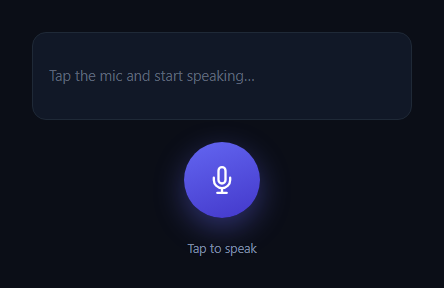
Voice input is now a standard entry point into AI chat products — a round mic button that pulses while listening and streams a live transcript underneath. This snippet builds that button using the browser's native SpeechRecognition API where it's available, and falls back to a simulated typing effect everywhere else, so the demo always looks alive even inside a sandboxed preview iframe where microphone permission is typically blocked.
Real recognition first
When window.SpeechRecognition or window.webkitSpeechRecognition exists, clicking the mic starts a real recognition session with interimResults: true, streaming partial transcripts into the transcript panel as the browser recognizes speech, word by word, exactly like the voice input in a production AI chat product.
A fallback that never looks broken
Microphone access is one of the most commonly blocked permissions in embedded and sandboxed contexts. Rather than showing a dead button or a permission error, this snippet catches both the "API doesn't exist" case and the onerror case (permission denied, no device, blocked context) and drops into a simulated mode: the mic pulses exactly as it would while listening, and a realistic sentence types itself into the transcript panel character by character. A viewer previewing the sandbox sees a fully working interaction either way — the same fail-into-simulation pattern used elsewhere in this library for browser-permission-gated demos.
Pulsing rings, not just a color change
While listening, two .vib-ring elements animate outward from the button with a staggered delay, producing a sonar-like pulse that reads as "actively capturing audio" at a glance — far more legible than a static color swap, especially from across a UI where the button is small.
Where this fits in an AI product
Drop it beside an AI chat interface input as an alternate entry method, or pair it with an AI persona selector so voice queries route to the chosen assistant style. The transcript panel's structure also works well next to an AI streaming response to show the full round trip from spoken question to generated answer.
Customizing it
Swap SIM_TRANSCRIPT for a set of rotating example phrases, wire the final transcript to your chat input's submit handler, or add a confidence score readout using the results[i][0].confidence value the real API already provides.
Build with AI
Build, Understand, Optimize, and Extend It With AI
You don't have to work out the browser-permission fallback logic yourself. Paste this snippet's HTML, CSS, and JS into an AI coding assistant like Claude and ask it to explain exactly how the code detects that SpeechRecognition is unavailable versus permission being denied at runtime, and why both cases route to the same simulated fallback rather than showing an error. The same assistant can help optimize it — ask whether the simulated typing speed should vary randomly to feel more natural, or whether the real recognition path should restart automatically after a brief silence instead of ending the session. It's also useful for extending the button: ask it to add a waveform visualizer driven by the Web Audio API when real audio access is available, support multiple languages via the recognition.lang property, or debounce rapid start/stop clicks. Treat the code less like a finished artifact and more like a starting point for a conversation.
Prompt to recreate it
Copy this into your AI assistant of choice to build the effect from scratch, or as a jumping-off point for your own variant:
Build an "AI voice input button" in plain HTML, CSS, and JavaScript with no framework or library, using only native browser APIs.

Requirements:
- A round mic button that toggles between an idle state and a "listening" state on click, with two staggered pulsing ring animations that expand outward from the button only while listening.
- A transcript panel above the button that shows a placeholder when empty and streams in recognized text as it becomes available.
- Use the browser's native SpeechRecognition API (checking for both window.SpeechRecognition and window.webkitSpeechRecognition) with interimResults enabled, so partial transcripts stream into the panel as speech is recognized, when the API is available and microphone permission is granted.
- Critically: implement a graceful simulated fallback that activates automatically in two cases — when neither SpeechRecognition constructor exists on window, and when the real API's onerror event fires (which covers permission denial, no available microphone, or being blocked in a restricted/sandboxed context). The fallback must play the exact same listening animation and type out a realistic example sentence into the transcript panel character by character at a natural pace, then return to the idle state — so the component never looks broken or dead, only in a real browser and in a sandboxed iframe preview alike.
- Clicking the button again while listening (real or simulated) must stop it cleanly and return to the idle state.
- Use a dark theme with a violet/indigo mic button that shifts to a red gradient while listening, system-ui font, and accessible aria-label text that updates between "Start voice input" and "Stop voice input".
Want to tighten it up first? Run this prompt through the AI Prompt Studio to score it across 8 quality dimensions, catch anti-patterns, and tune the wording for Claude, ChatGPT, or Gemini before you paste it in.
Step by step
How to Use
- 1Paste HTML, CSS, and JSA round mic button renders with an empty transcript panel above it.
- 2Click the mic buttonIf your browser supports SpeechRecognition and grants permission, it listens for real speech.
- 3Speak or waitIn a sandboxed preview, permission is usually blocked — the button automatically falls back to a simulated transcript typing itself out.
- 4Watch the pulsing ringsTwo staggered rings animate outward while listening, real or simulated.
- 5Click again to stopStops real recognition or cancels the simulation early.
- 6Wire up the transcriptRead the final text from the transcript panel and submit it to your chat handler.
Real-world uses
Common Use Cases
Got questions?
Frequently Asked Questions
The button catches both the missing-API case and the SpeechRecognition onerror event (which fires on permission denial) and automatically switches to a simulated mode: the same pulsing animation plays and a realistic transcript types itself out character by character, so the demo never looks broken.
Chrome, Edge, and Safari support it via the vendor-prefixed webkitSpeechRecognition (or the unprefixed SpeechRecognition in newer Chromium versions). Firefox does not support it as of this writing, so those visitors automatically see the simulated fallback.
In the real recognition path, the onresult handler concatenates every result's transcript into one string on each event — read that same value (or track it in a variable) when recognition.onend fires, and pass it to your submit function. In the simulated path, use the fully typed SIM_TRANSCRIPT string once the interval completes.
Yes — SIM_TRANSCRIPT is a single string. Replace it with any example query relevant to your product, or randomly pick from an array of a few example phrases each time the simulation runs so repeat demos vary.
Wrap the SpeechRecognition setup and the simulated fallback in a mount effect (or a composable/service in Vue/Angular), store the transcript and listening state as component state, and bind the mic button's click handler to your start/stop function. Clean up by stopping recognition and clearing the interval on unmount.