You Might Also Like
Learn Coding Visually
Learn to code with interactive, live-preview playgrounds — HTML, CSS, JavaScript, React & more.
 HTML Playground42 lessons · Click-based · Live preview
 CSS PlaygroundLearn CSS with a live editor
 JavaScript Playground60 lessons · DOM · Async · Canvas
 React PlaygroundLearn React with a live code editor
 GSAP PlaygroundLearn GSAP animation interactively
 SVG Playground44 lessons · shapes · paths · animation
 SCSS Playground45 lessons · Sass modules · tokens
 Tailwind PlaygroundLearn Tailwind CSS with a live editor
 Bootstrap 5 Playground50 lessons · live preview
AI Context Window Indicator — Free Token Window Usage Bar Snippet
AI Context Window Indicator · Dashboards · Plain HTML, CSS & JS · Live preview
What's included
Features
About this UI Snippet
AI Context Window Indicator — Color Bands with a "What Happens Next" Tooltip
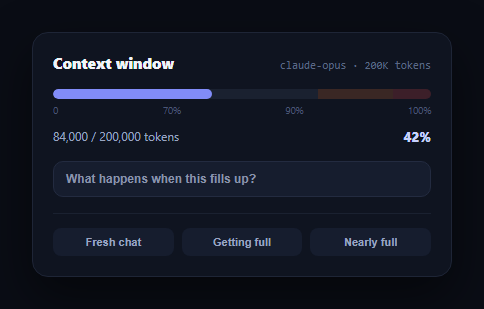
Long AI conversations eventually run into a limit most users don't understand: the context window. This snippet builds a visual indicator, in plain HTML, CSS, and vanilla JavaScript, that shows how full the current conversation's context window is, using color bands to signal safe, warning, and critical zones, plus a hover tooltip that explains in plain language what actually happens once it fills up.
Color bands as a fixed backdrop, fill as the live value
The bar has two layers: static .cwi-band elements mark the warning zone (70-90%) and critical zone (90-100%) as a subtle tinted backdrop, while a separate .cwi-fill element animates its width to the live usage percentage and changes color once it crosses into those zones. Seeing both the current value *and* the zones it's approaching, rather than only a single-color bar, helps a user anticipate the limit before they hit it.
A tooltip that explains consequences, not just numbers
Most usage indicators stop at "70% used" and leave the user to guess what that means. This one includes an info button with a tooltip explaining, specifically, that the assistant will start forgetting the oldest messages once the window fills — the actual behavior users experience as a confusing "why did it forget what I said earlier" moment. Naming the real consequence turns an abstract percentage into something actionable (start a new conversation, or ask for a summary).
Demo buttons simulate a growing conversation
The Fresh chat / Getting full / Nearly full buttons jump between representative usage levels, since a live iframe demo can't accumulate real conversation tokens — a stand-in for what a real integration would update after every model response.
Where this fits in an AI product
Pair it with an AI token usage meter — the context indicator tracks the *current conversation's* window while the usage meter tracks the *billing period's* total consumption, two related but distinct numbers. It also complements an AI chat interface as a persistent header widget, or an AI function call trace in agent products where tool outputs consume context quickly.
Customizing it
Wire setUsage() to your actual token count after each model turn (most APIs report usage in their response), adjust the warning/critical thresholds for your model's real context size, or add an auto-summarize action button that appears once the critical band is reached.
Build with AI
Build, Understand, Optimize, and Extend It With AI
You don't have to work out the two-layer bar technique by hand. Paste this snippet's HTML, CSS, and JS into an AI coding assistant like Claude and ask it to explain how the static warning/critical bands stay fixed as a backdrop while the separate fill element animates independently on top of them, and why that's clearer for the user than only changing one bar's color dynamically. The same assistant can help optimize it — ask whether the tooltip should be replaced with a persistent inline warning once the critical zone is reached, since hover-only tooltips are easy to miss on a metric this important. It's also useful for extending the indicator: ask it to add an auto-summarize button that appears past 90% usage, animate a pulsing warning once critical, or compute the percentage directly from a running token count passed in from your chat state instead of a demo button. Treat the code less like a finished artifact and more like a starting point for a conversation.
Prompt to recreate it
Copy this into your AI assistant of choice to build the effect from scratch, or as a jumping-off point for your own variant:
Build an "AI context window indicator" in plain HTML, CSS, and JavaScript with no framework or library.

Requirements:
- A horizontal progress bar showing what percentage of a fixed token limit (e.g. 200,000 tokens) the current conversation is using, with the raw used/limit token counts and the percentage both displayed as text near the bar.
- Draw fixed, static color-tinted bands as a backdrop layer marking a warning zone (roughly 70-90% of the bar's width) and a critical zone (90-100%), separate from the live animated fill bar that sits on top and shows the actual current usage — both layers should be visible simultaneously so a user can see the current value and the upcoming thresholds at once.
- The live fill bar's color must shift (e.g. from a calm accent color to amber to red) as its percentage crosses into the warning and critical zones, computed from a single tier function shared with the percentage label's color so they can never disagree.
- Add a small info button or icon with a tooltip (shown on hover/focus) that explains in plain language what actually happens once the context window fills up — specifically, that the oldest parts of the conversation get dropped or summarized to make room, not just a restatement of the percentage.
- Add a few demo buttons that jump the indicator between a few representative usage levels (e.g. fresh, getting full, nearly full) to preview every visual state, since a live demo can't accumulate real conversation tokens on its own.
- Use a dark theme with system-ui font for labels and a monospace font for the model/token count label.
Want to tighten it up first? Run this prompt through the AI Prompt Studio to score it across 8 quality dimensions, catch anti-patterns, and tune the wording for Claude, ChatGPT, or Gemini before you paste it in.
Step by step
How to Use
- 1Paste HTML, CSS, and JSA context window bar renders at 42% usage with safe/warning/critical bands visible.
- 2Click the demo buttonsFresh chat, Getting full, and Nearly full jump the bar between representative levels.
- 3Watch the color shiftPast 70% the fill turns amber; past 90% it turns red, matching the background bands.
- 4Hover the info buttonA tooltip explains what happens to the conversation once the window fills.
- 5Edit LIMIT and thresholdsChange LIMIT to your model's real context size and adjust tier() breakpoints.
- 6Wire up real usageCall setUsage(pct) after each model response using your API's reported token count.
Real-world uses
Common Use Cases
Got questions?
Frequently Asked Questions
A context window is the maximum amount of text (measured in tokens) a model can consider at once, including the full conversation history. Unlike billing usage, which resets monthly, the context window fills up within a single conversation and directly affects what the model can "remember" — which is why it needs a separate, real-time indicator distinct from an account-level usage meter.
Most chat products start truncating or summarizing the oldest messages to make room for new ones once the window fills, which is why users sometimes notice the assistant "forgetting" something said earlier in a long conversation. The tooltip in this snippet states that consequence directly so the percentage isn't just an abstract number.
Rendering the zones as a fixed backdrop lets a user see how close they are to the next threshold even before they reach it — a bar at 60% still shows exactly where the 70% warning zone begins. A single dynamically-colored fill would only reveal the current state, not the upcoming boundary.
Most LLM APIs return usage metadata (prompt and completion token counts) with every response. Sum the running conversation total, divide by the model's actual context window size, and call setUsage(pct) after each turn to keep the indicator live.
Track the current percentage as component state, derive the tier with a small pure function, and bind it to the fill width and color classes. Recompute it whenever new usage data arrives from your chat API's response, typically in the same handler that appends the assistant's reply to the conversation.