More Dashboards Snippets
Front-End Coding Playgrounds
Learn to code with interactive, live-preview playgrounds — HTML, CSS, JavaScript, React & more.
 HTML Playground42 lessons · Click-based · Live preview
 CSS PlaygroundLearn CSS with a live editor
 JavaScript Playground60 lessons · DOM · Async · Canvas
 React PlaygroundLearn React with a live code editor
 GSAP PlaygroundLearn GSAP animation interactively
 SVG Playground44 lessons · shapes · paths · animation
 SCSS Playground45 lessons · Sass modules · tokens
 Tailwind PlaygroundLearn Tailwind CSS with a live editor
 Bootstrap 5 Playground50 lessons · live preview
Activity Feed — Free HTML CSS JS Timeline Snippet
Activity Feed · Dashboards · Plain HTML, CSS & JS · Live preview
What's included
Features
About this UI Snippet
Activity Feed — Vertical Timeline, Event Type Icons, Avatar Actions & Filter Tabs
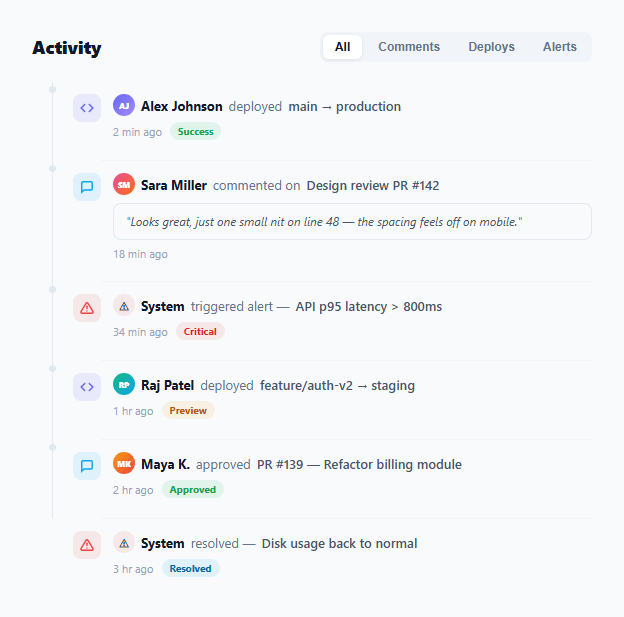
An activity feed is a chronological list of events that communicates what is happening in a system — who did what, when, and with what result. It is a standard component in admin dashboards, project management tools, CI/CD pipelines, team collaboration apps, and audit logs. This snippet provides a complete vertical timeline activity feed with three event types (deploy, comment, alert), a connecting spine with dot nodes, coloured event icons, avatar initials, action text, timestamps, status tags, comment bubbles, and filter tabs.
The vertical spine and dot nodes
The connecting spine between items is a 1px wide div with background: #e2e8f0. A ::before pseudo-element on each spine adds a 7px circle at the top — the timeline dot node. The last item has .no-spine which makes the spine transparent (preserving the layout without the visual line) and hides the dot. This creates the appearance of a timeline that ends cleanly at the last item.
Three event type icons
Three event types use coloured icon backgrounds: deploy (indigo, code brackets SVG), comment (cyan, speech bubble SVG), alert (red, warning triangle SVG). Each uses an rgba() tinted background matching the icon colour. All SVG icons are inline — no icon library required. The colour coding lets users scan event types without reading the action text.
The comment bubble
Comment events include a .comment-bubble div — a quoted text block with a light background, border, and italic style. This is a standard UI pattern for showing preview text without full content expansion, used in GitHub activity feeds and Slack notification previews.
Filter tabs
Four filter tabs (All, Comments, Deploys, Alerts) use the same pill tab switcher pattern as the leaderboard. filterFeed() toggles the .hidden class on items whose data-type attribute does not match the selected filter. The filter is client-side — no re-fetch needed for static feeds. For live feeds, trigger an API fetch with the filter parameter on tab click.
Relative timestamps
Timestamps use relative format ("2 min ago", "1 hr ago") — the standard for activity feeds. In production, calculate these from ISO timestamps: use the timeAgo() helper or a library like date-fns formatDistanceToNow(). Update timestamps every 60 seconds via setInterval for a live feel.
Build with AI
Build, Understand, Optimize, and Extend It With AI
You don't have to trace the timeline geometry by hand — paste this snippet's HTML, CSS, and JS into an AI coding assistant like Claude and ask it to explain exactly how the spine's ::before pseudo-element gets centered as a dot node on the 1px line, and why the last item needs a separate no-spine class rather than just deleting its spine div. The same assistant is useful for optimizing it — asking whether filterFeed's approach of toggling a hidden class on every item scales well if the feed grows to hundreds of entries, or whether it should switch to only rendering matching items. It's just as good for extending the feed: ask it to add real-time updates over a WebSocket that prepend new items with an entrance animation, replace the hardcoded "2 min ago" strings with a live-updating timeAgo function, or add a fifth event type with its own icon and filter tab. Treat the code less like a finished artifact and more like a starting point for a conversation.
Prompt to recreate it
Copy this into your AI assistant of choice to build the effect from scratch, or as a jumping-off point for your own variant:
Build a vertical "activity feed" timeline in plain HTML, CSS, and JavaScript — no libraries, filterable by event type via data attributes.

Requirements:
- A list of activity items, each with: a thin vertical "spine" line element connecting it to the next item (with a small circular dot node positioned at its top via a pseudo-element), a colored icon box whose background and icon differ per event type (e.g. deploy, comment, alert), an avatar or system icon, a name, action text, and a target description, a relative timestamp, and an optional colored status tag.
- Comment-type items must additionally render a quoted preview bubble with distinct background and border styling.
- The last item in the list must not show a connecting spine below it (make it transparent or remove it) so the timeline visually terminates cleanly instead of dangling into empty space.
- Each item carries a data-type attribute (e.g. "deploy", "comment", "alert"). A row of filter tab buttons above the feed must, on click, mark itself active and toggle a "hidden" class (display: none) on every feed item whose data-type does not match the selected filter, or show all items when "All" is selected.
- Do not use any charting or animation library — the filtering must work by direct classList manipulation in a single function shared by all tab buttons.
- Style status tags with distinct colors per meaning (e.g. green for success, red for critical, yellow for preview, blue for resolved) using tinted translucent backgrounds.
Step by step
How to Use
- 1Click the filter tabs to filter by event typeClick Comments, Deploys, or Alerts to filter the feed to that event type. Click All to show everything. The filter toggles the .hidden class on each item matching or not matching the data-type attribute.
- 2Add a new event itemDuplicate one of the .item divs in the HTML. Set data-type to "deploy", "comment", or "alert". Update the avatar initials and gradient, name, action text, target text, timestamp, and tag class and label.
- 3Add a new event typeAdd a new .icon-wrap class (e.g., .icon-wrap.merge) with a background and colour. Add a matching filter tab button with onclick="filterFeed(this,'merge')". Set data-type="merge" on the relevant items.
- 4Update avatar and action contentEdit each .item-top: change the .av gradient and initials, .name text, .action text (deployed/commented/approved), and .target text. For system events (no user), use .icon-av with a symbol instead of .av.
- 5Convert timestamps to relative formatReplace the hardcoded "2 min ago" strings with a timeAgo() function that computes relative time from an ISO timestamp. Call timeAgo(item.timestamp) and update all .time elements every 60 seconds via setInterval.
- 6Export in your formatClick "HTML" for a standalone file, "JSX" for a React component mapping an events array to activity items, or "Tailwind" for a React + Tailwind version.
Real-world uses
Common Use Cases
Got questions?
Frequently Asked Questions
Each .item has a .spine div that is 1px wide with a grey background colour — this is the vertical line between events. The ::before pseudo-element on .spine adds a 7px circle positioned at the top of the line: position: absolute; top: 4px; left: -3px (half of 7px to centre it on the 1px line); width/height: 7px; border-radius: 50%. The last item has .no-spine which sets the spine background to transparent and hides the dot, stopping the line at the last event.
Use Server-Sent Events or WebSocket to push new activity from your server. For SSE: const es = new EventSource("/api/activity-stream"); es.onmessage = e => { const item = JSON.parse(e.data); prependItem(item); }. In prependItem(), create a new .item element from a template string, insert it at the top of .feed with feed.insertBefore(newItem, feed.firstChild), and optionally animate in with a CSS keyframe from opacity: 0 and translateY(-8px).
function timeAgo(iso) { const s = Math.floor((Date.now() - new Date(iso)) / 1000); if (s < 60) return s + "s ago"; if (s < 3600) return Math.floor(s/60) + " min ago"; if (s < 86400) return Math.floor(s/3600) + " hr ago"; return Math.floor(s/86400) + "d ago"; } Call timeAgo on the timestamp string for each item. To keep timestamps current, call updateTimestamps() every 60 seconds via setInterval — re-compute all .time elements from their stored ISO data attribute.
Click "JSX" to download. Accept an events prop: an array of {id, type, user, action, target, time, tag, comment} objects. Map events to ActivityItem components. Manage activeFilter in useState. Filter the array with events.filter(e => activeFilter === "all" || e.type === activeFilter). For real-time updates, add new events to the array in a WebSocket onmessage handler and use state update: setEvents(prev => [newEvent, ...prev]).