You Might Also Like
Learn Coding Visually
Learn to code with interactive, live-preview playgrounds — HTML, CSS, JavaScript, React & more.
 HTML Playground42 lessons · Click-based · Live preview
 CSS PlaygroundLearn CSS with a live editor
 JavaScript Playground60 lessons · DOM · Async · Canvas
 React PlaygroundLearn React with a live code editor
 GSAP PlaygroundLearn GSAP animation interactively
 SVG Playground44 lessons · shapes · paths · animation
 SCSS Playground45 lessons · Sass modules · tokens
 Tailwind PlaygroundLearn Tailwind CSS with a live editor
 Bootstrap 5 Playground50 lessons · live preview
Text Selection Highlight & Comment — Free JS Snippet
Text Selection Highlight & Comment · Cards · Plain HTML, CSS & JS · Live preview
What's included
Features
About this UI Snippet
Text Selection Highlight & Comment — DOM Selection, Range and surroundContents Annotation Pattern
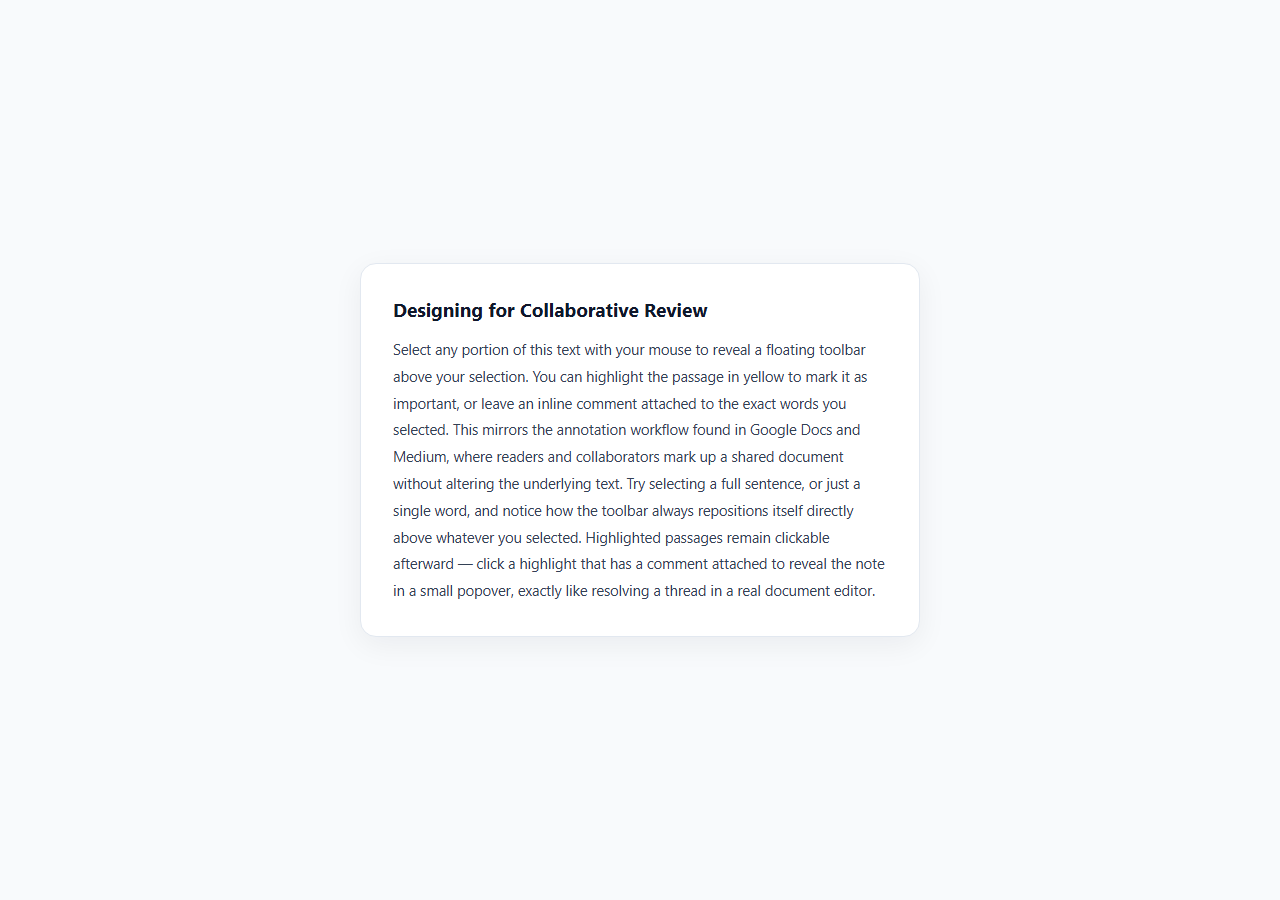
Real-time collaborative annotation — select text, highlight it, attach a comment to the exact words selected — has gone from a Google Docs and Medium specialty feature to a baseline expectation across knowledge-base tools, code review platforms, PDF viewers, and AI writing assistants. Most implementations that look convincing are actually fake: an absolutely-positioned overlay that approximates where the selection was, disconnected from the real text nodes. This snippet builds the genuine version, directly on top of the browser's Selection and Range API, which is the only reliable way to know exactly which characters of text a user selected and to durably mark that exact span.
How selection detection works
A single mouseup listener on document calls window.getSelection() after every mouse release anywhere on the page. If the returned Selection object is collapsed (meaning the user clicked without dragging, so start and end points are identical) or contains no text, the floating toolbar stays hidden. Otherwise, selection.getRangeAt(0) retrieves the first (and, for mouse selections, only) Range — an object representing a specific start and end boundary point within the DOM tree, independent of visual position. The snippet checks docBody.contains(range.commonAncestorContainer) to make sure the selection actually falls inside the annotatable article text, so selecting UI chrome like a button label doesn't trigger the toolbar.
Positioning the toolbar from real geometry
The toolbar's position is not guessed — range.getBoundingClientRect() returns the exact bounding box of the live selection in viewport coordinates, the same rectangle the browser itself uses to paint the blue selection highlight. positionAt() reads that rectangle's left + width / 2 for horizontal centering and top for vertical placement, adds the current scroll offset, and applies it as left/top on a position: fixed element whose CSS transform: translate(-50%, -100%) translateY(-10px) centers it horizontally and floats it just above the selection — the exact technique real editors use, because it tracks the actual selected characters rather than an approximate mouse coordinate.
Highlighting: surroundContents with a fallback
The core, genuinely tricky part of DOM-based highlighting is turning an arbitrary user selection into a wrapped <mark> element. Range.surroundContents(mark) is the native, single-call way to do this — it moves the range's contents inside the new mark node — but it throws a DOMException if the range's boundaries don't cleanly nest inside a single parent (for example, a selection that starts partway through one <span> and ends partway through a different one, spanning multiple inline nodes at different depths). This snippet handles that case explicitly with try/catch: on failure, it falls back to range.extractContents() (which removes the selected content as a DocumentFragment, correctly splitting any partially-selected nodes at the boundaries) followed by appending that fragment inside a new <mark> and calling range.insertNode(mark) to put the wrapper back in place. This two-path approach — try the fast native method, fall back to manual extract-and-reinsert — is the standard, correct way to make in-place DOM highlighting robust against real-world selections that cross element boundaries, which single-call surroundContents alone cannot handle.
Comments: popover input and a persistent indicator
Clicking "Comment" instead of "Highlight" repositions a small textarea-based popover over the same saved range. Saving a non-empty note calls the same wrapRangeInMark() helper (with an extra has-comment class for a slightly deeper highlight color) and stores the note text directly on the <mark> element via mark.dataset.note, then appends a small numbered .comment-dot badge inside the mark so the reader can see at a glance which highlights carry a note. A delegated click listener on the whole article checks e.target.closest('mark.annotation-highlight.has-comment') so clicking any commented highlight — old or newly created — reopens a small note viewer positioned above it, reading the note straight back out of the dataset.note attribute. Because the range is saved as a *cloned* Range object (range.cloneRange()) at the moment of selection, it remains valid and independently usable even after the live browser selection is cleared when the user clicks the toolbar button.
Build with AI
Build, Understand, Optimize, and Extend It With AI
Paste this snippet's HTML, CSS, and JS into an AI coding assistant like Claude and ask it to walk through exactly why range.surroundContents() needs a fallback, and to trace what extractContents() plus insertNode() actually does to the DOM tree step by step — the Selection and Range API has real edge cases that are worth understanding rather than treating as magic. It's a strong snippet to extend with AI help: ask it to add a way to serialize and persist highlights/comments so they survive a page reload (character-offset or XPath-based range serialization), to support multiple highlight colors selectable from the toolbar, or to make the comment popover support multiple stacked notes per highlight instead of just one. You could also ask it to explain how this differs from a fake absolutely-positioned overlay approach, and why real editors like Google Docs rely on genuine Range-based anchoring instead.
Prompt to recreate it
Copy this into your AI assistant of choice to build the effect from scratch, or as a jumping-off point for your own variant:
Build a text selection annotation feature in plain HTML, CSS, and JavaScript using the real browser Selection and Range API — not a fake positioned overlay.

Requirements:
- Detect text selections within a specific content container on mouseup using window.getSelection() and Range objects; ignore collapsed selections, empty selections, and selections that originate outside the annotatable container or inside the annotation UI itself.
- Show a small floating toolbar positioned precisely above the selected text using the Range's actual getBoundingClientRect(), with at least two actions: Highlight and Comment.
- Implement highlighting by wrapping the selected Range in a <mark>-style element using Range.surroundContents(), with a fallback (using extractContents() and insertNode()) for selections that span multiple inline elements and would cause surroundContents() to throw.
- Implement commenting: clicking Comment opens a small inline input positioned over the same selection; saving a non-empty note wraps the selection in a highlight, stores the note text associated with that specific highlighted element, and shows a small comment-count or indicator badge on it.
- Clicking an existing highlight that has an attached comment must reopen a small viewer showing that specific note, positioned above that highlight (not a generic sidebar).
- Save the Range as a clone at the moment of selection so it remains valid and reusable even after the live browser selection is cleared by clicking a toolbar button.
- Support dismissing any open toolbar or popover via the Escape key and an explicit close/cancel control.
Want to tighten it up first? Run this prompt through the AI Prompt Studio to score it across 8 quality dimensions, catch anti-patterns, and tune the wording for Claude, ChatGPT, or Gemini before you paste it in.
Step by step
How to Use
- 1Select any text in the articleClick and drag across a word, sentence, or paragraph inside #doc-body. On mouseup, the code calls window.getSelection() and getRangeAt(0) to capture the exact Range, then shows the floating .selection-toolbar directly above it via getBoundingClientRect().
- 2Click Highlight to mark the passagewrapRangeInMark() wraps the saved range in a <mark class="annotation-highlight"> using Range.surroundContents(), falling back to extractContents() + insertNode() for selections spanning multiple inline elements.
- 3Click Comment to attach a noteThe toolbar swaps for a small textarea popover positioned over the same saved range. Typing a note and clicking Save wraps the selection in a highlight, stores the note in mark.dataset.note, and appends a numbered .comment-dot indicator.
- 4Reopen a comment by clicking its highlightAny highlight with the has-comment class is click-listened via event delegation on #doc-body — clicking it reads mark.dataset.note back out and shows it in the .note-viewer popover positioned above that specific highlight.
- 5Dismiss with Escape or CancelPressing Escape, or clicking Cancel/Close on any open popover, calls hideAll() which hides the toolbar, comment popover, and note viewer without mutating the document.
- 6Persist highlights and commentsTo make annotations durable, serialize each mark's text content, an XPath or character-offset locator for its range, and its dataset.note to your backend on save, then re-apply the same wrapRangeInMark() logic against freshly computed ranges when the document reloads.
Real-world uses
Common Use Cases
Got questions?
Frequently Asked Questions
Range.surroundContents() throws a DOMException whenever the range's boundary points do not both sit at the same nesting depth inside a single parent element — which happens any time a user drags a selection starting partway through one inline element (like a <strong> or <a>) and ending partway through a different one. The fallback path — range.extractContents() to pull out the (correctly split) selected fragment, then wrapping it in a new <mark> and reinserting with range.insertNode() — handles that general case, so the highlight feature does not silently fail on realistic selections that cross element boundaries.
The code calls range.getBoundingClientRect() on the actual Selection Range object, which returns the precise bounding box the browser itself computed for the selected text — the same geometry used to paint the native blue selection highlight. This is more accurate than tracking the mouse cursor position, because a selection's bounding box can differ significantly from where the mouse happens to be released, especially for selections spanning multiple lines.
Clicking a toolbar button collapses or clears the browser's live window.getSelection() (because focus moves to the button), which would invalidate a reference to the original, live Range object. Calling range.cloneRange() at the moment of selection creates an independent Range object with the same boundary points that remains fully valid and usable — for surroundContents(), extractContents(), or getBoundingClientRect() — even after the live selection is cleared.
You need a serializable way to describe each range's position — common approaches are storing the highlighted text plus a character offset from the start of the container, or a small set of XPath expressions for the start/end nodes. On page load, re-locate each stored range using that data and re-run the same wrapRangeInMark() logic used interactively, then re-attach any stored dataset.note. Libraries like rangy or the W3C Web Annotation Data Model provide more robust serialization schemes for production use.
The extractContents() fallback path correctly handles nested or adjacent inline elements by splitting them at the selection boundaries, so selecting across an existing <mark> or an <a> tag will still produce a valid highlight, though the nested element structure inside the new highlight will reflect however extractContents() split the original nodes. For production use with heavily nested rich text, thoroughly test selections that start or end mid-element to confirm the resulting markup renders as expected.