You Might Also Like
Learn Coding Visually
Learn to code with interactive, live-preview playgrounds — HTML, CSS, JavaScript, React & more.
 HTML Playground42 lessons · Click-based · Live preview
 CSS PlaygroundLearn CSS with a live editor
 JavaScript Playground60 lessons · DOM · Async · Canvas
 React PlaygroundLearn React with a live code editor
 GSAP PlaygroundLearn GSAP animation interactively
 SVG Playground44 lessons · shapes · paths · animation
 SCSS Playground45 lessons · Sass modules · tokens
 Tailwind PlaygroundLearn Tailwind CSS with a live editor
 Bootstrap 5 Playground50 lessons · live preview
Subscription Billing Toggle — Free HTML CSS JS Pricing Switch Snippet
Subscription Billing Toggle · Pricing · Plain HTML, CSS & JS · Live preview
What's included
Features
About this UI Snippet
Subscription Billing Toggle — HTML, CSS & JavaScript Pricing Switch
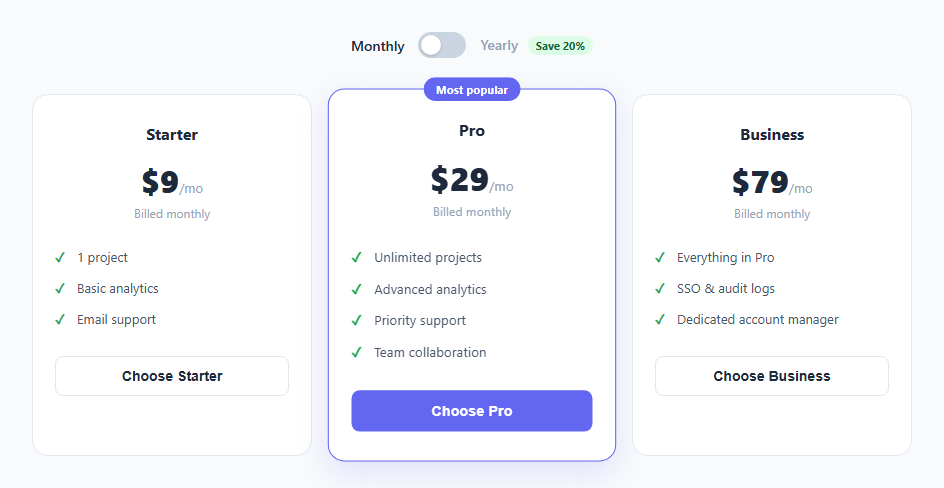
Pricing pages routinely offer a discount for committing to annual billing, and the standard way to present that is a single toggle switch above the plan cards that updates every card's displayed price at once. Building this well means keeping the pricing data close to the markup (so a designer or CMS editor can update prices without touching JavaScript) rather than hardcoding numbers inside a script.
This snippet implements the full toggle in plain HTML, CSS, and vanilla JavaScript.
How pricing data is stored
Every .plan-card carries its own data-monthly and data-yearly attributes — the full price for each billing cycle — directly in the HTML. This means the source of truth for pricing lives in the markup itself, not buried in a JavaScript object that someone updating a plan's price might not think to check.
How the toggle switch works
The switch is a single <button role="switch" aria-checked="false"> with an inner .toggle-thumb span. Clicking it flips aria-checked between "true" and "false", and a CSS rule targeting .toggle[aria-checked="true"] both recolors the track and translates the thumb — using the aria-checked attribute itself as the single source of visual truth means the accessible state and the visual state can never disagree.
How prices update across all cards
updatePrices(isYearly) loops over every .plan-card with querySelectorAll, reading each card's own data-monthly/data-yearly values. For the yearly view, it computes the *equivalent monthly rate* — yearly / 12 — rather than showing the full annual charge as the headline number, since showing a much bigger number as the "price" would read as more expensive at a glance even though it's actually the better deal. The full annual charge ($278 billed yearly) is shown instead as smaller supporting text below the headline price, sourced from a data-yearly-text attribute on that same paragraph.
How the "Save 20%" badge fits in
The badge is static markup next to the "Yearly" label rather than computed per-plan, since in this snippet the discount percentage is roughly consistent across all three plans. If your plans have different discount rates, compute the percentage per-card instead: Math.round((1 - yearly / (monthly * 12)) * 100).
Why the featured plan is visually distinct
The middle "Pro" card has a .featured class giving it a colored border, a lifted shadow, and a slight scale(1.03), plus a "Most popular" badge — a common pricing-page technique to visually anchor most buyers toward the plan you'd prefer they choose.
Build with AI
Build, Understand, Optimize, and Extend It With AI
Give this snippet's HTML, CSS, and JS to an AI coding assistant like Claude and ask it to explain the pricing-page convention behind showing a monthly-equivalent number as the big headline price in the yearly view rather than the full annual charge, and why keeping the raw price data in HTML data attributes (rather than a separate JavaScript object) makes the component easier for a non-engineer to maintain. It's also worth asking the assistant to help you compute a per-plan "Save X%" badge dynamically from each card's own data-monthly and data-yearly values instead of a single static badge, in case your different plan tiers end up with different actual discount rates as your pricing evolves.
Prompt to recreate it
Copy this into your AI assistant of choice to build the effect from scratch, or as a jumping-off point for your own variant:
Build a monthly/yearly billing toggle that updates prices across multiple pricing plan cards in plain HTML, CSS, and JavaScript — no framework, no pricing-table library.

Requirements:
- A single accessible toggle switch built as a real button with role="switch" and a live aria-checked attribute that serves as the sole source of truth for both its visual state (track color, thumb position via CSS attribute selectors) and its accessible state — do not use a hidden checkbox or duplicate the state in a separate JavaScript variable.
- At least three pricing plan cards, each storing its own monthly and yearly total price directly as HTML data attributes on the card element, not hardcoded in the JavaScript.
- Toggling the switch must update every plan card's displayed price simultaneously in a single loop: the yearly view should show the equivalent monthly rate (yearly total divided by 12) as the large headline price, with the full annual charge shown as smaller supporting text beneath it, while the monthly view shows the plain monthly price with "billed monthly" as the supporting text.
- Include a "Save X%" badge near the yearly label on the toggle to advertise the annual discount.
- Visually distinguish one plan card as the recommended/featured option with a colored border, elevated shadow, a slight scale increase, and a "Most popular" badge.
- The plan cards must be laid out in a responsive grid that reflows for narrower screens with no explicit media queries, and the solution must support adding additional plan cards with no changes to the JavaScript.
Want to tighten it up first? Run this prompt through the AI Prompt Studio to score it across 8 quality dimensions, catch anti-patterns, and tune the wording for Claude, ChatGPT, or Gemini before you paste it in.
Step by step
How to Use
- 1Load the snippetClick "Subscription Billing Toggle" in the sidebar Library tab. The preview shows three plan cards with monthly pricing and the toggle set to Monthly.
- 2Flip the toggleClick the switch to see all three prices update simultaneously to their per-month-equivalent yearly rate, with the annual total shown beneath each price.
- 3Edit a plan's pricingIn the HTML panel, update a plan card's data-monthly and data-yearly attributes — the toggle logic picks up the new values automatically.
- 4Adjust the savings badgeIn the HTML panel, edit the "Save 20%" text in the save-badge span to match your actual discount percentage.
- 5Add a fourth planCopy an existing .plan-card block, update its data attributes, features list, and button text — the toggle and grid layout scale automatically.
- 6Export in your formatClick "HTML" for a standalone file, "JSX" for React, or "Tailwind" for React + Tailwind CSS.
Real-world uses
Common Use Cases
Got questions?
Frequently Asked Questions
Each .plan-card element has its own data-monthly and data-yearly attributes set directly in the HTML. The JavaScript reads these values at click time rather than storing prices in a separate JavaScript object, keeping pricing data next to the markup it describes.
Showing yearly / 12 as the big headline number keeps the visual price format consistent between the monthly and yearly views (both read as "$X/mo"), and is the standard convention on pricing pages — showing the much larger full annual number as the headline would make the discounted plan look more expensive at a glance, even though it is the better deal.
It appears as smaller supporting text below the price, such as "$278 billed yearly," pulled from a data-yearly-text attribute on the same paragraph element, giving the complete picture without competing with the headline price for attention.
Compute it as Math.round((1 - yearly / (monthly * 12)) * 100) for each plan. If your plans all use roughly the same discount rate, a single static badge like the one here is fine; if they differ meaningfully, compute and display the percentage per plan card instead.
The button's own aria-checked attribute is the single source of truth — the CSS selector .toggle[aria-checked="true"] drives both the track color and the thumb position, so the visual state can never disagree with what a screen reader announces.
Copy an existing .plan-card block in the HTML panel, update its data-monthly, data-yearly, feature list, and button label. The responsive grid and the price-update loop both automatically include the new card with no other changes.
Yes. Set the button's initial aria-checked to "true", add the active class to the yearly label instead of the monthly one on load, and call updatePrices(true) once when the page initializes.
Yes. It is a real button with role="switch" and a live aria-checked state, reachable via Tab and toggleable with Enter or Space, and its purpose is described by an aria-label — assistive technology will correctly announce it as a switch with its current on/off state.