You Might Also Like
Learn Coding Visually
Learn to code with interactive, live-preview playgrounds — HTML, CSS, JavaScript, React & more.
 HTML Playground42 lessons · Click-based · Live preview
 CSS PlaygroundLearn CSS with a live editor
 JavaScript Playground60 lessons · DOM · Async · Canvas
 React PlaygroundLearn React with a live code editor
 GSAP PlaygroundLearn GSAP animation interactively
 SVG Playground44 lessons · shapes · paths · animation
 SCSS Playground45 lessons · Sass modules · tokens
 Tailwind PlaygroundLearn Tailwind CSS with a live editor
 Bootstrap 5 Playground50 lessons · live preview
Notion-Style Slash Command Menu — HTML CSS JS Snippet
Notion-Style Slash Command Menu · Forms · Plain HTML, CSS & JS · Live preview
What's included
Features
About this UI Snippet
Notion-Style Slash Command Menu — Caret-Positioned Floating Menu with Live Filtering & Keyboard Navigation
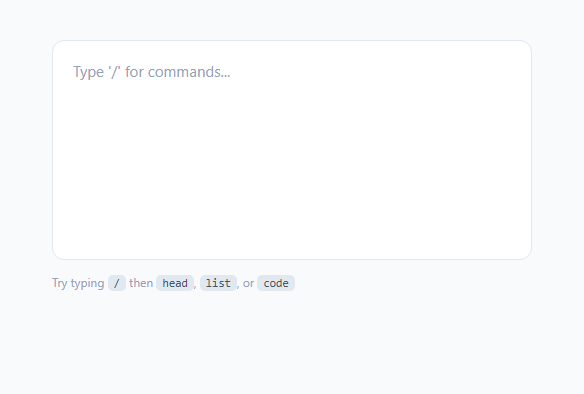
The slash command menu popularized by Notion has become the expected way to insert structured content into a rich text editor — type /, get a contextual list of block types, keep typing to filter, and press Enter or click to insert. It looks simple, but building it correctly touches three genuinely tricky browser APIs at once: caret-relative positioning, contenteditable text-node manipulation, and keyboard-versus-mouse interaction handling. This snippet implements the full pattern in a single contenteditable element with no editor framework.
Finding the caret's actual screen position
The hardest part of a slash menu is placing it exactly below the text cursor, not the editable container. This snippet uses the Selection and Range APIs: window.getSelection() returns the current selection, sel.getRangeAt(0) gives the active Range, and calling .collapse(true) shrinks that range to a zero-width point at the start of the selection — which, since the user just typed a character, is effectively the caret position. range.getClientRects()[0] (falling back to getBoundingClientRect() for an empty collapsed range at the very end of a line) returns the caret's actual pixel coordinates relative to the viewport, and positionMenu() uses those coordinates directly to set the menu's position: fixed; top; left — this is the same technique real rich-text editors use to place inline toolbars, mention pickers, and emoji menus exactly where the user is typing rather than anchored to the editor's bounding box.
Detecting the trigger and tracking the active text node
The input event handler reads window.getSelection().anchorNode, which is the actual DOM text node the caret sits inside. If that text node's content ends with /, openMenuAt() stores a reference to it as slashNode and opens the menu. On every subsequent keystroke while the menu is open, the handler re-reads slashNode.textContent, finds the *last* / in it with lastIndexOf('/'), and treats everything after that index as the live filter query — so typing /head after the initial / progressively narrows COMMANDS down to just "Heading" via a simple .includes() match against each command's key and label. Typing a space, or moving the caret to a different text node entirely, closes the menu — matching Notion's own behavior that a slash command is abandoned once you've clearly moved past it.
Keyboard navigation without hijacking normal typing
The keydown handler only intercepts ArrowUp, ArrowDown, Enter, and Escape, and only when menu.classList.contains('open') — every other keystroke (letters, backspace, punctuation) falls through untouched to the browser's native contenteditable handling, which is what keeps the query-filtering behavior working through the input listener rather than needing to be reimplemented in keydown. ArrowDown/ArrowUp wrap the activeIndex around the filtered list length using modulo arithmetic ((activeIndex + 1) % filtered.length), and Enter calls selectCommand() on whichever item is currently highlighted — importantly, e.preventDefault() is called on all four keys to stop the browser's default behavior (arrow keys moving the caret, Enter inserting a line break) from firing at the same time as the menu interaction.
Why menu clicks use `mousedown` with `preventDefault()`, not `click`
Each rendered menu item listens for mousedown, not click, and calls e.preventDefault() immediately. A click event fires after mousedown and mouseup, and by then the browser has already moved focus away from the contenteditable editor toward whatever was clicked, collapsing the text selection selectCommand() needs to correctly locate slashNode. Preventing the default on mousedown stops that focus shift, keeping the editor's selection intact through the click — the same technique production editors like Notion and Lexical use for toolbar interactions.
Replacing the "/query" text with a real block element
insertBlock() performs the actual content swap: it builds a Range around slashNode's full contents, deletes them, removes the now-empty text node from the DOM, and appends a new <span> styled per the selected command's block class (heading, bullet, code, divider, or image placeholder), followed by a <br> so the next line starts fresh below it. A new collapsed Range is placed at the end of the inserted element and applied via sel.addRange(), restoring a sensible caret position and calling editor.focus() so typing continues immediately.
Build with AI
Build, Understand, Optimize, and Extend It With AI
Paste this snippet's HTML, CSS, and JS into an AI coding assistant like Claude and ask it to walk through exactly how slashNode is tracked across keystrokes and why losing that reference (for example if the caret moves to a different text node) correctly closes the menu — that reference-tracking is the trickiest part of the whole pattern to get right. It's also worth asking the assistant to explain the mousedown + preventDefault() detail if it's not obvious why click alone would break the menu in a contenteditable context. For extension, ask it to add fuzzy matching instead of plain substring filtering, support for nested submenus (e.g. a "Media" parent command expanding to Image/Video/Embed), or a version that also triggers on "@" for user mentions using the same caret-positioning infrastructure alongside the existing "/" trigger.
Prompt to recreate it
Copy this into your AI assistant of choice to build the effect from scratch, or as a jumping-off point for your own variant:
Build a Notion-style slash command menu inside a contenteditable text area, in plain HTML, CSS, and JavaScript, with no editor framework.

Requirements:
- Typing "/" inside the editable area opens a floating command menu positioned precisely at the text caret (not just near the editor's edge), listing several block-type commands, each with an icon, a title, and a short description.
- Continuing to type after the "/" live-filters the visible commands by matching the typed text against each command's name, narrowing the list in real time as more characters are typed, and showing an empty-state message if nothing matches.
- Support full keyboard navigation while the menu is open: Arrow Down and Arrow Up move a highlighted selection through the filtered list (wrapping around at the ends), Enter inserts the currently highlighted command, and Escape closes the menu without inserting anything and without altering the already-typed text.
- Clicking a menu item with the mouse must also work and must not cause the editor to lose its text selection/cursor state in the process — explain the specific technique needed to prevent a mouse click on the menu from stealing focus away from the contenteditable editor before the selection can be used.
- Selecting a command (via Enter or click) must remove the typed "/query" text and insert an actual styled block element in its place (for example a distinct heading, bullet list item, or code block element), leaving the cursor positioned correctly to keep typing immediately afterward.
- The menu must also close automatically if the user types a space, moves the cursor elsewhere, or clicks outside both the editor and the menu.
Want to tighten it up first? Run this prompt through the AI Prompt Studio to score it across 8 quality dimensions, catch anti-patterns, and tune the wording for Claude, ChatGPT, or Gemini before you paste it in.
Step by step
How to Use
- 1Type "/" to open the menuThe input listener checks window.getSelection().anchorNode — if that text node ends with "/", openMenuAt() stores it as slashNode, renders the full COMMANDS list via renderMenu(), and positions the menu below the caret using positionMenu(), which reads Range.getClientRects() for the caret's exact pixel coordinates.
- 2Keep typing to filter the listEvery keystroke after the "/" re-reads slashNode.textContent, extracts everything after the last "/" as the query, and calls updateFilter(query), which narrows COMMANDS down using .includes() against each command's key and label — for example typing "code" filters down to just the Code block entry.
- 3Navigate with Arrow Up/Down and select with Enter or clickThe keydown listener intercepts ArrowUp/ArrowDown to move activeIndex through the filtered list (wrapping with modulo arithmetic) and Enter to call selectCommand() on the currently highlighted item. Clicking an item works identically via a mousedown listener with preventDefault() to avoid losing editor focus.
- 4Press Escape or click outside to cancelEscape calls closeMenu() directly without inserting anything, leaving the typed "/query" text as-is in the editor. A document-level click listener also calls closeMenu() if the click target is outside both the editor and the menu itself.
- 5Add your own command typesAdd an entry to the COMMANDS array with a key (used for filter matching), label, desc, icon, a block CSS class name, and default text placeholder content. Define the matching .block-yourtype CSS rule in the stylesheet to control how the inserted element looks — no changes to the menu logic are needed.
- 6Export and adapt to a real editor frameworkClick JSX to export a React component. In a real production editor, you would likely swap the raw contenteditable DOM manipulation in insertBlock() for your editor framework's own node-insertion API (Slate, Lexical, TipTap) while keeping the same caret-detection, filtering, and keyboard-navigation logic shown here.
Real-world uses
Common Use Cases
Got questions?
Frequently Asked Questions
It uses the Selection and Range APIs rather than any element's bounding box: window.getSelection().getRangeAt(0) gets the current Range, .collapse(true) shrinks it to a zero-width point at the caret, and range.getClientRects()[0] returns that point's actual pixel position relative to the viewport. This is the same low-level technique real rich-text editors use to position inline toolbars and mention pickers precisely at the cursor, since there is no simpler built-in "get caret coordinates" browser API.
Clicking anywhere outside a contenteditable element normally moves focus and can collapse the current text selection before a click event even fires, because mousedown -> focus change -> mouseup -> click happens in that order. By listening on mousedown and calling e.preventDefault() immediately, the default focus-shifting behavior never happens, so the editor's selection and the stored slashNode reference remain valid and selectCommand() can correctly locate and replace the right text.
The input handler checks the text after the last "/" in the active text node with a regular expression, /\s/.test(query), and calls closeMenu() as soon as it finds whitespace. This matches the behavior users expect from Notion and similar editors: once you have typed a space, you have moved on from the slash command intent (you are writing a sentence containing a literal "/" character), so continuing to show a stale filtered menu would be confusing.
Add an object to the COMMANDS array: { key: "quote", label: "Quote", desc: "Blockquote text", icon: "\"", block: "block-quote", text: "Quote text" }, then define a matching .block-quote CSS rule (for example, a left border and italic text) in the stylesheet. No changes are needed to openMenuAt, updateFilter, renderMenu, or insertBlock — they all read from the COMMANDS array generically, so a new entry is picked up automatically by the existing filtering and rendering logic.
Yes — range.getClientRects() can return an empty list for a collapsed range positioned at the very end of a text node with nothing after it, since there is no glyph box to report. The code falls back to range.getBoundingClientRect() in that case (rect.left/rect.bottom are read from whichever value getClientRects()[0] or the fallback provides), which still returns a usable, if very slightly less precise, coordinate for menu positioning.