
Learn Coding Visually
Learn to code with interactive, live-preview playgrounds — HTML, CSS, JavaScript, React & more.
 HTML Playground42 lessons · Click-based · Live preview
 CSS PlaygroundLearn CSS with a live editor
 JavaScript Playground60 lessons · DOM · Async · Canvas
 React PlaygroundLearn React with a live code editor
 GSAP PlaygroundLearn GSAP animation interactively
 SVG Playground44 lessons · shapes · paths · animation
 SCSS Playground45 lessons · Sass modules · tokens
 Tailwind PlaygroundLearn Tailwind CSS with a live editor
 Bootstrap 5 Playground50 lessons · live preview
Rotary Knob Input — Drag Dial HTML CSS JS Snippet
Rotary Knob Input · Forms · Plain HTML, CSS & JS · Live preview
What's included
Features
conic-gradient with a --deg custom property renders the fill — updated with a single property write, no SVG or dash math.window keep the drag alive even when the cursor leaves the knob mid-adjust.onWheel steps the value ±2 per notch with preventDefault, enabling quick precise tweaks without dragging.role="slider" with arrow-key support and live aria-valuenow, so it is keyboard-operable and screen-reader friendly.forEach wires every .knob, reading and writing each one's data-val — adding a knob needs no new JavaScript.About this UI Snippet
Rotary Knob Input — Conic-Gradient Arc, Vertical-Drag Control & 270° Value Sweep
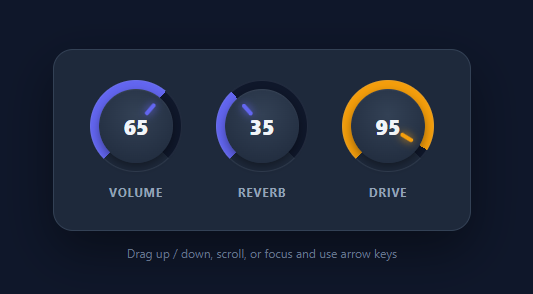
Rotary knobs are the signature control of audio software, synth plugins, and hardware-style interfaces. They pack a continuous value into a compact, tactile dial that users can fling quickly or nudge precisely. This snippet implements a polished, multi-knob rotary control in plain HTML, CSS, and vanilla JavaScript: a conic-gradient arc that fills as the value rises, a rotating indicator tick, a live numeric readout, and three input methods — vertical drag, scroll wheel, and keyboard — all over the conventional 270° knob sweep.
The 270° sweep
Real knobs do not rotate a full circle; they sweep about 270 degrees with a "dead zone" gap at the bottom. This snippet maps value 0 to −135° and value 100 to +135°, leaving the bottom 90° empty. The indicator tick lives inside a .knob-dial that is rotated by -135 + value × 2.7 degrees (since 100 × 2.7 = 270). The numeric readout sits in a separate, non-rotating layer so it always stays upright and legible while the tick spins around it.
Conic-gradient arc fill
The coloured progress arc is a single conic-gradient on the knob element, started from 225deg to align with the bottom-left minimum. The accent colour fills from 0 to var(--deg) × 1deg, the track colour fills the rest up to 270°, and everything past 270° is transparent to create the dead-zone gap. setKnob updates the --deg custom property, so the arc redraws with a single property write — no SVG paths, no stroke-dashoffset math. The inner .knob-face is a radial-gradient circle layered on top to leave only the arc visible as a ring.
Vertical-drag control with damping
Dragging a knob in a circle is fiddly and error-prone, so professional audio software uses vertical drag instead: press and move up to increase, down to decrease. onDown records the start Y and the knob's current value; onMove applies the delta divided by 2 (so two pixels equal one unit) for a comfortable sensitivity. touch-action: none and preventDefault keep the page from scrolling mid-drag. The move and up listeners live on window, so the drag continues even if the cursor leaves the knob.
Scroll and keyboard input
onWheel nudges the value by ±2 per notch for quick fine-tuning, and onKey makes each knob a real role="slider": arrow keys adjust the value and aria-valuenow updates so screen readers announce it. A single forEach wires all three knobs from one set of handlers, reading and writing each knob's value on its own data-val attribute — so adding a fourth knob is just markup.
Pair these knobs with a range slider for linear controls, a multi-range slider for ranges, or a music player interface.
Build with AI
Build, Understand, Optimize, and Extend It With AI
You do not have to work through the conic-gradient sweep math by hand. Paste this snippet's HTML, CSS, and JS into an AI coding assistant like Claude and ask it to explain exactly why the gradient starts from 225deg, why value 100 corresponds to a 2.7 degree-per-unit multiplier, and how those two numbers together produce the conventional 270-degree sweep with a dead zone gap at the bottom rather than a full 360-degree rotation. The same assistant can help you optimize it — ask whether attaching mousemove and mouseup listeners on window permanently (rather than only during an active drag) has any measurable cost with several knobs on one page, and how you would scope them to only exist while a drag is active. It's also useful for extending the control: ask it to add a double-click-to-reset-to-default gesture, snap the value to fixed increments while dragging (like every 5 units) instead of continuous values, or add a visual tooltip showing the exact value while dragging instead of only the static center readout. Treat the code less like a finished artifact and more like a starting point for a conversation.
Prompt to recreate it
Copy this into your AI assistant of choice to build the effect from scratch, or as a jumping-off point for your own variant:
Build a rotary knob input control in plain HTML, CSS, and JavaScript with no library — a circular dial representing a 0-100 value, controllable by vertical drag, scroll wheel, and arrow keys.

Requirements:
- Render the knob's progress arc using a single CSS conic-gradient driven by one custom property representing the current degree of fill, starting the gradient from an offset angle (not from 0 degrees) so the filled and unfilled portions align with a 270-degree sweep that leaves a gap at the bottom of the circle, not a full 360-degree ring.
- Map the 0-100 value range onto that 270-degree sweep (so value 0 sits at one end of the dead zone and value 100 at the other), and rotate a separate indicator tick element by the corresponding angle using a CSS transform, keeping the numeric readout text in a non-rotating layer so it always stays upright.
- Implement value changes via vertical mouse/touch drag: moving the pointer up increases the value and moving down decreases it, with the drag's sensitivity divided down (not a 1:1 pixel-to-value mapping) for comfortable fine control, and the move/release listeners attached to the window (not the knob element) so the drag continues correctly even if the pointer leaves the small knob area mid-drag.
- Implement scroll wheel support that nudges the value by a fixed small step per wheel notch, with the default page scroll prevented while hovering a knob.
- Implement full keyboard support: each knob must be a focusable element with role slider and the appropriate aria-value attributes, where arrow keys increment or decrement the value and the aria-valuenow attribute updates to match.
- Support multiple independent knob instances on the same page from one shared set of event handler functions, with each knob's current value stored in and read from its own data attribute rather than a shared/global variable.
Want to tighten it up first? Run this prompt through the AI Prompt Studio to score it across 8 quality dimensions, catch anti-patterns, and tune the wording for Claude, ChatGPT, or Gemini before you paste it in.
Source Code
<div class="knob-panel">
  <div class="knob-unit">
    <div class="knob" data-val="65" tabindex="0" role="slider" aria-label="Volume" aria-valuemin="0" aria-valuemax="100" aria-valuenow="65">
      <div class="knob-face">
        <div class="knob-dial"><span class="knob-tick"></span></div>
        <span class="knob-num">65</span>
      </div>
    </div>
    <div class="knob-label">Volume</div>
  </div>

  <div class="knob-unit">
    <div class="knob" data-val="30" tabindex="0" role="slider" aria-label="Reverb" aria-valuemin="0" aria-valuemax="100" aria-valuenow="30">
      <div class="knob-face">
        <div class="knob-dial"><span class="knob-tick"></span></div>
        <span class="knob-num">30</span>
      </div>
    </div>
    <div class="knob-label">Reverb</div>
  </div>

  <div class="knob-unit">
    <div class="knob alt" data-val="80" tabindex="0" role="slider" aria-label="Drive" aria-valuemin="0" aria-valuemax="100" aria-valuenow="80">
      <div class="knob-face">
        <div class="knob-dial"><span class="knob-tick"></span></div>
        <span class="knob-num">80</span>
      </div>
    </div>
    <div class="knob-label">Drive</div>
  </div>
</div>
<p class="knob-hint">Drag up / down, scroll, or focus and use arrow keys</p>*{box-sizing:border-box;margin:0;padding:0}
body{font-family:system-ui,-apple-system,sans-serif;background:#0f172a;min-height:100vh;display:flex;flex-direction:column;align-items:center;justify-content:center;padding:24px;gap:14px}
.knob-panel{display:flex;gap:34px;background:#1e293b;border:1px solid #334155;border-radius:20px;padding:30px 36px;box-shadow:0 20px 50px rgba(0,0,0,.4)}
.knob-unit{display:flex;flex-direction:column;align-items:center;gap:12px}
.knob{--deg:0;--accent:#6366f1;width:92px;height:92px;border-radius:50%;background:conic-gradient(from 225deg,var(--accent) 0 calc(var(--deg)*1deg),#0f172a calc(var(--deg)*1deg) 270deg,transparent 270deg);cursor:ns-resize;position:relative;outline:none;touch-action:none;transition:box-shadow .2s}
.knob.alt{--accent:#f59e0b}
.knob:focus-visible{box-shadow:0 0 0 3px rgba(99,102,241,.5)}
.knob::after{content:'';position:absolute;inset:0;border-radius:50%;box-shadow:inset 0 0 0 1px rgba(148,163,184,.15)}
.knob-face{position:absolute;inset:9px;border-radius:50%;background:radial-gradient(circle at 50% 35%,#334155,#1e293b);box-shadow:0 4px 10px rgba(0,0,0,.4),inset 0 1px 1px rgba(255,255,255,.06);display:flex;align-items:center;justify-content:center}
.knob-dial{position:absolute;inset:0;transform:rotate(-135deg)}
.knob-tick{position:absolute;left:50%;top:8px;width:4px;height:14px;border-radius:3px;background:var(--accent);transform:translateX(-50%);box-shadow:0 0 8px var(--accent)}
.knob-num{font-size:21px;font-weight:800;color:#f1f5f9;font-variant-numeric:tabular-nums;pointer-events:none}
.knob-label{font-size:12px;font-weight:700;color:#94a3b8;text-transform:uppercase;letter-spacing:.06em}
.knob-hint{font-size:12px;color:#64748b}var active = null, startY = 0, startVal = 0;
function setKnob(knob, v) {
v = Math.max(0, Math.min(100, v));
knob.dataset.val = v;
knob.style.setProperty('--deg', v * 2.7);
knob.setAttribute('aria-valuenow', Math.round(v));
knob.querySelector('.knob-dial').style.transform = 'rotate(' + (-135 + v * 2.7) + 'deg)';
knob.querySelector('.knob-num').textContent = Math.round(v);
}
function onDown(e) {
active = e.currentTarget;
startY = (e.touches ? e.touches[0].clientY : e.clientY);
startVal = parseFloat(active.dataset.val);
if (e.cancelable) e.preventDefault();
}
function onMove(e) {
if (!active) return;
var y = (e.touches ? e.touches[0].clientY : e.clientY);
setKnob(active, startVal + (startY - y) / 2);
}
function onUp() { active = null; }
function onWheel(e) {
e.preventDefault();
var knob = e.currentTarget;
setKnob(knob, parseFloat(knob.dataset.val) + (e.deltaY < 0 ? 2 : -2));
}
function onKey(e) {
var knob = e.currentTarget;
var v = parseFloat(knob.dataset.val);
if (e.key === 'ArrowUp' || e.key === 'ArrowRight') { setKnob(knob, v + 2); e.preventDefault(); }
else if (e.key === 'ArrowDown' || e.key === 'ArrowLeft') { setKnob(knob, v - 2); e.preventDefault(); }
}
document.querySelectorAll('.knob').forEach(function (knob) {
setKnob(knob, parseFloat(knob.dataset.val));
knob.addEventListener('mousedown', onDown);
knob.addEventListener('touchstart', onDown, { passive: false });
knob.addEventListener('wheel', onWheel, { passive: false });
knob.addEventListener('keydown', onKey);
});
window.addEventListener('mousemove', onMove);
window.addEventListener('mouseup', onUp);
window.addEventListener('touchmove', onMove, { passive: false });
window.addEventListener('touchend', onUp);Step by step
How to Use
- 1Paste HTML, CSS, and JSThree knobs — Volume, Reverb, and Drive — appear on a dark panel, each showing its value and a coloured arc indicating its level.
- 2Drag a knob verticallyPress a knob and drag up to raise the value or down to lower it; the arc fills and the indicator tick rotates as the number changes.
- 3Scroll to fine-tuneHover a knob and scroll the wheel — each notch nudges the value by 2 for precise adjustment.
- 4Use the keyboardTab to a knob (it shows a focus ring) and press the arrow keys; the value steps and screen readers announce it via
aria-valuenow. - 5Watch the dead zoneNotice the arc sweeps 270° with a gap at the bottom — the conventional knob range, not a full circle.
- 6Add another knobCopy a
.knobblock, set itsdata-valand label, and it is wired automatically by the sharedforEachinitialiser.
Real-world uses
Common Use Cases
Got questions?
Frequently Asked Questions
Angular drag requires the cursor to follow a circular path and breaks down near the centre where small movements swing the angle wildly. Professional audio software solved this long ago with vertical drag: move up to increase, down to decrease. It is precise, predictable, and works the same on touch and mouse — which is why this snippet uses it.
The knob is normalised to 0–100. To use a different range, map the displayed number in setKnob (e.g. Math.round(v / 100 * (max - min) + min)) while keeping the internal value 0–100 for the arc math. Change the drag sensitivity by editing the / 2 divisor in onMove, and the wheel/arrow step by editing the 2 in onWheel/onKey.
Each knob stores its current value on data-val. Read them with [...document.querySelectorAll('.knob')].map(k => +k.dataset.val), or call your audio/parameter API from inside setKnob so every change pushes live (e.g. gainNode.gain.value = v / 100). The single update point makes wiring to a real engine straightforward.
Yes — each knob is a focusable role="slider" with aria-valuemin, aria-valuemax, and a live aria-valuenow that setKnob updates. Arrow keys adjust the value, and a visible focus ring shows keyboard focus. Give each knob a meaningful aria-label (Volume, Reverb) so screen-reader users know which control they are on.
In React, hold each knob's value in state, set the arc via the --deg style and the tick via a rotate transform, and attach pointer listeners in a useEffect (store drag start in a ref). In Vue, bind :style for --deg and use @mousedown/@wheel handlers. In Angular, bind [style.--deg] and (mousedown). The conic-gradient CSS and sweep math port unchanged.