You Might Also Like
Learn Coding Visually
Learn to code with interactive, live-preview playgrounds — HTML, CSS, JavaScript, React & more.
 HTML Playground42 lessons · Click-based · Live preview
 CSS PlaygroundLearn CSS with a live editor
 JavaScript Playground60 lessons · DOM · Async · Canvas
 React PlaygroundLearn React with a live code editor
 GSAP PlaygroundLearn GSAP animation interactively
 SVG Playground44 lessons · shapes · paths · animation
 SCSS Playground45 lessons · Sass modules · tokens
 Tailwind PlaygroundLearn Tailwind CSS with a live editor
 Bootstrap 5 Playground50 lessons · live preview
Rock Paper Scissors vs Computer — Free JS Snippet
Rock Paper Scissors vs Computer · Games · Plain HTML, CSS & JS · Live preview
What's included
Features
About this UI Snippet
Rock Paper Scissors vs Computer — Countdown Animation, Rule Resolution & Live Score Tracking
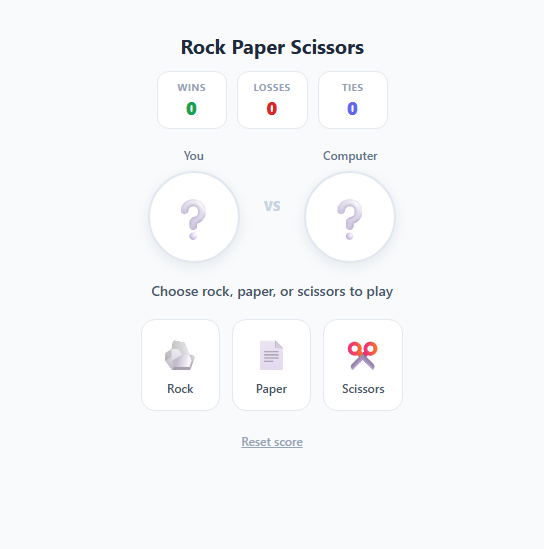
Rock Paper Scissors is one of the simplest possible games to reason about — three choices, a fixed set of rules, a random opponent — which makes it an excellent small project for practicing state management, timed animation sequencing, and readable game-logic code, all in vanilla JavaScript with no framework or library involved.
The classic three-way rule and how it's encoded
The entire ruleset boils down to a single lookup object: BEATS = { rock: 'scissors', paper: 'rock', scissors: 'paper' }. Given the player's choice and the computer's random choice, the outcome check is just three cases — equal means a tie, BEATS[playerChoice] === computerChoice means the player wins, and anything else means the computer wins. This is the cleanest possible way to encode the rule "rock crushes scissors, scissors cuts paper, paper covers rock" without a sprawling if/else chain or a full 3x3 outcome matrix, and it scales naturally if you ever wanted to extend the game to Rock-Paper-Scissors-Lizard-Spock by simply adding more keys to the BEATS map.
Building the "shoot" countdown animation
The classic real-world game is played with a "rock, paper, scissors, shoot" rhythm where both players' hands pump before revealing a choice. This snippet recreates that beat entirely with setInterval and setTimeout: when a choice button is clicked, play() immediately locks input (setButtonsDisabled(true)) so no double-clicks can happen mid-round, adds a .shaking class that applies a fast @keyframes shakeIcon rotation-and-scale wobble to both icon circles, and starts a 90-millisecond interval that randomly swaps each icon's emoji between rock, paper, and scissors — visually simulating an undecided, rapidly cycling hand. After 800 milliseconds, a matching setTimeout clears the interval, removes the shaking animation, locks in the computer's actual randomly generated choice, and calls resolveRound() to compute and display the real result. The 800ms duration is deliberately short enough to feel snappy but long enough to register as a genuine "countdown" beat rather than an instant jump-cut to the answer.
Displaying the correct rule explanation
Rather than a generic "You win" or "You lose" message, resolveRound() builds a message that explains the actual rule that applied — for example "Paper covers Rock — You win!" or "Scissors cuts Paper — Computer wins!". This uses a small VERBS lookup ({ rock: 'crushes', paper: 'covers', scissors: 'cuts' }) keyed by whichever choice won the round, so the sentence is always grammatically and logically correct regardless of which of the six possible win/lose combinations occurred. This is a small but important detail: it turns the result screen into a tiny teaching moment about the rules rather than just a verdict, which matters most for players who are still new to the game.
Score persistence and visual feedback
A simple in-memory score = { win: 0, lose: 0, tie: 0 } object accumulates across rounds for as long as the page stays open, rendered into three colour-coded counters (green for wins, red for losses, indigo for ties). Each icon circle also receives a win/lose/tie class after every round that draws a coloured ring around it (green, red, or indigo respectively) — applied to the *opposite* class on the computer's icon from the player's, since a player win is a computer loss and vice versa — giving instant, unambiguous visual confirmation of the outcome beyond just reading the text message. A "Reset score" link-style button zeroes the tally and restores both icons to a neutral question-mark placeholder, ready for a fresh session.
Build with AI
Build, Understand, Optimize, and Extend It With AI
Paste this snippet's HTML, CSS, and JS into an AI coding assistant like Claude and ask it to walk through exactly how play() sequences the shaking countdown, the computer's choice reveal, and the score update using setInterval and setTimeout, and why setButtonsDisabled() is necessary to prevent a race condition between overlapping rounds. From there, ask the assistant to extend the game: add a "best of 5" match mode that locks the game once a player reaches 3 wins, expand the rule set to Rock-Paper-Scissors-Lizard-Spock with the BEATS lookup restructured to support two counters per choice, or add a simple "computer taunts" text that changes based on the current win streak. It's also a good candidate for asking about accessibility improvements, like announcing the round result to screen readers via an aria-live region.
Prompt to recreate it
Copy this into your AI assistant of choice to build the effect from scratch, or as a jumping-off point for your own variant:
Build a Rock Paper Scissors game against a computer opponent in plain HTML, CSS, and JavaScript — three choice buttons, a shaking countdown reveal, correct rule-based results, and a persistent score tally.

Requirements:
- Three large choice buttons (rock, paper, scissors) each with a clear icon, and two icon-display areas representing the player and the computer.
- Clicking a choice must disable all three buttons immediately, then play a roughly 800ms "shaking hands" countdown where both the player's and computer's displayed icon rapidly cycle through random choices to simulate the classic "rock-paper-scissors-shoot" beat.
- After the countdown, reveal the player's actual choice and a freshly randomized computer choice, then determine and display the outcome (win, lose, or tie) using a data-driven rule lookup rather than a long chain of conditionals.
- Show a result message that names the specific rule that applied (for example "Paper covers Rock — You win!"), correctly grammatical for all six possible win/lose combinations, not just a generic win/lose label.
- Give both icon displays a distinct visual state (like a colored ring) reflecting whether that side won, lost, or tied the round.
- Maintain a running win/loss/tie score tally that persists across rounds for the session, displayed at all times, with a "Reset score" control that zeroes it and returns the UI to its initial neutral state.
- Re-enable the choice buttons only after the full countdown and result have resolved, so a user cannot start a second round while one is still animating.
Want to tighten it up first? Run this prompt through the AI Prompt Studio to score it across 8 quality dimensions, catch anti-patterns, and tune the wording for Claude, ChatGPT, or Gemini before you paste it in.
Step by step
How to Use
- 1Play a roundClick Rock, Paper, or Scissors. Both icon circles shake and rapidly cycle through random emoji for 800ms via the shakeInterval in play(), then settle on your actual choice and the computer's randomly generated one, followed immediately by the win/lose/tie result message and rule explanation.
- 2Read the result and rule explanationThe result-msg element always names the specific rule that decided the round (e.g. "Rock crushes Scissors — You win!"), built from the VERBS lookup object matched to whichever choice won. The message and both icon circles are also colour-coded green for a win, red for a loss, and indigo for a tie.
- 3Track your running scoreThe three score-item cards above the arena update immediately after every round by reading the score.win, score.lose, and score.tie counters, which persist in memory for the whole browser session until you explicitly reset them.
- 4Reset the scoreClick "Reset score" to zero out score.win, score.lose, and score.tie, clear the result message back to its default prompt, and restore both icon circles to the neutral ❔ placeholder — this does not reload the page or affect anything else.
- 5Add a fourth or fifth choiceTo build Rock-Paper-Scissors-Lizard-Spock, add lizard and spock keys to ICONS, CHOICES, and extend BEATS so each choice maps to the two choices it beats (this requires switching BEATS from a single value to an array, and updating the outcome check to array.includes(computerChoice)), then add two more .choice-btn buttons to the HTML.
- 6Export and add to your projectClick HTML to download a standalone file, or JSX for a React component. In React, move score into useState, replace the direct classList calls with conditional className strings derived from an outcome state variable, and use setTimeout inside a useEffect (with cleanup via clearTimeout) to replicate the countdown sequencing safely across re-renders.
Real-world uses
Common Use Cases
Got questions?
Frequently Asked Questions
resolveRound() checks three cases in order: if playerChoice equals computerChoice it is a tie; if BEATS[playerChoice] equals computerChoice (meaning the player's pick beats the computer's pick according to the lookup table) the player wins; otherwise, since there are only three possible choices and the first two cases have been ruled out, the computer must win by elimination. This avoids needing a full nine-combination truth table.
Yes — CHOICES[Math.floor(Math.random() * 3)] picks uniformly at random from rock, paper, and scissors with no memory of past rounds or bias toward countering the player's last move, so each round is statistically independent and fair, matching how the physical game is assumed to work.
Without setButtonsDisabled(true), a user could click a second choice while the 800ms shake countdown from their first click was still running, triggering an overlapping setInterval/setTimeout pair that would corrupt the icon display and potentially double-count the round in the score. Disabling input for the duration of the countdown, then re-enabling it once resolveRound() finishes, keeps exactly one round in flight at a time.
Yes, by design — score is a plain in-memory JavaScript object with no localStorage or backend persistence, so it resets to zero on every full page reload just like restarting a casual game session. If you want the tally to survive refreshes, wrap setScore() to also write score to localStorage and read it back in on page load.
Yes — track a roundsPlayed counter alongside score, and after calling resolveRound() check if score.win or score.lose has reached a target like 3; if so, display a "Match won!" banner, disable the choice buttons until "Reset score" (or a new "New match" button) is pressed, and stop incrementing further rounds until reset.