You Might Also Like
Learn Coding Visually
Learn to code with interactive, live-preview playgrounds — HTML, CSS, JavaScript, React & more.
 HTML Playground42 lessons · Click-based · Live preview
 CSS PlaygroundLearn CSS with a live editor
 JavaScript Playground60 lessons · DOM · Async · Canvas
 React PlaygroundLearn React with a live code editor
 GSAP PlaygroundLearn GSAP animation interactively
 SVG Playground44 lessons · shapes · paths · animation
 SCSS Playground45 lessons · Sass modules · tokens
 Tailwind PlaygroundLearn Tailwind CSS with a live editor
 Bootstrap 5 Playground50 lessons · live preview
Password Reset Form — Free HTML CSS JS Forgot Password Flow Snippet
Password Reset Form · Forms · Plain HTML, CSS & JS · Live preview
What's included
Features
About this UI Snippet
Password Reset Form — HTML, CSS & JavaScript Forgot Password Flow
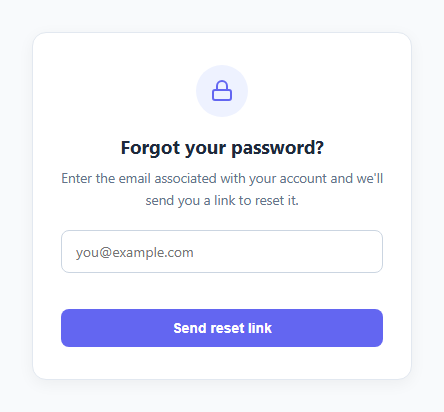
A password reset flow is really two screens compressed into one component: an email-collection step, and a confirmation step telling the user to check their inbox. Building both as a single toggled component — rather than two separate pages — keeps the transition instant and avoids an unnecessary page reload for what is fundamentally client-side state.
This snippet implements both steps in plain HTML, CSS, and vanilla JavaScript.
How the two-step structure works
Both steps exist in the DOM at all times as sibling .step divs, #stepRequest and #stepSent, each with display: none by default and display: block only when it carries the .active class. A single goToStep(stepId) helper removes .active from every step and adds it to just the target one — the same show-one-hide-rest pattern used in a tabbed interface, applied here to a linear flow instead of freely switchable tabs.
How email validation works
On submit, isValidEmail runs a lightweight regex (/^[^\s@]+@[^\s@]+\.[^\s@]+$/) that checks for the basic shape of an email address — something, an @, something, a dot, something — without trying to fully validate every RFC 5322 edge case, which is famously impractical with regex alone. An empty field and an invalid-but-non-empty field show two different messages, both surfaced in a dedicated .error-msg span with aria--friendly announcement in mind, and the input gets a .invalid class that turns its border red.
Why the request itself isn't shown here
The actual backend call (fetch('/api/password-reset', ...)) is left as a commented-out placeholder rather than wired to a real endpoint, since every backend's reset-token flow differs. The important client-side behavior — validating the email, transitioning to the confirmation screen, and remembering which address was submitted so it can be echoed back to the user — is fully implemented and ready to have the real network call dropped in.
Security note on the confirmation step
A real password-reset flow should show the same "check your email" confirmation screen whether or not the submitted email actually exists in your system. Never reveal whether an address is registered by branching the UI on that — it's a common account-enumeration vulnerability. This snippet's confirmation step is intentionally always the same regardless of what happens on your backend.
Build with AI
Build, Understand, Optimize, and Extend It With AI
Paste this snippet's HTML, CSS, and JS into an AI coding assistant like Claude and ask it to explain why the confirmation screen must always look identical regardless of whether the submitted email exists in your system, and to review your specific backend's password-reset endpoint design for account-enumeration risks. It's also a great snippet to extend with the assistant's help: ask it to add a loading spinner state on the submit button while the network request is in flight, to add a resend cooldown timer that persists across page reloads via localStorage, or to help wire the placeholder fetch call to a specific auth provider's SDK (Firebase, Auth0, Supabase, or a custom Express/Django backend) and handle its particular error responses gracefully in the existing error-message UI.
Prompt to recreate it
Copy this into your AI assistant of choice to build the effect from scratch, or as a jumping-off point for your own variant:
Build a two-step "forgot password" form in plain HTML, CSS, and JavaScript — no framework, no form library.

Requirements:
- Two step containers that both exist in the DOM at all times, toggled between via a single shared active class and a small goToStep helper function — not two separate pages or a routing library.
- Step one: an email input with a visually-hidden but properly associated label, a submit button, and client-side validation on submit that checks for both an empty field and a malformed email address, each producing a distinct inline error message plus a visual invalid state on the input.
- Step two: a confirmation screen that echoes back the exact email address the user submitted, plus a "resend email" button that temporarily disables itself with different button text for a couple of seconds to prevent accidental double-sends, and a "use a different email" control that clears the form and returns to step one.
- Leave the actual network call to a backend password-reset endpoint as a clearly commented placeholder inside the submit handler rather than a real fetch call, since every backend's reset-token API differs.
- Ensure the confirmation step's content and behavior does not vary based on whether the submitted email is valid or registered in any real system — the same confirmation UI must show regardless, to avoid revealing which emails have accounts.
Want to tighten it up first? Run this prompt through the AI Prompt Studio to score it across 8 quality dimensions, catch anti-patterns, and tune the wording for Claude, ChatGPT, or Gemini before you paste it in.
Step by step
How to Use
- 1Load the snippetClick "Password Reset Form" in the sidebar Library tab. The preview starts on the email-entry step.
- 2Try invalid inputClick "Send reset link" with an empty or malformed email to see the inline validation error appear.
- 3Submit a valid emailEnter a properly formatted email and submit — the form transitions to the "Check your email" confirmation step, echoing back the address you entered.
- 4Wire up the real requestIn the JS panel, uncomment and adapt the fetch() call inside the submit handler to call your actual password-reset API endpoint.
- 5Adjust the validation ruleIn the JS panel, edit the isValidEmail regex if you need stricter or more permissive email format checking.
- 6Export in your formatClick "HTML" for a standalone file, "JSX" for React, or "Tailwind" for React + Tailwind CSS.
Real-world uses
Common Use Cases
Got questions?
Frequently Asked Questions
No — the network call is left as a commented-out placeholder fetch() inside the submit handler. You need to connect it to your own backend or auth provider's password-reset endpoint to actually send an email.
It uses a lightweight regex that checks for the general shape of an email address (text, an @ symbol, more text, a dot, more text). It intentionally does not attempt full RFC 5322 validation, which is impractical with regex — real validation ultimately happens server-side when the reset request is processed.
This is a deliberate security practice called avoiding account enumeration. If the UI revealed whether an email was registered, an attacker could use the reset form to discover which addresses have accounts. Always show the same confirmation message whether or not the email exists in your system.
It briefly disables itself and shows "Sent!" for two seconds to prevent accidental rapid double-clicks, then re-enables. You should wire this to actually re-trigger your backend's reset-email endpoint using the previously submitted address.
Click "Use a different email" on the confirmation screen — it clears the input and error state and returns you to the first step so a new address can be entered.
Yes. Disable the submit button and swap its text to something like "Sending..." at the start of the submit handler, then re-enable it (or transition to the confirmation step) once your fetch call resolves.
Yes. The input has an associated <label> that is visually hidden using a standard clip-based technique rather than display: none, so it remains in the accessibility tree and is announced by screen readers even though it is not visually shown.
Extend the resendEmail function to track a timestamp of the last request (e.g. in a variable or localStorage) and keep the button disabled with a countdown until a minimum interval has passed, in addition to your backend enforcing its own rate limit.