Learn Coding Visually
Learn to code with interactive, live-preview playgrounds — HTML, CSS, JavaScript, React & more.
 HTML Playground42 lessons · Click-based · Live preview
 CSS PlaygroundLearn CSS with a live editor
 JavaScript Playground60 lessons · DOM · Async · Canvas
 React PlaygroundLearn React with a live code editor
 GSAP PlaygroundLearn GSAP animation interactively
 SVG Playground44 lessons · shapes · paths · animation
 SCSS Playground45 lessons · Sass modules · tokens
 Tailwind PlaygroundLearn Tailwind CSS with a live editor
 Bootstrap 5 Playground50 lessons · live preview
Language Switcher — Locale Dropdown HTML CSS JS
Language Switcher · Navigation · Plain HTML, CSS & JS · Live preview
What's included
Features
About this UI Snippet
Language Switcher — Searchable Locale Dropdown with Flags & Keyboard Navigation
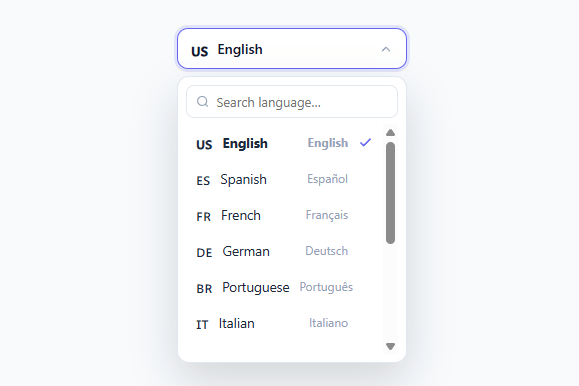
If your site serves more than one country, a language switcher is one of the first things international visitors look for — and a long, unsearchable list of locales is one of the most common ways to get it wrong. This snippet builds a polished, searchable language-picker dropdown in plain HTML, CSS, and vanilla JavaScript: flag icons, English *and* native names, a type-to-filter search, full keyboard navigation, and a clear selected-state checkmark — everything a production i18n control needs, with no library.
Why native names matter
Each language shows both its English name and its endonym — the name in its own language ("German / Deutsch", "Japanese / 日本語", "中文"). This is the single most important usability detail in a language switcher: a visitor who can't read the current interface language is looking for *their* language written the way they'd recognise it, not the English label. Showing both covers the user choosing from an unfamiliar UI and the admin scanning an English list.
Search that filters both names
With a dozen or more locales, scrolling is slower than typing. The search box filters the list on every keystroke against both the English name and the native name, so "esp", "español", or "spanish" all surface Spanish. A focused-state border and an instant empty state ("No languages match") keep the control responsive and honest about no-result queries.
Full keyboard support
Opening the dropdown auto-focuses the search field, and Arrow Down/Up move an activeIndex highlight through the visible results with scrollIntoView({ block: 'nearest' }) so the highlighted row never leaves view. Enter selects the highlighted language, Escape closes the dropdown, and a document-level click listener closes it on an outside click. This mirrors the native <select> and combobox behaviour keyboard and screen-reader users already expect, which a styled <div> dropdown otherwise throws away.
Wiring it to real localization
Selecting a language updates the trigger's flag and label and sets document.documentElement.lang — the hook a real app extends. In practice you'd do one of three things on select: set the <html lang> and swap an in-memory translation dictionary (client-side i18n like i18next or vue-i18n), navigate to the locale-prefixed URL (/es/, /fr/ — the SEO-friendly approach search engines prefer), or set a locale cookie and reload. The component doesn't assume which; it exposes the choice and leaves the routing to you.
Accessibility and markup
The trigger carries aria-haspopup="listbox" and a toggled aria-expanded, the popup is role="listbox", and each option is role="option" — so assistive tech announces it as a real listbox rather than a mystery widget. The dropdown animates in with opacity and transform only (never height), keeping it smooth across every framework export.
Build with AI
Build, Understand, Optimize, and Extend It With AI
You do not need to trace the keyboard-navigation state by hand to understand it. Paste this snippet's HTML, CSS, and JS into an AI coding assistant like Claude and ask it to explain exactly how the activeIndex highlight stays in sync with the shown array after a search filters the list, or why the outside-click listener checks wrap.contains(e.target) instead of comparing against the trigger alone. The same assistant is useful for optimizing it, for example asking whether re-rendering the entire listEl.innerHTML on every keystroke could cause input lag with a much longer LANGS array, or whether a debounce is worth adding. It is just as handy for extending the effect: ask it to persist the chosen locale to localStorage, group languages by region with sticky headers, or wire select() to a real i18next or next-intl instance. Treat the code less like a finished artifact and more like a starting point for a conversation.
Prompt to recreate it
Copy this into your AI assistant of choice to build the effect from scratch, or as a jumping-off point for your own variant:
Build a searchable "language switcher" dropdown in plain HTML, CSS, and JavaScript with no libraries and no external routing.

Requirements:
- A trigger button showing the current flag, language name, and a caret icon, with aria-haspopup="listbox" and a toggled aria-expanded attribute.
- A popup panel with role="listbox" containing a search input and a scrollable list of options, each rendered with role="option", built from a plain array of objects shaped like { code, flag, name, native }.
- Filtering must match the typed query against both the English name and the native name (case-insensitive substring match), re-rendering the list on every input event, and showing an explicit empty state when nothing matches.
- Full keyboard support inside the search input: ArrowDown and ArrowUp move an active-highlight index clamped to the current filtered list length, Enter selects the highlighted item, and Escape closes the popup. The highlighted row must call scrollIntoView({ block: "nearest" }) so it never scrolls out of view.
- Selecting an item (by click or Enter) must update the trigger's flag and label, set document.documentElement.lang to the selected code, mark that item as selected with a checkmark in the list, and close the popup.
- A single document-level click listener must close the popup when a click lands outside the widget's root wrapper element, without interfering with clicks inside the search input or list.
- Opening the popup must clear any previous search text, re-render the full list, and auto-focus the search input.
Want to tighten it up first? Run this prompt through the AI Prompt Studio to score it across 8 quality dimensions, catch anti-patterns, and tune the wording for Claude, ChatGPT, or Gemini before you paste it in.
Step by step
How to Use
- 1Paste HTML, CSS, and JSA "English 🇺🇸" trigger button renders. Click it to open the searchable language dropdown.
- 2Search for a languageType in the search box — the list filters live against both English and native names ("español" or "spanish" both find Spanish).
- 3Navigate with the keyboardUse ArrowDown/ArrowUp to highlight a language, Enter to select it, or Escape to close — the search field is auto-focused on open.
- 4Select a languageClick or press Enter — the trigger updates to the chosen flag and name, a checkmark marks it selected, and document.lang is set.
- 5Edit the language listAdd or remove entries in the LANGS array ({ code, flag, name, native }) to match the locales your site actually supports.
- 6Wire up real localizationIn the select() function, navigate to the locale-prefixed URL (/es/, /fr/), swap your translation dictionary, or set a locale cookie and reload.
Real-world uses
Common Use Cases
Got questions?
Frequently Asked Questions
In the select() function, do one of three things: navigate to a locale-prefixed URL (/es/path, the most SEO-friendly), call your client i18n library to swap the active translation dictionary (i18next, vue-i18n, next-intl), or set a locale cookie and reload so the server renders the right language. The component already sets document.documentElement.lang for you as the starting hook.
For public, indexable content prefer distinct locale URLs (/en/, /es/) so each language is its own crawlable page with hreflang tags — cookies hide the translation from search engines. For an authenticated app where SEO is irrelevant, a stored user preference or cookie is simpler and avoids URL clutter.
Read navigator.language (or navigator.languages for the ordered list) on first visit, match its prefix against your LANGS codes, and pre-select that language — but always let the user override it and remember their explicit choice, since the browser locale is a hint, not a decision.
Emoji flags render on most platforms but not all (notably some Windows versions show two-letter codes instead). For full consistency, replace the emoji with small SVG or PNG flag icons, or drop flags entirely and rely on the native names — flags also imperfectly map to languages (Spanish isn't only Spain), so native names are the more robust signal.
In React, hold the current code and query in useState and derive the filtered list with useMemo, calling your i18n library or router in the select handler; in Vue, use ref()/computed() and vue-i18n; in Angular, use a component field and ngx-translate or the built-in i18n. The keyboard navigation and outside-click logic port directly.