Learn Coding Visually
Learn to code with interactive, live-preview playgrounds — HTML, CSS, JavaScript, React & more.
 HTML Playground42 lessons · Click-based · Live preview
 CSS PlaygroundLearn CSS with a live editor
 JavaScript Playground60 lessons · DOM · Async · Canvas
 React PlaygroundLearn React with a live code editor
 GSAP PlaygroundLearn GSAP animation interactively
 SVG Playground44 lessons · shapes · paths · animation
 SCSS Playground45 lessons · Sass modules · tokens
 Tailwind PlaygroundLearn Tailwind CSS with a live editor
 Bootstrap 5 Playground50 lessons · live preview
JSON Formatter & Validator — Free HTML CSS JS Snippet
JSON Formatter & Validator · Dev · Plain HTML, CSS & JS · Live preview
What's included
Features
About this UI Snippet
JSON Formatter & Validator — Pretty-Print, Minify & Locate Parse Errors by Line and Column
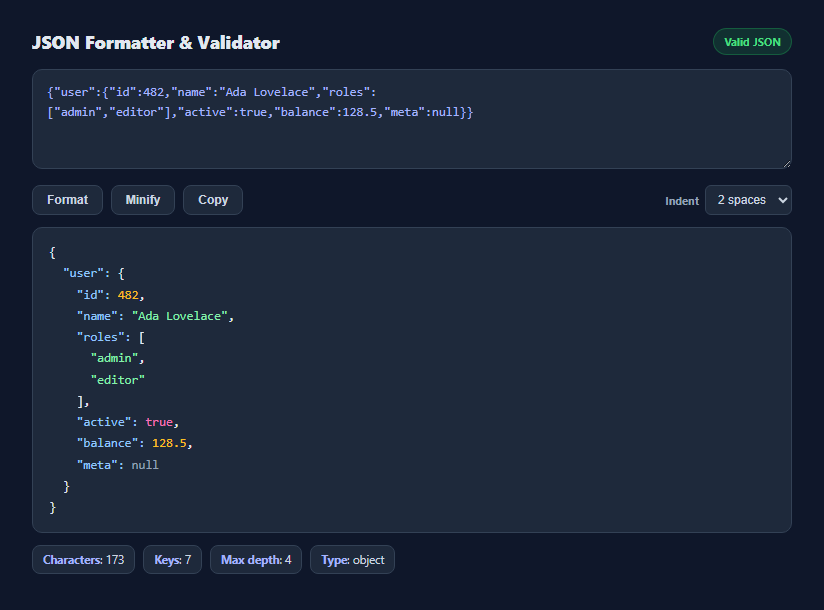
Malformed JSON is one of the most common time-sinks in web development — a trailing comma, an unquoted key, or a stray comment breaks an entire config file, and the browser's native error message ("Unexpected token in JSON at position 214") tells you almost nothing about where to look. This snippet builds a real formatter and validator entirely on top of the browser's built-in JSON.parse and JSON.stringify, but adds the missing piece: translating that raw character position into a human-readable line and column number.
Turning a byte offset into a line and column
V8-based engines (Chrome, Edge, Node) append position N to their JSON parse error messages. locateError() extracts that number with a regular expression, slices the original input up to that offset, and counts how many newline characters appear before it — that count plus one is the line number. The column is the offset minus the index of the most recent newline. This is exactly the technique a real IDE's JSON linter uses under the hood, just without a full recursive-descent parser.
Format vs minify are the same operation with a different indent
Both buttons call JSON.parse followed by JSON.stringify(parsed, null, indent). Format passes the currently selected indent width (2, 4, or a literal tab character); minify passes no third argument at all, which tells JSON.stringify to omit whitespace entirely. Round-tripping through parse and stringify also normalizes the input — inconsistent spacing, mixed indentation, and even key ordering (which JSON.stringify preserves as insertion order per the spec) all come out consistent.
Syntax highlighting with one regular expression
Rather than writing a second JSON parser just to colorize tokens, highlight() runs a single regex over the already-valid, already-formatted JSON string that matches strings (including one that is immediately followed by a colon, marking it as a key rather than a value), booleans, null, and numbers including exponents and decimals. Because the string only reaches the highlighter after a successful JSON.parse, the regex never has to handle malformed input — it only needs to distinguish between five well-defined token categories.
Recursively computing key count and max nesting depth
countKeys() walks the parsed value tree recursively: for a plain value it contributes zero, for an object it adds the count of its own keys plus the same recursive count for every value, and for an array it recurses into every element without adding to the key count (arrays have no keys of their own). A shared depthState object is threaded through the recursion so the deepest level reached anywhere in the tree is tracked without a separate traversal.
Why errors and stats are mutually exclusive
The stats row (character count, key count, max depth, root type) only ever renders for JSON that parsed successfully — there's no meaningful key count for a document that failed to parse. The moment format() catches an exception, the stats row and formatted output are cleared and only the error message renders, keeping the UI honest about what state the document is actually in.
Build with AI
Build, Understand, Optimize, and Extend It With AI
Paste this snippet's JavaScript into an AI assistant like Claude and ask it to explain how locateError() converts a raw JSON.parse "position N" message into a line and column number, then ask it to extend the approach to also highlight the offending line in the textarea itself. It is also a solid starting point for related tools: ask for a "convert to TypeScript interface" button that infers types from the parsed structure, a JSON Schema generator, or a side-by-side diff mode against a second pasted document.
Prompt to recreate it
Copy this into your AI assistant of choice to build the effect from scratch, or as a jumping-off point for your own variant:
Build a client-side JSON formatter and validator in plain HTML, CSS, and JavaScript, no libraries.

Requirements:
- A textarea where a user pastes or edits JSON, validating and formatting live on every input event using only the browser's built-in JSON.parse and JSON.stringify.
- A status badge that reads a valid state or an invalid state depending on whether the current text currently parses.
- When parsing fails, extract the character position from the native error message and convert it into a 1-indexed line number and column number by counting newlines in the text up to that position, then display a clear error message including both.
- A "Format" button that pretty-prints with a selectable indent width (2 spaces, 4 spaces, or a tab character) and a "Minify" button that strips all whitespace, both sharing the same parse-and-validate path.
- Lightweight syntax highlighting of the formatted output distinguishing object keys, string values, numbers, booleans, and null using a single regular expression over the already-valid JSON text.
- A stats row showing character count, total object key count (computed recursively, not counting array indices), and maximum nesting depth, updating alongside the formatted output.
- A Copy button using the Clipboard API with a brief visual confirmation.
Want to tighten it up first? Run this prompt through the AI Prompt Studio to score it across 8 quality dimensions, catch anti-patterns, and tune the wording for Claude, ChatGPT, or Gemini before you paste it in.
Step by step
How to Use
- 1Paste or edit JSONType or paste any JSON document into the textarea — formatting and validation run live on every keystroke.
- 2Read the status badgeIt reads "Valid JSON" in green or "Invalid JSON" in red, matching whether the current text parses successfully.
- 3Check the error box for parse failuresA malformed document shows the exact line and column of the first syntax error, translated from the raw JSON.parse error message.
- 4Switch between Format and MinifyFormat pretty-prints with your chosen indent width; Minify strips all whitespace for the smallest possible payload.
- 5Change the indent widthPick 2 spaces, 4 spaces, or a tab character from the dropdown — re-formats immediately.
- 6Copy the resultClick Copy to put the currently displayed formatted or minified JSON on your clipboard.
Real-world uses
Common Use Cases
Got questions?
Frequently Asked Questions
No. Validation and formatting both go through the browser's native JSON.parse and JSON.stringify, so the accepted grammar and error conditions exactly match what your actual JavaScript runtime does with the same document.
V8-based engines include the character position of the failure in the thrown error message. The tool extracts that number, counts newline characters in the text before it to get the line, and measures the distance from the previous newline to get the column.
Both parse the input the same way. Format calls JSON.stringify with an indent argument (2 spaces, 4 spaces, or a tab) to pretty-print the result. Minify calls JSON.stringify with no indent argument, producing the most compact valid representation.
No. Only object properties count toward the key count. Arrays are still walked recursively so any objects nested inside them contribute their own keys, but the array itself does not add to the total.
No. Every operation — parsing, formatting, minifying, highlighting, and computing stats — runs entirely in your browser using built-in JavaScript APIs. Nothing is transmitted over the network.
No, it deliberately does not attempt auto-repair — silently guessing at a fix for a trailing comma or unquoted key could hide the exact bug you introduced. It only reports precisely where parsing failed so you can fix the source.