More Forms Snippets
Front-End Coding Playgrounds
Learn to code with interactive, live-preview playgrounds — HTML, CSS, JavaScript, React & more.
 HTML Playground42 lessons · Click-based · Live preview
 CSS PlaygroundLearn CSS with a live editor
 JavaScript Playground60 lessons · DOM · Async · Canvas
 React PlaygroundLearn React with a live code editor
 GSAP PlaygroundLearn GSAP animation interactively
 SVG Playground44 lessons · shapes · paths · animation
 SCSS Playground45 lessons · Sass modules · tokens
 Tailwind PlaygroundLearn Tailwind CSS with a live editor
 Bootstrap 5 Playground50 lessons · live preview
Emoji Picker — Free HTML CSS JS Snippet
Emoji Picker · Forms · Plain HTML, CSS & JS · Live preview
What's included
Features
About this UI Snippet
Emoji Picker — Category Tabs, Recent Emojis, Insert at Cursor & Chat Demo
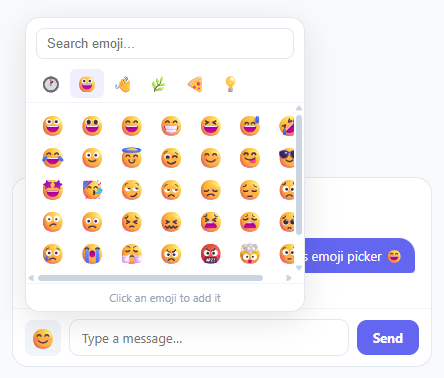
Type "I'm so happy" into any chat box and it reads flat — type "I'm so happy 🎉" and it suddenly has a tone. That gap is why every messaging product, from the Chat Bubble UI you're replying in to the comment box under a blog post, ships its own emoji picker rather than relying on the operating system's. This snippet builds one from scratch: six categorised tabs (Recent, Smileys, People, Nature, Food, Symbols), a search field, a hover-scale emoji grid, a popover that inserts *exactly where the cursor is* rather than at the end of the line, a self-maintaining "recently used" tab, click-outside dismissal, and a working chat demo so you can see it inserting into a real conversation rather than an empty textarea.
Inserting at the cursor, not the end
The naive approach — input.value += emoji — always appends to the end, which breaks the moment someone clicks back into the middle of a sentence to fix a typo and then wants to drop in an emoji there. insertEmoji(e) instead reads inp.selectionStart, the cursor's character offset, and rebuilds the string around it: inp.value.slice(0, pos) + e + inp.value.slice(pos). The subtle part is what happens *after*: setting .value programmatically silently resets the cursor to position zero, so the very next line restores it with inp.selectionStart = inp.selectionEnd = pos + e.length — placing the caret immediately after the freshly inserted emoji, exactly where a native keyboard insertion would leave it. Skip that one line and every emoji after the first lands in the wrong place.
A "recently used" tab that's really a tiny LRU cache
The Recent tab isn't hand-curated — it's a 12-item array that rebuilds itself on every selection: recent = [e, ...recent.filter(x => x !== e)].slice(0, 12). Unshifting the new emoji to the front, filtering out any earlier occurrence of the same one, and slicing to 12 is the textbook shape of a least-recently-used cache, just applied to emoji instead of memory pages. It's the same "move to front, evict the tail" idea that powers browser history and tab-switcher ordering — useful to recognise because it shows up anywhere a UI claims to remember "recent" anything.
One render function, six categories
Rather than writing six near-identical grid-building blocks, renderGrid(emojis) takes any flat array of emoji strings, clears #emoji-grid, and stamps out a button per emoji with its click handler wired to insertEmoji. showCat(btn, cat) just decides *which* array to hand it — recent for the clock tab, EMOJI_DATA[cat] for everything else — toggles the .active class, and clears any in-progress search. Adding a seventh category is a one-line addition to EMOJI_DATA plus a matching .cat-tab button; the rendering plumbing needs no changes at all.
Closing on an outside click
A single listener on document checks every click against e.target.closest('#emoji-wrap'). If the click landed anywhere outside the trigger-and-popover wrapper, togglePicker() fires and the panel closes — the same delegation pattern used by the Command Palette and Context Menu snippets to dismiss themselves without attaching a listener to every possible "outside" element. The popover itself animates with opacity, pointer-events, and a scale(0.96) → scale(1) transform — properties the compositor can animate without ever triggering layout.
Where the search currently falls short
The filterEmoji(q) stub is honest about its limits: without a names database, "smile" can't be matched to 😀, so it currently just shows a broad slice of every category on any non-empty query. The FAQ below shows how a small emoji-datasource-style package turns this into real name-based search — the kind that lets someone type "fire" and land on 🔥 instead of scrolling six tabs.
Build with AI
Build, Understand, Optimize, and Extend It With AI
Instead of guessing why emoji sometimes land in the wrong spot, paste this snippet's HTML, CSS, and JS into an AI coding assistant like Claude and ask it to explain exactly why insertEmoji() must explicitly restore inp.selectionStart and inp.selectionEnd after writing to inp.value, and how the recent array's unshift-filter-slice pattern in insertEmoji implements a tiny least-recently-used cache. The same assistant can help you optimize it, for instance pointing out that filterEmoji() currently ignores the query entirely and just shows a slice of every emoji, and discussing what a real name-based search would need. It's also useful for extending the picker: ask it to wire filterEmoji to an actual emoji-name dataset for real search, persist the recent list to localStorage across sessions, or add keyboard arrow-key navigation through the grid. Treat the code less like a finished artifact and more like a starting point for a conversation.
Prompt to recreate it
Copy this into your AI assistant of choice to build the effect from scratch, or as a jumping-off point for your own variant:
Build an emoji picker popover attached to a chat text input, in plain HTML, CSS, and JavaScript with no library.

Requirements:
- A trigger button that toggles a popover panel containing a search input, a row of category tab buttons (including a "Recent" tab), and a scrollable grid of emoji buttons, animated open and closed with an opacity and scale transition rather than a hard show/hide.
- Clicking any emoji in the grid must insert it into a separate target text input at the exact current cursor position (read via the input's selectionStart), not appended to the end of the input's value, by slicing the existing value into a before-cursor and after-cursor part and rebuilding the string around the inserted emoji.
- After programmatically setting the input's value, explicitly restore the cursor position to immediately after the newly inserted emoji, since setting an input's value property resets the browser's cursor to the start by default.
- Maintain a "recent" list capped at a fixed size (e.g. 12) that updates every time an emoji is inserted: the newly used emoji moves to the front, any earlier occurrence of that same emoji already in the list is removed first so it doesn't appear twice, and the list is trimmed back down to the cap length.
- Build one single grid-rendering function that accepts any flat array of emoji characters and is reused for every category tab and for the recent tab, so switching categories is only a matter of choosing which array to pass in, not duplicating rendering logic per category.
- Close the popover automatically when a click occurs anywhere outside the trigger-and-panel wrapper, using a single document-level click listener with a closest() containment check rather than per-element blur handlers.
Step by step
How to Use
- 1Click the 😊 button to open the emoji pickerThe picker slides open with a scale animation. Browse categories with the tab buttons. Click any emoji to insert it at the cursor position in the text input.
- 2Click inside the text input first to set the cursor positionClick in the input where you want the emoji inserted, then open the picker and select an emoji. It inserts exactly at the cursor, not appended to the end.
- 3Type in the search bar to filter emojisThe search input filters the emoji display. Currently shows a broad set on any search — connect to an emoji names database (emoji-data npm package) for name-based search.
- 4Check the Recent tab to see your emoji historyThe Recent tab shows the 12 most recently used emojis, updated in real time as you select emojis from other categories. Click Send to send a chat message and test the full flow.
- 5Attach to any textarea or input in your projectChange document.getElementById("chat-input") to your own input element. The insertEmoji() function works with any text input or textarea by reading selectionStart.
- 6Export in your formatClick "HTML" for a standalone file, "JSX" for a React component using useRef for the input, or "Tailwind" for a React + Tailwind CSS version.
Real-world uses
Common Use Cases
Got questions?
Frequently Asked Questions
inp.selectionStart returns the current cursor position in the input field (an integer offset from the start). The insertion: inp.value = inp.value.slice(0, selectionStart) + emoji + inp.value.slice(selectionStart). After setting value, cursor is restored: inp.selectionStart = inp.selectionEnd = selectionStart + emoji.length. Without this, setting value programmatically resets the cursor to the end.
Import an emoji metadata package: import emojiData from "emoji-datasource". Each entry has char (the emoji) and name fields. In filterEmoji(q): const matches = emojiData.filter(e => e.name.toLowerCase().includes(q.toLowerCase())).map(e => e.char).slice(0,42). This gives real name-based search ("smiling face", "thumbs up") instead of the current category-level filtering.
Save to localStorage in insertEmoji(): localStorage.setItem("recent_emoji", JSON.stringify(recent)). On page load, restore: const saved = localStorage.getItem("recent_emoji"); if (saved) { try { recent = JSON.parse(saved); } catch {} }. This persists the user's recently used emojis so they appear in the Recent tab on the next visit.
Click "JSX" to download. Use useState for isOpen, curCat, and recent. Use useRef for the input element. In insertEmoji: const pos = inputRef.current.selectionStart; then use a React-controlled input value state with setInputValue(prev => prev.slice(0,pos) + e + prev.slice(pos)). For cursor restore after state update, use useEffect with a ref to the desired cursor position and set selectionStart/End after the render.