You Might Also Like
Learn Coding Visually
Learn to code with interactive, live-preview playgrounds — HTML, CSS, JavaScript, React & more.
 HTML Playground42 lessons · Click-based · Live preview
 CSS PlaygroundLearn CSS with a live editor
 JavaScript Playground60 lessons · DOM · Async · Canvas
 React PlaygroundLearn React with a live code editor
 GSAP PlaygroundLearn GSAP animation interactively
 SVG Playground44 lessons · shapes · paths · animation
 SCSS Playground45 lessons · Sass modules · tokens
 Tailwind PlaygroundLearn Tailwind CSS with a live editor
 Bootstrap 5 Playground50 lessons · live preview
Cursor Particle Brush Trail — Free Canvas Lingering Trail Snippet
Cursor Particle Brush Trail · Animations · Plain HTML, CSS & JS · Live preview
What's included
Features
About this UI Snippet
Cursor Particle Brush Trail — A Stroke That Lingers, Not a Trail That Vanishes
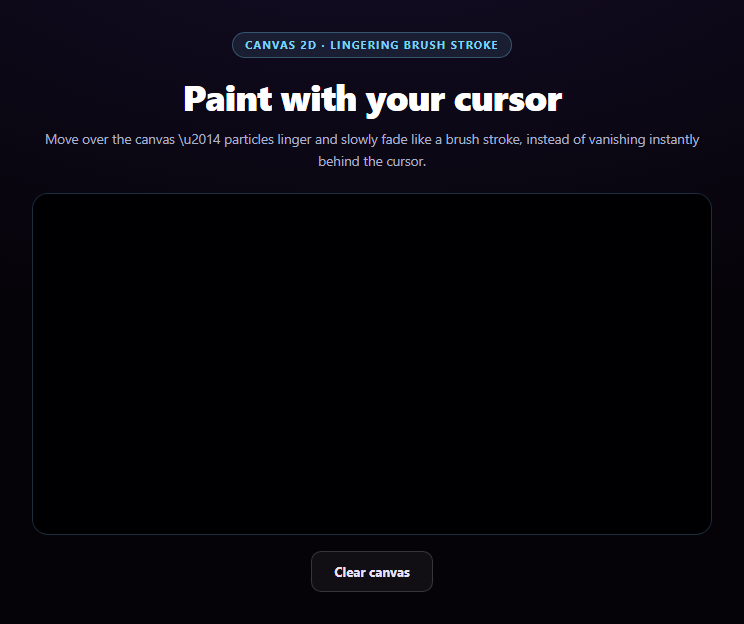
Most cursor-trail effects erase the previous frame completely and redraw, so the "trail" only ever spans the last few pixels behind the pointer. This snippet does the opposite on purpose: every particle it spawns has its own life counter and keeps rendering, fading gradually, for about 1.5 seconds — moving the cursor slowly leaves a visible, lingering stroke behind it, closer to a paintbrush than a comet tail.
Persistent particles with individual life, not a cleared-and-redrawn trail
Each particle pushed into the particles array carries its own life/maxLife pair. Every animation frame decrements every particle's life and removes it only once that reaches zero — particles from several frames ago are still being drawn (at lower opacity) alongside particles spawned this frame. That's the entire difference from a typical trail effect, where old points are gone the instant the next frame paints.
A near-transparent fill instead of clearRect
Rather than ctx.clearRect(), every frame paints ctx.fillRect() with a background color at a very low alpha (rgba(5,7,16,0.06)) over the whole canvas. Because that fill only partially obscures what's underneath, particles already on the canvas darken and fade gradually across many frames instead of disappearing in one step — the canvas equivalent of watercolor drying rather than a whiteboard eraser.
Interpolating between mouse positions
A fast swipe can jump many pixels between two consecutive mousemove events, which would otherwise paint sparse, disconnected dots. paintTo() measures the distance from the last painted point and spawns particles at evenly interpolated positions along that segment (roughly every 4px), so even a quick motion leaves a continuous stroke rather than a dashed line.
Opacity and radius both track remaining life
Each particle's alpha is simply life / maxLife, applied to its hsla fill color, and its radius shrinks slightly as life drains (r * (0.5 + alpha * 0.5)) — combining a fade with a subtle shrink is what makes a lingering particle read as dissipating paint rather than a static dot that abruptly blinks out.
Customizing it
Change MAX_LIFE for a shorter or longer-lingering stroke, adjust the background fill's alpha for a faster or slower fade, swap the HUES array for a different palette, or spawn more particles per point for a denser brush. Pair it with canvas audio frequency bars as another real-time canvas rendering reference, or hover image trail for an image-based cursor trail instead.
Build with AI
Build, Understand, Optimize, and Extend It With AI
You don't have to work out the fade-persistence trick from scratch. Paste this snippet's HTML, CSS, and JS into an AI coding assistant like Claude and ask it to explain exactly why filling the canvas each frame with a very low-alpha rectangle produces a gradually fading trail while clearRect would erase everything instantly, and how giving each particle its own life counter — rather than relying purely on the canvas fade — lets opacity and radius be computed precisely per particle instead of only approximated by how many frames of low-alpha overlay have accumulated on top of it. The same assistant can help you optimize it, for instance asking whether capping the maximum number of live particles would prevent a performance cliff if someone waves the cursor around continuously for a long time. It's also useful for extending the effect: ask it to vary particle size or hue based on cursor speed (faster movement producing smaller, more numerous particles), add a bloom-style glow using shadowBlur, or let the brush color cycle through a full rainbow over a longer stroke instead of a five-hue palette. Treat the code less like a finished artifact and more like a starting point for a conversation.
Prompt to recreate it
Copy this into your AI assistant of choice to build the effect from scratch, or as a jumping-off point for your own variant:
Build a "cursor particle brush trail" in plain HTML, CSS, and JavaScript using the Canvas 2D API, where the trail lingers and slowly fades over roughly one to two seconds — distinct from a typical instantaneous mouse trail that disappears within a frame or two.

Requirements:
- A canvas sized to its container's actual pixel dimensions (accounting for devicePixelRatio for crisp rendering), redrawn every requestAnimationFrame tick via a single continuous render loop, not redrawn only on pointer events.
- Maintain a persistent array of particle objects, each with a position, a radius, a color, and a life value (plus the life value it started with). On every animation frame, decrement every particle's life and remove it from the array only once its life reaches zero — do not clear and fully redraw the particle set each frame.
- Instead of clearing the canvas with clearRect each frame, fill the entire canvas with a background-colored rectangle at a very low alpha (e.g. around 0.05-0.08). This must be the mechanism that makes older particles gradually darken and fade across many frames rather than disappearing instantly, since a full clearRect would erase everything immediately regardless of individual particle life.
- On pointer/touch movement over the canvas, spawn a small number of new particles at the current position with some random jitter in position, size, and hue. When the distance between the current point and the previous point exceeds a few pixels, interpolate and spawn particles along several evenly-spaced points between them (not just at the two endpoints) so a fast swipe still paints a continuous stroke instead of sparse disconnected dots.
- Each particle's rendered opacity and radius must both be derived from its current life divided by its starting life (not from the low-alpha canvas fill alone), so particles visibly shrink slightly as they fade rather than staying full-size until they vanish.
- Support both mouse (continuous painting on mousemove, no click required) and touch (touchstart/touchmove) input identically, with touch-action: none on the canvas so touch painting doesn't scroll the page, and provide a "Clear canvas" button that empties the particle array and clears the canvas pixels immediately.
Want to tighten it up first? Run this prompt through the AI Prompt Studio to score it across 8 quality dimensions, catch anti-patterns, and tune the wording for Claude, ChatGPT, or Gemini before you paste it in.
Step by step
How to Use
- 1Paste HTML, CSS, and JSAn empty dark canvas renders with a Clear canvas button.
- 2Move the cursor over the canvasColorful particles paint along the path and linger.
- 3Move slowly vs. quicklySlow motion leaves a dense stroke; fast motion a lighter one.
- 4Wait without movingThe existing stroke keeps fading gradually on its own.
- 5Click Clear canvasInstantly removes every particle and resets the canvas.
- 6Tune the lingerChange MAX_LIFE and the background fill's alpha.
Real-world uses
Common Use Cases
Got questions?
Frequently Asked Questions
Each particle object carries its own life and maxLife values. Every animation frame decrements every particle's life and only removes it from the array once life reaches zero — meaning particles spawned several frames ago are still drawn, just at progressively lower opacity, alongside particles spawned in the current frame. A typical instantaneous trail instead clears everything from the previous frame before drawing the new one, so nothing survives past a single frame.
clearRect wipes the canvas to fully transparent in one step, which would erase every particle immediately regardless of its own life value. Filling the whole canvas with a background color at a very low alpha each frame only partially obscures whatever was drawn underneath, so previously-painted particles darken and fade across many frames rather than vanishing the instant the next frame renders — this is what produces the "brush stroke drying" look instead of an instant wipe.
paintTo() measures the straight-line distance between the current pointer position and the last painted position, then spawns particles at several evenly-interpolated points along that segment (roughly one every 4px) instead of only at the two endpoints. Without this, a fast mouse movement that jumps many pixels between two mousemove events would leave visible gaps in the stroke.
Each particle's opacity is computed directly from its remaining life (life / maxLife) and applied to its hsla fill color, while its drawn radius also shrinks slightly as life drains. Combining a fade with a subtle shrink — rather than only fading, or only shrinking — is what reads as dissipating paint instead of a static dot abruptly blinking out at the end of its life.
Keep the particles array, the last-point reference, and the animation frame id in refs (not state), since they mutate every frame and should never trigger a re-render. Set up the canvas, resize listener, and requestAnimationFrame loop inside a mount effect, attach the pointer/touch listeners to the canvas ref, and cancel the animation frame and remove listeners in the effect's cleanup function.