More Dashboards Snippets
Front-End Coding Playgrounds
Learn to code with interactive, live-preview playgrounds — HTML, CSS, JavaScript, React & more.
 HTML Playground42 lessons · Click-based · Live preview
 CSS PlaygroundLearn CSS with a live editor
 JavaScript Playground60 lessons · DOM · Async · Canvas
 React PlaygroundLearn React with a live code editor
 GSAP PlaygroundLearn GSAP animation interactively
 SVG Playground44 lessons · shapes · paths · animation
 SCSS Playground45 lessons · Sass modules · tokens
 Tailwind PlaygroundLearn Tailwind CSS with a live editor
 Bootstrap 5 Playground50 lessons · live preview
Calendar Widget — Free HTML CSS JS Snippet
Calendar Widget · Dashboards · Plain HTML, CSS & JS · Live preview
What's included
Features
About this UI Snippet
Calendar Widget — Monthly Grid, Today Highlight, Event Dots & Upcoming Events Panel
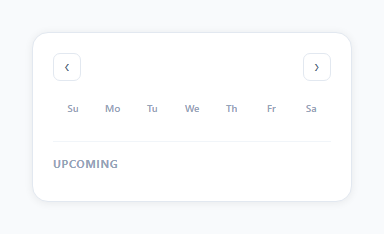
A calendar widget is a fundamental dashboard component for displaying date-based context alongside other metrics and tasks. This snippet provides a complete mini monthly calendar: previous/next month navigation, a 7-column day grid with today highlighted, event dot indicators on days that have events, click-to-select days, and a dynamic upcoming events panel that filters events within the next 30 days — all in plain HTML, CSS, and vanilla JavaScript.
How the calendar grid is generated
The render() function computes three things: the day of the week the month starts on (firstDay), the number of days in the month, and the number of days in the previous month (for padding). The grid always starts on Sunday. Padding days from the previous month fill the start of the first row; padding days from the next month fill the end of the last row. Each day div is created with classList flags: .other (padding days), .today (today's date), .has-event (dot indicator), and .selected (click selection).
The event dot indicator
Days with matching events get the .has-event class which adds a ::after pseudo-element — a 4px circle positioned at the bottom of the day cell. The dot is accent coloured for normal days and white on the .today cell (since the today background is the accent colour). This is a standard calendar pattern used by Apple Calendar, Google Calendar, and iOS date pickers.
The upcoming events panel
Below the calendar grid, an upcoming events list filters the events array to entries within the next 30 days from today. Events are sorted by date ascending and limited to 4 items. Each event shows a coloured dot matching the event's colour, the event title (truncated with text-overflow: ellipsis), and the formatted date. If no upcoming events exist, a "No upcoming events" italic message shows instead.
Month navigation
The shift(dir) function calls cur.setMonth(cur.getMonth() + dir) — JavaScript's Date handles month boundary arithmetic automatically. Shifting from January by -1 gives December of the previous year. The calendar re-renders fully on each navigation.
Customising events
Replace the events array with your own event data. Each event needs date (YYYY-MM-DD format), title, and color. Wire to a calendar API (Google Calendar, CalDAV) by replacing the events array with data fetched from the API on render.
Build with AI
Build, Understand, Optimize, and Extend It With AI
You don't have to work out the padding math by hand to see how this grid always comes out to complete weeks. Paste this snippet's HTML, CSS, and JS into an AI coding assistant like Claude and ask it to explain exactly how firstDay, daysInMonth, and prevDays combine to produce leading and trailing padding days so the grid is always a multiple of seven cells, and why new Date(year, month, 0) correctly returns the last day of the previous month. The same assistant can help optimize it — asking whether recomputing the entire events filter and sort on every render call is wasteful compared to memoizing it per month, or whether string-concatenating the date in three separate padStart calls could be simplified. It's also useful for extending the widget: ask it to support multi-day events spanning several cells, add a week-view mode, or wire the events array to a real Google Calendar or CalDAV feed. Treat the code less like a finished artifact and more like a starting point for a conversation.
Prompt to recreate it
Copy this into your AI assistant of choice to build the effect from scratch, or as a jumping-off point for your own variant:
Build a "monthly calendar widget" in plain HTML, CSS, and JavaScript with an events list, using native Date arithmetic only — no date library.

Requirements:
- Render a 7-column grid for the current month that always fills complete rows: compute the weekday the first day of the month falls on to determine how many trailing days of the previous month to show as padding at the start, render every day of the current month, then compute how many leading days of the next month are needed to fill out the final row to a multiple of seven.
- Visually distinguish three day states with separate CSS classes: padding days from adjacent months (dimmed), today's actual date (filled with an accent background), and any day with at least one matching event (a small dot indicator) — and today with an event must correctly show both states simultaneously.
- Store events as a plain array of objects with a date string, a title, and a color, and match events to calendar days by exact date-string comparison.
- Clicking any day in the current month (but not today, and not padding days) must toggle a "selected" visual state on that cell, removing the selected state from any previously selected cell first.
- Below the grid, render an "upcoming events" list that filters the events array down to only dates between today and 30 days from now, sorts them chronologically, limits the list to at most 4 entries, and shows a colored dot, the event title (truncated with ellipsis if too long), and a short formatted date for each — with a distinct empty-state message when no events fall in that window.
- Provide previous/next navigation buttons that shift the displayed month by exactly one month using Date's setMonth (which must correctly roll over year boundaries) and fully regenerate the grid and events list on every navigation.
Step by step
How to Use
- 1Navigate monthsClick the ‹ and › buttons to move to the previous or next month. The grid regenerates, today highlight remains on the current date, and event dots update for each month.
- 2Click a day to select itClick any day in the current month to highlight it with a selected state (indigo tint). The previously selected day deselects. Today cannot be selected — it always shows the filled accent background.
- 3Update the events arrayIn the JS panel, edit the events array. Each event needs: date in YYYY-MM-DD format, title string, and color hex. Events show as dots on the calendar and appear in the upcoming panel if within the next 30 days.
- 4Change the week start dayThe calendar starts on Sunday (getDay() = 0). To start on Monday, subtract 1 from firstDay and adjust the day-names header order: Mo Tu We Th Fr Sa Su.
- 5Extend upcoming events rangeIn render(), change the cutoff from 30 days to any number: cutoff.setDate(cutoff.getDate() + N). Increase the .slice(0, 4) limit to show more upcoming events in the panel.
- 6Export in your formatClick "HTML" for a standalone file, "JSX" for a React component managing cur state with useState and events with useMemo, or "Tailwind" for a Tailwind CSS version.
Real-world uses
Common Use Cases
Got questions?
Frequently Asked Questions
render() creates a Date for the first day of cur month and reads .getDay() to know which column (0=Sunday, 6=Saturday) the month starts on. It fills leftward from that column with trailing days from the previous month. It then places all days in the current month. Finally it fills any remaining cells in the last row with leading days of the next month. This always produces a complete 7-column grid, typically 5 rows (35 cells) or occasionally 6 rows (42 cells) for months that start on Saturday or Sunday.
Call the Google Calendar Events API: fetch("https://www.googleapis.com/calendar/v3/calendars/primary/events?timeMin="+startOfMonth+"&timeMax="+endOfMonth+"&key="+API_KEY). Map the response items to {date: item.start.dateTime || item.start.date, title: item.summary, color: "#6366f1"}. Call render() after the fetch resolves. For authentication, use Google OAuth2 and pass the access token in the Authorization header instead of the API key.
Change the firstDay calculation: const firstDay = (new Date(year, month, 1).getDay() + 6) % 7. This converts Sunday (0) to 6 and Monday (1) to 0, shifting the week start. Also update the day-names header to Mo Tu We Th Fr Sa Su. The padding calculations for prev/next month days remain the same.
Click "JSX" to download. Manage cur with useState<Date>(new Date(year, month, 1)). Compute grid days with useMemo([cur]) — run the same padding and day calculations, returning an array of day objects. Render the array to day divs. Manage selectedDate with useState<string|null>(null). For events, fetch from your API in a useEffect that re-runs when cur changes.