Source Code
<div class="schedule-wrap">
  <div class="schedule-header">
    <h2 class="schedule-title">Weekly Schedule</h2>
    <div class="week-nav">
      <button class="nav-btn">← Prev</button>
      <span class="week-label">May 26 – Jun 1, 2025</span>
      <button class="nav-btn">Next →</button>
    </div>
  </div>
  <div class="table-scroll">
  <table class="schedule-table">
    <thead>
      <tr>
        <th class="time-col"></th>
        <th>Mon <span class="day-num">26</span></th>
        <th>Tue <span class="day-num">27</span></th>
        <th class="today">Wed <span class="day-num today-num">28</span></th>
        <th>Thu <span class="day-num">29</span></th>
        <th>Fri <span class="day-num">30</span></th>
      </tr>
    </thead>
    <tbody>
      <tr>
        <td class="time-label">9:00</td>
        <td><div class="event indigo">Team standup<span>9:00–9:30</span></div></td>
        <td><div class="event indigo">Team standup<span>9:00–9:30</span></div></td>
        <td class="today-col"><div class="event indigo">Team standup<span>9:00–9:30</span></div></td>
        <td><div class="event indigo">Team standup<span>9:00–9:30</span></div></td>
        <td><div class="event indigo">Team standup<span>9:00–9:30</span></div></td>
      </tr>
      <tr>
        <td class="time-label">10:00</td>
        <td><div class="event blue">Design review<span>10:00–11:00</span></div></td>
        <td></td>
        <td class="today-col"></td>
        <td><div class="event green">1:1 with PM<span>10:00–10:30</span></div></td>
        <td></td>
      </tr>
      <tr>
        <td class="time-label">11:00</td>
        <td></td>
        <td><div class="event pink">Sprint planning<span>11:00–12:30</span></div></td>
        <td class="today-col"><div class="event orange">Client call<span>11:00–11:45</span></div></td>
        <td></td>
        <td></td>
      </tr>
      <tr>
        <td class="time-label">12:00</td>
        <td></td>
        <td></td>
        <td class="today-col"></td>
        <td></td>
        <td><div class="event teal">Team lunch<span>12:00–13:00</span></div></td>
      </tr>
      <tr>
        <td class="time-label">14:00</td>
        <td><div class="event teal">Code review<span>14:00–15:00</span></div></td>
        <td></td>
        <td class="today-col"><div class="event blue">Architecture review<span>14:00–15:30</span></div></td>
        <td></td>
        <td><div class="event pink">Retro<span>14:00–15:00</span></div></td>
      </tr>
      <tr>
        <td class="time-label">15:00</td>
        <td></td>
        <td><div class="event orange">Workshop<span>15:00–17:00</span></div></td>
        <td class="today-col"></td>
        <td><div class="event green">Demo prep<span>15:00–16:00</span></div></td>
        <td></td>
      </tr>
      <tr>
        <td class="time-label">16:00</td>
        <td></td>
        <td></td>
        <td class="today-col"></td>
        <td><div class="event indigo">Product demo<span>16:00–17:00</span></div></td>
        <td></td>
      </tr>
    </tbody>
  </table>
  </div>
</div>
* { box-sizing: border-box; margin: 0; padding: 0; }
body { font-family: system-ui, sans-serif; background: #f1f5f9; display: flex; align-items: flex-start; justify-content: center; min-height: 100vh; padding: 24px; }
.schedule-wrap { width: 100%; max-width: 900px; }
.schedule-header { display: flex; align-items: center; justify-content: space-between; margin-bottom: 16px; flex-wrap: wrap; gap: 12px; }
.schedule-title { font-size: 18px; font-weight: 700; color: #1e293b; }
.week-nav { display: flex; align-items: center; gap: 12px; }
.week-label { font-size: 13px; font-weight: 600; color: #475569; }
.nav-btn { padding: 6px 12px; font-size: 12px; font-weight: 600; background: #fff; border: 1.5px solid #e2e8f0; border-radius: 8px; cursor: pointer; color: #475569; font-family: inherit; transition: all 0.12s; }
.nav-btn:hover { border-color: #6366f1; color: #6366f1; }
.table-scroll { overflow-x: auto; background: #fff; border-radius: 16px; border: 1px solid #e2e8f0; box-shadow: 0 2px 12px rgba(0,0,0,0.05); }
.schedule-table { width: 100%; border-collapse: collapse; }
thead th { padding: 12px 10px; text-align: center; font-size: 12px; font-weight: 600; color: #64748b; border-bottom: 2px solid #e2e8f0; min-width: 120px; }
thead th.time-col { min-width: 60px; }
thead th.today { color: #6366f1; }
.day-num { display: block; font-size: 20px; font-weight: 800; color: #1e293b; margin-top: 2px; line-height: 1; }
.today .today-num { color: #6366f1; }
tbody td { padding: 8px 8px; border-bottom: 1px solid #f1f5f9; border-right: 1px solid #f1f5f9; vertical-align: top; height: 68px; }
tbody td:last-child { border-right: none; }
tbody tr:last-child td { border-bottom: none; }
td.time-label { font-size: 11px; font-weight: 600; color: #94a3b8; padding: 10px 8px; text-align: right; white-space: nowrap; vertical-align: top; }
td.today-col { background: #fafafa; }
.event { border-radius: 8px; padding: 7px 9px; font-size: 12px; font-weight: 600; line-height: 1.3; height: 100%; display: flex; flex-direction: column; gap: 2px; cursor: pointer; transition: filter 0.12s; }
.event:hover { filter: brightness(0.95); }
.event span { font-size: 10px; font-weight: 500; opacity: 0.8; }
.event.indigo { background: rgba(99,102,241,0.12); color: #4f46e5; }
.event.blue { background: rgba(14,165,233,0.12); color: #0284c7; }
.event.green { background: rgba(22,163,74,0.12); color: #15803d; }
.event.pink { background: rgba(236,72,153,0.12); color: #be185d; }
.event.orange { background: rgba(249,115,22,0.12); color: #c2410c; }
.event.teal { background: rgba(20,184,166,0.12); color: #0f766e; }Learn Coding Visually
Learn to code with interactive, live-preview playgrounds — HTML, CSS, JavaScript, React & more.
 HTML Playground42 lessons · Click-based · Live preview
 CSS PlaygroundLearn CSS with a live editor
 JavaScript Playground60 lessons · DOM · Async · Canvas
 React PlaygroundLearn React with a live code editor
 GSAP PlaygroundLearn GSAP animation interactively
 SVG Playground44 lessons · shapes · paths · animation
 SCSS Playground45 lessons · Sass modules · tokens
 Tailwind PlaygroundLearn Tailwind CSS with a live editor
 Bootstrap 5 Playground50 lessons · live preview
Schedule Timetable — Free HTML CSS Snippet
Schedule / Timetable · Tables · Plain HTML & CSS · Live preview
What's included
Features
About this UI Snippet
Schedule Timetable — Weekly Calendar Grid, Colour-Coded Events & Today Column Highlight
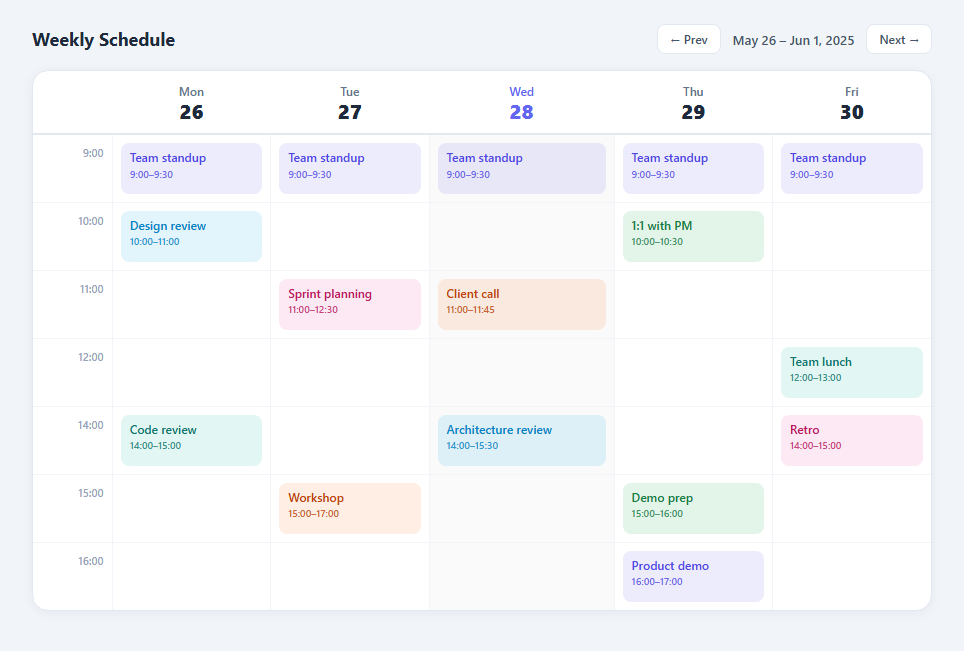
A weekly schedule timetable displays events in a calendar grid — days as columns across the top, time slots as rows down the left. This layout is used in team meeting calendars, class timetables, booking systems, shift schedules, and project sprint planners. This snippet gives you a complete HTML CSS schedule grid with six event colour types, a today column highlight, week navigation controls, and horizontal scroll for mobile — no JavaScript required for the base layout.
How the grid structure works
The timetable is a standard HTML table where each column is a weekday (Mon–Fri) and each row is an hourly time slot (9:00 AM to 4:00 PM). The first column (.time-col) displays the hour label, right-aligned. Each subsequent cell is a day/time intersection where events can be placed. Event blocks are .event divs inside cells — they use height: 100% and display: flex to fill the cell vertically and show the event name and time as a flex column.
Six colour-coded event types
Six colour variants (.indigo, .blue, .green, .pink, .orange, .teal) differentiate event categories. Each uses an rgba() tinted background with matching text colour — rgba(99,102,241,0.12) with #3730a3 text for indigo, for example. The colours are low-saturation tints so multiple events on the same day do not create visual chaos. All six variants share the same padding, font size, and border-radius for visual consistency.
Today column highlight
The current day column gets a two-part treatment: the column header th gets .today which applies an accent colour and shows the day number in a filled circle. Each cell in that column gets .today-col which applies a soft tinted background. This is the same pattern used by Google Calendar and Apple Calendar — users recognise it immediately as "today." Moving it to a different column requires only moving the .today class on the header and .today-col on the cells.
Making events span multiple hours
To make an event fill two hours, use rowspan="2" on the td: the cell takes up two row heights automatically. Remove the td that would have appeared in the next row for that column. The event div inside the tall cell stretches to fill the full height. For 30-minute resolution, add half-hour rows with reduced cell height in CSS.
Responsive horizontal scroll
A five-day schedule grid is inherently wider than most phone screens. The .schedule-wrap wrapper uses overflow-x: auto — the table scrolls horizontally while the time column stays visible. The minimum cell width prevents columns from becoming too narrow to read on any device.
Adding event interaction
The snippet is pure HTML and CSS by default. Add click-to-book functionality with a few lines of JavaScript: attach a click listener to each empty td, create an .event div inside it on click, and prompt for an event title. For a full booking system, use a modal (see the Modal snippet) for the event details form, and a calendar widget for month-level date picking.
Build with AI
Build, Understand, Optimize, and Extend It With AI
You do not need to work out the today-column and rowspan interactions on your own. Paste this snippet's HTML and CSS into an AI coding assistant like Claude and ask it to explain exactly why removing the wrong td when adding rowspan misaligns every following column, and how the .today header class and the .today-col cell class have to be kept in sync across a whole column rather than a single cell. The same assistant is useful for optimizing it — ask whether hand-maintaining rowspan and today-column classes in static markup will scale to a real booking calendar with dozens of events, or whether the table should instead be generated from a data array with a small render function. It is just as useful for extending the effect — ask it to add click-to-book event creation on empty cells, compute the today column automatically from the real date instead of a hardcoded class, or add 30-minute slot resolution. Treat the code less like a finished artifact and more like a starting point for a conversation.
Prompt to recreate it
Copy this into your AI assistant of choice to build the effect from scratch, or as a jumping-off point for your own variant:
Build a weekly schedule timetable in plain HTML and CSS, using a semantic HTML table (not CSS grid or flexbox) as the layout mechanism, with only a minimal amount of optional JavaScript for interactivity.

Requirements:
- A table with one header row showing five weekday columns plus a narrow leading time column, and one body row per hourly time slot from 9:00 to 16:00, with the time value right-aligned in the first cell of each row.
- Event entries are divs placed inside the relevant day/time td, each carrying one of at least six color-variant classes (for example indigo, blue, green, pink, orange, teal), each variant using a low-saturation tinted rgba background with a matching darker text color, sharing identical padding, font size, and border-radius across all variants.
- The current day's column must be visually distinguished with a two-part highlight: a class on that column's th showing an accent color and a filled circle around the date number, and a matching class on every td in that same column applying a soft tinted background — both classes must move together if the current day changes.
- Support events that span multiple hours using the native rowspan attribute on the td, with the corresponding td removed from each subsequent row for that column so the table does not misalign.
- Wrap the table in a container with overflow-x: auto so the grid scrolls horizontally on narrow viewports while remaining readable, with a minimum column width that prevents columns from compressing below a legible size.
- Add week navigation (Prev/Next) controls and a week-range label above the table, styled but not necessarily wired to real date logic.
Want to tighten it up first? Run this prompt through the AI Prompt Studio to score it across 8 quality dimensions, catch anti-patterns, and tune the wording for Claude, ChatGPT, or Gemini before you paste it in.
Step by step
How to Use
- 1Update event text and colourIn the HTML panel, change the event div text and the .time span inside each event. Change the colour class on each event div (.indigo, .blue, .green, .pink, .orange, or .teal) to match your category.
- 2Update day headers and date numbersChange the day name text (Mon, Tue...) and the .day-num span inside each th to the actual date numbers for the current week. Update the .week-label text above the table.
- 3Mark the correct today columnMove the .today class to the th for the current day. Move .today-col to every td in that same column. Remove .today and .today-col from all other headers and cells.
- 4Make an event span multiple hoursAdd rowspan="2" (or more) to the td containing the event. Remove the td that would appear in the next row for that same column. The event div stretches to fill the taller cell automatically.
- 5Add a new event colourAdd a CSS rule in the panel: .event.purple { background: rgba(168,85,247,0.12); color: #7c3aed; } Then use class="event purple" on any event div to apply the new colour.
- 6Export in your formatClick "HTML" for a standalone file, "JSX" for a React component mapping a timeSlots and events array, or "Tailwind" for a React + Tailwind CSS version.
Real-world uses
Common Use Cases
Got questions?
Frequently Asked Questions
Add rowspan="2" to the td that contains the event div — this makes the cell occupy two row heights. For each additional hour of span, increase the rowspan number. Remove the corresponding td cells from the next rows for that same column — if you do not remove them, the table will have extra cells and the columns will misalign.
Read the current day: const dayIndex = new Date().getDay() (0=Sunday, 1=Monday, ..., 5=Friday). Map dayIndex to a column number (column 2 = Monday, column 6 = Friday for a Mon-Fri table). Then: document.querySelector("th:nth-child(" + colNum + ")").classList.add("today"); document.querySelectorAll("td:nth-child(" + colNum + ")").forEach(td => td.classList.add("today-col"));
Add half-hour tr rows between each hourly row: duplicate the tr and change the .time-label to "9:30", "10:30", etc. Reduce the td min-height in the CSS to keep the layout compact — 40-48px per half-hour slot works well. For multi-hour events at 30-minute resolution, increase the rowspan accordingly.
Add a click listener to each empty td: td.addEventListener("click", function() { if (this.querySelector(".event")) return; const title = prompt("Event name:"); if (!title) return; const ev = document.createElement("div"); ev.className = "event indigo"; ev.textContent = title; this.appendChild(ev); }). For a better UX, replace prompt() with the Modal snippet for a proper event creation form.
Add two more th elements to the header row for Sat and Sun. Add corresponding td cells to every time-slot row. For weekends, optionally apply a different background: th:nth-child(6), th:nth-child(7), td:nth-child(6), td:nth-child(7) { background: #f8fafc; } to visually distinguish work days from weekends.
Define a timeSlots array (["9:00 AM", "10:00 AM", ...]) and a days array (["Mon", "Tue", ...]). Define an events array with day, time, title, and colour properties. Map timeSlots to tr rows. Inside each row, map days to td cells. Find events matching the current day+time with events.find(e => e.day === day && e.time === slot). Render the event div or an empty cell. Apply .today class conditionally based on the current date.