You Might Also Like
Learn Coding Visually
Learn to code with interactive, live-preview playgrounds — HTML, CSS, JavaScript, React & more.
 HTML Playground42 lessons · Click-based · Live preview
 CSS PlaygroundLearn CSS with a live editor
 JavaScript Playground60 lessons · DOM · Async · Canvas
 React PlaygroundLearn React with a live code editor
 GSAP PlaygroundLearn GSAP animation interactively
 SVG Playground44 lessons · shapes · paths · animation
 SCSS Playground45 lessons · Sass modules · tokens
 Tailwind PlaygroundLearn Tailwind CSS with a live editor
 Bootstrap 5 Playground50 lessons · live preview
Browser Window Mockup — Free CSS Browser Frame Snippet
Browser Window Mockup · Layouts · Plain HTML, CSS & JS · Live preview
What's included
Features
About this UI Snippet
Browser Window Mockup — CSS Browser Chrome Wrapper
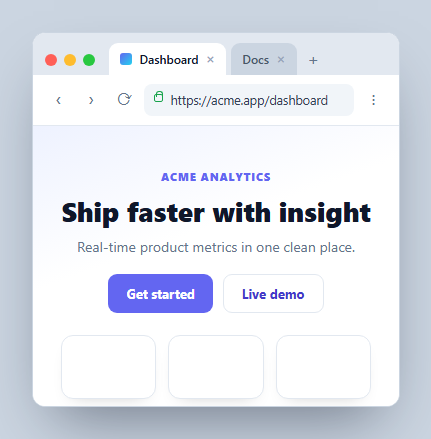
A browser window mockup wraps a screenshot or live page in realistic browser chrome — traffic-light buttons, tabs, an address bar — for landing pages, documentation, and product shots. This one is pure HTML and CSS with a few interactive touches (a spinning reload, tab switching, an editable URL), in vanilla JavaScript with no dependency, so you can drop any content inside and present it as if it were running in a browser.
The chrome, built from scratch
The window is a rounded card with three stacked regions: a tab strip with the macOS-style traffic lights (three colored circles), a toolbar with navigation buttons and the address bar, and the content area. The tabs use border-radius only on the top corners and a darker inactive background so the active tab appears to merge into the page below — the classic browser-tab look achieved with plain CSS.
A convincing address bar
The URL field is a real <input> inside a pill, preceded by a CSS-drawn padlock: a small bordered box with a ::before pseudo-element forming the shackle, in green to signal HTTPS. The input is editable, and pressing Enter blurs it and triggers the reload animation, mimicking a navigation. It's a believable detail that most static mockups fake with an image.
Reload that feels real
Clicking reload restarts a bwSpin keyframe on the icon (using the void offsetWidth reflow trick so it replays every click) and adds a .loading class that briefly dims the content and resets its scroll — a lightweight imitation of a page refresh. Nothing actually navigates, but the motion sells it.
Cosmetic tabs
Clicking a tab moves the .active class, and the close (×) and add (+) controls are present for realism; tab clicks ignore the close button via stopPropagation. You can wire these to real routes if you embed the mockup in an interactive demo.
Reusing it as a wrapper
Replace the .bw-content markup with your own page or a screenshot and the frame becomes a reusable container. Set the value of the address input to your URL, and keep the chrome as a component so any hero section or dashboard can be shown "in a browser" on a marketing page or in docs.
Build with AI
Build, Understand, Optimize, and Extend It With AI
You don't have to trace the reflow trick or the padlock pseudo-element by hand to see how this mockup is put together. Paste this snippet's HTML, CSS, and JS into an AI coding assistant like Claude and ask it to explain exactly how the CSS padlock icon is built from a bordered box plus a ::before shackle, and why void reload.offsetWidth is needed before re-adding the spin class on every reload click. The same assistant can help optimize it — asking whether the tab-click listener's stopPropagation guard against the close button could be simplified, or whether the loading dim's setTimeout duration should be tied to how long real content actually takes to swap in. It's also useful for extending the mockup: ask it to make tabs actually swap different content panels, add a working back/forward history stack, or support a dark browser chrome theme. Treat the code less like a finished artifact and more like a starting point for a conversation.
Prompt to recreate it
Copy this into your AI assistant of choice to build the effect from scratch, or as a jumping-off point for your own variant:
Build a pure-CSS "browser window mockup" in plain HTML, CSS, and a small amount of JavaScript for the interactive touches — no images for any part of the chrome.

Requirements:
- A rounded card containing, top to bottom: a tab strip with three colored circular "traffic light" buttons and one or more tab elements styled with only their top corners rounded and a lighter background than the surrounding bar so the active tab visually appears to merge into the content below it; a toolbar row with back/forward/reload icon buttons and an address bar; and a content area below.
- The address bar must be a real, editable text input (not a styled div) preceded by a padlock icon built entirely from CSS shapes (a bordered box plus a pseudo-element forming the shackle) with no image or icon font.
- Clicking the reload button must restart a CSS rotation keyframe animation on its icon every single time it's clicked, even in immediate succession, which requires forcing a synchronous reflow between removing and re-adding the animation class rather than just toggling the class.
- Reloading must also add a temporary class that dims the content area's opacity and resets its scroll position back to the top, removing that class after a short delay to simulate a real page refresh.
- Pressing Enter inside the address bar input must blur the input and programmatically trigger the same reload behavior as clicking the reload button.
- Clicking a tab must move an active-tab highlight to the clicked tab, but clicking the small close (×) control inside a tab must not also trigger the tab-switch behavior — event handling must correctly distinguish the two targets.
Want to tighten it up first? Run this prompt through the AI Prompt Studio to score it across 8 quality dimensions, catch anti-patterns, and tune the wording for Claude, ChatGPT, or Gemini before you paste it in.
Step by step
How to Use
- 1Paste HTML, CSS, and JSA browser window renders with tabs, a toolbar, and a sample page.
- 2Edit the URLType in the address bar and press Enter to trigger a reload.
- 3Click reloadThe icon spins and the page briefly dims like a refresh.
- 4Switch tabsClicking a tab moves the active highlight.
- 5Drop in your contentReplace the content area with your page or screenshot.
- 6Reuse as a wrapperKeep the chrome as a component with a content slot.
Real-world uses
Common Use Cases
Got questions?
Frequently Asked Questions
No, it's pure CSS. The traffic-light buttons are three colored circles, the tabs are top-rounded boxes that merge into the page, the address bar is a styled input with a CSS padlock pseudo-element, and the toolbar buttons are HTML characters. Because nothing is an image, it stays crisp and you can recolor or resize any part.
It's a real, editable input. Typing and pressing Enter blurs it and triggers the same reload animation as the reload button, simulating a navigation. It doesn't load a new page — it's a presentational mockup — but you can wire the Enter handler to real routing if you embed it in an interactive demo.
Clicking reload restarts a CSS spin keyframe on the icon using the void offsetWidth reflow trick so it replays on every click, and adds a loading class that briefly lowers the content's opacity and resets its scroll position. The combination reads as a page refresh without any real network activity.
Replace the markup inside .bw-content with your page or an <img> screenshot, and set the address input's value to your URL. The chrome is independent of the content, so your page just fills the content area, which scrolls if it's taller than the frame. Keep the window as a reusable wrapper component.
Make the window a component with a content slot (children, slot, or ng-content) and props for the URL and tab list. The reload spin and loading dim are class toggles you can drive from state. In Tailwind, build the chrome with flex rows, rounded-t utilities for tabs, and small inline SVGs or characters for the controls.