Source Code
<div class="wrap">

  <div class="code-block">
    <div class="cb-header">
      <div class="cb-dots">
        <span class="dot red"></span>
        <span class="dot yellow"></span>
        <span class="dot green"></span>
      </div>
      <span class="cb-lang" id="lang-label">JavaScript</span>
      <div class="cb-actions">
        <button class="cb-btn" onclick="copyCode()" id="copy-btn" title="Copy code">
          <svg width="13" height="13" viewBox="0 0 24 24" fill="none" stroke="currentColor" stroke-width="2.2" stroke-linecap="round"><rect x="9" y="9" width="13" height="13" rx="2"/><path d="M5 15H4a2 2 0 0 1-2-2V4a2 2 0 0 1 2-2h9a2 2 0 0 1 2 2v1"/></svg>
          <span id="copy-label">Copy</span>
        </button>
        <div class="lang-tabs" id="lang-tabs">
          <button class="lang-tab active" onclick="setLang('js')"  data-lang="js">JS</button>
          <button class="lang-tab" onclick="setLang('py')" data-lang="py">Python</button>
          <button class="lang-tab" onclick="setLang('ts')" data-lang="ts">TS</button>
        </div>
      </div>
    </div>
    <div class="cb-body">
      <div class="line-nums" id="line-nums"></div>
      <pre class="cb-pre" id="cb-pre"><code id="cb-code"></code></pre>
    </div>
  </div>

</div>
* { box-sizing: border-box; margin: 0; padding: 0; }
body { font-family: system-ui, sans-serif; background: #f8fafc; min-height: 100vh; display: flex; align-items: center; justify-content: center; padding: 32px 24px; }
.wrap { width: 100%; max-width: 620px; }
.code-block { border-radius: 14px; overflow: hidden; box-shadow: 0 8px 32px rgba(0,0,0,0.16); border: 1px solid #1e293b; }
.cb-header { display: flex; align-items: center; gap: 12px; padding: 10px 14px; background: #1e293b; border-bottom: 1px solid rgba(255,255,255,0.06); }
.cb-dots { display: flex; gap: 6px; }
.dot { width: 12px; height: 12px; border-radius: 50%; }
.dot.red { background: #ef4444; }
.dot.yellow { background: #f59e0b; }
.dot.green { background: #22c55e; }
.cb-lang { font-size: 12px; font-weight: 600; color: #64748b; flex: 1; text-align: center; font-family: monospace; }
.cb-actions { display: flex; align-items: center; gap: 8px; }
.cb-btn { display: flex; align-items: center; gap: 5px; background: rgba(255,255,255,0.07); border: 1px solid rgba(255,255,255,0.1); color: #94a3b8; border-radius: 7px; padding: 4px 10px; font-size: 12px; font-weight: 600; cursor: pointer; transition: all 0.15s; font-family: system-ui; }
.cb-btn:hover { background: rgba(255,255,255,0.12); color: #fff; }
.cb-btn.copied { background: rgba(34,197,94,0.15); border-color: rgba(34,197,94,0.3); color: #22c55e; }
.lang-tabs { display: flex; background: rgba(0,0,0,0.3); border-radius: 7px; padding: 2px; gap: 1px; }
.lang-tab { background: transparent; border: none; color: #64748b; font-size: 11px; font-weight: 700; padding: 3px 9px; border-radius: 5px; cursor: pointer; transition: all 0.12s; font-family: system-ui; }
.lang-tab.active { background: rgba(255,255,255,0.1); color: #e2e8f0; }
.cb-body { display: flex; background: #0f172a; overflow-x: auto; }
.line-nums { padding: 18px 12px 18px 16px; font-family: 'Fira Code', monospace; font-size: 13px; line-height: 1.6; color: #334155; text-align: right; user-select: none; border-right: 1px solid #1e293b; flex-shrink: 0; white-space: pre; }
.cb-pre { flex: 1; padding: 18px 16px; margin: 0; overflow: visible; font-family: 'Fira Code', 'Consolas', monospace; font-size: 13px; line-height: 1.6; color: #e2e8f0; background: transparent; white-space: pre; }
/* Syntax colours */
.kw { color: #a78bfa; } /* keywords */
.fn { color: #60a5fa; } /* function names */
.str { color: #86efac; } /* strings */
.cm { color: #475569; font-style: italic; } /* comments */
.num { color: #fb923c; } /* numbers */
.op { color: #94a3b8; } /* operators / punctuation */const SNIPPETS = {
js: {
lang: 'JavaScript',
code: `// Fetch and display user data
<span class="kw">async function</span> <span class="fn">getUsers</span>(<span class="num">limit</span> = <span class="num">10</span>) {
<span class="kw">const</span> res = <span class="kw">await</span> <span class="fn">fetch</span>(<span class="str">\`/api/users?limit=\${limit}\`</span>);
<span class="kw">if</span> (!res.<span class="fn">ok</span>) <span class="kw">throw new</span> <span class="fn">Error</span>(<span class="str">'Fetch failed'</span>);
<span class="kw">const</span> { users, total } = <span class="kw">await</span> res.<span class="fn">json</span>();
<span class="cm">// Render each user into the DOM</span>
users.<span class="fn">forEach</span>(user => {
<span class="kw">const</span> card = document.<span class="fn">createElement</span>(<span class="str">'div'</span>);
card.className = <span class="str">'user-card'</span>;
card.textContent = user.name;
container.<span class="fn">appendChild</span>(card);
});
<span class="kw">return</span> { users, total };
}`,
},
py: {
lang: 'Python',
code: `<span class="cm"># Fetch and display user data</span>
<span class="kw">import</span> requests
<span class="kw">def</span> <span class="fn">get_users</span>(limit=<span class="num">10</span>):
res = requests.<span class="fn">get</span>(<span class="str">f"/api/users?limit={limit}"</span>)
res.<span class="fn">raise_for_status</span>()
data = res.<span class="fn">json</span>()
<span class="cm"># Print each user name</span>
<span class="kw">for</span> user <span class="kw">in</span> data[<span class="str">"users"</span>]:
<span class="fn">print</span>(<span class="str">f"User: {user['name']}"</span>)
<span class="kw">return</span> data[<span class="str">"users"</span>], data[<span class="str">"total"</span>]`,
},
ts: {
lang: 'TypeScript',
code: `<span class="kw">interface</span> <span class="fn">User</span> {
id: <span class="num">number</span>;
name: <span class="str">string</span>;
email: <span class="str">string</span>;
}
<span class="kw">async function</span> <span class="fn">getUsers</span>(
limit: <span class="num">number</span> = <span class="num">10</span>
): <span class="kw">Promise</span><<span class="fn">User</span>[]> {
<span class="kw">const</span> res = <span class="kw">await</span> <span class="fn">fetch</span>(<span class="str">\`/api/users?limit=\${limit}\`</span>);
<span class="kw">const</span> { users } = <span class="kw">await</span> res.<span class="fn">json</span>();
<span class="kw">return</span> users <span class="kw">as</span> <span class="fn">User</span>[];
}`,
},
};
let curLang = 'js';
function render() {
const s = SNIPPETS[curLang];
const lines = s.code.split('\n');
document.getElementById('cb-code').innerHTML = s.code;
document.getElementById('line-nums').textContent = lines.map((_,i) => i+1).join('\n');
document.getElementById('lang-label').textContent = s.lang;
}
function setLang(lang) {
curLang = lang;
document.querySelectorAll('.lang-tab').forEach(b => b.classList.toggle('active', b.dataset.lang === lang));
render();
}
function copyCode() {
const text = document.getElementById('cb-code').textContent;
const btn = document.getElementById('copy-btn');
const lbl = document.getElementById('copy-label');
const done = () => {
lbl.textContent = 'Copied!';
btn.classList.add('copied');
setTimeout(() => { lbl.textContent = 'Copy'; btn.classList.remove('copied'); }, 2000);
};
const fallback = () => {
const ta = Object.assign(document.createElement('textarea'), { value: text });
ta.style.cssText = 'position:fixed;opacity:0';
document.body.appendChild(ta);
ta.select();
document.execCommand('copy');
document.body.removeChild(ta);
done();
};
if (navigator.clipboard && navigator.clipboard.writeText) {
navigator.clipboard.writeText(text).then(done).catch(fallback);
} else {
fallback();
}
}
render();Learn Coding Visually
Learn to code with interactive, live-preview playgrounds — HTML, CSS, JavaScript, React & more.
 HTML Playground42 lessons · Click-based · Live preview
 CSS PlaygroundLearn CSS with a live editor
 JavaScript Playground60 lessons · DOM · Async · Canvas
 React PlaygroundLearn React with a live code editor
 GSAP PlaygroundLearn GSAP animation interactively
 SVG Playground44 lessons · shapes · paths · animation
 SCSS Playground45 lessons · Sass modules · tokens
 Tailwind PlaygroundLearn Tailwind CSS with a live editor
 Bootstrap 5 Playground50 lessons · live preview
Code Block — Free HTML CSS JS Snippet
Code Block · Layouts · Plain HTML, CSS & JS · Live preview
What's included
Features
About this UI Snippet
Code Block — Syntax Highlighting, Copy Button, Language Tabs & Line Numbers
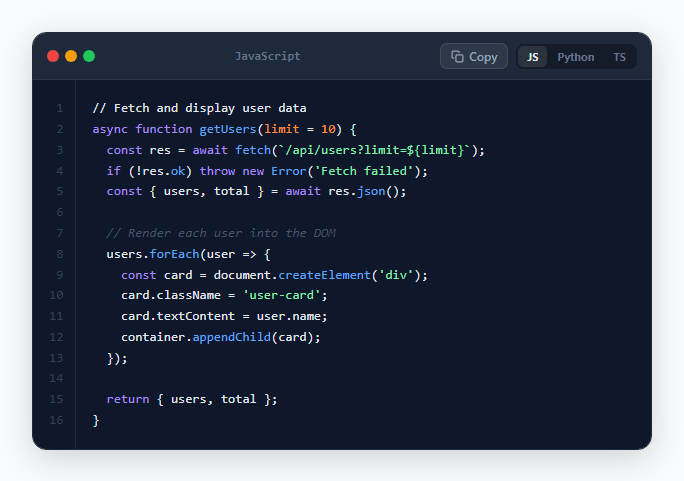
Every developer blog, documentation site, tutorial, and technical landing page needs a well-styled code block. Syntax highlighting makes code dramatically more readable — keywords, strings, function names, and comments in distinct colours allow the reader to parse structure visually before reading text. This snippet provides a complete styled code block: a dark terminal frame with macOS-style dots, CSS-based syntax highlighting using span classes, line numbers, a copy-to-clipboard button with success feedback, and language tab switching.
CSS-based syntax highlighting without a library
The syntax highlighting uses CSS classes applied via span elements inline in the HTML: .kw (keywords, purple), .fn (function names, blue), .str (strings, green), .cm (comments, muted grey italic), .num (numbers, orange), .op (operators, light grey). These map to the classic VSCode Dark+ colour scheme that developers recognise immediately. No Prism.js, no Highlight.js — just CSS classes on span elements.
Line numbers with CSS
The line numbers column uses a separate div with textContent set to numbers joined by newlines: lines.map((_,i) => i+1).join('\n'). It uses the same font-family, font-size, and line-height as the code block to ensure perfect vertical alignment. user-select: none prevents accidental line number selection when users copy code.
The copy button feedback pattern
navigator.clipboard.writeText() returns a Promise. On resolve, the button label changes to "Copied!" and a .copied class applies a green colour scheme. A setTimeout resets both after 2 seconds. The Clipboard API is available in all modern browsers over HTTPS. The code text is extracted via code element textContent, which strips HTML tags from the span elements.
Language tab switching
Three SNIPPETS objects hold pre-highlighted HTML for each language. setLang(lang) updates the active tab, re-renders the code and line numbers, and updates the language label. The pre-highlighted HTML approach avoids runtime parsing — the highlighting is applied at author time.
Adapting for your content
Replace the SNIPPETS objects with your own code. Apply the .kw, .fn, .str, .cm, .num span classes to your code tokens. For automatic syntax highlighting at scale, use Prism.js or Shiki server-side to generate the highlighted HTML that replaces the span-based approach in this snippet.
Extending with a filename tab
Add a filename display between the browser dots and the language label: <span class="cb-filename">api/users.js</span>. This is standard in documentation sites where the same code block appears across multiple files. Update via JavaScript when the language tab changes: setLang() updates both the lang-label and filename spans simultaneously.
Build with AI
Build, Understand, Optimize, and Extend It With AI
Rather than assuming the pre-baked HTML strings in SNIPPETS are just decoration, paste this snippet's HTML, CSS, and JS into an AI coding assistant like Claude and ask it to explain exactly why the code is stored as HTML strings with span tags already embedded rather than tokenized at render time, and why copyCode() reads textContent instead of innerHTML to get the clipboard value. The same assistant can help you assess the tradeoffs — ask whether hand-authoring highlighted HTML like this scales past three small snippets, and at what point switching to a build-time highlighter like Shiki becomes worth the added tooling. It's also a good partner for extending the block: ask it to add line-highlighting for specific lines via a data attribute, add a fourth language tab, or wire the copy button to a click-tracking event so you can measure which snippet gets copied most. Treat the code less like a finished artifact and more like a starting point for a conversation.
Prompt to recreate it
Copy this into your AI assistant of choice to build the effect from scratch, or as a jumping-off point for your own variant:
Build a terminal-style "code block" with language tabs in plain HTML, CSS, and JavaScript — no syntax-highlighting library required, but written so a real one could later replace the markup approach.

Requirements:
- Store each language's example as pre-authored HTML source (a template string containing span elements with semantic class names like keyword, function, string, comment, number, operator) rather than plain unstyled text, so switching languages swaps in a complete pre-highlighted block via innerHTML.
- A header bar styled like a terminal window: three colored circular dots (red, yellow, green) on the left, a centered language label showing the currently active language's display name, and on the right a copy button plus a small set of language-tab buttons.
- Clicking a language tab must update that tab's active visual state, swap the displayed code and line numbers to match the newly selected language's stored snippet, and update the centered language label text.
- A separate line-numbers column, generated by splitting the current snippet's raw text on newlines and rendering sequential numbers, using the exact same font family, font size, and line height as the code area so the numbers stay vertically aligned with their corresponding code lines, and marked non-selectable.
- The copy button must extract the code element's textContent (not innerHTML) so the highlighting span tags are stripped and only the plain, pasteable source text is copied, using the Clipboard API with a hidden-textarea execCommand fallback, and must show a temporary green "Copied!" state that reverts to "Copy" after about two seconds.
- Apply a consistent, VSCode-like color palette across the span classes (keywords, function names, strings, comments, numbers, operators) so all three language examples look visually cohesive despite being independently authored.
Want to tighten it up first? Run this prompt through the AI Prompt Studio to score it across 8 quality dimensions, catch anti-patterns, and tune the wording for Claude, ChatGPT, or Gemini before you paste it in.
Step by step
How to Use
- 1Click the language tabs to switch code examplesClick JS, Python, or TS to switch between language examples. The code, line numbers, and language label update immediately. Each language shows the same fetch-and-render logic in different syntax.
- 2Click Copy to copy the code to clipboardClick the Copy button to copy the current code to clipboard. The button turns green and shows "Copied!" for 2 seconds, then resets. The textContent is copied without HTML tags.
- 3Replace the code contentUpdate the code strings in the SNIPPETS object. Apply .kw, .fn, .str, .cm, .num CSS classes via span elements to add syntax highlighting to your own code. Or paste plain code without spans for an unstyled code block.
- 4Add or remove language tabsAdd a new entry to SNIPPETS and a matching .lang-tab button with data-lang and onclick="setLang('newlang')". Remove unused language objects and their tab buttons.
- 5Use Shiki or Prism.js for automatic highlightingFor production documentation sites, replace the manual span approach with server-side highlighting. In Next.js, use Shiki createHighlighter() to generate highlighted HTML from raw code strings at build time. This snippet's CSS colour variables stay compatible with both approaches.
- 6Export in your formatClick "HTML" for a standalone file, "JSX" for a React component accepting code and language props, or "Tailwind" for a React + Tailwind CSS version.
Real-world uses
Common Use Cases
Got questions?
Frequently Asked Questions
The copy function reads code element textContent (not innerHTML): const text = document.getElementById("cb-code").textContent. textContent returns only the visible characters without any HTML markup — the span tags used for syntax highlighting are stripped automatically. This gives the user clean, pasteable code without any markup artifacts.
For production use, use a server-side highlighting library. In Next.js: import { createHighlighter } from "shiki"; const hl = await createHighlighter({ themes: ["github-dark"], langs: ["javascript"] }); const html = hl.codeToHtml(code, { lang: "javascript", theme: "github-dark" }). Set the returned HTML as innerHTML of your code element. The Shiki output is compatible with this code block's CSS structure — just remove the manual span classes and use Shiki's classes instead.
Add a data-highlight attribute listing which lines to highlight: <pre data-highlight="3,7,8">. In JavaScript, after render(), read the attribute: const highlighted = pre.dataset.highlight?.split(",").map(Number) || []. Then wrap those line numbers in the code HTML: split the code by newline, wrap lines at highlighted indexes in <span class="hl-line">...</span>, rejoin. Add .hl-line { background: rgba(99,102,241,0.1); display: block; margin: 0 -16px; padding: 0 16px; } to the CSS.
Click "JSX" to download. Accept code (string), lang (string), and language (display label string) as props. Use dangerouslySetInnerHTML={{ __html: highlightedCode }} for the code element to render the pre-highlighted HTML. In Next.js, use Shiki in getStaticProps or a Server Component to generate the highlighted HTML at build time, passing it as a prop. For React without SSR, use Prism.js or highlight.js in a useEffect to highlight after mount.