Source Code
<div class="flt-wrap">
  <div class="flt-bar">
    <h3>Employees</h3>
    <span class="flt-count" id="fltCount"></span>
    <button type="button" class="flt-clear" id="fltClear">Clear filters</button>
  </div>
  <table class="flt-table">
    <thead>
      <tr>
        <th>Name<input class="flt-f" data-col="0" placeholder="Filter…"></th>
        <th>Department<input class="flt-f" data-col="1" placeholder="Filter…"></th>
        <th>Location<input class="flt-f" data-col="2" placeholder="Filter…"></th>
        <th class="flt-num">Salary<input class="flt-f" data-col="3" placeholder="≥ min"></th>
      </tr>
    </thead>
    <tbody id="fltBody"></tbody>
  </table>
  <p class="flt-empty" id="fltEmpty" hidden>No rows match your filters.</p>
</div>*{box-sizing:border-box;margin:0;padding:0}
body{font-family:system-ui,-apple-system,sans-serif;background:#f1f5f9;min-height:100vh;display:flex;align-items:flex-start;justify-content:center;padding:32px 20px}
.flt-wrap{background:#fff;border-radius:14px;width:100%;max-width:640px;box-shadow:0 18px 44px rgba(15,23,42,.08);overflow:hidden}
.flt-bar{display:flex;align-items:center;gap:12px;padding:16px 18px;border-bottom:1px solid #f1f5f9}
.flt-bar h3{font-size:15px;font-weight:800;color:#0f172a}
.flt-count{font-size:12px;font-weight:700;color:#94a3b8;margin-right:auto}
.flt-clear{background:#f1f5f9;border:1px solid #e2e8f0;border-radius:8px;padding:6px 11px;font-size:12px;font-weight:700;color:#475569;cursor:pointer;font-family:inherit}
.flt-clear:hover{background:#e2e8f0}
.flt-table{width:100%;border-collapse:collapse;font-size:13px}
.flt-table th{text-align:left;padding:10px 14px;background:#f8fafc;border-bottom:1px solid #e2e8f0;font-size:11px;font-weight:800;text-transform:uppercase;letter-spacing:.03em;color:#64748b;vertical-align:top}
.flt-num{text-align:right}
.flt-f{display:block;width:100%;margin-top:7px;border:1.5px solid #e2e8f0;border-radius:6px;padding:5px 8px;font-size:12px;font-family:inherit;color:#0f172a;font-weight:500;text-transform:none}
.flt-f:focus{outline:none;border-color:#6366f1;box-shadow:0 0 0 3px rgba(99,102,241,.12)}
.flt-table td{padding:11px 14px;border-bottom:1px solid #f1f5f9;color:#334155}
.flt-table td:last-child{text-align:right;font-weight:700;font-variant-numeric:tabular-nums}
.flt-table tbody tr:hover{background:#f8fafc}
mark{background:#fef08a;color:inherit;border-radius:2px}
.flt-empty{padding:28px;text-align:center;font-size:13px;color:#94a3b8;font-weight:600}
.flt-empty[hidden]{display:none}var ROWS = [
['Aisha Khan', 'Engineering', 'Berlin', 142000],
['Marco Rossi', 'Design', 'Milan', 88000],
['Lena Park', 'Engineering', 'Seoul', 131000],
['Tom Becker', 'Sales', 'Berlin', 76000],
['Priya Nair', 'Engineering', 'Bangalore', 119000],
['Sara Lind', 'Marketing', 'Stockholm', 81000],
['Diego Sosa', 'Sales', 'Madrid', 72000],
['Yuki Tanaka', 'Design', 'Tokyo', 96000],
];
var body = document.getElementById('fltBody');
var inputs = Array.prototype.slice.call(document.querySelectorAll('.flt-f'));
var filters = ['', '', '', ''];
function esc(s) { return String(s).replace(/[&<>]/g, function (c) { return { '&': '&', '<': '<', '>': '>' }[c]; }); }
function highlight(text, q) {
if (!q) return esc(text);
var i = String(text).toLowerCase().indexOf(q.toLowerCase());
if (i < 0) return esc(text);
var t = String(text);
return esc(t.slice(0, i)) + '<mark>' + esc(t.slice(i, i + q.length)) + '</mark>' + esc(t.slice(i + q.length));
}
function rowMatches(row) {
// Text columns: substring match. Salary column (3): treat filter as a minimum.
for (var c = 0; c < 3; c++) {
if (filters[c] && String(row[c]).toLowerCase().indexOf(filters[c].toLowerCase()) < 0) return false;
}
if (filters[3]) {
var min = parseFloat(filters[3].replace(/[^0-9.]/g, ''));
if (!isNaN(min) && row[3] < min) return false;
}
return true;
}
function render() {
var shown = ROWS.filter(rowMatches);
body.innerHTML = shown.map(function (r) {
return '<tr>' +
'<td>' + highlight(r[0], filters[0]) + '</td>' +
'<td>' + highlight(r[1], filters[1]) + '</td>' +
'<td>' + highlight(r[2], filters[2]) + '</td>' +
'<td>$' + r[3].toLocaleString() + '</td></tr>';
}).join('');
document.getElementById('fltCount').textContent = shown.length + ' of ' + ROWS.length;
document.getElementById('fltEmpty').hidden = shown.length > 0;
}
inputs.forEach(function (inp) {
inp.addEventListener('input', function () {
filters[+inp.dataset.col] = inp.value.trim();
render();
});
});
document.getElementById('fltClear').addEventListener('click', function () {
filters = ['', '', '', ''];
inputs.forEach(function (i) { i.value = ''; });
render();
});
render();Learn Coding Visually
Learn to code with interactive, live-preview playgrounds — HTML, CSS, JavaScript, React & more.
 HTML Playground42 lessons · Click-based · Live preview
 CSS PlaygroundLearn CSS with a live editor
 JavaScript Playground60 lessons · DOM · Async · Canvas
 React PlaygroundLearn React with a live code editor
 GSAP PlaygroundLearn GSAP animation interactively
 SVG Playground44 lessons · shapes · paths · animation
 SCSS Playground45 lessons · Sass modules · tokens
 Tailwind PlaygroundLearn Tailwind CSS with a live editor
 Bootstrap 5 Playground50 lessons · live preview
Filterable Table — Per-Column Filter HTML CSS JS
Filterable Table · Tables · Plain HTML, CSS & JS · Live preview
What's included
Features
About this UI Snippet
Filterable Table — Per-Column Header Filters with Live AND Matching & Highlighting
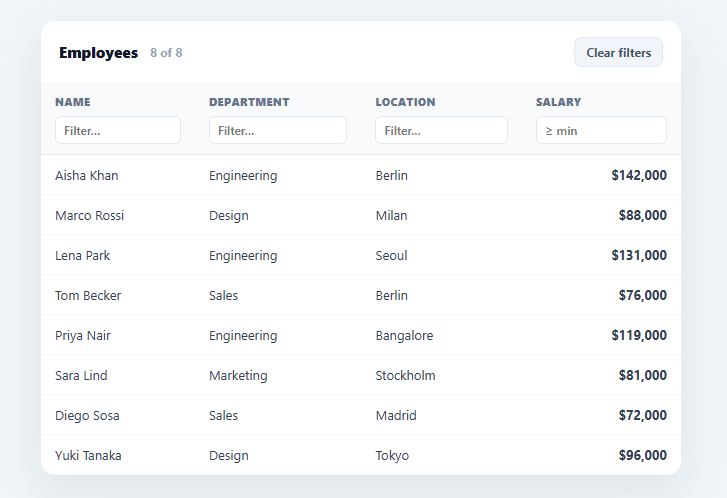
A single global search box is fine for "find anything," but when users need to narrow a table by specific fields — department *and* location *and* salary — per-column filters are far more powerful. This snippet builds a table with a filter input in every column header, combining them with AND logic so each keystroke narrows the result, plus match highlighting, a numeric minimum filter, and a live count — all in plain HTML, CSS, and vanilla JavaScript with no library.
A filter per column, combined with AND
Each header carries its own input bound to a column index. As the user types in any of them, the matching value is stored in a filters array and the table re-renders, showing only rows that satisfy *every* active filter. This AND combination is the whole point: typing "Engineering" in Department and "Berlin" in Location shows only people who are both, which a single search box can't express. Empty filters are ignored, so the table starts unfiltered and narrows as criteria are added.
Text columns vs. the numeric column
Text columns use case-insensitive substring matching — the forgiving behaviour users expect from a filter. The salary column is treated differently: its filter is parsed as a *minimum*, so typing "100000" shows everyone earning at least that. Recognising that numbers want a threshold filter, not a substring match (you don't search a salary for the characters "100000"), is the detail that makes per-column filtering genuinely useful rather than naïve.
Match highlighting
When a text filter is active, the matching substring in each cell is wrapped in a <mark>, so the user sees exactly why a row matched. The highlighting is built safely: all cell text is HTML-escaped first, then only the matched slice is wrapped, so data containing < or & can never inject markup. This escape-then-wrap order is the safe way to do highlight rendering with innerHTML.
Live count, empty state, and clear
A counter shows "N of M" so the user always knows how much the filters have narrowed the set, and a friendly empty state appears when nothing matches rather than a blank table. A "Clear filters" button resets every input and filter in one click. These three touches — count, empty state, reset — are what separate a finished filterable table from a bare filter() demo.
Data-driven and drop-in
Rows come from a ROWS array, and the filtering logic is generic over columns, so adding a column is a markup-plus-data change, not a rewrite. Because it's dependency-free, it drops into any admin panel or report, and it's a clear reference for per-column AND filtering, safe highlight rendering, and mixed text/numeric matching.
Build with AI
Build, Understand, Optimize, and Extend It With AI
Instead of tracing rowMatches and highlight by hand, paste this snippet's HTML, CSS, and JS into an AI coding assistant like Claude and ask it to explain exactly why the salary column is parsed as a numeric minimum instead of a substring match while the other three columns aren't, and why highlight() escapes the full cell text before wrapping only the matched slice in a mark tag. The same assistant is useful for optimizing it — ask whether re-filtering and re-joining the entire ROWS array into an HTML string on every keystroke would still be cheap with thousands of rows, or whether the input listeners should be debounced. It's just as good for extending the table: have it add a sortable header on top of the filters, a range filter (min and max) for salary instead of a minimum only, or persist the current filters into the URL query string so a filtered view is shareable. Treat the code less like a finished artifact and more like a starting point for a conversation.
Prompt to recreate it
Copy this into your AI assistant of choice to build the effect from scratch, or as a jumping-off point for your own variant:
Build a per-column filterable data table in plain HTML, CSS, and JavaScript — no libraries.

Requirements:
- A table with a filter text input embedded inside every column header (four columns: name, department, location, salary), each input tagged with its column index via a data attribute.
- Maintain a filters array in JS, one entry per column, updated on each input's input event; re-render the visible rows on every keystroke by filtering the full source data array against all currently active (non-empty) filters combined with AND logic — a row must satisfy every active filter simultaneously, not just one.
- The three text columns must use case-insensitive substring matching. The numeric salary column must be treated differently: strip non-numeric characters from the filter value, parse it as a number, and treat it as a minimum threshold — only show rows whose salary is greater than or equal to that number.
- For every text column with an active filter, wrap the matching substring of the cell's rendered text in a mark element to visually highlight the match, but first HTML-escape the entire cell value so the escape happens before the mark is inserted, guaranteeing user-controlled data can never break out into real markup.
- Show a live "N of M" count of visible rows versus total rows, and show a distinct empty-state message (not just a blank table) when zero rows match the current filters.
- Add a single "Clear filters" button that resets every filter input's value and the underlying filters array in one action and re-renders the full unfiltered table.
Want to tighten it up first? Run this prompt through the AI Prompt Studio to score it across 8 quality dimensions, catch anti-patterns, and tune the wording for Claude, ChatGPT, or Gemini before you paste it in.
Step by step
How to Use
- 1Paste HTML, CSS, and JSAn employees table renders with a filter input in every column header and a row count.
- 2Filter by columnType in any header input — the table narrows live, combining all active filters with AND logic.
- 3Use the numeric filterType a number in the Salary filter to show only rows at or above that minimum.
- 4See highlights and countMatching text is highlighted, and the "N of M" count shows how much you've narrowed the set.
- 5Clear filtersClick Clear filters to reset every column input at once.
- 6Swap in your dataReplace the ROWS array (and headers) with your own columns; the filtering logic is generic.
Real-world uses
Common Use Cases
Got questions?
Frequently Asked Questions
Each header input writes its value into a filters array keyed by column index, and a row is shown only if it satisfies every active filter (AND logic). Empty filters are skipped, so the table starts unfiltered and narrows as you add criteria. This lets users express "Engineering AND Berlin AND salary ≥ 100k" — something a single global search box cannot do.
Numbers want a threshold, not a substring match — you don't search a salary for the literal characters "100000". The salary filter is parsed to a number and used as a minimum, so typing 100000 shows everyone earning at least that. Text columns keep case-insensitive substring matching, which is the forgiving behaviour expected for names and categories.
Yes. Every cell's text is HTML-escaped first, and only then is the matched slice wrapped in <mark>. Because the escaping happens before any markup is added, data containing <, >, or & is rendered as text and can never inject elements — the correct escape-then-wrap order for highlight rendering with innerHTML.
Add a <th> with a filter input (set its data-col to the new index) and include the value in each ROWS entry. The rowMatches and render functions iterate columns generically, so text columns work automatically; for another numeric/threshold column, extend the numeric branch in rowMatches to that index.
In React, hold the rows and a filters object in useState, derive the visible rows with a useMemo over the filters, and render highlighted cells; in Vue, use a computed filtered list with v-for; in Angular, use a pipe or a getter with *ngFor. The matching and highlight logic is framework-agnostic — only the state and re-render move into the framework.