You Might Also Like
Learn Coding Visually
Learn to code with interactive, live-preview playgrounds — HTML, CSS, JavaScript, React & more.
 HTML Playground42 lessons · Click-based · Live preview
 CSS PlaygroundLearn CSS with a live editor
 JavaScript Playground60 lessons · DOM · Async · Canvas
 React PlaygroundLearn React with a live code editor
 GSAP PlaygroundLearn GSAP animation interactively
 SVG Playground44 lessons · shapes · paths · animation
 SCSS Playground45 lessons · Sass modules · tokens
 Tailwind PlaygroundLearn Tailwind CSS with a live editor
 Bootstrap 5 Playground50 lessons · live preview
AI Code Typing Preview — Free JS Editor Animation Snippet
AI Code Typing Preview · Animations · Plain HTML, CSS & JS · Live preview
What's included
Features
About this UI Snippet
AI Code Typing Preview — Character-by-Character Editor Animation With Live Syntax Highlighting
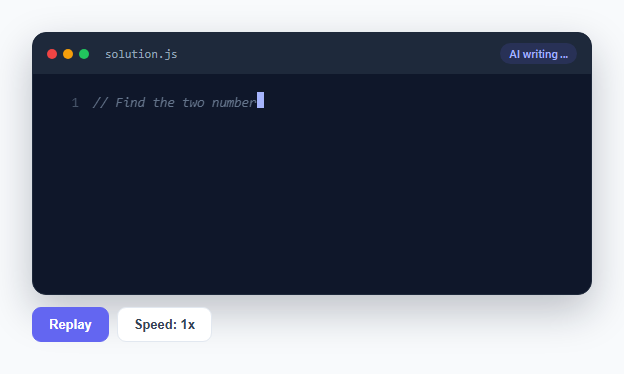
This snippet recreates the now-familiar "AI is writing code" moment seen in Copilot, Cursor, and Claude's own coding tools: a dark code-editor panel where lines of a function appear one character at a time, each token colored the instant it is complete, with a blinking cursor tracking the current write position. The goal was to make something that feels alive rather than mechanical, which meant rejecting the obvious approach — a fixed setInterval typing at a constant interval — in favor of jittered timing and a hand-rolled tokenizer.
Why a constant interval looks fake
A setInterval typing every character at exactly 30ms looks robotic within about two seconds, because real typing — human or AI-generated token-by-token output — is never that uniform. delayFor() computes a fresh random delay for every character: a base of 18 + Math.random() * 42 milliseconds, halved for spaces (since spaces genuinely type faster), with roughly a 35% chance of a much longer pause at the very start of each line to simulate the model "thinking" before committing to the next statement, and a small 4% chance of a random mid-line pause. None of this is expensive to compute, but it is the single biggest factor in whether the animation reads as scripted or organic.
The typing loop: recursive setTimeout via async/await, not setInterval
Rather than a single setInterval ticking at a fixed rate, typeLine() is an async function that awaits a freshly computed sleep(delayFor(...)) promise before appending the next character. This is what lets every single character have its own independent, randomized delay — an interval-based timer can only ever tick at one fixed rate, but a chain of awaited timeouts can vary every step. A monotonically increasing runToken guards against races: clicking Replay while a previous run is still typing increments the token, and every in-flight typeLine call checks its captured token against the current one before continuing, so a stale animation can never keep writing over a fresh one.
A tiny regex tokenizer instead of a syntax-highlighting library
Pulling in a full syntax highlighter for a five-category demo (keywords, strings, comments, numbers, function names) would be overkill, so tokenizeLine() hand-rolls one: an ordered array of { type, regex } rules is tested against the remaining text left-to-right, and whichever rule matches first consumes that chunk. Order is the whole trick — comments and strings are checked before keywords, so the word "function" appearing inside a string or a comment is never mistakenly colored as a keyword, because the string/comment rule already consumed the entire quoted or commented span before the keyword rule gets a chance to run.
Progressive highlighting, not "type first, colorize after"
The easy-but-wrong approach is to type plain characters and run the tokenizer once the whole line is done. Instead, renderHighlighted() re-tokenizes the *entire partial string typed so far* on every single character and rewrites codeEl.innerHTML. This sounds wasteful, but at demo-scale line lengths it is trivial for the browser, and it produces the correct visual effect: a string's green coloring appears the instant its closing quote is typed, not after the whole line finishes, exactly like a real editor's incremental highlighter would behave.
The blinking cursor tracks position, not a static append
The cursor is a small <span> with a step(1) blink animation, and it is physically moved after the current line's code span on each line — codeEl.after(cursor) — then removed once that line finishes typing and effectively "reappears" attached to the next line's code element. Because it is a real DOM sibling of the code span rather than a CSS ::after on the container, it visually sits exactly at the end of whatever has been typed so far, including mid-word.
Lines sliding in with CSS keyframes, not JS-driven positioning
Each new <div class="actp-line"> gets a CSS animation: actp-line-in that fades and slides it up 6px into place the moment it's appended — pure CSS, no per-frame JS work, so it stays smooth regardless of how the typing loop is timed. Separating "how a line enters" (CSS) from "how its characters appear" (JS timing loop) keeps each concern simple on its own.
Build with AI
Build, Understand, Optimize, and Extend It With AI
Give this snippet's JS to an AI assistant like Claude and ask it to explain why TOKEN_RULES order matters and what breaks if the keyword rule is moved before the string rule — it is a small but genuinely instructive bug to walk through. Worth asking for as extensions: support for multi-line strings or template literals in the tokenizer, a "typo and backspace" effect where the AI occasionally types a wrong character and corrects it, or swapping the fixed SOURCE_LINES array for a queue of different code snippets that cycle automatically after each Replay.
Prompt to recreate it
Copy this into your AI assistant of choice to build the effect from scratch, or as a jumping-off point for your own variant:
Build a simulated "AI is writing code" animated panel in plain HTML, CSS, and JavaScript, styled like a dark code editor, no libraries.

Requirements:
- A dark-themed editor panel with a title bar (window control dots, filename, a status badge) and a body area with line-numbered rows.
- An array of source code line strings that get typed into the panel one character at a time, in order, when the animation runs.
- Per-character typing delay must be randomized (not a fixed interval) — shorter for spaces, with an increased chance of a noticeably longer pause specifically at the start of a new line to simulate the AI "thinking", plus a small chance of a random pause mid-line.
- Implement the typing loop with chained awaited setTimeout calls (or an equivalent promise-based delay) rather than setInterval, so every character can have its own independent delay.
- Write a small hand-rolled tokenizer using an ordered list of regular expressions (comments, strings, numbers, keywords, function-call names) that classifies chunks of the partially-typed line, checked in an order that prevents keywords from being matched inside strings or comments.
- Re-render the current line's HTML with syntax-highlighting spans applied on every character typed, so colors appear progressively as tokens complete, not only after the full line finishes.
- Add a blinking text cursor that visually tracks the current end-of-typed-text position and moves correctly from line to line.
- Each new line should animate into view (fade + slight slide) as it is added to the DOM.
- Include a Replay button that restarts the whole animation from scratch (clearing prior output and safely stopping any in-flight typing from the previous run) and a Speed toggle that scales the typing rate.
Want to tighten it up first? Run this prompt through the AI Prompt Studio to score it across 8 quality dimensions, catch anti-patterns, and tune the wording for Claude, ChatGPT, or Gemini before you paste it in.
Step by step
How to Use
- 1Watch the first line begin typing automaticallyA comment appears character by character with visibly uneven timing — some characters pop in almost instantly, others have a small pause, especially right after a new line starts.
- 2Watch keywords and strings color in as they completeAs "function" finishes typing it turns purple, and once a quoted string's closing quote is typed the whole string turns green — highlighting is applied progressively, not after the fact.
- 3Follow the blinking cursorA small blinking bar sits at the exact character position currently being "typed", moving to the next line once the previous one completes.
- 4Notice the badge change from "AI writing..." to "Done"Once the last line finishes typing, the status badge in the top-right of the title bar switches to a green "Done" state.
- 5Click ReplayThe whole panel clears and the animation restarts from the first line, with freshly randomized timing on every character since delays are recomputed each run.
- 6Click Speed to cycle 1x / 2x / 0.5xThe per-character delay is divided by the multiplier, so 2x types roughly twice as fast and 0.5x types roughly half as fast, without changing the jitter pattern itself.
Real-world uses
Common Use Cases
Got questions?
Frequently Asked Questions
setInterval only supports one fixed delay for every tick, which is exactly what makes typing look robotic. By awaiting a freshly computed sleep(delayFor(...)) before each character, every single character gets its own independently randomized delay — shorter for spaces, occasionally much longer right after a new line to simulate "thinking" — which setInterval cannot express without constantly clearing and re-creating the timer.
TOKEN_RULES is an ordered array and tokenizeLine() always tries rules in that order, testing whether the remaining text starts with a match. The comment rule and the string rule are listed before the keyword rule, so if the current position starts a string or a comment, that entire span is consumed as one str or com token before the keyword rule ever gets a chance to test the characters inside it.
For the short line lengths typical of a demo or code-preview panel (a few dozen characters), re-running a handful of regex tests on every character is computationally trivial — well under a millisecond — so there is no visible performance cost. For much longer lines (hundreds of characters) you would want to tokenize incrementally from the last known token boundary instead of from the start of the line each time.
Yes. Move SOURCE_LINES, the tokenizer, and runAnimation into the component and trigger runAnimation from a useEffect on mount in React, guarding against re-entrancy the same way the runToken counter already does; because the loop uses awaited setTimeout rather than a persistent interval or requestAnimationFrame, there is nothing to explicitly cancel on unmount as long as you check an "is mounted" flag (or bump runToken) inside the effect cleanup so a stale run does not keep writing into unmounted DOM. In Vue, start it in onMounted and bump the token in onUnmounted; in Angular, start it in ngAfterViewInit and bump it in ngOnDestroy.
Edit the SOURCE_LINES array — each string is one line of code exactly as it should appear, including leading whitespace for indentation. The tokenizer and animation logic are language-agnostic within the categories it already recognizes (keywords, strings, comments, numbers, function-call names), so swapping in a different function, a Python-flavored snippet, or a config file example works without touching the rest of the code, though you may want to extend TOKEN_RULES's keyword list for a different language.