More Layouts Snippets
Front-End Coding Playgrounds
Learn to code with interactive, live-preview playgrounds — HTML, CSS, JavaScript, React & more.
 HTML Playground42 lessons · Click-based · Live preview
 CSS PlaygroundLearn CSS with a live editor
 JavaScript Playground60 lessons · DOM · Async · Canvas
 React PlaygroundLearn React with a live code editor
 GSAP PlaygroundLearn GSAP animation interactively
 SVG Playground44 lessons · shapes · paths · animation
 SCSS Playground45 lessons · Sass modules · tokens
 Tailwind PlaygroundLearn Tailwind CSS with a live editor
 Bootstrap 5 Playground50 lessons · live preview
Drag-to-Resize Panels — Free HTML CSS JS Snippet
Drag-to-Resize Split Panels · Layouts · Plain HTML, CSS & JS · Live preview
What's included
Features
setSplit(pct) function is the only place panel widths change, deriving both readouts and the actual CSS width from a single source of truth, the same architecture used in the Sticky Cart Drawer's recalc loopMath.min(100 - MIN_PCT, Math.max(MIN_PCT, pct)) guarantees neither pane can ever shrink past a configurable minimum, so a fast or sloppy drag never produces a broken, hidden, or unusable panepointerX() helper collapses both input families into one code path, with touch-action: none on the divider so dragging on mobile does not also scroll the pagerole="separator", aria-orientation="vertical", and tabindex="0" mark the divider for assistive technology, with ArrowLeft/ArrowRight nudging the split by fixed incrementsdblclick handler instantly returns the layout to an even 50/50 split, a small but important "undo my mess" affordance for resizable layoutsAbout this UI Snippet
How these drag-to-resize split panels were built — a percentage-based width model and a unified pointer/keyboard interaction
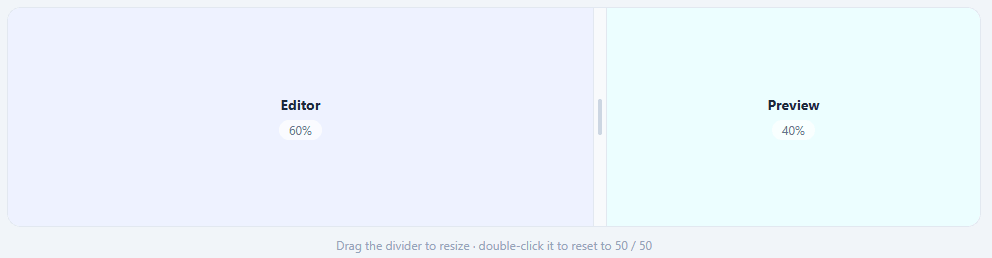
This snippet recreates the resizable split view found in code editors, email clients, and admin dashboards — drag a vertical divider between two panes and their widths adjust live, with a percentage readout, sensible minimum-width clamping, double-click-to-reset, and full keyboard support. It's built with flexbox, one CSS class toggle, and roughly 50 lines of vanilla JavaScript.
A single percentage drives the entire layout
Rather than tracking pixel widths (which would need recalculating on every window resize), the snippet keeps just one number — the left pane's width as a percentage — and a single function, setSplit(pct), applies it everywhere: it clamps the value, sets left.style.width, and updates both panes' percentage readouts. The right pane uses flex: 1 so it automatically fills whatever space remains — there is no need to compute or store its width separately. This "one source of truth, one function that propagates it" structure is the same idea behind the Sticky Cart Drawer's recalc() — derive everything from a single value rather than juggling several that could drift out of sync.
Clamping prevents unusable layouts
setSplit runs every incoming value through Math.min(100 - MIN_PCT, Math.max(MIN_PCT, pct)) before applying it — a double-clamp that guarantees neither pane can ever shrink below MIN_PCT (18%). Without this, a visitor could drag the divider all the way to one edge and effectively hide a pane completely, often making the UI feel broken or "stuck." The clamp is computed fresh on every pointer move, so even a fast, sloppy drag past either edge snaps cleanly back to the minimum rather than producing a jarring layout glitch.
One coordinate function unifies mouse and touch
A small pointerX(e) helper returns e.touches[0].clientX for touch events and e.clientX for mouse events — collapsing two input families into a single code path. onMove then converts that absolute screen coordinate into a percentage of the split container's width via getBoundingClientRect(), so startDrag/onMove/endDrag work identically whether the visitor drags with a mouse on desktop or a finger on a touchscreen, with touch-action: none on the divider stopping the page from scrolling mid-drag.
Accessible by more than just pointer
The divider carries role="separator", aria-orientation="vertical", and tabindex="0" — marking it as an interactive layout control for assistive technology — and a keydown handler lets arrow keys nudge the split by 4 percentage points at a time. A dblclick listener resets the split back to an even 50/50. None of these alternate interaction paths duplicate the clamping or rendering logic; they all funnel through the same setSplit() function the pointer-drag code uses.
Build with AI
Build, Understand, Optimize, and Extend It With AI
Rather than working through the clamp math yourself, paste this snippet's HTML, CSS, and JS into an AI coding assistant like Claude and ask it to explain exactly why setSplit() runs every incoming value through a double Math.min/Math.max clamp against MIN_PCT and 100 minus MIN_PCT, and how the pointerX() helper collapses touch and mouse events into a single coordinate so onMove() never needs to branch on input type. The same assistant can help you optimize it, for instance checking whether attaching mousemove and touchmove listeners to the whole window (rather than just the divider) has any real performance cost during a drag. It is also useful for extending the panels: ask it to support three or more resizable panes with independent minimums, persist the chosen split to localStorage across page loads, or add a vertical (horizontal-divider) orientation variant. Treat the code less like a finished artifact and more like a starting point for a conversation.
Prompt to recreate it
Copy this into your AI assistant of choice to build the effect from scratch, or as a jumping-off point for your own variant:
Build a drag-to-resize two-pane split layout in plain HTML, CSS, and JavaScript with no layout library.

Requirements:
- A flexbox container holding a left pane with an explicit percentage width, a narrow divider element in between, and a right pane using flex: 1 so it automatically fills whatever width remains — never computing or storing the right pane's width directly.
- A single function that is the only place layout state ever changes: given a percentage, it must clamp the value between a configurable minimum percentage and 100 minus that same minimum, apply the clamped value as the left pane's width, and update both panes' live percentage readouts from that one clamped number.
- A single coordinate helper that returns the correct clientX whether the incoming event is a mouse event or a touch event (reading from the touches array only for touch events), so the same drag-start, drag-move, and drag-end functions work for both input types without branching.
- Wire mousedown/touchstart on the divider to begin a drag, mousemove/touchmove on the window to update the split while dragging (converting the absolute pointer position into a percentage of the container's bounding rect width), and mouseup/touchend on the window to end the drag, with touch-action: none on the divider so dragging never triggers page scrolling.
- Make the divider keyboard accessible: give it role="separator", aria-orientation="vertical", and tabindex="0", and handle ArrowLeft/ArrowRight keydown events to nudge the split by a fixed percentage step through the same clamped function used by dragging.
- Add a double-click handler on the divider that resets the split to an even 50/50 through that same single function, so every interaction path (drag, keyboard, double-click) funnels through one source of truth.
Step by step
How to Use
- 1Lay out two panes and a divider with flexboxWrap a fixed-width
.pane.left, a narrow.divider, and aflex: 1.pane.rightin adisplay: flexcontainer — the right pane automatically fills whatever space the left pane and divider do not occupy. - 2Track the split as a single percentageWrite a
setSplit(pct)function that is the *only* place layout state changes — it clamps the incoming value, setsleft.style.width = pct + "%", and updates both panes' percentage readouts in one place. - 3Clamp to sensible minimum widthsRun every value through
Math.min(100 - MIN_PCT, Math.max(MIN_PCT, pct))so neither pane can shrink past a configurable minimum (e.g. 18%) — preventing a dragged-to-the-edge pane from disappearing entirely. - 4Normalize mouse and touch coordinatesWrite a
pointerX(e)helper that returnse.touches?.[0].clientX ?? e.clientX, then convert that into a percentage with((pointerX(e) - rect.left) / rect.width) * 100using the container'sgetBoundingClientRect(). - 5Wire drag start/move/end across both input typesAdd
mousedown/touchstartlisteners that set adraggingflag and toggle a.draggingclass,mousemove/touchmovelisteners onwindowthat callsetSplit()while dragging, andmouseup/touchendlisteners that clear the flag. - 6Add keyboard and double-click affordancesMark the divider
role="separator"withtabindex="0", handleArrowLeft/ArrowRightkeydownevents to nudge the split by a fixed step, and add adblclicklistener that callssetSplit(50)to reset evenly.
Real-world uses
Common Use Cases
setSplit() pattern — one function that clamps, applies, and reflects a single piece of state — is directly reusable any time a UI needs to keep multiple visual elements in sync from one underlying value.Got questions?
Frequently Asked Questions
It tracks only the *left* pane's width as a percentage and gives the right pane flex: 1, so flexbox automatically computes its width as "whatever space remains." The single setSplit(pct) function is the only place that ever changes layout — it sets the left pane's style.width and derives both percentage readouts (pct and 100 - pct) from that one number, so the two values can never drift out of sync.
setSplit runs every incoming value through Math.min(100 - MIN_PCT, Math.max(MIN_PCT, pct)) before applying it, where MIN_PCT is 18. That double-clamp guarantees the left pane can never go below 18% and — because the right pane is 100 - left — can also never push the right pane below 18%. Even a fast drag straight to the edge of the container snaps cleanly to the minimum rather than collapsing a pane to zero width.
A small pointerX(e) helper returns e.touches[0].clientX when the event has a touches array (a touch event) and e.clientX otherwise (a mouse event) — collapsing both into one coordinate value. startDrag, onMove, and endDrag are then registered for both mousedown/mousemove/mouseup and touchstart/touchmove/touchend, so the exact same functions drive the resize regardless of input device. touch-action: none on the divider also prevents the browser from interpreting the drag as a page-scroll gesture.
Yes — the divider has tabindex="0" so it can receive keyboard focus, and a keydown handler listens for ArrowLeft/ArrowRight, nudging the current split by 4 percentage points in either direction via the same setSplit() function the drag interaction uses. It also carries role="separator" and aria-orientation="vertical" so assistive technologies announce it correctly as an adjustable layout control.
Adjust the MIN_PCT constant near the top of the script — every clamp calculation derives from that single value, so changing it instantly updates both the minimum and (via 100 - MIN_PCT) the maximum bound for the left pane. To reset the layout from code, simply call setSplit(50) — the same function the divider's dblclick handler calls to snap back to an even split.
Yes — copy the HTML, CSS, and JS with the buttons on this page and use them anywhere, including commercial products, with no attribution required. It is built entirely with flexbox layout and vanilla JavaScript pointer/keyboard handling — no resizable-layout library or licensing to track.