Learn Coding Visually
Learn to code with interactive, live-preview playgrounds — HTML, CSS, JavaScript, React & more.
 HTML Playground42 lessons · Click-based · Live preview
 CSS PlaygroundLearn CSS with a live editor
 JavaScript Playground60 lessons · DOM · Async · Canvas
 React PlaygroundLearn React with a live code editor
 GSAP PlaygroundLearn GSAP animation interactively
 SVG Playground44 lessons · shapes · paths · animation
 SCSS Playground45 lessons · Sass modules · tokens
 Tailwind PlaygroundLearn Tailwind CSS with a live editor
 Bootstrap 5 Playground50 lessons · live preview
Credit Card Input — Free HTML CSS JS Snippet
Credit Card Form · Forms · Plain HTML, CSS & JS · Live preview
What's included
Features
About this UI Snippet
Credit Card Input — Auto-Format, Masked Live Preview, Card Type Detection & Expiry Formatting
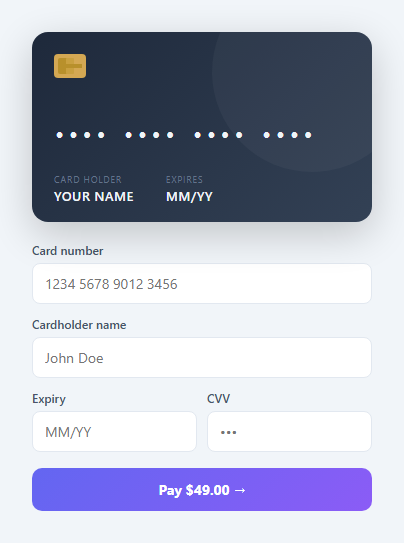
A credit card input form handles the unique formatting requirements of payment card data entry: space-grouped card numbers in XXXX XXXX XXXX XXXX format, automatic slash insertion in MM/YY expiry, real-time card type detection from the first digits, and a live visual card preview that mirrors what the user is typing. This snippet implements a complete payment form UI — the card step of a checkout form — with a card art preview panel on top and the form fields below.
The fmtNum() card number auto-formatting function
When the user types in the card number field, fmtNum(inp) fires on every input event — the same live-masking idea as the generic input mask. It first strips all non-digit characters: inp.value.replace(/\D/g, '') removes spaces, dashes, and any accidental letter presses. It slices to a maximum of 16 digits with .slice(0, 16). Then .replace(/(.{4})/g, '$1 ').trim() inserts a space after every group of 4 digits using a regex capture group replacement — the (.{4}) captures any 4 characters, and $1 replaces them with the captured group followed by a space. The final .trim() removes the trailing space after the last group.
The masked card number preview
The live card preview panel shows a partially-masked version of the number. The clean raw digit string v is combined with '●'.repeat(16 - v.length) to pad unfilled positions with bullet characters. The same space-grouping regex is then applied to produce the formatted masked display string. As the user types, the preview transitions digit-by-digit from •••• •••• •••• •••• toward the actual formatted number, providing immediate visual confirmation of what's being entered.
Card type detection from the BIN (Bank Identification Number)
Payment card brands are identified by the first digits of the card number, known as the BIN or IIN (Issuer Identification Number). The detection logic checks the leading digits: v.startsWith('4') identifies Visa (all Visa cards begin with 4), v.startsWith('5') identifies Mastercard (5xxx range), and v.startsWith('3') identifies American Express (specifically 34 and 37, but the simplified check uses 3). The brand name is displayed in the top-right corner of the card preview via document.getElementById('card-brand').textContent = brand.
The fmtExp() expiry date auto-formatter
fmtExp(inp) strips non-digits, slices to 4 characters, then inserts a / after the second character when 3 or more digits are present: v.slice(0,2) + '/' + v.slice(2). This produces MM/YY format automatically as the user types the month and year without needing to type the slash manually. The expiry preview updates in real time via document.getElementById('card-exp').textContent.
Important security note
This snippet is for UI prototyping and demonstration only. Real payment card data should never be handled by your own JavaScript code. In production, use a PCI-compliant payment SDK like Stripe Elements, Braintree Hosted Fields, or Square Web Payments SDK, which renders the actual card inputs in an iframe from the payment processor's domain, ensuring raw card data never touches your server or JavaScript.
Build with AI
Build, Understand, Optimize, and Extend It With AI
You don't have to work out the regex yourself to see how four digits become a spaced, partially-masked card number in one line. Paste this snippet's HTML, CSS, and JS into an AI coding assistant like Claude and ask it to explain exactly what the capture-group replace pattern used in fmtNum is doing character by character, and why the masked preview pads the raw digit string with bullet characters before applying that same regex rather than after. The same assistant can help optimize it — for instance asking whether the brand-detection prefix checks are ordered correctly so a card starting with a digit matching two different rules can't be misclassified. It's also useful for extending the form: ask it to add real card-number validation using the Luhn checksum algorithm, extend brand detection to cover Discover, JCB, and UnionPay ranges, or explain precisely why raw card data like this should never reach a real backend and how a PCI-compliant SDK like Stripe Elements would replace these fields while keeping the same visual preview. Treat the code less like a finished artifact and more like a starting point for a conversation.
Prompt to recreate it
Copy this into your AI assistant of choice to build the effect from scratch, or as a jumping-off point for your own variant:
Build a credit card entry form with a live animated card preview in plain HTML, CSS, and JavaScript — no payment SDK, no input-mask library, prototyping only (not for real payment data).

Requirements:
- A card-shaped preview panel showing a masked card number, cardholder name, and expiry, all of which update live as the corresponding form fields are typed into.
- A card number input that on every keystroke strips all non-digit characters, caps the result at sixteen digits, and reformats the cleaned digits into groups of four separated by single spaces using a single regex-based replace (not a manual loop), writing the reformatted value back into the input itself so the user sees live grouping as they type.
- The card preview's number display must independently take the same cleaned digit string, pad any not-yet-typed positions with a masking character up to sixteen total characters, then apply the identical four-digit grouping regex to that padded string, so the preview transitions visually from an all-masked placeholder to the real number digit by digit.
- Card brand detection that inspects only the leading digit(s) of the cleaned number and displays a brand label (for at least Visa, Mastercard, and Amex) in the card preview, re-evaluated on every keystroke from the very first digit typed.
- A cardholder name field that uppercases its value live into the preview as it's typed, falling back to a placeholder label when empty.
- An expiry field that strips non-digits, caps at four digits, and once at least three digits are present automatically inserts a slash after the second digit to produce MM/YY formatting without the user typing the slash themselves, mirrored live into the card preview.
- Keep all of this entirely client-side and cosmetic — do not implement or simulate any real submission of the card data to a server, since this pattern is for UI demonstration only.
Want to tighten it up first? Run this prompt through the AI Prompt Studio to score it across 8 quality dimensions, catch anti-patterns, and tune the wording for Claude, ChatGPT, or Gemini before you paste it in.
Step by step
How to Use
- 1Type digits into the card number input and watch the live previewType numbers into the card number field. The input auto-formats with spaces after every 4 digits (XXXX XXXX XXXX XXXX). The card preview above fills digit-by-digit from bullet placeholders to actual digits. Type a number starting with 4 to see 'VISA', with 5 for 'MASTERCARD', with 3 for 'AMEX' appear in the card's top right corner.
- 2Tab to the cardholder name and expiry fieldsType a cardholder name in the second field — the card preview updates the holder name in real time, converted to uppercase. Tab to the expiry field and type 4 digits (e.g. 1226) — the slash is automatically inserted as MM/YY format (12/26). The preview's Expires field updates simultaneously.
- 3Test the card type detection with different leading digitsDelete the card number and type '4' to immediately see 'VISA' appear in the card preview's brand label. Replace with '5' to see 'MASTERCARD', and '3' for 'AMEX'. The brand detection fires on every input event from the first keystroke, so users get immediate visual confirmation that their card type is recognised.
- 4Customise the card preview design to match your brandIn the CSS panel, update .card-preview background from the dark gradient to your brand colours. Change the .pay-btn gradient to your checkout button colour. In the HTML, update the payment amount text on the Pay button. The chip SVG can be replaced with your actual chip art or removed for a simplified design.
- 5Extend card type detection for Discover, UnionPay, or JCBIn fmtNum(), add additional brand detection conditions: v.startsWith('6') for Discover (6011, 65xx), v.startsWith('35') for JCB (3528-3589), v.startsWith('62') for UnionPay. Show corresponding card network logos in the brand area. For production, use a proper BIN lookup library for accurate detection across all card ranges.
- 6Export for prototyping payment flows and wire to a real payment SDKClick HTML or JSX to export. For production payment processing, replace the input fields with Stripe Elements or Braintree Hosted Fields. Keep the card preview component as the visual wrapper — the preview and brand detection logic are purely cosmetic and safe to retain alongside a PCI-compliant SDK implementation.
Real-world uses
Common Use Cases
Got questions?
Frequently Asked Questions
fmtNum(inp) runs on every oninput event. First it strips all non-digit characters from inp.value using .replace(/\D/g, '') and slices to 16 digits maximum. The formatted display value is generated by .replace(/(.{4})/g, '$1 ').trim() — the regex (.{4}) matches any 4 characters and the replacement '$1 ' re-inserts them with a trailing space. The trim() removes the space after the final group. This value is written back to inp.value, so the input always shows the user-friendly grouped format as they type.
After formatting, the raw digit string v (without spaces) is combined with '●'.repeat(16 - v.length) to pad the untyped positions to exactly 16 characters. The same space-grouping regex is applied: (v + '●'.repeat(16 - v.length)).replace(/(.{4})/g, '$1 ').trim(). This produces the masked display string that is written to the card preview's #card-num element. As digits are typed, each ● is replaced by the actual digit, transitioning the preview from •••• •••• •••• •••• toward the actual formatted number.
Payment card brands are identified by the first 1-2 digits of the card number (BIN/IIN prefix). The detection in fmtNum() uses string prefix checks: v.startsWith('4') identifies Visa (all Visa cards begin with 4, regardless of the remaining digits), v.startsWith('5') identifies Mastercard (cards in the 51-55 range, plus 2221-2720 for newer Mastercard BINs — the '5' check covers most), and v.startsWith('3') identifies American Express (specifically 34xx and 37xx). The brand string is set to empty when no prefix matches. For production use, a comprehensive BIN lookup library handles the full ranges for Discover (6011, 622126-622925, 644-649, 65), JCB (3528-3589), and UnionPay (62).
fmtExp(inp) strips non-digits and slices to 4 characters maximum. When the raw digit string v has 3 or more digits, it inserts a slash after the 2nd digit: v.slice(0,2) + '/' + v.slice(2). This produces MM/YY format automatically — typing '1226' becomes '12/26' without the user having to type the slash. The resulting formatted string is written back to inp.value and to the card preview's expiry display. Validation should additionally check that the month is between 01 and 12 and that the year is not in the past.