



Learn Coding Visually
Learn to code with interactive, live-preview playgrounds — HTML, CSS, JavaScript, React & more.
 HTML Playground42 lessons · Click-based · Live preview
 CSS PlaygroundLearn CSS with a live editor
 JavaScript Playground60 lessons · DOM · Async · Canvas
 React PlaygroundLearn React with a live code editor
 GSAP PlaygroundLearn GSAP animation interactively
 SVG Playground44 lessons · shapes · paths · animation
 SCSS Playground45 lessons · Sass modules · tokens
 Tailwind PlaygroundLearn Tailwind CSS with a live editor
 Bootstrap 5 Playground50 lessons · live preview
Connection Quality Indicator — Real Signal Bars from navigator.onLine and Network Information
Connection Quality Indicator — Signal Bars from Real Network Signals · Misc · Plain HTML, CSS & JS · Live preview
What's included
Features
About this UI Snippet
Connection Quality Indicator — Reading Real Network Signals Correctly
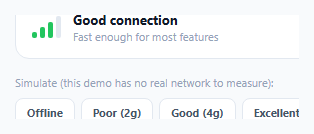
A connection-quality widget is only useful if it reflects something real — this snippet is built on two actual browser APIs, navigator.onLine and the Network Information API's navigator.connection.effectiveType, combined with the one rule that matters most: offline status always wins, regardless of what any other signal happens to report.
Why `navigator.onLine` is checked first, independently, and always wins
classifyRealConnection()'s very first line checks navigator.onLine and returns 'offline' immediately if it's false — before even looking at navigator.connection. This ordering is deliberate: it's entirely possible for navigator.connection.effectiveType to still report some value even in states adjacent to genuinely having no connectivity, and building the classification the other way around (checking effectiveType first, treating onLine as just one more input among several) risks a component that shows "Good connection" bars while the device is actually fully offline — a far more misleading failure than the reverse.
One classification function, one lookup table — for every quality signal, real or simulated
applyTier() is the single function that updates the bar styling, the ARIA label, and the text label together, driven entirely by a lookup into the TIERS object. Both the real network-driven path (refreshFromRealConnection()) and this demo's simulation buttons call the exact same applyTier() — there's no separate rendering logic for "real" versus "simulated" states. This guarantees the bars and the text label can never show conflicting information, regardless of which signal triggered the update.
Listening to `online`/`offline` events AND the Network Information API's own `change` event
The widget subscribes to three distinct sources of change: the window's online and offline events (fired when connectivity itself changes) and, where supported, navigator.connection's own change event (fired when the *quality* of an existing connection changes — for example, moving from a strong Wi-Fi signal to a weak one, or a phone switching from 4G to 3G while still connected). Missing either category of event would leave the indicator stale in a real, common scenario: it would correctly reflect going offline and back online, but never update as connection *quality* fluctuates while the device stays continuously connected.
Graceful degradation when the Network Information API isn't supported
The Network Information API (navigator.connection) is not universally supported across all browsers. The code explicitly checks for its existence and for a defined effectiveType before using it, falling back to a reasonable 'good' default when it's unavailable rather than showing an empty or broken state — a browser that can't report connection *quality* can still correctly report online/offline via the more widely supported navigator.onLine, so the fallback only loses granularity, not correctness for the one signal that matters most.
Build with AI
Build, Understand, Optimize, and Extend It With AI
Ask an AI assistant to explain why offline status must be checked independently and take priority over the Network Information API's effectiveType, walking through a concrete scenario where checking them in the opposite order could produce a misleading result. It's also worth asking for a version that also monitors round-trip time (navigator.connection.rtt) as an additional quality signal alongside effectiveType, or one that debounces rapid connection-quality fluctuations so the indicator doesn't flicker between tiers during a genuinely unstable but still-connected network.
Prompt to recreate it
Copy this into your AI assistant of choice to build the effect from scratch, or as a jumping-off point for your own variant:
Build a connection quality indicator widget in HTML, CSS, and vanilla JavaScript, driven by real browser network APIs — no external library.

Requirements:
- A signal-bar style indicator (like a phone's signal strength icon) with a text label describing the current connection quality (e.g. offline, poor, fair, good, excellent), driven by actual browser signals rather than decorative placeholder state.
- Check navigator.onLine FIRST, independently of any other signal, and if it reports false, the indicator must show an offline state regardless of what any other API reports — offline status must always take priority over a "good" or "excellent" reading from any other source.
- When online, use the Network Information API (navigator.connection.effectiveType, with appropriate vendor-prefixed fallbacks) to classify connection quality into distinct tiers, gracefully falling back to a reasonable default quality tier if this API is unsupported in the current browser, rather than showing a broken or empty state.
- Update the bar styling, an ARIA label describing the current quality for assistive technology, and the text label all from ONE single shared function/lookup table, so they can never show conflicting information about the current tier.
- Subscribe to both the window's online/offline events (for connectivity changes) and, where supported, the Network Information API's own connection-quality change event (for quality changes while remaining connected) — both must correctly trigger a re-classification and re-render.
- Since a live demo environment may not allow reliably testing real network changes, include a small set of buttons that simulate each quality tier by calling the exact same rendering function real network events would call, clearly noting they are for demonstration purposes only.
Want to tighten it up first? Run this prompt through the AI Prompt Studio to score it across 8 quality dimensions, catch anti-patterns, and tune the wording for Claude, ChatGPT, or Gemini before you paste it in.
Source Code
<div class="demo">
  <div class="conn-widget">
    <div class="conn-bars" id="connBars" role="img" aria-label="Connection quality">
      <span class="conn-bar" data-level="1"></span>
      <span class="conn-bar" data-level="2"></span>
      <span class="conn-bar" data-level="3"></span>
      <span class="conn-bar" data-level="4"></span>
    </div>
    <div class="conn-text">
      <span class="conn-label" id="connLabel">Checking connection…</span>
      <span class="conn-sub" id="connSub">—</span>
    </div>
  </div>

  <div class="conn-controls">
    <p class="conn-controls-title">Simulate (this demo has no real network to measure):</p>
    <div class="conn-btn-row">
      <button class="conn-sim-btn" data-sim="offline">Offline</button>
      <button class="conn-sim-btn" data-sim="poor">Poor (2g)</button>
      <button class="conn-sim-btn" data-sim="good">Good (4g)</button>
      <button class="conn-sim-btn" data-sim="excellent">Excellent</button>
    </div>
  </div>
</div>
* { box-sizing: border-box; margin: 0; padding: 0; }
body { font-family: system-ui, sans-serif; background: #f8fafc; display: flex; align-items: center; justify-content: center; min-height: 100vh; padding: 24px; }
.demo { width: 340px; max-width: 100%; display: flex; flex-direction: column; gap: 16px; }
.conn-widget { display: flex; align-items: center; gap: 12px; background: #fff; border: 1px solid #e2e8f0; border-radius: 14px; padding: 14px 16px; }
.conn-bars { display: flex; align-items: flex-end; gap: 3px; height: 22px; }
.conn-bar { width: 5px; background: #e2e8f0; border-radius: 2px; transition: background 0.25s ease; }
.conn-bar[data-level="1"] { height: 6px; }
.conn-bar[data-level="2"] { height: 11px; }
.conn-bar[data-level="3"] { height: 16px; }
.conn-bar[data-level="4"] { height: 22px; }
.conn-bars.offline .conn-bar { background: #fecaca; }
.conn-bars.poor .conn-bar[data-level="1"] { background: #ef4444; }
.conn-bars.fair .conn-bar[data-level="1"], .conn-bars.fair .conn-bar[data-level="2"] { background: #f59e0b; }
.conn-bars.good .conn-bar[data-level="1"], .conn-bars.good .conn-bar[data-level="2"], .conn-bars.good .conn-bar[data-level="3"] { background: #22c55e; }
.conn-bars.excellent .conn-bar { background: #10b981; }
.conn-text { display: flex; flex-direction: column; gap: 1px; }
.conn-label { font-size: 13px; font-weight: 700; color: #111827; }
.conn-sub { font-size: 11px; color: #94a3b8; }
.conn-controls { display: flex; flex-direction: column; gap: 8px; }
.conn-controls-title { font-size: 11px; color: #94a3b8; }
.conn-btn-row { display: flex; gap: 6px; flex-wrap: wrap; }
.conn-sim-btn { border: 1.5px solid #e2e8f0; background: #fff; color: #475569; font-size: 11px; font-weight: 700; padding: 6px 11px; border-radius: 8px; cursor: pointer; font-family: inherit; }
.conn-sim-btn:hover { border-color: #6366f1; color: #4338ca; }const barsEl = document.getElementById('connBars');
const labelEl = document.getElementById('connLabel');
const subEl = document.getElementById('connSub');
const simButtons = document.querySelectorAll('.conn-sim-btn');
// A single classification function maps a "quality tier" to everything the
// UI needs (bar-fill class, label, live-region text) — every quality signal
// (real network events, or this demo's simulation buttons) funnels through
// the SAME function, so the bars and the text label can never disagree.
const TIERS = {
offline: { className: 'offline', label: 'No connection', sub: 'Changes will sync once you\'re back online' },
poor: { className: 'poor', label: 'Poor connection', sub: 'Slow network — some features may lag' },
fair: { className: 'fair', label: 'Fair connection', sub: 'Usable, but not fast' },
good: { className: 'good', label: 'Good connection', sub: 'Fast enough for most features' },
excellent: { className: 'excellent', label: 'Excellent connection', sub: 'Fast and stable' },
};
function applyTier(tierKey) {
const tier = TIERS[tierKey];
barsEl.className = 'conn-bars ' + tier.className;
barsEl.setAttribute('aria-label', 'Connection quality: ' + tier.label);
labelEl.textContent = tier.label;
subEl.textContent = tier.sub;
}
// Real-world classification, used whenever the browser actually reports
// network information: navigator.onLine is checked FIRST and independently,
// since a device can be "online" per the Network Information API's effective
// type while genuinely having zero connectivity for other reasons — offline
// always wins regardless of what any other signal claims.
function classifyRealConnection() {
if (!navigator.onLine) return 'offline';
const conn = navigator.connection || navigator.mozConnection || navigator.webkitConnection;
if (!conn || !conn.effectiveType) return 'good'; // no Network Information API support — assume a reasonable default rather than showing nothing
const map = { 'slow-2g': 'poor', '2g': 'poor', '3g': 'fair', '4g': 'good' };
return map[conn.effectiveType] || 'good';
}
function refreshFromRealConnection() {
applyTier(classifyRealConnection());
}
window.addEventListener('online', refreshFromRealConnection);
window.addEventListener('offline', refreshFromRealConnection);
const conn = navigator.connection || navigator.mozConnection || navigator.webkitConnection;
if (conn && conn.addEventListener) {
conn.addEventListener('change', refreshFromRealConnection);
}
// Demo simulation buttons — in a real deployment these wouldn't exist;
// refreshFromRealConnection() above would be the only thing driving applyTier().
simButtons.forEach((btn) => {
btn.addEventListener('click', () => applyTier(btn.dataset.sim));
});
refreshFromRealConnection();Step by step
How to Use
- 1Load the page normallyThe indicator reads your real, current connection state on load via navigator.onLine and the Network Information API where supported.
- 2Try the simulation buttonsSince this sandboxed demo can't reliably control your real network, the buttons let you preview every quality tier's appearance directly.
- 3Toggle your device's real network off and onIn a real deployment (not this sandboxed preview), the window online/offline events fire automatically and update the indicator without any simulation needed.
- 4Remove the simulation buttons for production useThey exist purely for this demo — refreshFromRealConnection(), wired to the real browser events, is the only thing that should drive the indicator in a real app.
- 5Adjust the TIERS lookup for your own copyChange the label and sub text for any tier to match your app's own tone, without touching the classification logic itself.
Real-world uses
Common Use Cases
Got questions?
Frequently Asked Questions
Because offline status must always take priority — it's possible for effectiveType to still report a value in edge cases adjacent to a genuinely disconnected state, and showing a "good connection" indicator while actually offline would be a far more misleading failure than the reverse. Checking onLine first and returning immediately if false guarantees offline is never masked by any other signal.
The code checks for navigator.connection and a defined effectiveType before relying on either, and falls back to a reasonable "good" default if unavailable — the indicator still correctly reflects online/offline via the far more widely supported navigator.onLine, just without the extra quality-tier granularity.
They report genuinely different things: online/offline fire when connectivity itself is gained or lost, while the Network Information API's change event fires when the QUALITY of an existing connection changes (e.g. 4G dropping to 3G while still connected). Listening to only one category would leave the indicator stale for the other kind of real-world change.
Using one shared function for every quality signal guarantees the bar styling and the text label are always updated together from the same source of truth — there's no risk of the bars showing one tier while the label text describes a different one, regardless of which signal triggered the update.
Because this snippet runs in a sandboxed preview where reliably controlling or simulating the actual browser network state isn't possible — the buttons exist purely to preview each tier's visual appearance and should be removed in a real deployment, where refreshFromRealConnection() alone (driven by real browser events) is the correct and only trigger.
Read the same classifyRealConnection() result (or listen for the same online/offline/connection-change events) elsewhere in your app's logic — for example, to disable a real-time feature or switch to a lower-bandwidth mode when the tier is "poor" or worse.