Learn Coding Visually
Learn to code with interactive, live-preview playgrounds — HTML, CSS, JavaScript, React & more.
 HTML Playground42 lessons · Click-based · Live preview
 CSS PlaygroundLearn CSS with a live editor
 JavaScript Playground60 lessons · DOM · Async · Canvas
 React PlaygroundLearn React with a live code editor
 GSAP PlaygroundLearn GSAP animation interactively
 SVG Playground44 lessons · shapes · paths · animation
 SCSS Playground45 lessons · Sass modules · tokens
 Tailwind PlaygroundLearn Tailwind CSS with a live editor
 Bootstrap 5 Playground50 lessons · live preview
Alert Rule Threshold Builder — Live-Validated Monitoring Rule Form with Sentence Preview
Alert Rule Threshold Builder · Dashboards · Plain HTML, CSS & JS · Live preview
What's included
Features
About this UI Snippet
Alert Rule Threshold Builder — Turning Form Fields into a Readable Sentence
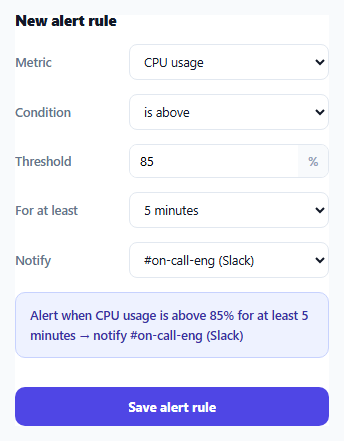
Monitoring and alerting tools usually ask an operator to configure a rule across several separate dropdowns and inputs — metric, comparison operator, threshold, duration — without ever showing what the *resulting rule* actually means until after it's saved. This widget keeps a live, plain-English preview sentence in sync with every field as it's edited, so a user can read back exactly what they're about to create before committing to it.
Per-metric bounds, not one global validation rule
Each <option> in the metric dropdown carries its own data-unit and data-max attributes — CPU and disk usage cap at 100%, P95 latency caps at 5000ms, error rate caps at 1000/min. validate() reads these from currentMetricOption().dataset rather than applying one fixed threshold ceiling to every metric, which matters because a threshold of "150" is a validation error for a percentage-based metric but a perfectly reasonable value for a latency metric measured in milliseconds — the bounds genuinely depend on which metric is currently selected.
The unit label and threshold cap both react to the metric selection
Switching the metric dropdown calls syncUnit(), which updates both the visible unit suffix (%, ms, /min) next to the threshold input *and* that input's max attribute in the same function — so changing from "CPU usage" to "P95 latency" simultaneously relabels the field correctly and raises what counts as a valid threshold, keeping the visible unit and the enforced bound from ever falling out of sync with each other.
A disabled save button backed by real validation, not just a class
saveBtn.disabled is a genuine native disabled boolean set directly from errors.length > 0, recalculated on every keystroke or dropdown change via a shared render() function — so the button is truly unclickable (not just dimmed) whenever the current threshold value is empty, negative, non-numeric, or exceeds the selected metric's bound, and becomes clickable again the instant the input is corrected.
Why the preview sentence is worth building at all
A rule like "metric: latency, operator: above, threshold: 3000, duration: 5" is unambiguous to the system storing it, but not immediately obvious to a human scanning a list of saved rules or reviewing one before saving. Composing the same values into "Alert when P95 latency is above 3000ms for at least 5 minutes → notify #on-call-eng (Slack)" turns the same underlying data into something a teammate can review at a glance without mentally reassembling five separate field values — a small but genuinely useful translation step for any rule-builder UI.
Build with AI
Build, Understand, Optimize, and Extend It With AI
Ask an AI assistant to explain why per-metric validation bounds (rather than one global threshold ceiling) are the correct approach here, and to walk through exactly how syncUnit() and validate() stay coordinated when the metric selection changes mid-edit. It's also worth asking for a version that supports compound conditions (e.g. "metric A above X AND metric B above Y"), or one that fetches real current metric values to show how close the proposed threshold is to today's actual baseline.
Prompt to recreate it
Copy this into your AI assistant of choice to build the effect from scratch, or as a jumping-off point for your own variant:
Build an alert rule builder widget in HTML, CSS and vanilla JavaScript for a monitoring dashboard, with live validation and a plain-English rule preview — no external libraries.

Requirements:
- Form fields for: a metric selector (each option carrying its own display unit and maximum valid threshold as data attributes), a condition operator (above/below), a numeric threshold input, a duration selector, and a notification channel selector.
- The threshold input's displayed unit suffix and its enforced maximum valid value must both update automatically whenever the selected metric changes, since different metrics have different valid ranges and units.
- Validate the threshold on every edit: it must be a valid non-negative number and must not exceed the currently selected metric's maximum — surface any validation errors in a visible, accessible (role="alert") error region.
- Maintain a live preview area (role="status", aria-live="polite") that composes the current field values into one readable sentence describing the rule (e.g. "Alert when P95 latency is above 3000ms for at least 5 minutes → notify #on-call-eng"), updating on every field change.
- A "Save alert rule" button that is genuinely disabled (not just visually dimmed) whenever validation errors are present, and becomes enabled the moment they're all resolved. On a successful click, show a brief save-confirmation state.
Want to tighten it up first? Run this prompt through the AI Prompt Studio to score it across 8 quality dimensions, catch anti-patterns, and tune the wording for Claude, ChatGPT, or Gemini before you paste it in.
Source Code
<div class="demo">
  <div class="rule-card">
    <h3>New alert rule</h3>

    <div class="rule-row">
      <label>Metric</label>
      <select id="metricSelect">
        <option value="cpu" data-unit="%" data-max="100">CPU usage</option>
        <option value="latency" data-unit="ms" data-max="5000">P95 latency</option>
        <option value="errors" data-unit="/min" data-max="1000">Error rate</option>
        <option value="disk" data-unit="%" data-max="100">Disk usage</option>
      </select>
    </div>

    <div class="rule-row">
      <label>Condition</label>
      <select id="operatorSelect">
        <option value="above">is above</option>
        <option value="below">is below</option>
      </select>
    </div>

    <div class="rule-row">
      <label>Threshold</label>
      <div class="threshold-input">
        <input type="number" id="thresholdInput" value="85" min="0" />
        <span class="unit" id="unitLabel">%</span>
      </div>
    </div>

    <div class="rule-row">
      <label>For at least</label>
      <select id="durationSelect">
        <option value="1">1 minute</option>
        <option value="5" selected>5 minutes</option>
        <option value="15">15 minutes</option>
        <option value="60">1 hour</option>
      </select>
    </div>

    <div class="rule-row">
      <label>Notify</label>
      <select id="channelSelect">
        <option value="#on-call-eng">#on-call-eng (Slack)</option>
        <option value="#platform-alerts">#platform-alerts (Slack)</option>
        <option value="pagerduty">PagerDuty escalation</option>
      </select>
    </div>

    <div class="preview" id="preview" role="status" aria-live="polite"></div>

    <div class="rule-errors" id="ruleErrors" role="alert"></div>

    <button class="save-btn" id="saveBtn">Save alert rule</button>
  </div>
</div>
* { box-sizing: border-box; margin: 0; padding: 0; }
body { font-family: system-ui, sans-serif; background: #f8fafc; display: flex; align-items: center; justify-content: center; min-height: 100vh; padding: 24px; }
.rule-card { width: 360px; max-width: 100%; background: #fff; border: 1px solid #e2e8f0; border-radius: 16px; padding: 22px; display: flex; flex-direction: column; gap: 14px; }
h3 { font-size: 14.5px; font-weight: 800; color: #111827; }
.rule-row { display: flex; align-items: center; justify-content: space-between; gap: 12px; }
.rule-row label { font-size: 12.5px; font-weight: 600; color: #64748b; flex-shrink: 0; }
.rule-row select { flex: 1; max-width: 200px; padding: 8px 10px; border: 1.5px solid #e2e8f0; border-radius: 8px; font-size: 12.5px; font-family: inherit; color: #111827; background: #fff; }
.rule-row select:focus-visible { outline: none; border-color: #6366f1; box-shadow: 0 0 0 3px rgba(99,102,241,0.15); }
.threshold-input { flex: 1; max-width: 200px; display: flex; align-items: center; border: 1.5px solid #e2e8f0; border-radius: 8px; overflow: hidden; }
.threshold-input input { flex: 1; border: none; padding: 8px 10px; font-size: 12.5px; font-family: inherit; width: 0; }
.threshold-input input:focus-visible { outline: none; }
.threshold-input:focus-within { border-color: #6366f1; box-shadow: 0 0 0 3px rgba(99,102,241,0.15); }
.threshold-input .unit { padding: 0 10px; font-size: 11.5px; font-weight: 700; color: #94a3b8; background: #f8fafc; align-self: stretch; display: flex; align-items: center; }
.preview { background: #eef2ff; border: 1px solid #c7d2fe; border-radius: 10px; padding: 12px 14px; font-size: 12.5px; color: #3730a3; line-height: 1.6; font-weight: 600; }
.rule-errors { font-size: 11.5px; color: #dc2626; font-weight: 600; min-height: 1px; }
.save-btn { background: #4f46e5; color: #fff; border: none; padding: 11px; border-radius: 10px; font-size: 13px; font-weight: 700; cursor: pointer; font-family: inherit; }
.save-btn:hover { background: #4338ca; }
.save-btn:disabled { opacity: 0.5; cursor: not-allowed; }const metricSelect = document.getElementById('metricSelect');
const operatorSelect = document.getElementById('operatorSelect');
const thresholdInput = document.getElementById('thresholdInput');
const unitLabel = document.getElementById('unitLabel');
const durationSelect = document.getElementById('durationSelect');
const channelSelect = document.getElementById('channelSelect');
const preview = document.getElementById('preview');
const ruleErrors = document.getElementById('ruleErrors');
const saveBtn = document.getElementById('saveBtn');
const metricLabels = {
cpu: 'CPU usage',
latency: 'P95 latency',
errors: 'Error rate',
disk: 'Disk usage',
};
const durationLabels = {
'1': '1 minute',
'5': '5 minutes',
'15': '15 minutes',
'60': '1 hour',
};
function currentMetricOption() {
return metricSelect.options[metricSelect.selectedIndex];
}
function syncUnit() {
const opt = currentMetricOption();
unitLabel.textContent = opt.dataset.unit;
thresholdInput.max = opt.dataset.max;
}
function validate() {
const errors = [];
const value = Number(thresholdInput.value);
const max = Number(currentMetricOption().dataset.max);
if (thresholdInput.value === '' || Number.isNaN(value)) {
errors.push('Threshold must be a number.');
} else if (value < 0) {
errors.push('Threshold cannot be negative.');
} else if (value > max) {
errors.push(`Threshold cannot exceed ${max}${currentMetricOption().dataset.unit} for this metric.`);
}
return errors;
}
function render() {
syncUnit();
const errors = validate();
ruleErrors.textContent = errors.join(' ');
saveBtn.disabled = errors.length > 0;
if (errors.length === 0) {
const metric = metricLabels[metricSelect.value];
const op = operatorSelect.value === 'above' ? 'is above' : 'is below';
const unit = currentMetricOption().dataset.unit;
const duration = durationLabels[durationSelect.value];
const channel = channelSelect.options[channelSelect.selectedIndex].textContent;
preview.textContent = `Alert when ${metric} ${op} ${thresholdInput.value}${unit} for at least ${duration} → notify ${channel}`;
} else {
preview.textContent = 'Fix the errors below to preview this rule.';
}
}
[metricSelect, operatorSelect, thresholdInput, durationSelect, channelSelect].forEach((el) => {
el.addEventListener('input', render);
el.addEventListener('change', render);
});
saveBtn.addEventListener('click', () => {
if (saveBtn.disabled) return;
saveBtn.textContent = 'Rule saved ✓';
setTimeout(() => { saveBtn.textContent = 'Save alert rule'; }, 1400);
});
render();Step by step
How to Use
- 1Add or edit metric optionsEach <option> in #metricSelect needs data-unit and data-max attributes defining its display unit and maximum valid threshold.
- 2Adjust the duration and channel choicesUpdate the <option> lists in #durationSelect and #channelSelect, and keep the durationLabels object in JS in sync with any duration value changes.
- 3Customize the validation rulesExtend the validate() function to add rules beyond range-checking, such as requiring a minimum threshold difference from a metric's current baseline.
- 4Wire the Save button to your backendReplace the placeholder button-text change in the saveBtn click handler with a real API call to persist the constructed rule object.
- 5Adjust the preview sentence wordingEdit the template string inside render() to match your product's terminology for metrics, operators, and channels.
Real-world uses
Common Use Cases
Got questions?
Frequently Asked Questions
Different metrics have fundamentally different valid ranges — a percentage-based metric like CPU usage tops out at 100, while a latency metric measured in milliseconds can reasonably go into the thousands. The validation reads each metric option's own data-max attribute rather than applying one global ceiling that would be wrong for most metrics.
It uses the native disabled attribute, set directly from the current validation result (errors.length > 0) on every field change — a genuinely disabled button, not a class-based visual-only state, so it cannot be clicked or focused via Tab while invalid.
Every relevant input and select element has both input and change listeners calling the same render() function, which re-validates and rebuilds the preview text from the current field values on every single edit, so the preview can never show stale data from a previous edit.
syncUnit() updates the threshold input's max attribute immediately when the metric changes, and validate() re-checks the existing threshold value against that new bound — so switching metrics can immediately surface a validation error if the previously-valid threshold no longer fits the new metric's range.
Yes — validate() returns an array of error message strings; add more condition checks that push additional messages into that array, and the existing error-display and button-disabling logic will automatically account for them.
The error message region has role="alert" so validation problems are announced immediately, and the preview sentence has role="status" aria-live="polite" so its updates are announced without interrupting or stealing focus from whatever the user is currently doing.