More Pricing Snippets
Front-End Coding Playgrounds
Learn to code with interactive, live-preview playgrounds — HTML, CSS, JavaScript, React & more.
 HTML Playground42 lessons · Click-based · Live preview
 CSS PlaygroundLearn CSS with a live editor
 JavaScript Playground60 lessons · DOM · Async · Canvas
 React PlaygroundLearn React with a live code editor
 GSAP PlaygroundLearn GSAP animation interactively
 SVG Playground44 lessons · shapes · paths · animation
 SCSS Playground45 lessons · Sass modules · tokens
 Tailwind PlaygroundLearn Tailwind CSS with a live editor
 Bootstrap 5 Playground50 lessons · live preview
Upgrade Banner — Free HTML CSS JS Paywall Snippet
Upgrade Banner · Pricing · Plain HTML, CSS & JS · Live preview
What's included
Features
About this UI Snippet
Upgrade Banner & Paywall Gate — Dismissible In-App Freemium Upsell Components
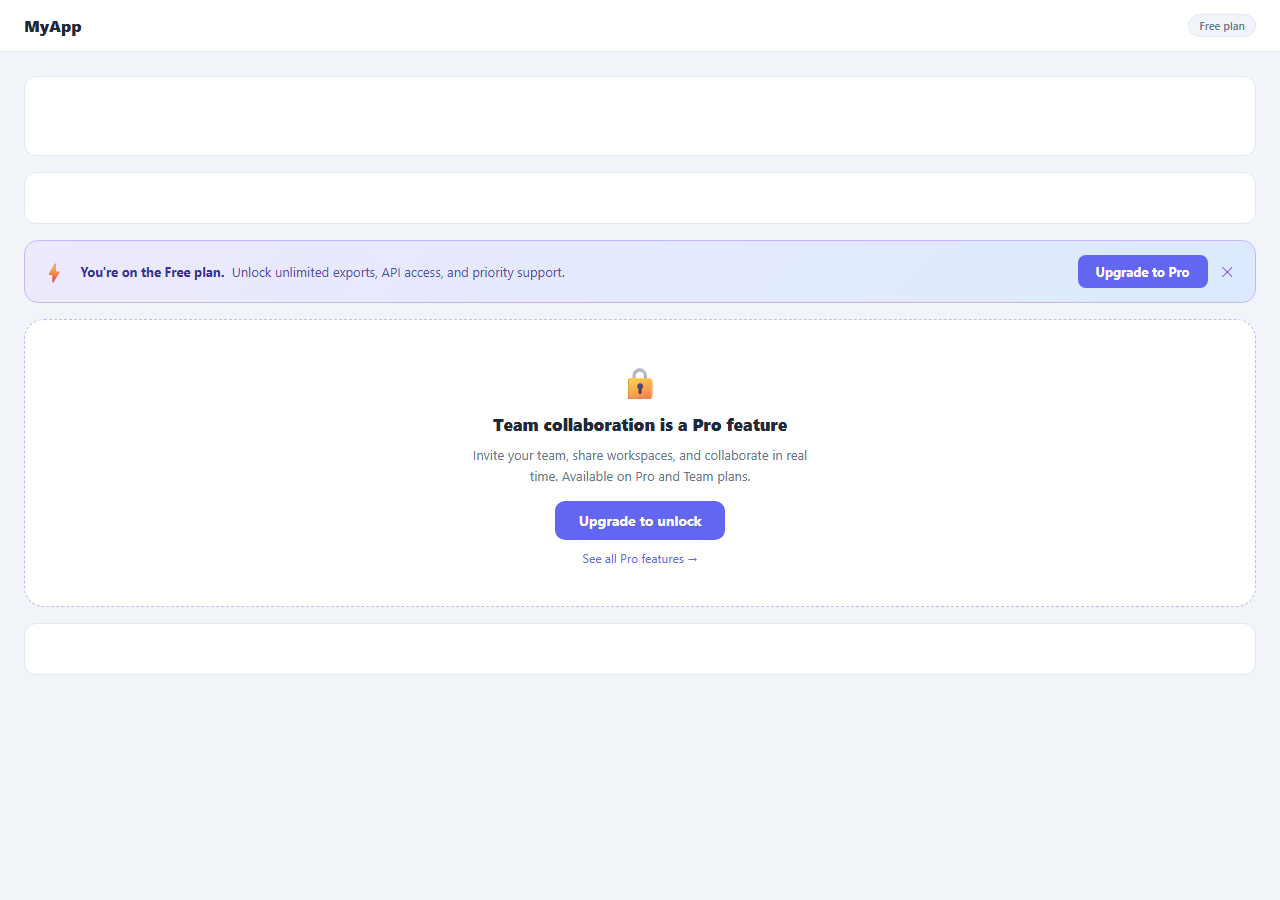
If you are building a freemium SaaS product and need an in-app upgrade prompt that does not annoy users but does convert them, this snippet gives you two components: a dismissible upgrade banner for persistent plan awareness and a locked feature gate for blocking and explaining premium functionality.
The upgrade banner — how it works
The banner sits at the top of the content area and uses a CSS linear-gradient background from violet to blue with a matching border-color. The left side shows a lightning bolt icon, the current plan name in bold, and a short benefit description. The right side has an "Upgrade to Pro" button and a dismiss ✕ button.
The dismiss animation works entirely in CSS: clicking ✕ calls dismiss(), which adds the .dismissed class to the banner. That class triggers a @keyframes animation that animates max-height from the current value to 0 and opacity from 1 to 0 simultaneously. The animationend event listener fires when the animation completes and calls banner.remove() to clean up the DOM. No JavaScript height calculation, no getBoundingClientRect — just CSS driving the collapse and JS handling the cleanup.
The paywall feature gate — how it works
The feature gate replaces the actual content area of a locked feature. It uses a 1.5px dashed border in a violet tint — this dashed border is a well-established visual signal for "placeholder" or "locked" content. Inside, a lock icon, a title explaining which specific feature is gated, a description of the value the user would get, a primary "Upgrade to unlock" CTA, and a secondary "See all Pro features" text link.
This approach — showing the locked area with an explanation rather than hiding it entirely — is a deliberate conversion pattern. Users who see what they are missing have stronger upgrade intent than users who never encounter the feature. The dashed border communicates "this could be yours" rather than "this does not exist."
Persisting dismiss state across page loads
By default, the banner reappears on every page load. To persist the dismiss for N days, add localStorage.setItem("upgrade_dismissed", Date.now()) inside the dismiss() function. On page load, read the key: if the stored timestamp is within the TTL (e.g. Date.now() - stored < 7 * 24 * 60 * 60 * 1000), skip rendering the banner. For a server-rendered app, set a cookie instead so the server can skip the banner HTML entirely.
When to show each component
The banner is best for persistent but low-priority awareness — show it across all pages to free users but make it easy to dismiss. The feature gate is best at the point of intent — when a free user tries to use a specific premium feature. Combining both is the standard freemium pattern: banner for awareness, gate for conversion at the moment of need.
Build with AI
Build, Understand, Optimize, and Extend It With AI
Instead of reasoning through the CSS animation by hand, paste this snippet's HTML, CSS, and JS into an AI coding assistant like Claude and ask it to explain exactly why the dismiss() function waits for the animationend event before calling banner.remove(), rather than removing the element immediately when the keyframe starts. It's a good target for a UX-and-performance question too — ask whether animating max-height in the @keyframes rule (rather than height) has any downsides worth knowing about for banners with dynamically wrapping text. For extending it, have it add the commented-out localStorage persistence so the dismiss survives a page reload with an expiry window, wire the feature gate's "Upgrade to unlock" button to actually reveal the gated content in a demo mode, or turn the banner into a reusable component that swaps its message based on which plan limit was hit. Treat the code less like a finished artifact and more like a starting point for a conversation.
Prompt to recreate it
Copy this into your AI assistant of choice to build the effect from scratch, or as a jumping-off point for your own variant:
Build a dismissible in-app "upgrade to Pro" banner plus a separate locked feature gate, in plain HTML, CSS, and vanilla JavaScript with no libraries.

Requirements:
- A banner element with a gradient background, an icon, bold plan-name text, a short benefit description, an "Upgrade to Pro" link, and a dismiss button.
- Dismissing must not remove the element instantly. Clicking dismiss must add a class that triggers a CSS @keyframes animation collapsing the banner's max-height, opacity, padding, and margin all to zero over a short duration; only after the browser fires the animationend event on the banner should JavaScript actually remove it from the DOM.
- Do not use any JavaScript height measurement (no getBoundingClientRect, no scrollHeight reads) to drive the collapse — the animation must be pure CSS from a fixed starting size to zero.
- Separately, build a "feature gate" block that visually replaces a locked feature's content: a container with a dashed border (signaling "placeholder/locked" rather than "broken"), a lock icon, a title naming the specific gated feature, a short description of its value, a primary "Upgrade to unlock" call-to-action, and a secondary text link to see all plan features.
- Include commented-out code showing how you would persist the dismiss state in localStorage with a timestamp so the banner does not reappear on every subsequent page load within a set number of days.
Step by step
How to Use
- 1Click the ✕ dismiss buttonThe banner collapses upward and fades out via a CSS @keyframes animation. The animationend event removes it from the DOM. Clicking the banner area itself does nothing — only the ✕ button triggers the dismiss.
- 2Update the banner textIn the HTML, edit the strong tag inside .banner-text to show your plan name ("You're on the Free plan"). Edit the span text to list the top 2-3 benefits of upgrading — keep it under one line.
- 3Update the feature gate textChange .gate-title to name the specific locked feature (e.g. "API access is a Pro feature"). Update .gate-desc to explain what the user gets and which plan unlocks it.
- 4Wire the CTA buttons to your billing pageReplace href="#" on .upgrade-btn (banner) and .gate-cta (gate) with your Stripe checkout URL or billing portal link. Both can point to the same URL or to plan-specific checkout sessions.
- 5Persist dismiss with localStorageInside dismiss() in the JS panel, add localStorage.setItem("upgrade_dismissed", Date.now()). On page load, check if the key exists and is within your TTL. If yes, set banner.style.display = "none" before the user sees it.
- 6Export in your formatClick "JSX" to download a React component using useState for dismissed and conditional rendering. Click "Tailwind" for a Tailwind CSS version. Click "HTML" for a standalone file.
Real-world uses
Common Use Cases
Got questions?
Frequently Asked Questions
The @keyframes animation targets max-height (animating to 0) and opacity (animating to 0) simultaneously. max-height: 0 collapses the element's space in the layout without needing to know the actual pixel height. padding: 0 and margin: 0 are also set in the final keyframe so no spacing remains. The animationend event fires once the animation completes and calls banner.remove() to fully remove the element from the DOM.
In dismiss(), add localStorage.setItem("upgrade_dismissed", Date.now()) before the animation code. On every page load, check the stored timestamp: const dismissed = localStorage.getItem("upgrade_dismissed"); if (dismissed && Date.now() - dismissed < TTL_MS) banner.style.display = "none"; where TTL_MS is your desired duration in milliseconds (e.g. 604800000 for 7 days). Set TTL_MS to 0 to always show the banner until dismissed once.
Click "JSX" to download. In React, replace the dismissed DOM manipulation with useState(false). Conditionally render the banner with {!dismissed && <div className="upgrade-banner">...</div>}. Call setDismissed(true) in the dismiss handler. For persistence, add localStorage logic inside a useEffect that runs on mount to check the stored dismiss timestamp.
In a backend-rendered app, check the user plan server-side and only include the banner HTML when plan === "free". In a React SPA, read the plan from your auth context: {user.plan === "free" && <UpgradeBanner />}. In vanilla JS with a global, check window.USER_PLAN === "free" at the top of the script and skip the banner if not free.