Learn Coding Visually
Learn to code with interactive, live-preview playgrounds — HTML, CSS, JavaScript, React & more.
 HTML Playground42 lessons · Click-based · Live preview
 CSS PlaygroundLearn CSS with a live editor
 JavaScript Playground60 lessons · DOM · Async · Canvas
 React PlaygroundLearn React with a live code editor
 GSAP PlaygroundLearn GSAP animation interactively
 SVG Playground44 lessons · shapes · paths · animation
 SCSS Playground45 lessons · Sass modules · tokens
 Tailwind PlaygroundLearn Tailwind CSS with a live editor
 Bootstrap 5 Playground50 lessons · live preview
Pinned, Draggable Browser-Style Tabs — Reorder and Pin Like a Real Browser
Pinned, Draggable Browser-Style Tabs · Navigation · Plain HTML, CSS & JS · Live preview
What's included
Features
About this UI Snippet
Browser-Style Tabs — Drag Reordering and Position-Guaranteeing Pins
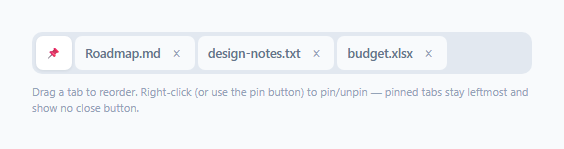
Browser tabs are one of the most-used UI patterns on the planet, and users bring very specific expectations from them: tabs can be dragged into any order, and pinning a tab doesn't just style it differently — it *guarantees* it stays leftmost, ahead of every unpinned tab, no matter what. This snippet reproduces both behaviors correctly, along with the keyboard navigation and native draggable API wiring that make it feel like a real tab strip rather than a static row of buttons.
Drag-and-drop uses the native HTML Drag and Drop API, not a library
Every tab has draggable="true", and the reordering logic is built entirely from dragstart, dragover, drop, and dragend events — no external sortable library. dragover must call e.preventDefault() on every fire (this is a common gotcha: without it, the drop event never fires at all, since the browser's default behavior for a dragover is to disallow dropping). The live "which side would this land on" indicator is computed on every dragover by comparing the pointer's clientX to the midpoint of the tab currently being hovered — left half means "drop before this tab," right half means "drop after," giving continuous visual feedback rather than only showing where a drop will land after the fact.
Pinning is a positional guarantee, not just a style
togglePin() doesn't just toggle a CSS class — after flipping the class, it re-sorts every tab in the bar into two groups, pinned first, then unpinned, and re-appends them all in that order. This means pinning a tab that's currently at the far right instantly moves it to sit immediately after the last pinned tab, and unpinning a tab moves it back into the unpinned group — matching exactly how pinning works in Chrome, Firefox, and every other tab-based browser, where "pinned" is fundamentally a positional property, not merely a visual one.
Right-click and a dedicated pin icon both work
The pin toggle is wired to two separate triggers: a contextmenu handler (so right-clicking anywhere on a tab pins/unpins it, matching real browser tab context menus) and a click on the small pin icon itself for discoverability without needing to know the right-click shortcut. Both call the same togglePin() function, so there's exactly one implementation of the pin behavior regardless of which trigger fired it.
Keyboard navigation follows the ARIA tabs pattern
Only the currently selected tab has tabindex="0"; every other tab has tabindex="-1", so a single Tab keypress moves focus into the tab strip once rather than tabbing through every individual tab. Once focus is inside, Arrow Left/Right move focus (and selection) between adjacent tabs — the same roving-tabindex convention used by native OS tab bars and the ARIA Authoring Practices tabs pattern, keeping the whole strip a single stop in the page's overall tab order.
Build with AI
Build, Understand, Optimize, and Extend It With AI
Ask an AI assistant to explain why calling preventDefault() inside the dragover handler is required for the drop event to fire at all, and to trace through exactly what togglePin() does step by step when pinning a tab that currently sits at the far right of an unpinned group. It's also worth asking for a version that persists tab order and pin state to localStorage, or one that adds a proper role="tablist"/role="tabpanel" pairing so each tab actually shows different panel content when selected.
Prompt to recreate it
Copy this into your AI assistant of choice to build the effect from scratch, or as a jumping-off point for your own variant:
Build a draggable, pinnable browser-style tab bar in HTML, CSS, and vanilla JavaScript using the native HTML5 Drag and Drop API — no external sortable library.

Requirements:
- A row of at least four tabs, each with a label and a close button, one of them marked as pinned initially (shown as an icon-only, narrower tab with no close button).
- Implement drag-to-reorder using dragstart, dragover, drop, and dragend events. While dragging, show a live visual indicator on whichever tab is currently hovered, distinguishing whether the dragged tab would land before or after it based on which half of that tab the pointer is over.
- Implement pin/unpin toggling triggered by both a right-click (contextmenu event, with the default browser context menu suppressed) on any tab and a dedicated small pin icon/button, both calling the same shared toggle function.
- Pinning must be a genuine positional guarantee: whenever a tab's pinned state changes, immediately re-sort the entire tab bar so all pinned tabs form a contiguous group at the leftmost position, ahead of every unpinned tab — not merely a visual style applied in place.
- Implement roving-tabindex keyboard navigation: only the currently selected tab should have tabindex="0", every other tab tabindex="-1", and pressing Arrow Left/Right while a tab has focus should move both focus and selection to the adjacent tab.
- Clicking a tab's close button should remove just that tab from the DOM without affecting the others.
Want to tighten it up first? Run this prompt through the AI Prompt Studio to score it across 8 quality dimensions, catch anti-patterns, and tune the wording for Claude, ChatGPT, or Gemini before you paste it in.
Step by step
How to Use
- 1Click a tab to select itThe selected tab gets a raised white background; aria-selected updates for assistive technology.
- 2Drag a tab to reorderA blue indicator line shows exactly which side of the hovered tab the dragged tab will land on before you release.
- 3Right-click a tab, or click its pin iconToggles pinning — a pinned tab shrinks to an icon-only width and jumps to sit immediately after the other pinned tabs.
- 4Try to drag a pinned tab past an unpinned oneReordering still works within drag-and-drop, but re-pinning any tab always re-sorts pinned tabs back to the leftmost group.
- 5Use Arrow Left/Right with a tab focusedMoves focus (and selection) to the adjacent tab, following the standard ARIA tabs keyboard pattern.
Real-world uses
Common Use Cases
Got questions?
Frequently Asked Questions
The browser's default behavior during a dragover is to disallow dropping entirely — without calling preventDefault() on every dragover event, the drop event will simply never fire, no matter how the drag ends.
Pinning re-sorts the entire tab bar so all pinned tabs sit as a contiguous group at the leftmost position, ahead of every unpinned tab — this happens immediately on pin/unpin, not just as a passive style change, matching real browser tab bar behavior.
Click the small pin icon shown on the currently-pinned example tab (or add a pin icon to any tab) — both the right-click context menu handler and the pin-icon click call the same togglePin() function.
Matching real browser behavior — a pinned tab represents something the user wants to always keep open, so removing the close affordance (both visually, since the tab collapses to icon width, and functionally) reinforces that intent.
Only the selected tab has tabindex="0"; all others have tabindex="-1", so Tab moves focus into the strip once. Once a tab has focus, Arrow Left/Right move focus (and selection) between adjacent tabs — the standard roving-tabindex pattern for ARIA tablists.
Yes — dropping on the right half of the last tab inserts the dragged tab immediately after it (using nextSibling as the insertion reference), correctly placing it at the very end of the strip.