


Learn Coding Visually
Learn to code with interactive, live-preview playgrounds — HTML, CSS, JavaScript, React & more.
 HTML Playground42 lessons · Click-based · Live preview
 CSS PlaygroundLearn CSS with a live editor
 JavaScript Playground60 lessons · DOM · Async · Canvas
 React PlaygroundLearn React with a live code editor
 GSAP PlaygroundLearn GSAP animation interactively
 SVG Playground44 lessons · shapes · paths · animation
 SCSS Playground45 lessons · Sass modules · tokens
 Tailwind PlaygroundLearn Tailwind CSS with a live editor
 Bootstrap 5 Playground50 lessons · live preview
Bootstrap Advanced Search Panel — Free HTML CSS JS Snippet
Bootstrap Advanced Search Panel · Forms · Plain HTML, CSS & JS · Live preview
What's included
Features
About this UI Snippet
Bootstrap Advanced Search Panel — HTML, CSS & JavaScript
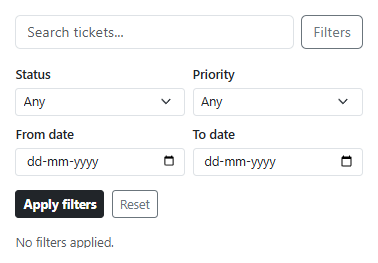
The panel uses Bootstrap's real collapse component (data-bs-toggle="collapse") rather than a custom show/hide implementation, so it inherits Bootstrap's built-in animation and ARIA wiring for free. The filter count badge on the "Filters" toggle button is what lets a user know criteria are active even with the panel collapsed — fieldCount() counts only the structured dropdown and date fields (not the free-text keyword, which gets its own place in the summary sentence), since those are the filters a badge count meaningfully represents.
The summary line at the bottom is built by activeCriteria() into one readable sentence rather than a raw dump of field values, so "Searching for status: open, priority: high" reads the way a person would actually describe their own search back to themselves — a small but real usability difference from just listing form field names and values.
Build with AI
Build, Understand, Optimize, and Extend It With AI
Hand this snippet to an AI coding assistant like Claude and ask it to persist the last-applied filters to localStorage so they survive a page reload, or to add per-field "clear" buttons that reset one field at a time without resetting the entire panel.
Prompt to recreate it
Copy this into your AI assistant of choice to build the effect from scratch, or as a jumping-off point for your own variant:
Build a Bootstrap 5.3 advanced search panel, using the real Bootstrap CDN framework (bootstrap.min.css and bootstrap.bundle.min.js), not custom CSS made to resemble it.

Requirements:
- A keyword search input next to a "Filters" toggle button that expands/collapses a panel using Bootstrap's real collapse component (data-bs-toggle="collapse").
- Inside the panel: a status select, a priority select, and a from/to date range.
- The toggle button must show a badge counting how many of the structured filter fields (not the keyword) currently have a value, hidden when the count is zero.
- An "Apply filters" button that generates a plain-English summary sentence listing every active criterion (keyword, status, priority, date range) below the panel.
- A "Reset" button that clears every field and immediately updates both the badge and the summary back to their empty state.
Want to tighten it up first? Run this prompt through the AI Prompt Studio to score it across 8 quality dimensions, catch anti-patterns, and tune the wording for Claude, ChatGPT, or Gemini before you paste it in.
Source Code
<div class="container py-5 d-flex justify-content-center">
  <div class="card bsadv-card">
    <div class="card-body p-3">
      <div class="d-flex justify-content-between align-items-center">
        <input type="text" class="form-control me-2" id="bsadvKeyword" placeholder="Search tickets...">
        <button type="button" class="btn btn-outline-secondary flex-shrink-0" type="button" data-bs-toggle="collapse" data-bs-target="#bsadvPanel">
          Filters <span id="bsadvBadge" class="badge text-bg-secondary ms-1 d-none">0</span>
        </button>
      </div>

      <div class="collapse mt-3" id="bsadvPanel">
        <div class="row g-2">
          <div class="col-6">
            <label class="form-label small fw-semibold mb-1">Status</label>
            <select class="form-select form-select-sm" id="bsadvStatus">
              <option value="">Any</option>
              <option value="open">Open</option>
              <option value="pending">Pending</option>
              <option value="closed">Closed</option>
            </select>
          </div>
          <div class="col-6">
            <label class="form-label small fw-semibold mb-1">Priority</label>
            <select class="form-select form-select-sm" id="bsadvPriority">
              <option value="">Any</option>
              <option value="high">High</option>
              <option value="medium">Medium</option>
              <option value="low">Low</option>
            </select>
          </div>
          <div class="col-6">
            <label class="form-label small fw-semibold mb-1">From date</label>
            <input type="date" class="form-control form-control-sm" id="bsadvFrom">
          </div>
          <div class="col-6">
            <label class="form-label small fw-semibold mb-1">To date</label>
            <input type="date" class="form-control form-control-sm" id="bsadvTo">
          </div>
        </div>
        <div class="d-flex gap-2 mt-3">
          <button type="button" class="btn btn-dark btn-sm fw-bold" id="bsadvApply">Apply filters</button>
          <button type="button" class="btn btn-outline-secondary btn-sm" id="bsadvReset">Reset</button>
        </div>
      </div>

      <p class="small text-muted mt-3 mb-0" id="bsadvSummary">No filters applied.</p>
    </div>
  </div>
</div>
.bsadv-card { width: 420px; max-width: 100%; border: 1px solid #eceef1; border-radius: 14px; }const keyword = document.getElementById('bsadvKeyword');
const status = document.getElementById('bsadvStatus');
const priority = document.getElementById('bsadvPriority');
const from = document.getElementById('bsadvFrom');
const to = document.getElementById('bsadvTo');
const badge = document.getElementById('bsadvBadge');
const summary = document.getElementById('bsadvSummary');
function activeCriteria() {
const parts = [];
if (keyword.value.trim()) parts.push('keyword "' + keyword.value.trim() + '"');
if (status.value) parts.push('status: ' + status.value);
if (priority.value) parts.push('priority: ' + priority.value);
if (from.value) parts.push('from ' + from.value);
if (to.value) parts.push('to ' + to.value);
return parts;
}
function fieldCount() {
return [status.value, priority.value, from.value, to.value].filter(Boolean).length;
}
function applyFilters() {
const parts = activeCriteria();
const n = fieldCount();
badge.textContent = String(n);
badge.classList.toggle('d-none', n === 0);
summary.textContent = parts.length ? 'Searching for ' + parts.join(', ') + '.' : 'No filters applied.';
}
document.getElementById('bsadvApply').addEventListener('click', applyFilters);
document.getElementById('bsadvReset').addEventListener('click', () => {
keyword.value = '';
status.value = '';
priority.value = '';
from.value = '';
to.value = '';
applyFilters();
});
keyword.addEventListener('keydown', e => { if (e.key === 'Enter') applyFilters(); });
applyFilters();Step by step
How to Use
- 1Load the snippetThe panel is collapsed, the badge is hidden, and the summary reads "No filters applied."
- 2Click "Filters"The panel expands with Bootstrap's real collapse animation, revealing status, priority, and date fields.
- 3Select a status and a priorityClick "Apply filters" — the badge shows "2" and the summary describes both selections in plain English.
- 4Type a keyword and press EnterThe summary updates to include the keyword alongside the existing filters.
- 5Click "Reset"Every field clears, the badge disappears, and the summary reverts to "No filters applied."
Real-world uses
Common Use Cases
Got questions?
Frequently Asked Questions
The badge is meant to summarize structured, discrete filter selections (dropdowns and dates); a free-text keyword already has its own visible place in the input box and the summary sentence, so counting it in the badge too would be redundant.
Yes. Keep each field in component state, derive fieldCount and the summary sentence from that state on every render, and use Bootstrap's collapse via a ref-driven Collapse instance or an equivalent framework transition.
Call your filtering function with the same field values read inside applyFilters(), right alongside (or instead of) updating the badge and summary — the criteria-gathering logic is already centralized in one place.