Source Code
<div class="demo">
  <label class="field-label">Skills</label>
  <div class="tag-field" id="tag-field" onclick="document.getElementById('tag-inp').focus()">
    <div class="tags" id="tags">
      <span class="tag">React<button onclick="removeTag(this)">×</button></span>
      <span class="tag">TypeScript<button onclick="removeTag(this)">×</button></span>
      <span class="tag">CSS<button onclick="removeTag(this)">×</button></span>
    </div>
    <input id="tag-inp" class="tag-inp" placeholder="Add skill…" onkeydown="handleKey(event)" />
  </div>
  <p class="hint">Press Enter or comma to add a tag</p>

  <div class="suggestions">
    <span class="sug-label">Suggestions:</span>
    <button class="sug" onclick="addTag('JavaScript')">JavaScript</button>
    <button class="sug" onclick="addTag('Node.js')">Node.js</button>
    <button class="sug" onclick="addTag('Figma')">Figma</button>
    <button class="sug" onclick="addTag('Vue')">Vue</button>
    <button class="sug" onclick="addTag('GraphQL')">GraphQL</button>
  </div>
</div>
* { box-sizing: border-box; margin: 0; padding: 0; }
body { font-family: system-ui, sans-serif; background: #f8fafc; display: flex; align-items: center; justify-content: center; min-height: 100vh; padding: 20px; }
.demo { width: 360px; display: flex; flex-direction: column; gap: 10px; }
.field-label { font-size: 13px; font-weight: 600; color: #475569; }
.tag-field {
min-height: 48px; padding: 8px 10px;
border: 1.5px solid #e2e8f0; border-radius: 10px;
background: #fff; cursor: text;
display: flex; flex-wrap: wrap; gap: 6px; align-items: center;
transition: border-color 0.15s, box-shadow 0.15s;
}
.tag-field:focus-within { border-color: #6366f1; box-shadow: 0 0 0 3px rgba(99,102,241,0.1); }
.tag {
display: inline-flex; align-items: center; gap: 4px;
background: #eef2ff; color: #4f46e5;
font-size: 12px; font-weight: 600;
padding: 3px 8px; border-radius: 6px;
animation: tagIn 0.15s ease;
}
@keyframes tagIn { from { opacity:0; transform:scale(0.8); } to { opacity:1; transform:scale(1); } }
.tag button { background: none; border: none; cursor: pointer; color: #6366f1; font-size: 14px; line-height: 1; padding: 0 1px; opacity: 0.7; }
.tag button:hover { opacity: 1; color: #dc2626; }
.tag-inp { border: none; outline: none; font-size: 13px; font-family: inherit; color: #1e293b; background: transparent; flex: 1; min-width: 100px; padding: 2px 0; }
.tag-inp::placeholder { color: #94a3b8; }
.hint { font-size: 11px; color: #94a3b8; }
.suggestions { display: flex; align-items: center; gap: 6px; flex-wrap: wrap; }
.sug-label { font-size: 11px; color: #94a3b8; }
.sug { padding: 4px 10px; font-size: 11px; font-weight: 600; background: #f1f5f9; border: 1px solid #e2e8f0; border-radius: 6px; color: #64748b; cursor: pointer; font-family: inherit; transition: all 0.12s; }
.sug:hover { border-color: #6366f1; color: #6366f1; background: #eef2ff; }function addTag(val) {
const v = val.trim();
const existing = [...document.querySelectorAll('.tag')].map(t => t.textContent.replace('×','').trim());
if (!v || existing.includes(v)) return;
const tag = document.createElement('span');
tag.className = 'tag';
tag.innerHTML = v + '<button onclick="removeTag(this)">×</button>';
document.getElementById('tags').appendChild(tag);
document.getElementById('tag-inp').value = '';
}
function removeTag(btn) { btn.parentElement.remove(); }
function handleKey(e) {
if (e.key === 'Enter' || e.key === ',') {
e.preventDefault();
addTag(e.target.value.replace(',',''));
}
if (e.key === 'Backspace' && !e.target.value) {
const tags = document.querySelectorAll('.tag');
if (tags.length) tags[tags.length-1].remove();
}
}Learn Coding Visually
Learn to code with interactive, live-preview playgrounds — HTML, CSS, JavaScript, React & more.
 HTML Playground42 lessons · Click-based · Live preview
 CSS PlaygroundLearn CSS with a live editor
 JavaScript Playground60 lessons · DOM · Async · Canvas
 React PlaygroundLearn React with a live code editor
 GSAP PlaygroundLearn GSAP animation interactively
 SVG Playground44 lessons · shapes · paths · animation
 SCSS Playground45 lessons · Sass modules · tokens
 Tailwind PlaygroundLearn Tailwind CSS with a live editor
 Bootstrap 5 Playground50 lessons · live preview
Tag Input — Free HTML CSS JS Snippet
Tag / Chip Input · Forms · Plain HTML, CSS & JS · Live preview
What's included
Features
About this UI Snippet
Tag Input — Enter to Add, Duplicate Check & Backspace Remove
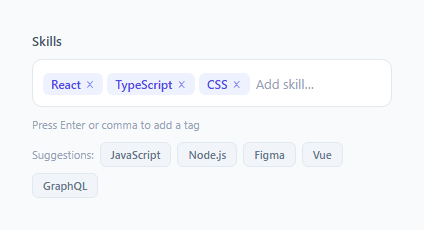
A tag input lets users type and add multiple tags or labels — used in filter selectors, skill lists, email address fields, and keyword inputs (the multi-select dropdown is the picker-based cousin). This snippet implements the full tag interaction: Enter to add, comma to add, duplicate prevention, click-to-remove, and backspace-to-undo.
Adding tags
The input listens for keydown. On Enter or , (comma), addTag(input.value) is called and the input is cleared. addTag(v) trims whitespace, checks for duplicates via querySelectorAll('.tag').map(...), and returns early if the tag already exists or is empty.
The tag element
Each tag is a <span class="tag"> with the tag text and a <span class="remove">×</span> button. The remove button's onclick calls tag.remove() — removing just that span from the DOM.
Backspace to remove last tag
When the input is empty and the user presses Backspace, the last tag is removed: document.querySelectorAll('.tag').at(-1)?.remove(). This matches the behaviour of email address inputs in Gmail and similar applications.
The Enter/comma add pattern
The tag input listens for keydown events. When Enter or comma is pressed, it calls addTag() which trims the input value, checks for duplicates, adds the tag to the array, creates a chip element, and clears the input. Comma detection uses e.key === ',' with e.preventDefault() to stop the comma character appearing in the input after the tag is added.
The backspace-last-remove pattern
When the input is empty (input.value === '') and Backspace is pressed, the last tag in the array is removed and the corresponding chip element is deleted from the DOM. This matches the standard tag input interaction that users expect from email address fields, filter chips, and CRM contact selectors.
Duplicate prevention
Before adding a tag, the current tags array is checked: if (tags.includes(newTag)) return. Show a brief shake animation on the existing duplicate chip to communicate "already added" without an error message. Add .shake { animation: shake 0.3s } to flash the duplicate chip briefly.
Connecting to form submission
Collect tag values for form submission: document.querySelector('form').addEventListener('submit', e => { e.preventDefault(); const values = tags; submitForm(values); }). Or use a hidden input to hold a JSON-encoded array: hiddenInput.value = JSON.stringify(tags). This makes the tag values available to standard HTML form submission without JavaScript preprocessing.
The Enter/comma add pattern
The tag input listens for keydown events. When Enter or comma is pressed, it calls addTag() which trims the input value, checks for duplicates, adds the tag to the array, creates a chip element, and clears the input. Comma detection uses e.key === ',' with e.preventDefault() to stop the comma character appearing in the input after the tag is added.
The backspace-last-remove pattern
When the input is empty (input.value === '') and Backspace is pressed, the last tag in the array is removed and the corresponding chip element is deleted from the DOM. This matches the standard tag input interaction that users expect from email address fields, filter chips, and CRM contact selectors.
Duplicate prevention
Before adding a tag, the current tags array is checked: if (tags.includes(newTag)) return. Show a brief shake animation on the existing duplicate chip to communicate "already added" without an error message. Add .shake { animation: shake 0.3s } to flash the duplicate chip briefly.
Connecting to form submission
Collect tag values for form submission: document.querySelector('form').addEventListener('submit', e => { e.preventDefault(); const values = tags; submitForm(values); }). Or use a hidden input to hold a JSON-encoded array: hiddenInput.value = JSON.stringify(tags). This makes the tag values available to standard HTML form submission without JavaScript preprocessing.
Build with AI
Build, Understand, Optimize, and Extend It With AI
You don't have to trace the keydown branching by hand. Paste this snippet's HTML, CSS, and JS into an AI coding assistant like Claude and ask it to explain exactly why addTag rebuilds the existing-tags list from querySelectorAll and textContent on every call instead of keeping a separate array, and why the backspace-removes-last-tag behavior only fires when the input's value is empty. The same assistant can help optimize it — for instance whether reading the DOM to check duplicates becomes noticeably slower with dozens of tags compared to maintaining a plain JavaScript array as the source of truth, or whether the inline onclick handlers on the remove buttons should be replaced with a single delegated listener. It's also useful for extending the input: ask it to add autocomplete suggestions filtered as the user types, a maximum tag count with a visible counter, or paste-support that splits a comma-separated clipboard string into multiple tags at once. Treat the code less like a finished artifact and more like a starting point for a conversation.
Prompt to recreate it
Copy this into your AI assistant of choice to build the effect from scratch, or as a jumping-off point for your own variant:
Build a "tag/chip input" field in plain HTML, CSS, and JavaScript using DOM-based duplicate checking — no framework, no external state array required.

Requirements:
- A styled container that looks like a single text input but actually holds a row of removable tag chips followed by a real text input, where clicking anywhere in the container focuses the inner input (flex-wrap layout so chips and the input flow naturally across lines).
- An addTag function that trims the given value, reads all currently rendered tag chips' text content (stripping the remove-button glyph) to build a duplicate-check list, and silently does nothing if the trimmed value is empty or already present — no error message, just a no-op.
- Pressing Enter or typing a comma inside the input must call addTag with the current input value, clear the input afterward, and prevent the comma character itself from being typed into the field.
- Each added tag must render as a small pill with the tag text and its own inline remove button; clicking that button must remove only that specific pill from the DOM.
- Pressing Backspace while the input is completely empty must remove the most recently added tag (the last chip in the list), giving a fast way to undo the last entry without touching the mouse.
- Provide a row of clickable suggestion buttons below the field that call the same addTag function with a preset value, so suggestions and manual typing share one single code path for adding a tag.
- New tags must play a small entrance animation (e.g. scaling and fading in) when they are added so the list doesn't feel like it's snapping.
Want to tighten it up first? Run this prompt through the AI Prompt Studio to score it across 8 quality dimensions, catch anti-patterns, and tune the wording for Claude, ChatGPT, or Gemini before you paste it in.
Step by step
How to Use
- 1Type and press EnterType a tag in the input and press Enter or comma to add it. Duplicate tags are rejected silently.
- 2Remove a tagClick the × on any tag to remove it from the list.
- 3Backspace to remove last tagWhen the input is empty, press Backspace to remove the most recently added tag.
- 4Update preset tagsIn the HTML panel, change the preset .tag spans to your default tags. Each needs a .remove span with onclick="this.parentNode.remove()".
- 5Limit tag countIn addTag(), add a check: if (existing.length >= 5) return; to limit the number of tags.
- 6Export in your formatClick "HTML" for a standalone file, "JSX" for a React component, or "Tailwind" for a React + Tailwind version.
Real-world uses
Common Use Cases
Got questions?
Frequently Asked Questions
addTag() calls querySelectorAll(".tag") and maps each element to its textContent with the × stripped. If the new value is already in this array, the function returns early without adding the tag.
const tags = [...document.querySelectorAll(".tag")].map(t => t.textContent.replace("×","").trim()); gives an array of tag strings. Append as JSON to a hidden form input or include directly in a fetch request body.
In addTag(), before creating the span: const count = document.querySelectorAll(".tag").length; if (count >= maxTags) return; — where maxTags is your limit.
Call addTag(value) from the dropdown item click handler. The duplicate check and DOM creation work the same way regardless of the trigger.
Yes. Click "JSX" for a React component. In React, manage tags as an array in useState. Add/remove by spreading: setTags(prev => [...prev, newTag]) and setTags(prev => prev.filter(t => t !== tag)).
Add a data-category attribute when creating the span. In CSS, use [data-category="design"] { background: #e0f2fe } etc. to colour-code tag categories.