Learn Coding Visually
Learn to code with interactive, live-preview playgrounds — HTML, CSS, JavaScript, React & more.
 HTML Playground42 lessons · Click-based · Live preview
 CSS PlaygroundLearn CSS with a live editor
 JavaScript Playground60 lessons · DOM · Async · Canvas
 React PlaygroundLearn React with a live code editor
 GSAP PlaygroundLearn GSAP animation interactively
 SVG Playground44 lessons · shapes · paths · animation
 SCSS Playground45 lessons · Sass modules · tokens
 Tailwind PlaygroundLearn Tailwind CSS with a live editor
 Bootstrap 5 Playground50 lessons · live preview
Table Export with Column Selector — CSV/JSON Export of Exactly the Columns You Want
Table Export with Column Selector — Choose Exactly What Gets Exported · Tables · Plain HTML, CSS & JS · Live preview
What's included
Features
About this UI Snippet
Table Export with a Column Selector — Exporting Exactly What the User Wants
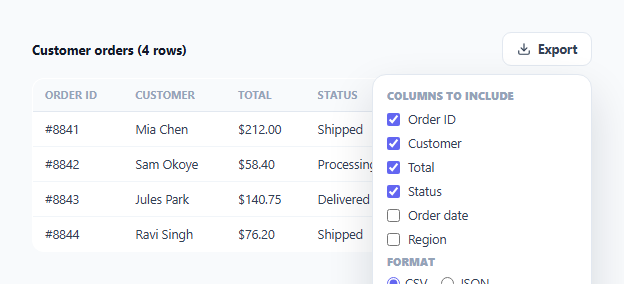
A one-click "Export all" button is easy to build but often exports far more than a user actually wants — every column, whether relevant or not, in whatever format the developer happened to pick. This snippet gives the user real control: a checklist of which columns to include, a choice between CSV and JSON, and a generated output that reflects exactly those choices.
Reading from the live table, not a separate data model
collectRows() queries tbody tr elements directly from the rendered <table> and reads each cell's textContent by its data-key attribute — it does not reference a separate JavaScript array of "the original dataset." This is a deliberate choice: if the table were later hooked up to sorting, filtering, or pagination, the export would automatically reflect whatever rows and order are *currently visible*, with zero additional wiring. A hardcoded data-model export would silently ignore any live filtering already applied to the table, exporting stale or irrelevant rows.
Correct CSV escaping, not just `.join(',')`
toCsv()'s escapeCell() function checks each value for a comma, double quote, or newline, and — only when one of those is present — wraps the value in double quotes with any internal quotes doubled (the standard CSV escaping convention). A naive row.join(',') implementation would silently corrupt any cell containing a comma (splitting it into extra, misaligned columns when the file is opened in a spreadsheet), so this check runs on every cell rather than being skipped as an edge case.
Column labels are separate from column keys
COLUMN_LABELS maps each internal data-key value (like id, date) to its human-readable export header (Order ID, Order date). Keeping this mapping explicit and separate from the raw keys means the exported CSV header row is genuinely readable rather than a dump of internal field names — and it's the same mapping used to render the checkbox labels in the column-selector panel, so the two stay consistent automatically.
Guarding against an empty-column export
If a user unchecks every column and clicks export anyway, the code short-circuits before generating anything and shows a clear message instead of producing a blank or malformed file — a small check, but one that prevents a genuinely confusing empty-download experience.
Build with AI
Build, Understand, Optimize, and Extend It With AI
Ask an AI assistant to explain why reading export data from the live DOM table (rather than a separate JavaScript data array) is the more robust choice once sorting or filtering is added, and to walk through exactly what the CSV escaping function protects against with a concrete example value containing a comma. It's also worth asking for an XLSX export option using a lightweight library, or for a version that remembers a user's last-selected columns across sessions via localStorage.
Prompt to recreate it
Copy this into your AI assistant of choice to build the effect from scratch, or as a jumping-off point for your own variant:
Build a table export feature in HTML, CSS, and vanilla JavaScript with a column selector and a CSV/JSON format choice — no external library.

Requirements:
- A data table of at least four rows and six columns, each cell tagged with a data-key attribute identifying its column.
- An Export button that opens a dropdown panel containing a checkbox for every column (some checked by default, some not) and a radio choice between CSV and JSON output format.
- Generate the export by reading directly from the currently rendered table rows (not a separate hardcoded dataset), including only the columns whose checkbox is checked, in the order they appear in the panel.
- Implement correct CSV escaping: any cell value containing a comma, a double quote, or a newline must be wrapped in double quotes with internal quotes doubled, following the standard CSV escaping convention — not a naive comma-join that would corrupt such values.
- Use a separate mapping from each column's internal key to a human-readable header label for the CSV header row and the checkbox labels, rather than exposing raw internal key names to the user.
- If the user attempts to export with zero columns selected, show a clear message instead of generating an empty or malformed export.
- Show the generated CSV or JSON output in a preview area after clicking a confirm button inside the panel, and close the panel automatically both on confirm and on an outside click.
Want to tighten it up first? Run this prompt through the AI Prompt Studio to score it across 8 quality dimensions, catch anti-patterns, and tune the wording for Claude, ChatGPT, or Gemini before you paste it in.
Step by step
How to Use
- 1Click the Export buttonOpens a panel listing every available column as a checkbox, plus a format choice between CSV and JSON.
- 2Uncheck columns you don't needOnly checked columns are included in the generated export — order ID, customer, and total are checked by default in this demo.
- 3Choose CSV or JSONCSV produces a comma-separated file with a proper header row and correctly escaped values; JSON produces an array of objects keyed by column.
- 4Click Download exportThe generated output renders in a preview area below the table — in a real app, this is where you would trigger an actual file download instead.
- 5Adapt collectRows() to your own tableMatch the data-key attributes on your table cells to the columns you want selectable, and update COLUMN_LABELS with your own readable header names.
Real-world uses
Common Use Cases
Got questions?
Frequently Asked Questions
Yes — collectRows() reads directly from the currently rendered tbody rows, so any sorting or filtering already applied to the table is automatically reflected in the export with no extra code needed.
toCsv()'s escaping function detects commas (and quotes and newlines) in a cell value and wraps that cell in double quotes, doubling any internal quotes — the standard CSV escaping rule — so the value stays in a single column when opened in a spreadsheet.
The export short-circuits before generating any output and shows a "select at least one column" message instead of producing an empty or malformed file.
Replace the exportPreview.textContent assignment with code that creates a Blob from the generated string and triggers a download via a temporary anchor element with the download attribute, using .csv or .json as the file extension based on the chosen format.
data-key values (like "id" or "date") are meant to be short, stable identifiers used for both the checkbox values and the DOM queries. COLUMN_LABELS maps each one to a proper human-readable header, so the exported CSV/JSON is genuinely readable rather than exposing internal field naming.
Add a new data-key attribute to both the header and every row's corresponding cell, add a matching checkbox to the export panel, and add an entry to COLUMN_LABELS — the export logic picks up any selected column generically.