Learn Coding Visually
Learn to code with interactive, live-preview playgrounds — HTML, CSS, JavaScript, React & more.
 HTML Playground42 lessons · Click-based · Live preview
 CSS PlaygroundLearn CSS with a live editor
 JavaScript Playground60 lessons · DOM · Async · Canvas
 React PlaygroundLearn React with a live code editor
 GSAP PlaygroundLearn GSAP animation interactively
 SVG Playground44 lessons · shapes · paths · animation
 SCSS Playground45 lessons · Sass modules · tokens
 Tailwind PlaygroundLearn Tailwind CSS with a live editor
 Bootstrap 5 Playground50 lessons · live preview
Table Column Pin/Unpin Toggle — User-Controlled Sticky Columns
Table Column Pin/Unpin Toggle — User-Controlled Sticky Columns · Tables · Plain HTML, CSS & JS · Live preview
What's included
Features
About this UI Snippet
User-Controlled Column Pinning — Sticky Columns That Stack Correctly
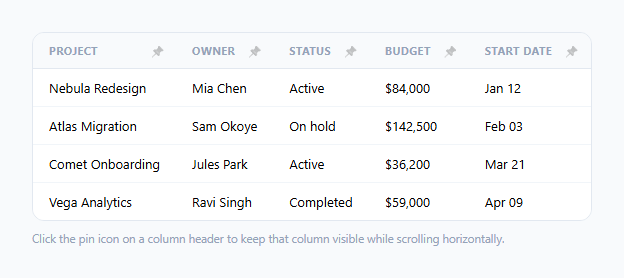
A table with a single hardcoded frozen first column is common — but real data tables often need the *user* to decide which column matters most to keep visible, and to be able to pin more than one. This snippet implements genuine per-column pinning: click the pin icon on any header, and that column sticks to the left edge while the rest of the table scrolls underneath it — and multiple pinned columns stack correctly side by side, in pin order.
Why sticky columns can't all just use `left: 0`
CSS position: sticky needs an explicit left offset, and that offset is different for every pinned column depending on how many *other* pinned columns come before it and how wide each of those already is. Pin the first column and it sticks at left: 0. Pin a second column after it, and that second column must sit at left: <width of the first pinned column>px — not left: 0 (which would overlap it) and not some column-index-based guess (since pinning order and column order aren't guaranteed to match, and column widths vary with content).
`recalculateStickyOffsets()` — the core of the whole pattern
This function walks every column left to right, and for each one that's currently pinned, it assigns left equal to a running total (runningLeft) of every already-processed pinned column's actual rendered width, then adds this column's own width to that running total before moving to the next. Because it always recalculates from scratch — rather than trying to incrementally patch offsets — pinning or unpinning any column in any order always produces a correct, non-overlapping stack of sticky columns, without needing to track fragile per-column deltas.
Every cell in a column, not just the header, needs the same treatment
Pinning a column means every <td> in that column (not just its <th>) needs position: sticky, the same left offset, and a background color to stay visually opaque as content scrolls underneath. The function queries tbody td[data-col="…"] for each column index alongside its header cell, so the entire column — header and every row's cell — pin and unpin together as one atomic unit, never leaving a header pinned while its body cells scroll away underneath (or vice versa).
Recalculating on resize, not just on pin/unpin
Column widths can change when the viewport resizes (text wrapping differently, or a responsive layout adjusting), which would silently invalidate previously-correct left offsets. Re-running recalculateStickyOffsets() on the window's resize event keeps every pinned column's offset accurate even if its own or an earlier pinned column's rendered width has changed since it was last pinned.
Build with AI
Build, Understand, Optimize, and Extend It With AI
Ask an AI assistant to explain exactly why sticky column offsets must be recalculated from a running total rather than derived from a column's own index, and to trace through what would go wrong if the second pinned column were hardcoded to some fixed left value instead. It's also worth asking for a version that persists pinned columns to localStorage, or one that lets users drag to reorder which pinned column appears leftmost rather than always following the original column order.
Prompt to recreate it
Copy this into your AI assistant of choice to build the effect from scratch, or as a jumping-off point for your own variant:
Build a wide, horizontally-scrollable data table in HTML, CSS, and vanilla JavaScript where the user can pin or unpin individual columns via a button in each header cell — no external library.

Requirements:
- A table with at least six columns and several rows, wrapped in a horizontally scrollable container, with a pin toggle button in every header cell.
- Clicking a column's pin button toggles position: sticky on that column's header cell and every body cell in that column (matched via a shared column-index data attribute), giving pinned cells an opaque background and a subtle shadow so scrolling content underneath doesn't show through.
- When more than one column is pinned, they must stack correctly side by side in pin order — each pinned column's sticky "left" offset must equal the total actual rendered width of every already-pinned column before it, recalculated fresh (not hardcoded) every time a column is pinned or unpinned.
- Unpinning a column must correctly shift any remaining pinned columns to close the gap it leaves behind, without requiring a page reload.
- Recalculate all sticky offsets on window resize, since rendered column widths can change and would otherwise leave stale, incorrect offsets behind.
- Update each pin button's accessible label (aria-label) to reflect whether it currently pins or unpins its column.
Want to tighten it up first? Run this prompt through the AI Prompt Studio to score it across 8 quality dimensions, catch anti-patterns, and tune the wording for Claude, ChatGPT, or Gemini before you paste it in.
Step by step
How to Use
- 1Scroll the table horizontallyWith no columns pinned, the whole table scrolls together — try it first to see the full width of data available.
- 2Click a pin icon in a headerThat column sticks to the left edge and stays visible as you continue scrolling horizontally; the icon changes to indicate it is pinned.
- 3Pin a second columnIt stacks correctly to the right of the first pinned column — recalculateStickyOffsets() computes its offset from the first column's actual rendered width.
- 4Unpin a columnClick its pin icon again — the column scrolls normally again, and any columns pinned after it shift their offsets to close the gap automatically.
- 5Resize the windowOffsets recalculate on resize, so pinned columns stay correctly aligned even if column widths change.
Real-world uses
Common Use Cases
Got questions?
Frequently Asked Questions
Only the first pinned column can sit at left: 0 without overlapping anything. Any subsequent pinned column needs a left offset equal to the total rendered width of every pinned column before it, which recalculateStickyOffsets() computes fresh every time the pinned set changes.
recalculateStickyOffsets() recomputes every pinned column's offset from scratch on every change, so the remaining pinned columns automatically shift left to close the gap left by the unpinned one — there is no stale, hardcoded offset left behind.
The whole column — every td in that column (queried by its shared data-col attribute) gets the same sticky positioning, offset, and background as its header, so the column pins and unpins as one visual unit.
A pinned column's rendered width can change when the viewport resizes (due to text reflow or responsive layout changes), which would invalidate previously-correct offsets for any columns pinned after it. Recalculating on resize keeps the stack correctly aligned.
Yes — the pinnedCols Set and the running-offset calculation both work for any number of pinned columns in any order; there is no hardcoded limit in the logic.
Serialize the pinnedCols Set (e.g. Array.from(pinnedCols)) to localStorage whenever it changes, and read it back on page load to re-apply the same pinned columns before the first recalculateStickyOffsets() call.