Source Code
<div class="skn-card">
<div class="skn-head">
<h3>Sheet1</h3>
<p class="skn-hint">Arrow keys to move · Tab / Shift+Tab · Enter to edit · Esc to cancel</p>
</div>
<table class="skn-table" id="sknTable" tabindex="0"></table>
</div>*{box-sizing:border-box;margin:0;padding:0}
body{font-family:system-ui,-apple-system,sans-serif;background:#f4f6fb;min-height:100vh;display:flex;align-items:center;justify-content:center;padding:24px}
.skn-card{background:#fff;border-radius:14px;padding:16px;width:100%;max-width:600px;box-shadow:0 18px 44px rgba(15,23,42,.1)}
.skn-head{display:flex;justify-content:space-between;align-items:baseline;margin-bottom:10px;flex-wrap:wrap;gap:4px}
.skn-head h3{font-size:14px;font-weight:800;color:#0f172a}
.skn-hint{font-size:11px;color:#94a3b8;font-weight:600}
.skn-table{border-collapse:collapse;width:100%;font-size:12.5px;outline:none;user-select:none}
.skn-table td{border:1px solid #e2e8f0;padding:0;position:relative}
.skn-table .skn-col-head,.skn-table .skn-row-head{background:#f1f5f9;color:#64748b;font-weight:700;text-align:center;font-size:11px;padding:6px 4px}
.skn-cell{padding:7px 10px;color:#1e293b;min-height:14px;text-align:right;font-variant-numeric:tabular-nums;cursor:cell}
.skn-cell[data-col="0"]{text-align:left}
.skn-cell.active{outline:2px solid #6366f1;outline-offset:-2px;background:#eef2ff;z-index:2}
.skn-cell.editing{padding:0}
.skn-cell.editing input{width:100%;border:none;outline:none;padding:6px 9px;font:inherit;text-align:inherit;background:#fff;box-shadow:inset 0 0 0 2px #6366f1}var COLS = ['Item', 'Qty', 'Unit Price', 'Total'];
var DATA = [
['Widget A', '12', '4.50', '54.00'],
['Widget B', '5', '19.99', '99.95'],
['Bracket', '30', '0.75', '22.50'],
['Bolt Pack', '8', '3.20', '25.60'],
['Panel', '3', '58.00', '174.00'],
];
var table = document.getElementById('sknTable');
var active = { row: 0, col: 0 };
var editing = false;
function buildTable() {
var thead = '<tr><td class="skn-col-head"></td>' + COLS.map(function (c) { return '<td class="skn-col-head">' + c + '</td>'; }).join('') + '</tr>';
var rows = DATA.map(function (r, ri) {
var cells = r.map(function (v, ci) {
return '<td class="skn-cell" data-row="' + ri + '" data-col="' + ci + '"><span class="skn-val">' + v + '</span></td>';
}).join('');
return '<tr><td class="skn-row-head">' + (ri + 1) + '</td>' + cells + '</tr>';
}).join('');
table.innerHTML = thead + rows;
}
function cellEl(row, col) {
return table.querySelector('.skn-cell[data-row="' + row + '"][data-col="' + col + '"]');
}
function clearActive() {
var prev = table.querySelector('.skn-cell.active');
if (prev) prev.classList.remove('active');
}
function setActive(row, col) {
row = Math.max(0, Math.min(DATA.length - 1, row));
col = Math.max(0, Math.min(COLS.length - 1, col));
clearActive();
active = { row: row, col: col };
var el = cellEl(row, col);
if (el) el.classList.add('active');
table.focus();
}
function startEdit() {
var el = cellEl(active.row, active.col);
if (!el || editing) return;
editing = true;
var value = DATA[active.row][active.col];
el.classList.add('editing');
el.innerHTML = '<input type="text" value="' + value.replace(/"/g, '"') + '">';
var input = el.querySelector('input');
input.focus();
input.select();
function commit(save) {
if (!editing) return;
editing = false;
if (save) DATA[active.row][active.col] = input.value;
el.classList.remove('editing');
el.innerHTML = '<span class="skn-val">' + DATA[active.row][active.col] + '</span>';
el.classList.add('active');
table.focus();
}
input.addEventListener('keydown', function (e) {
if (e.key === 'Enter') { e.preventDefault(); commit(true); setActive(active.row + 1, active.col); }
else if (e.key === 'Escape') { e.preventDefault(); commit(false); }
else if (e.key === 'Tab') { e.preventDefault(); commit(true); setActive(active.row, active.col + (e.shiftKey ? -1 : 1)); }
});
input.addEventListener('blur', function () { commit(true); });
}
table.addEventListener('click', function (e) {
var cell = e.target.closest('.skn-cell');
if (!cell) return;
setActive(Number(cell.dataset.row), Number(cell.dataset.col));
});
table.addEventListener('dblclick', function (e) {
var cell = e.target.closest('.skn-cell');
if (!cell) return;
setActive(Number(cell.dataset.row), Number(cell.dataset.col));
startEdit();
});
table.addEventListener('keydown', function (e) {
if (editing) return;
switch (e.key) {
case 'ArrowUp': e.preventDefault(); setActive(active.row - 1, active.col); break;
case 'ArrowDown': e.preventDefault(); setActive(active.row + 1, active.col); break;
case 'ArrowLeft': e.preventDefault(); setActive(active.row, active.col - 1); break;
case 'ArrowRight': e.preventDefault(); setActive(active.row, active.col + 1); break;
case 'Tab': e.preventDefault(); setActive(active.row, active.col + (e.shiftKey ? -1 : 1)); break;
case 'Enter': e.preventDefault(); startEdit(); break;
default:
if (e.key.length === 1 && !e.ctrlKey && !e.metaKey) {
startEdit();
var input = table.querySelector('.skn-cell.editing input');
if (input) input.value = '';
}
}
});
buildTable();
setActive(0, 0);Learn Coding Visually
Learn to code with interactive, live-preview playgrounds — HTML, CSS, JavaScript, React & more.
 HTML Playground42 lessons · Click-based · Live preview
 CSS PlaygroundLearn CSS with a live editor
 JavaScript Playground60 lessons · DOM · Async · Canvas
 React PlaygroundLearn React with a live code editor
 GSAP PlaygroundLearn GSAP animation interactively
 SVG Playground44 lessons · shapes · paths · animation
 SCSS Playground45 lessons · Sass modules · tokens
 Tailwind PlaygroundLearn Tailwind CSS with a live editor
 Bootstrap 5 Playground50 lessons · live preview
Spreadsheet Keyboard Navigation Table — Excel-Style Arrow Key Grid HTML CSS JS
Spreadsheet Keyboard Navigation Table · Tables · Plain HTML, CSS & JS · Live preview
What's included
Features
About this UI Snippet
Spreadsheet Keyboard Navigation Table — Real Arrow-Key Cell Tracking
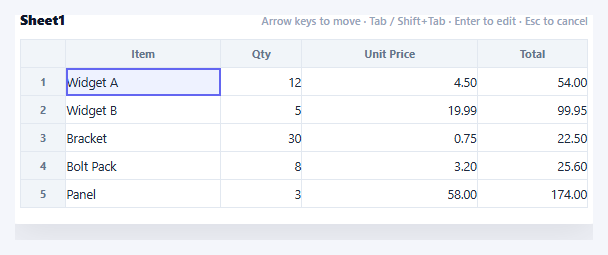
Data-entry-heavy tools live or die on keyboard efficiency — a user filling in dozens of cells shouldn't have to reach for the mouse between every one. This snippet rebuilds the core spreadsheet keyboard model in plain HTML, CSS, and vanilla JavaScript: a single "active cell" tracked in state, moved with arrow keys and Tab, entered with Enter, and committed or cancelled with Enter or Escape — the same muscle memory as Excel or Google Sheets.
One active cell, tracked in state, not in the DOM
The active position lives as a plain { row, col } object, not as a CSS :focus state on scattered inputs. setActive() clamps the requested row/col into the grid's bounds with Math.max/Math.min, removes the .active class from wherever it was, and applies it to the new cell — a single source of truth that every keyboard handler reads and writes, so moving with an arrow key is just changing two numbers and re-rendering the highlight.
Arrow keys move the active cell, not the page
The table's keydown listener (attached to a tabindex="0" table so it can receive focus and key events) intercepts ArrowUp/ArrowDown/ArrowLeft/ArrowRight with preventDefault() and calls setActive with the adjusted row or column — genuine navigation logic, not a static grid with a CSS :hover that merely looks interactive. Tab and Shift+Tab do the same along columns, wrapping the spreadsheet convention of "next field" onto a grid instead of a form.
Enter to edit, Escape to cancel, Tab to commit-and-move
Pressing Enter (or typing any printable character) on the active cell calls startEdit(), which swaps the cell's static <span> for a real <input> pre-filled with the current value, focused and selected. From there, Enter commits the new value back into the DATA array and moves the active cell down a row; Escape discards the edit and restores the original value; Tab commits and moves right (or left with Shift) — three distinct outcomes mapped to the three keys spreadsheets use for exactly this.
Typing to overwrite, the way spreadsheets behave
Beyond Enter, typing any single printable character while a cell is active immediately starts editing and clears the input's value before the keystroke lands — mirroring how clicking a spreadsheet cell and typing replaces its contents rather than requiring an explicit "clear first" step. This is handled in the default branch of the keydown switch, checking e.key.length === 1 to distinguish printable characters from control keys.
Bounds-checked movement
Every navigation call routes through the same clamp in setActive, so pressing an arrow key at the grid's edge simply has no effect rather than throwing, wrapping around unexpectedly, or selecting a cell outside the data array — a small detail that keeps the interaction predictable at every boundary.
Customizing it
Add column-based value formatting, wire real cell-range selection with Shift+Arrow, or add copy/paste with the clipboard API. Pair it with an editable table for a simpler single-row-at-a-time alternative, or a resizable columns table for adjustable widths.
Build with AI
Build, Understand, Optimize, and Extend It With AI
Rather than working through the state machine on your own, paste this snippet's HTML, CSS, and JS into an AI coding assistant like Claude and ask it to explain exactly how the single tracked { row, col } active-cell object, rather than relying on DOM :focus, lets arrow keys, Tab, and mouse clicks all converge on the same setActive function without duplicating navigation logic three times. The same assistant can help you extend it — ask it to add Shift+Arrow range selection, Ctrl+C/Ctrl+V clipboard support for pasting tab-separated data across multiple cells at once (the way pasting from a real spreadsheet works), or per-column input types and validation (numbers only, dropdowns) that still fit the same edit/commit/cancel flow. Treat the code less like a finished artifact and more like a starting point for a conversation.
Prompt to recreate it
Copy this into your AI assistant of choice to build the effect from scratch, or as a jumping-off point for your own variant:
Build a "spreadsheet keyboard navigation" data grid in plain HTML, CSS, and JavaScript with no library — a table where an active cell can be moved entirely via the keyboard the way Excel or Google Sheets works.

Requirements:
- Track the currently active cell as a single { row, col } object in JavaScript state (not derived from DOM :focus), with a setActive(row, col) function that clamps the requested position into the grid's actual bounds using Math.max/Math.min before applying it, removes the active highlight class from the previous cell, and adds it to the new one.
- Attach one keydown listener to the table container (given tabindex="0" so it can receive focus and keyboard events) that handles ArrowUp/ArrowDown/ArrowLeft/ArrowRight by calling preventDefault and moving the active cell one row or column in that direction via setActive, so the browser's own scroll-on-arrow-key behavior never fires instead.
- Handle Tab and Shift+Tab in that same keydown listener to move the active cell one column right or left respectively, calling preventDefault so the browser's default focus-traversal tabbing does not also happen.
- Implement Enter (and, separately, typing any single printable character) as triggering "start edit" on the active cell: replace its static content with a real text input pre-filled with the cell's current value, focused and with its text selected.
- While editing, handle Enter on the input to commit the typed value back into the underlying data array and then move the active cell down one row; handle Escape to discard the edit and restore the cell's previous value without writing anything back; handle Tab/Shift+Tab to commit the value and move the active cell right or left.
- Support mouse interaction too: a single click on any cell sets it as the active cell (without entering edit mode), and a double-click sets it active and immediately starts editing.
- Render the grid from a plain 2D array of row data plus a column-labels array, building the table's HTML in a loop rather than hand-writing every cell.
Want to tighten it up first? Run this prompt through the AI Prompt Studio to score it across 8 quality dimensions, catch anti-patterns, and tune the wording for Claude, ChatGPT, or Gemini before you paste it in.
Step by step
How to Use
- 1Paste HTML, CSS, and JSAn order-line grid renders with the first cell active (highlighted with an indigo outline).
- 2Press arrow keysThe active cell moves up, down, left, or right — clamped so it never leaves the grid.
- 3Press Tab / Shift+TabThe active cell moves right or left across the row, like tabbing between spreadsheet fields.
- 4Press Enter to editThe active cell becomes a real input, pre-filled and selected, ready to overwrite.
- 5Press Enter or Tab to commitEnter saves the value and moves down a row; Tab saves and moves across a column.
- 6Press Escape to cancelThe edit is discarded and the cell reverts to its previous value.
Real-world uses
Common Use Cases
Got questions?
Frequently Asked Questions
Track a second { row, col } anchor point set on the initial selection, and on Shift+Arrow extend the active cell without moving the anchor, then apply an active-range class to every cell between anchor and active (inclusive) in both dimensions instead of just one .active cell.
A single delegated listener on the tabindex="0" table catches every keypress regardless of which cell is logically active, avoiding the need to attach and remove listeners as the active cell changes. The handler reads the current active state and computes the new position, which is simpler and less error-prone than per-cell listeners.
In the commit(save) function inside startEdit, check input.value against your validation rule before writing it into DATA[active.row][active.col] — if invalid, keep editing is true and show an error state instead of calling commit, or revert to the previous value and flash an invalid style.
Add a keydown handler for Ctrl/Cmd+C that reads DATA[active.row][active.col] onto the clipboard via the Clipboard API, and Ctrl/Cmd+V that reads clipboard text, splits it on tabs and newlines for multi-cell paste, and writes the values into DATA starting at the active cell before re-rendering.
Keep DATA and the active { row, col } in component state (useState/useReducer, a reactive ref, or a component field). Bind the keydown handler to the grid container, compute the new active position the same way, and let the framework re-render the .active class and any editing input based on state — the navigation math is plain JavaScript and ports unchanged.