Source Code
<div class="rct-card">
  <table class="rct-table" id="rctTable">
    <thead>
      <tr>
        <th style="width:160px">Name<span class="rct-handle" data-col="0"></span></th>
        <th style="width:200px">Email<span class="rct-handle" data-col="1"></span></th>
        <th style="width:120px">Role<span class="rct-handle" data-col="2"></span></th>
        <th style="width:100px">Status</th>
      </tr>
    </thead>
    <tbody>
      <tr><td>Priya Nair</td><td>priya@acme.io</td><td>Engineer</td><td><span class="rct-badge active">Active</span></td></tr>
      <tr><td>Marcus Webb</td><td>marcus@acme.io</td><td>Designer</td><td><span class="rct-badge active">Active</span></td></tr>
      <tr><td>Yuki Tanaka</td><td>yuki@acme.io</td><td>Product Manager</td><td><span class="rct-badge away">Away</span></td></tr>
      <tr><td>Elena Cruz</td><td>elena@acme.io</td><td>Engineer</td><td><span class="rct-badge active">Active</span></td></tr>
    </tbody>
  </table>
  <p class="rct-hint">Drag the right edge of a column header to resize it.</p>
</div>*{box-sizing:border-box;margin:0;padding:0}
body{font-family:system-ui,-apple-system,sans-serif;background:#f1f5f9;min-height:100vh;display:flex;align-items:center;justify-content:center;padding:24px}
.rct-card{background:#fff;border-radius:16px;padding:18px;width:100%;max-width:640px;box-shadow:0 18px 44px rgba(15,23,42,.1);overflow-x:auto}
.rct-table{border-collapse:collapse;table-layout:fixed;font-size:13px;min-width:580px}
.rct-table th,.rct-table td{padding:10px 12px;text-align:left;white-space:nowrap;overflow:hidden;text-overflow:ellipsis}
.rct-table th{position:relative;background:#f8fafc;font-weight:700;color:#475569;border-bottom:1.5px solid #e2e8f0;user-select:none}
.rct-table td{border-bottom:1px solid #f1f5f9;color:#1e293b}
.rct-table tbody tr:hover{background:#fafbfc}
.rct-handle{position:absolute;top:0;right:-3px;width:7px;height:100%;cursor:col-resize;z-index:2}
.rct-handle::after{content:'';position:absolute;top:0;bottom:0;left:3px;width:1px;background:#e2e8f0;transition:background .15s}
.rct-handle:hover::after,.rct-handle.resizing::after{background:#6366f1;width:2px}
.rct-badge{display:inline-block;padding:2px 9px;border-radius:999px;font-size:10.5px;font-weight:700}
.rct-badge.active{background:#dcfce7;color:#15803d}
.rct-badge.away{background:#fef3c7;color:#a16207}
.rct-hint{margin-top:10px;font-size:11.5px;color:#94a3b8;font-weight:600}var table = document.getElementById('rctTable');
var MIN_WIDTH = 70;
table.querySelectorAll('.rct-handle').forEach(function (handle) {
handle.addEventListener('mousedown', function (e) {
e.preventDefault();
var th = handle.closest('th');
var startX = e.clientX;
var startWidth = th.offsetWidth;
handle.classList.add('resizing');
document.body.style.cursor = 'col-resize';
function onMove(e2) {
var newWidth = Math.max(MIN_WIDTH, startWidth + (e2.clientX - startX));
th.style.width = newWidth + 'px';
}
function onUp() {
handle.classList.remove('resizing');
document.body.style.cursor = '';
document.removeEventListener('mousemove', onMove);
document.removeEventListener('mouseup', onUp);
}
document.addEventListener('mousemove', onMove);
document.addEventListener('mouseup', onUp);
});
handle.addEventListener('dblclick', function () {
var th = handle.closest('th');
var colIndex = Array.prototype.indexOf.call(th.parentElement.children, th);
var maxContent = 0;
table.querySelectorAll('tr').forEach(function (row) {
var cell = row.children[colIndex];
if (cell) maxContent = Math.max(maxContent, cell.scrollWidth + 24);
});
th.style.width = Math.max(MIN_WIDTH, maxContent) + 'px';
});
});Learn Coding Visually
Learn to code with interactive, live-preview playgrounds — HTML, CSS, JavaScript, React & more.
 HTML Playground42 lessons · Click-based · Live preview
 CSS PlaygroundLearn CSS with a live editor
 JavaScript Playground60 lessons · DOM · Async · Canvas
 React PlaygroundLearn React with a live code editor
 GSAP PlaygroundLearn GSAP animation interactively
 SVG Playground44 lessons · shapes · paths · animation
 SCSS Playground45 lessons · Sass modules · tokens
 Tailwind PlaygroundLearn Tailwind CSS with a live editor
 Bootstrap 5 Playground50 lessons · live preview
Resizable Columns Table — Drag-to-Resize HTML CSS JS
Resizable Columns Table · Tables · Plain HTML, CSS & JS · Live preview
What's included
Features
About this UI Snippet
Resizable Columns Table — Drag Handles, Min-Width Clamp & Double-Click Auto-Fit
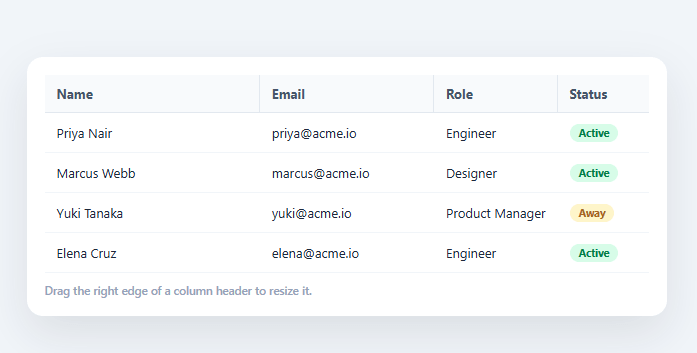
Spreadsheets and admin data grids earn user trust partly through small mechanical details, and column resizing is one of the most expected: if a column is too narrow to read, a user should be able to widen it themselves rather than wait for a developer to adjust a CSS value. This snippet builds that resize interaction in plain HTML, CSS, and vanilla JavaScript, using table-layout: fixed and per-column pixel widths rather than the browser's unpredictable default auto-layout.
Fixed layout makes widths controllable
By default, HTML tables use table-layout: auto, where column widths are computed from cell content and can shift unpredictably as the browser balances every column at once. Setting table-layout: fixed and giving each <th> an explicit width makes every column's size deterministic and directly settable — a prerequisite for a resize handle to mean anything, since otherwise the browser could silently override whatever width JavaScript just set.
A handle per column, not a global resize mode
Each resizable <th> contains a thin absolutely positioned <span class="rct-handle"> pinned to its right edge with cursor: col-resize. On mousedown, the handler captures the starting mouse X and the column's current offsetWidth, then attaches temporary mousemove/mouseup listeners on document (not the handle itself) — this is essential, because once the mouse moves fast during a drag it will leave the thin handle element entirely, and a listener scoped only to the handle would stop firing mid-drag.
A real minimum width, not just a visual suggestion
Every resize computation runs through Math.max(MIN_WIDTH, …), so a column can never be dragged narrower than 70px regardless of how far left the mouse moves — protecting against a column collapsing to zero width and becoming permanently impossible to grab again (a real failure state in resize implementations that skip this clamp).
Double-click to auto-fit, the spreadsheet convention
Double-clicking a resize handle measures every cell in that column's scrollWidth (the content's actual rendered width, ignoring the current clipped width), takes the largest, adds a small padding allowance, and sets the column to that size — auto-fitting the column to its widest content in one click, exactly like Excel and Google Sheets' double-click-the-column-border behavior.
Why mousemove lives on document, not the handle
A drag gesture routinely moves faster than the cursor stays over a 7px-wide handle, especially on a quick flick. Binding the move/up listeners to document instead of the handle itself means the resize keeps tracking correctly even once the pointer has drifted well off the original element — a detail that's easy to skip in a first draft and only surfaces as a bug report once someone drags quickly instead of slowly.
Build with AI
Build, Understand, Optimize, and Extend It With AI
You do not have to work through the drag mechanics by hand. Paste this snippet's HTML, CSS, and JS into an AI coding assistant like Claude and ask it to explain exactly why the mousemove and mouseup listeners are attached to document rather than to the thin resize handle element itself, and why table-layout fixed combined with an explicit width on each header is a prerequisite for any of this to work reliably. The same assistant can help you optimize it — ask whether attaching and removing a fresh pair of document listeners on every single drag versus one persistent delegated listener makes a measurable difference for a table with many resizable columns. It's also useful for extending the table: ask it to persist resized widths to localStorage so they survive a page reload, add touch event support alongside the existing mouse events, or support resizing multiple selected columns together proportionally. Treat the code less like a finished artifact and more like a starting point for a conversation.
Prompt to recreate it
Copy this into your AI assistant of choice to build the effect from scratch, or as a jumping-off point for your own variant:
Build a data table with drag-to-resize columns in plain HTML, CSS, and JavaScript with no grid or datatable library.

Requirements:
- Set table-layout to fixed on the table element and give every header cell an explicit pixel width attribute, since the browser's default auto table layout would otherwise silently recompute column widths and fight any width a script sets.
- Add a thin absolutely positioned resize handle pinned to the right edge of each resizable header cell, with a col-resize cursor.
- On mousedown on a handle, capture the starting mouse X position and the column's current rendered width, then attach the mousemove and mouseup listeners to the document object (not to the handle element itself), since a fast drag will move the cursor off the thin handle almost immediately.
- On every mousemove during a drag, compute the new column width as the starting width plus the horizontal mouse movement, and clamp it with a hard floor (e.g. never below 70px) so a column can never be dragged down to zero width and become permanently impossible to grab again.
- On mouseup, remove both temporary document listeners so no dangling handlers remain after the drag ends, and reset any cursor override applied during the drag.
- Implement double-click on a resize handle to auto-fit that column: measure the scrollWidth (the actual unclipped content width) of every cell in that column, take the largest, add a small padding allowance, and set the column to that width — the same behavior as double-clicking a column border in a spreadsheet.
Want to tighten it up first? Run this prompt through the AI Prompt Studio to score it across 8 quality dimensions, catch anti-patterns, and tune the wording for Claude, ChatGPT, or Gemini before you paste it in.
Step by step
How to Use
- 1Paste HTML, CSS, and JSA four-column user table renders with fixed-width columns and a hint about dragging column edges.
- 2Drag a column's right edgeHover the thin handle on a header's right border (cursor becomes col-resize) and drag — the column resizes live as you move the mouse.
- 3Try dragging very narrowThe column stops shrinking at a minimum width (70px) instead of collapsing to zero and becoming impossible to grab again.
- 4Double-click a resize handleThe column auto-fits to its widest cell content in that column, the same convention as Excel and Google Sheets.
- 5Resize multiple columnsEach column has its own independent handle and width — resizing one doesn't affect the others.
- 6Add or remove columnsAdd a <span class="rct-handle" data-col="N"> to a new <th> (or omit it for a non-resizable last column) — the mousedown/dblclick wiring applies to every handle present.
Real-world uses
Common Use Cases
Got questions?
Frequently Asked Questions
On mouseup (in the onUp function), read each th's current style.width and save it to localStorage keyed by column index or id; on page load, read those saved values back and apply them to the matching th elements before the table is interacted with.
Add touchstart/touchmove/touchend listeners alongside the existing mouse listeners, using e.touches[0].clientX in place of e.clientX — the same startWidth/Math.max clamping logic applies unchanged to touch-driven resizing.
The header cells already have user-select: none, but for extra safety during a drag you can also set document.body.style.userSelect = 'none' in the mousedown handler and restore it ('') in onUp, preventing accidental text selection if the drag crosses over table body text.
Simply omit the <span class="rct-handle"> from that column's <th> — the resize logic only attaches to handles that exist in the DOM, so a header without one is automatically not resizable.
In React, store each column's width in useState (or a ref for performance during drag) and update it in the mousemove handler inside a useEffect that attaches/detaches document listeners; in Vue, use ref() with onMounted/onUnmounted; in Angular, use a component field with HostListener or manual addEventListener in ngAfterViewInit/ngOnDestroy. The drag math itself is framework-agnostic.