Learn Coding Visually
Learn to code with interactive, live-preview playgrounds — HTML, CSS, JavaScript, React & more.
 HTML Playground42 lessons · Click-based · Live preview
 CSS PlaygroundLearn CSS with a live editor
 JavaScript Playground60 lessons · DOM · Async · Canvas
 React PlaygroundLearn React with a live code editor
 GSAP PlaygroundLearn GSAP animation interactively
 SVG Playground44 lessons · shapes · paths · animation
 SCSS Playground45 lessons · Sass modules · tokens
 Tailwind PlaygroundLearn Tailwind CSS with a live editor
 Bootstrap 5 Playground50 lessons · live preview
Back to Top Button — Free HTML CSS JS Scroll-to-Top Snippet
Back to Top Button · Scroll · Plain HTML, CSS & JS · Live preview
What's included
Features
About this UI Snippet
Back to Top Button — HTML, CSS & JavaScript Scroll-to-Top Snippet
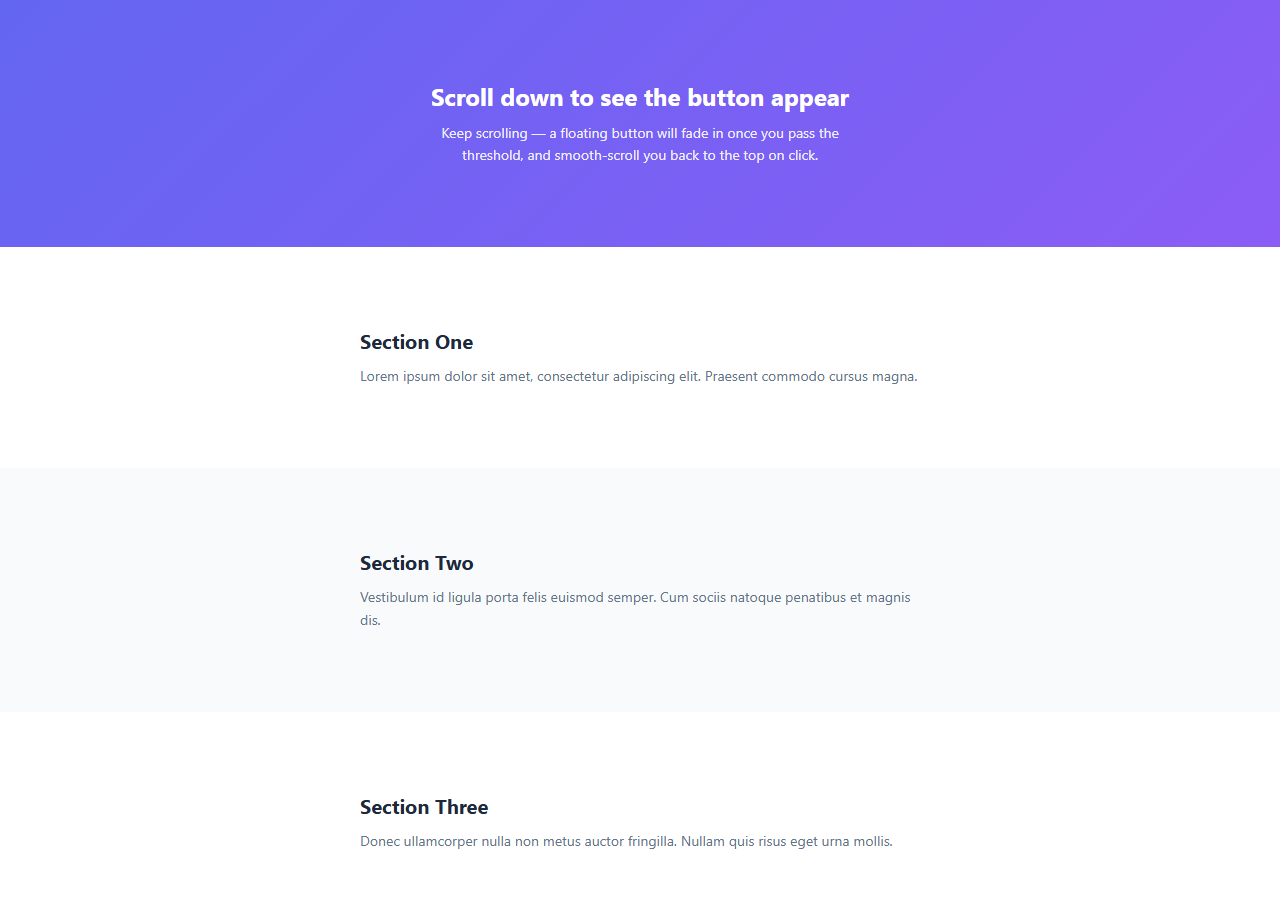
On long pages — articles, product listings, changelogs — users who scroll far down need a fast way back to the header without repeatedly flicking their mouse wheel or dragging a thumb across a phone screen. A back-to-top button solves this with a single fixed-position control that appears once it's actually useful and disappears when it isn't.
This snippet implements the full pattern in plain HTML, CSS, and vanilla JavaScript: a circular button fixed to the bottom-right corner, hidden by default, that fades and slides into view once the page has been scrolled past a threshold, and smooth-scrolls back to the top when clicked.
How the show/hide threshold works
A single scroll event listener on window checks window.scrollY against a SHOW_AFTER constant (400px by default). Past that point, the .visible class is added to the button; below it, the class is removed. The class itself does the animating — opacity, visibility, and a small transform: translateY all transition over 0.25s, so the button fades and slides up into place rather than snapping in abruptly. visibility: hidden is paired with opacity: 0 specifically so the invisible button can't be tabbed to or accidentally clicked while hidden.
How the smooth scroll works
The click handler is a single line: window.scrollTo({ top: 0, behavior: 'smooth' }). This uses the native Scroll Behavior API rather than a manual requestAnimationFrame loop or an interval that decrements scrollTop — the browser handles the easing curve itself, and it respects the user's OS-level "reduce motion" accessibility setting automatically in supporting browsers.
Why the threshold matters
Showing the button immediately at the top of the page is pointless — there's nowhere to scroll to. A 400px threshold roughly corresponds to "past the hero section" on most page layouts, so the button only appears once a user has actually scrolled far enough that jumping back up saves real effort. Tune SHOW_AFTER per page: a value close to one viewport height works well for most designs.
Performance note
The scroll listener here does very little work per tick — one comparison and a class toggle — so it doesn't need throttling for typical use. On extremely scroll-heavy pages with many other listeners, you can wrap the check in a requestAnimationFrame guard to avoid running it more than once per frame.
Build with AI
Build, Understand, Optimize, and Extend It With AI
Hand this snippet's HTML, CSS, and JS to an AI coding assistant like Claude and ask it to explain precisely why pairing opacity: 0 with visibility: hidden (rather than using either alone) matters for keyboard accessibility, and why the transition applies to both properties even though visibility itself can't be smoothly interpolated. It's also a great snippet to extend with the assistant's help — ask it to add a circular SVG progress ring that fills in proportionally to how far down the page the user has scrolled, to throttle the scroll listener with requestAnimationFrame for very scroll-heavy pages, or to convert the threshold check into an IntersectionObserver watching a sentinel element instead of reading window.scrollY directly, which is often the more modern and performant approach.
Prompt to recreate it
Copy this into your AI assistant of choice to build the effect from scratch, or as a jumping-off point for your own variant:
Build a floating "back to top" button in plain HTML, CSS, and JavaScript — no framework, no scroll animation library.

Requirements:
- A circular button fixed to the bottom-right corner of the viewport, hidden by default via a combination of opacity: 0 and visibility: hidden so it is not focusable or clickable while hidden.
- A single scroll event listener on window that compares window.scrollY against a named, easily configurable threshold constant, and toggles a single "visible" class on the button based on that comparison — do not create or destroy the button element itself.
- The visible class must trigger a CSS transition on opacity, visibility, and a small transform: translateY so the button fades and slides up into place rather than appearing abruptly.
- Clicking the button must call the native window.scrollTo API with behavior: "smooth" to scroll back to the top — do not implement a manual requestAnimationFrame easing loop.
- Include a visible focus-visible outline on the button for keyboard users, and make sure the button is a real <button> element with an aria-label so it is announced correctly by screen readers.
- The threshold value must live in one clearly named constant near the top of the script so it can be tuned without touching the rest of the logic.
Want to tighten it up first? Run this prompt through the AI Prompt Studio to score it across 8 quality dimensions, catch anti-patterns, and tune the wording for Claude, ChatGPT, or Gemini before you paste it in.
Step by step
How to Use
- 1Load the snippetClick "Back to Top Button" in the sidebar Library tab. The preview loads with a tall scrollable page and a hidden button.
- 2Scroll down in the previewScroll past the hero section — the circular arrow button fades and slides in from the bottom-right corner.
- 3Click the buttonClick it to trigger a native smooth scroll back to the top of the page, then watch the button fade back out.
- 4Adjust the thresholdIn the JS panel, change the SHOW_AFTER constant to control how far a user must scroll before the button appears.
- 5Restyle the buttonIn the CSS panel, update .back-to-top background, size, and position to match your site — bottom-left placement just needs left instead of right.
- 6Export in your formatClick "HTML" for a standalone file, "JSX" for React, or "Tailwind" for React + Tailwind CSS.
Real-world uses
Common Use Cases
Got questions?
Frequently Asked Questions
A scroll event listener on window checks window.scrollY against a SHOW_AFTER constant (400px by default). Once the user has scrolled past that point, a .visible class is added, which fades and slides the button into view via CSS transition.
Edit the SHOW_AFTER constant near the top of the JS panel. A larger number delays the button appearing until further down the page; a smaller number shows it sooner.
window.scrollTo with behavior: "smooth" is supported in all current major browsers. For very old browsers without support, the scroll simply happens instantly instead of animated — it still functions correctly, just without the easing.
Yes. In the CSS panel, replace right: 28px with left: 28px on .back-to-top. Everything else — the fade animation, the threshold logic — is unaffected by its horizontal position.
Only if they occupy the same corner. Move the button to a different corner, or add extra bottom/right spacing to stack it above another fixed element without overlapping.
Yes. It stays out of the tab order while hidden thanks to visibility: hidden, and once visible it is a normal focusable button with a visible focus-visible outline, so it works with keyboard-only and screen reader navigation.
Yes. Add an SVG circle stroke behind the arrow icon and update its stroke-dashoffset in the scroll listener proportionally to window.scrollY divided by the page's total scrollable height, turning the button into a scroll-progress indicator.
opacity: 0 alone still leaves the element clickable and focusable even though it is invisible. Pairing it with visibility: hidden removes it from the tab order and from hit-testing while hidden, then visibility: visible restores both once the .visible class is applied.