Source Code
<div class="wrap">
  <div class="card">
    <div class="head">
      <div>
        <div class="head-title">Tasks</div>
        <div class="head-sub" id="summary">3 of 7 completed</div>
      </div>
      <div class="add-row">
        <input class="add-input" id="new-task" type="text" placeholder="Add a task…" onkeydown="addOnEnter(event)">
        <button class="add-btn" onclick="addTask()">+</button>
      </div>
    </div>

    <div class="progress-bar"><div class="progress-fill" id="prog"></div></div>

    <div class="filter-row">
      <button class="filter active" onclick="setFilter(this,'all')">All</button>
      <button class="filter" onclick="setFilter(this,'active')">Active</button>
      <button class="filter" onclick="setFilter(this,'done')">Done</button>
    </div>

    <ul class="list" id="task-list"></ul>

    <div class="foot">
      <span id="remaining">4 remaining</span>
      <button class="clear-btn" onclick="clearDone()">Clear done</button>
    </div>
  </div>
</div>
* { box-sizing: border-box; margin: 0; padding: 0; }
body { font-family: system-ui, sans-serif; background: #f8fafc; min-height: 100vh; display: flex; align-items: center; justify-content: center; padding: 24px; }
.wrap { width: 100%; max-width: 400px; }
.card { background: #fff; border-radius: 16px; padding: 20px; box-shadow: 0 1px 8px rgba(0,0,0,0.07); border: 1px solid #e2e8f0; }
.head { display: flex; justify-content: space-between; align-items: flex-start; margin-bottom: 14px; gap: 12px; flex-wrap: wrap; }
.head-title { font-size: 16px; font-weight: 800; color: #0f172a; }
.head-sub { font-size: 12px; color: #64748b; margin-top: 2px; }
.add-row { display: flex; gap: 6px; }
.add-input { flex: 1; min-width: 0; border: 1.5px solid #e2e8f0; border-radius: 8px; padding: 7px 11px; font-size: 13px; color: #0f172a; outline: none; transition: border-color 0.15s; }
.add-input:focus { border-color: #6366f1; }
.add-input::placeholder { color: #94a3b8; }
.add-btn { width: 32px; height: 32px; border-radius: 8px; background: #6366f1; color: #fff; font-size: 20px; border: none; cursor: pointer; line-height: 1; display: flex; align-items: center; justify-content: center; transition: background 0.15s; flex-shrink: 0; }
.add-btn:hover { background: #4f46e5; }
.progress-bar { height: 4px; background: #e2e8f0; border-radius: 2px; margin-bottom: 14px; overflow: hidden; }
.progress-fill { height: 100%; background: linear-gradient(90deg, #6366f1, #10b981); border-radius: 2px; transition: width 0.4s ease; }
.filter-row { display: flex; gap: 4px; margin-bottom: 12px; }
.filter { background: transparent; border: none; font-size: 12px; font-weight: 600; color: #94a3b8; padding: 4px 10px; border-radius: 6px; cursor: pointer; transition: all 0.12s; }
.filter.active { background: rgba(99,102,241,0.1); color: #6366f1; }
.list { list-style: none; display: flex; flex-direction: column; gap: 2px; min-height: 40px; }
.task-item { display: flex; align-items: center; gap: 10px; padding: 9px 6px; border-radius: 8px; transition: background 0.12s; }
.task-item:hover { background: #f8fafc; }
.task-item.hidden { display: none; }
.task-cb { width: 18px; height: 18px; border-radius: 5px; border: 1.5px solid #cbd5e1; background: transparent; cursor: pointer; appearance: none; flex-shrink: 0; transition: all 0.15s; display: flex; align-items: center; justify-content: center; }
.task-cb:checked { background: #6366f1; border-color: #6366f1; }
.task-cb:checked::after { content: '✓'; font-size: 10px; color: #fff; font-weight: 700; }
.task-text { flex: 1; font-size: 13px; color: #1e293b; transition: color 0.15s; }
.task-item.done .task-text { text-decoration: line-through; color: #94a3b8; }
.del-btn { width: 22px; height: 22px; border-radius: 6px; border: none; background: transparent; color: #cbd5e1; cursor: pointer; font-size: 14px; line-height: 1; display: flex; align-items: center; justify-content: center; opacity: 0; transition: opacity 0.12s, background 0.12s, color 0.12s; }
.task-item:hover .del-btn { opacity: 1; }
.del-btn:hover { background: #fee2e2; color: #dc2626; }
.foot { display: flex; justify-content: space-between; align-items: center; padding-top: 12px; margin-top: 8px; border-top: 1px solid #f1f5f9; }
.foot span { font-size: 12px; color: #94a3b8; }
.clear-btn { font-size: 12px; font-weight: 600; color: #94a3b8; background: transparent; border: none; cursor: pointer; transition: color 0.12s; }
.clear-btn:hover { color: #dc2626; }let tasks = [
{ id: 1, text: 'Design new onboarding flow', done: true },
{ id: 2, text: 'Review pull request #142', done: true },
{ id: 3, text: 'Update API documentation', done: true },
{ id: 4, text: 'Fix mobile navigation bug', done: false },
{ id: 5, text: 'Write unit tests for auth module', done: false },
{ id: 6, text: 'Deploy staging environment', done: false },
{ id: 7, text: 'Team standup at 10am', done: false },
];
let nextId = 8;
let currentFilter = 'all';
function render() {
const list = document.getElementById('task-list');
list.innerHTML = '';
const done = tasks.filter(t => t.done).length;
const total = tasks.length;
document.getElementById('prog').style.width = (total ? (done/total*100) : 0) + '%';
document.getElementById('summary').textContent = done + ' of ' + total + ' completed';
document.getElementById('remaining').textContent = (total - done) + ' remaining';
tasks.forEach(task => {
const li = document.createElement('li');
li.className = 'task-item' + (task.done ? ' done' : '') + (currentFilter !== 'all' && ((currentFilter === 'done') !== task.done) ? ' hidden' : '');
li.innerHTML = '<input type="checkbox" class="task-cb"' + (task.done?' checked':'') + ' onchange="toggle('+task.id+')">'
+ '<span class="task-text">' + task.text + '</span>'
+ '<button class="del-btn" onclick="remove('+task.id+')">×</button>';
list.appendChild(li);
});
}
function toggle(id) {
const t = tasks.find(t => t.id === id);
if (t) t.done = !t.done;
render();
}
function remove(id) { tasks = tasks.filter(t => t.id !== id); render(); }
function addTask() {
const inp = document.getElementById('new-task');
const text = inp.value.trim();
if (!text) return;
tasks.push({ id: nextId++, text, done: false });
inp.value = '';
render();
}
function addOnEnter(e) { if (e.key === 'Enter') addTask(); }
function clearDone() { tasks = tasks.filter(t => !t.done); render(); }
function setFilter(btn, f) {
document.querySelectorAll('.filter').forEach(b => b.classList.remove('active'));
btn.classList.add('active');
currentFilter = f;
render();
}
render();Learn Coding Visually
Learn to code with interactive, live-preview playgrounds — HTML, CSS, JavaScript, React & more.
 HTML Playground42 lessons · Click-based · Live preview
 CSS PlaygroundLearn CSS with a live editor
 JavaScript Playground60 lessons · DOM · Async · Canvas
 React PlaygroundLearn React with a live code editor
 GSAP PlaygroundLearn GSAP animation interactively
 SVG Playground44 lessons · shapes · paths · animation
 SCSS Playground45 lessons · Sass modules · tokens
 Tailwind PlaygroundLearn Tailwind CSS with a live editor
 Bootstrap 5 Playground50 lessons · live preview
Todo Widget — Free HTML CSS JS Task List Snippet
Todo Widget · Dashboards · Plain HTML, CSS & JS · Live preview
What's included
Features
About this UI Snippet
Todo Widget — Task List with Progress Bar, Filter Tabs, Add Task & Clear Done
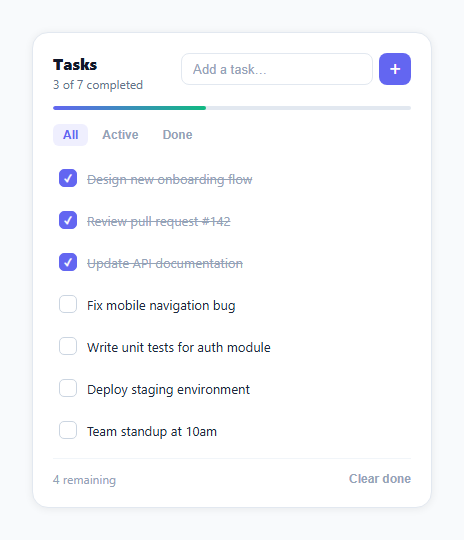
A todo widget is one of the most practical dashboard components you can build — it gives users a lightweight task management view without navigating to a separate app. This snippet provides a complete task list widget: an add-task input, checkbox toggles, a hover-reveal delete button, a gradient progress bar, All/Active/Done filter tabs, a remaining count footer, and a clear-done button — all in plain HTML, CSS, and vanilla JavaScript with no library.
How tasks are stored and rendered
Tasks are stored as an array of objects: { id, text, done }. The render() function completely re-renders the list on every change. While not the most efficient approach for very large lists, it is the simplest and most readable pattern for a small dashboard widget — no virtual DOM, no diffing, just innerHTML.
The progress bar
A gradient progress bar (indigo → green via linear-gradient) shows completion as a percentage: done/total * 100%. The bar fill uses transition: width 0.4s ease for smooth animation on each task toggle. The summary text below the heading updates simultaneously.
The checkbox appearance
The native checkbox is hidden (appearance: none) and replaced with a custom 18px square using the ::after pseudo-element. The unchecked state shows a grey border. When checked, background: #6366f1 fills the box and the ::after shows a white ✓ checkmark. The CSS-only custom checkbox avoids any SVG or image requirement.
Filter tabs and hover delete
The All/Active/Done tabs add a .hidden class to non-matching items using the currentFilter state. The delete button uses opacity: 0 by default and opacity: 1 on .task-item:hover — a hover-reveal pattern that keeps the list clean until the user wants to delete.
Adding tasks
The add-task input fires addTask() on the + button click and on Enter key (addOnEnter). The task is pushed to the array and render() is called. The input clears on add. Empty inputs are ignored.
Persistence
By default, tasks reset on page reload. To persist: JSON.stringify the tasks array into localStorage on every render(), and JSON.parse it on load. Add const saved = localStorage.getItem("tasks"); if (saved) tasks = JSON.parse(saved); at the top of the script. Keep nextId as Math.max(...tasks.map(t => t.id)) + 1 after parsing so new tasks get unique IDs even after a page reload.
Build with AI
Build, Understand, Optimize, and Extend It With AI
Ask an AI coding assistant like Claude to explain why render() fully clears and rebuilds the task list's innerHTML on every single change — toggling one checkbox, deleting one item — instead of patching just the affected row, and what tradeoff that full-rebuild simplicity makes as the list grows to hundreds of tasks. It's also worth asking specifically how nextId should be recomputed after loading persisted tasks from localStorage, since the current code assumes a fresh in-memory counter. For extending it, ask for drag-to-reorder tasks, due dates with an overdue visual state, or nested subtasks that roll up into the parent's completion percentage. Treat the code less like a finished artifact and more like a starting point for a conversation.
Prompt to recreate it
Copy this into your AI assistant of choice to build the effect from scratch, or as a jumping-off point for your own variant:
Build a todo list widget in plain HTML, CSS, and JavaScript with add, complete, delete, filtering, and a progress bar — state stored as a plain array of objects, no framework.

Requirements:
- Store tasks as an array of objects, each with a unique numeric id, text, and a done boolean; every user action (add, toggle, delete, clear-done) must mutate this array and then call a single render function that fully redraws the task list from it.
- An add-task input that creates a new task on both pressing Enter and clicking a separate add button, trims whitespace, ignores empty submissions, and clears itself after a successful add.
- Each rendered task row must include a custom checkbox built by hiding the native checkbox's default appearance and drawing a checked state with a pseudo-element checkmark, a text label that gets a line-through style when the task is done, and a delete button that is invisible until the row is hovered.
- Compute and display, on every render, a gradient progress bar whose width reflects the completed-to-total task ratio, a summary line like "3 of 7 completed", and a "remaining" count.
- Implement All/Active/Done filter tabs that hide non-matching rows by toggling a class rather than removing them from the underlying array, so filtering never mutates the actual task data.
- A "clear done" action that removes every completed task from the array in one operation, and confirm that toggling, deleting, and filtering all continue to work correctly against whatever tasks remain.
Want to tighten it up first? Run this prompt through the AI Prompt Studio to score it across 8 quality dimensions, catch anti-patterns, and tune the wording for Claude, ChatGPT, or Gemini before you paste it in.
Step by step
How to Use
- 1Add a taskType in the input field and press Enter or click the + button. The task appears at the bottom of the list and the remaining count and progress bar update immediately.
- 2Complete a taskClick the checkbox on any task item. The text gets a line-through style, the item moves to the "done" state, and the progress bar advances toward 100%.
- 3Delete a taskHover over any task row to reveal the × delete button on the right. Click it to remove the task permanently from the list.
- 4Filter the listClick All to show every task, Active to show only incomplete tasks, or Done to show only completed tasks. The filter is applied instantly without re-fetching.
- 5Clear completed tasksClick "Clear done" in the footer to remove all completed tasks at once. Useful for keeping the list clean after a daily review.
- 6Persist tasks across page loadsAt the end of render(), add localStorage.setItem("tasks", JSON.stringify(tasks)). At the top of the script before render(), add: const saved = localStorage.getItem("tasks"); if (saved) tasks = JSON.parse(saved);
Real-world uses
Common Use Cases
Got questions?
Frequently Asked Questions
Add two changes. At the top of the script, after defining tasks: const saved = localStorage.getItem("ui_tasks"); if (saved) { try { tasks = JSON.parse(saved); nextId = Math.max(...tasks.map(t => t.id)) + 1; } catch(e) {} }. At the end of the render() function, add: localStorage.setItem("ui_tasks", JSON.stringify(tasks)). This saves on every render and restores on page load. The nextId calculation ensures new tasks get unique IDs even after a reload.
The checkbox has appearance: none which removes all native browser styling. A custom 18px square is drawn using border and border-radius. The :checked state adds background: #6366f1. The ::after pseudo-element shows the checkmark using content: "✓" with white colour and bold weight. Both ::after styles are always present in CSS — the content only becomes visible when the checkbox state changes to :checked.
On mount: fetch("/api/tasks").then(r => r.json()).then(data => { tasks = data; render(); }). In toggle(): fetch("/api/tasks/"+id, { method: "PATCH", body: JSON.stringify({done: task.done}) }). In remove(): fetch("/api/tasks/"+id, { method: "DELETE" }). In addTask(): const res = await fetch("/api/tasks", { method: "POST", body: JSON.stringify({text}) }); const saved = await res.json(); tasks.push(saved). The local render() calls remain unchanged.
Click "JSX" to download. Manage tasks as useState<Task[]>(initialTasks). Each operation becomes a state update: toggle = setTasks(prev => prev.map(t => t.id === id ? {...t, done: !t.done} : t)). remove = setTasks(prev => prev.filter(t => t.id !== id)). addTask = setTasks(prev => [...prev, {id: Date.now(), text, done: false}]). Derive progressPct, remaining, and filteredTasks with useMemo. For persistence, use useEffect to write localStorage on tasks change.