


Learn Coding Visually
Learn to code with interactive, live-preview playgrounds — HTML, CSS, JavaScript, React & more.
 HTML Playground42 lessons · Click-based · Live preview
 CSS PlaygroundLearn CSS with a live editor
 JavaScript Playground60 lessons · DOM · Async · Canvas
 React PlaygroundLearn React with a live code editor
 GSAP PlaygroundLearn GSAP animation interactively
 SVG Playground44 lessons · shapes · paths · animation
 SCSS Playground45 lessons · Sass modules · tokens
 Tailwind PlaygroundLearn Tailwind CSS with a live editor
 Bootstrap 5 Playground50 lessons · live preview
Textarea Character Counter — Live Count Snippet
Textarea Character Counter · Forms · Plain HTML, CSS & JS · Live preview
What's included
Features
About this UI Snippet
Textarea Character Counter — Live Count, maxlength Limit & Warning States
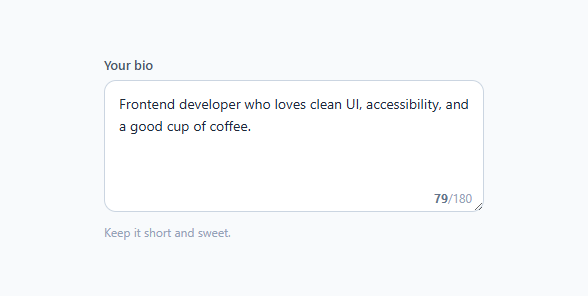
A textarea character counter is one of the most-searched form snippets because any field with a length limit — a bio, a tweet, an SMS, a review, a meta description — needs to show users how much room they have left. It pairs with the auto-resize textarea and the fuller rich text editor. This snippet is a complete, accessible counter: a styled textarea with a live count inside it, a real maxlength limit, and color states that turn amber as you near the limit and red when you reach it. It is a few lines of vanilla JavaScript and works with the native input behaviour rather than fighting it.
Using the native maxlength as the source of truth
The limit is set with the standard maxlength="180" attribute on the textarea. This does the actual enforcement for free — the browser simply will not let the user type past 180 characters, including via paste. The JavaScript reads that same attribute (ta.getAttribute('maxlength')) so there is a single source of truth for the limit; change the attribute and both the enforcement and the displayed maximum update together. This is the right way to build a counter: let the native field enforce the cap, and use script only to *display* progress, never to manually trim the value.
The live count
A single input event listener calls updateCount() on every keystroke, paste, or deletion. It reads ta.value.length and writes it into the .used element, so the "47/180" readout is always current. The input event (not keyup) is the correct one to listen for because it fires for every value change including paste, cut, autofill, and IME composition — keyup would miss several of those. The counter is positioned absolutely in the bottom-right corner of the textarea, with the textarea given extra bottom padding so the text never runs underneath the count.
The warning and limit color states
Numbers alone are easy to ignore, so the counter changes color as you approach the cap. updateCount() toggles two classes on the wrapper: .warn when the length reaches 90% of the limit (the count turns amber, a gentle "you are running low" cue), and .limit when the length hits the maximum (the count turns red and the textarea border tints red). These thresholds — warn at 90%, flag at 100% — are computed from the maxlength value (max * 0.9), so they scale automatically to whatever limit you set. The color transition is smooth, so the state change is noticeable without being abrupt.
Why tabular-nums matters
The count uses font-variant-numeric: tabular-nums, which makes every digit the same width. Without it, as the number grows from "9" to "10" to "100", the counter would visibly shift left and right because proportional digits have different widths — a small but distracting jitter. Tabular figures keep the readout rock-steady as the number changes, a polished detail that proportional-by-default fonts get wrong.
Keeping it accessible
The textarea has an associated <label> via for/id, and a focus ring so keyboard users can see the active field. The counter itself is decorative-but-informative; because the native maxlength enforces the limit, screen-reader users are not blocked. For better screen-reader support you can add aria-describedby on the textarea pointing at the count element and make the count an aria-live="polite" region so the remaining characters are announced as they change (debounced so it is not chatty). The snippet keeps the markup simple and ready for those additions. The count has pointer-events: none so it never intercepts clicks meant for the textarea.
Customizing the counter
Change the limit by editing the maxlength attribute and the displayed .max value (or read the max into that span from script to keep them in sync). Adjust the warning threshold by changing max * 0.9 — use max - 20 if you prefer "20 characters left" semantics, and you can even switch the readout to show *remaining* characters (max - len) instead of used. Re-theme the amber and red states to your palette. Move the counter outside the textarea (below it) if you prefer it not to overlap the text — just remove the absolute positioning and the extra bottom padding. The same pattern works for single-line <input> fields too.
A note on counting characters vs code units
value.length counts UTF-16 code units, which matches what maxlength enforces, so the displayed count and the enforced limit always agree. Be aware that some emoji and certain characters are two code units, so they count as two — which is consistent with the browser's own limit, but worth knowing if your limit represents "user-perceived characters." For platforms with their own counting rules (like a 280-character tweet that counts URLs specially), you would replace value.length with that platform's counting function while keeping the rest of the component identical.
Build with AI
Build, Understand, Optimize, and Extend It With AI
Ask an AI coding assistant like Claude to explain why the script reads maxlength off the DOM attribute with getAttribute rather than hardcoding 180 somewhere in the JavaScript, and why the warn and limit thresholds are computed as a percentage of that same value instead of two separate constants. It's worth a quick optimization pass too — confirm that listening on the single input event (rather than keyup, keydown, and paste separately) really does cover every way the value can change, including IME composition and autofill. For extending it, ask for a version that counts down remaining characters instead of used ones, one that announces the count to screen readers via an aria-live region without being chatty on every keystroke, or one that swaps value.length for a platform-specific counting rule like a URL-aware tweet counter. Treat the code less like a finished artifact and more like a starting point for a conversation.
Prompt to recreate it
Copy this into your AI assistant of choice to build the effect from scratch, or as a jumping-off point for your own variant:
Build a textarea character counter in plain HTML, CSS, and JavaScript that enforces a real limit and shows escalating visual warnings as the user approaches it.

Requirements:
- Use the native maxlength attribute on the textarea as the single source of truth for the limit — do not duplicate the number anywhere else in the JavaScript; read it back with getAttribute so the enforcement and the displayed maximum always agree.
- Attach exactly one input event listener (not keyup or keydown) that reads the textarea's current value length on every keystroke, paste, cut, and autofill, and writes that count into a counter element positioned inside the textarea's bottom-right corner.
- Reserve extra bottom padding on the textarea so typed text never visually runs underneath the absolutely-positioned counter, and give the counter pointer-events: none so it never intercepts clicks meant for the textarea.
- Toggle two CSS states computed purely from the maxlength value: a "warn" state at 90% of the limit that recolors the count amber, and a "limit" state at 100% that recolors it red and tints the textarea's border — both thresholds must be derived from the maxlength attribute, not hardcoded numbers, so they automatically scale if the limit changes.
- Apply font-variant-numeric: tabular-nums to the counter so the digits do not visibly shift width as the number grows from single to double to triple digits.
- Associate the textarea with a real label element via for/id so the field remains accessible even though the live counter itself is purely visual feedback.
Want to tighten it up first? Run this prompt through the AI Prompt Studio to score it across 8 quality dimensions, catch anti-patterns, and tune the wording for Claude, ChatGPT, or Gemini before you paste it in.
Source Code
<div class="field">
  <label for="bio" class="field-label">Your bio</label>
  <div class="ta-wrap">
    <textarea id="bio" class="ta" maxlength="180" rows="4"
      placeholder="Tell us a little about yourself…">Frontend developer who loves clean UI, accessibility, and a good cup of coffee.</textarea>
    <span class="ta-count"><b class="used">0</b>/<span class="max">180</span></span>
  </div>
  <p class="ta-hint">Keep it short and sweet.</p>
</div>
* { box-sizing: border-box; margin: 0; padding: 0; }
body {
font-family: system-ui, sans-serif;
background: #f8fafc;
min-height: 100vh;
display: flex; align-items: flex-start; justify-content: center;
padding-top: 80px;
}
.field { width: 100%; max-width: 380px; }
.field-label { display: block; font-size: 13px; font-weight: 600; color: #475569; margin-bottom: 7px; }
.ta-wrap { position: relative; }
.ta {
width: 100%;
padding: 12px 14px 28px;
font-size: 14px; font-family: inherit; line-height: 1.6; color: #1e293b;
border: 1.5px solid #cbd5e1;
border-radius: 12px;
resize: vertical;
outline: none;
transition: border-color 0.15s, box-shadow 0.15s;
}
.ta:focus { border-color: #6366f1; box-shadow: 0 0 0 3px rgba(99,102,241,0.15); }
.ta-count {
position: absolute;
right: 12px; bottom: 10px;
font-size: 12px; color: #94a3b8;
font-variant-numeric: tabular-nums;
pointer-events: none;
transition: color 0.15s;
}
.ta-count .used { font-weight: 700; color: #64748b; }
/* Warning + limit states (toggled by JS) */
.ta-wrap.warn .ta-count .used { color: #d97706; }
.ta-wrap.limit .ta-count .used { color: #dc2626; }
.ta-wrap.limit .ta { border-color: #fca5a5; }
.ta-hint { font-size: 12px; color: #94a3b8; margin-top: 8px; }function initTextareaCounter() {
const ta = document.querySelector('.ta');
if (!ta) return; // not mounted yet
const wrap = ta.closest('.ta-wrap');
const used = wrap.querySelector('.used');
const max = parseInt(ta.getAttribute('maxlength'), 10);
function updateCount() {
const len = ta.value.length;
used.textContent = len;
// Warn at 90% of the limit, flag at the limit
wrap.classList.toggle('warn', len >= max * 0.9 && len < max);
wrap.classList.toggle('limit', len >= max);
}
ta.addEventListener('input', updateCount);
updateCount();
}
// Run after the DOM mounts (framework exports run snippet JS before render)
if (document.readyState === 'loading') document.addEventListener('DOMContentLoaded', initTextareaCounter);
else requestAnimationFrame(initTextareaCounter);Step by step
How to Use
- 1Copy the fieldCopy the .ta-wrap with its <textarea> and the .ta-count readout, plus the small script. Keep the maxlength attribute — it both enforces the limit and feeds the counter.
- 2Set your limitChange maxlength on the textarea (and the displayed .max number) to your character cap. The warn/limit thresholds scale to it automatically.
- 3Adjust the warning pointEdit max * 0.9 in updateCount() to warn earlier or later, or switch to max - N for a "characters left" style.
- 4Show remaining instead of usedSet used.textContent = max - len to count down toward zero rather than up toward the limit.
- 5Re-theme the statesChange the amber (.warn) and red (.limit) colors to match your brand, and the focus ring color.
- 6Export in your formatClick "HTML" for a standalone file, "JSX" for a React component, or "Tailwind" for a React + Tailwind version.
Real-world uses
Common Use Cases
Got questions?
Frequently Asked Questions
The textarea has a native maxlength attribute that enforces the cap. An input event listener reads ta.value.length on every change and writes it to the count element. Two classes toggle for the warn (90% of the limit) and limit (100%) color states, with thresholds derived from the maxlength value.
The input event fires for every value change — typing, paste, cut, autofill, and IME composition — while keyup misses several of those. Counting on input keeps the readout accurate no matter how the text changed.
Edit the maxlength attribute on the textarea (and the displayed max number). Because the script reads maxlength and the warn/limit thresholds are computed from it, everything updates together — enforcement, display, and color states.
Set used.textContent = max - len in updateCount() to count down toward zero. You can keep the same warn and limit thresholds, or flip the warn condition to fire when the remaining count gets low.
It uses value.length (UTF-16 code units), which matches what maxlength enforces, so the count and the limit always agree. Some emoji are two code units and count as two — consistent with the browser's own limit. For platform-specific counting (like tweets), swap value.length for that platform's counting function.
Yes. Click "JSX" for a React component or "Tailwind" for a React + Tailwind version. In React, hold the value in useState, set maxLength on the textarea, and derive the count and warn/limit classes from value.length on each render.